> ## Documentation Index
> Fetch the complete documentation index at: https://docs.onyx.app/llms.txt
> Use this file to discover all available pages before exploring further.
# MCP
> Configure Model Context Protocol (MCP) actions in Onyx
Model Context Protocol (MCP) enables AI Agents to invoke tools and services in a controlled manner.
You can configure Onyx to be an MCP client and allow your Agents to retrieve data or perform operations.
Onyx can also act as an MCP server! See the [Onyx MCP Server](/overview/onyx_anywhere/mcp_server)
guide to connect Claude, Cursor, and other AI tools to your Onyx knowledge base.
## MCP in Onyx
Click your user profile icon and select **Admin Panel** and select the **MCP Actions** tab in the sidebar.
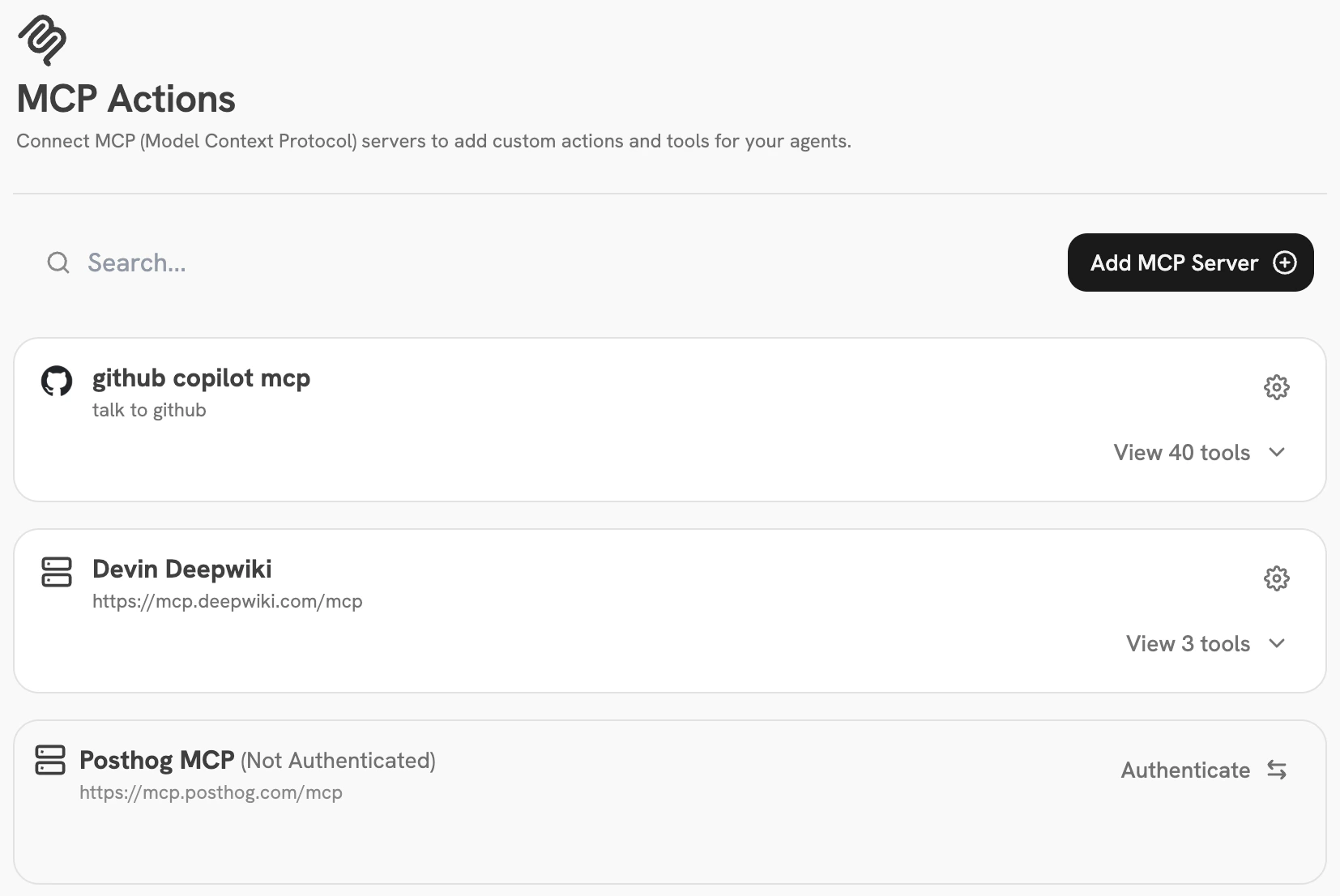 Click the **Add MCP Server** button and fill out the following fields:
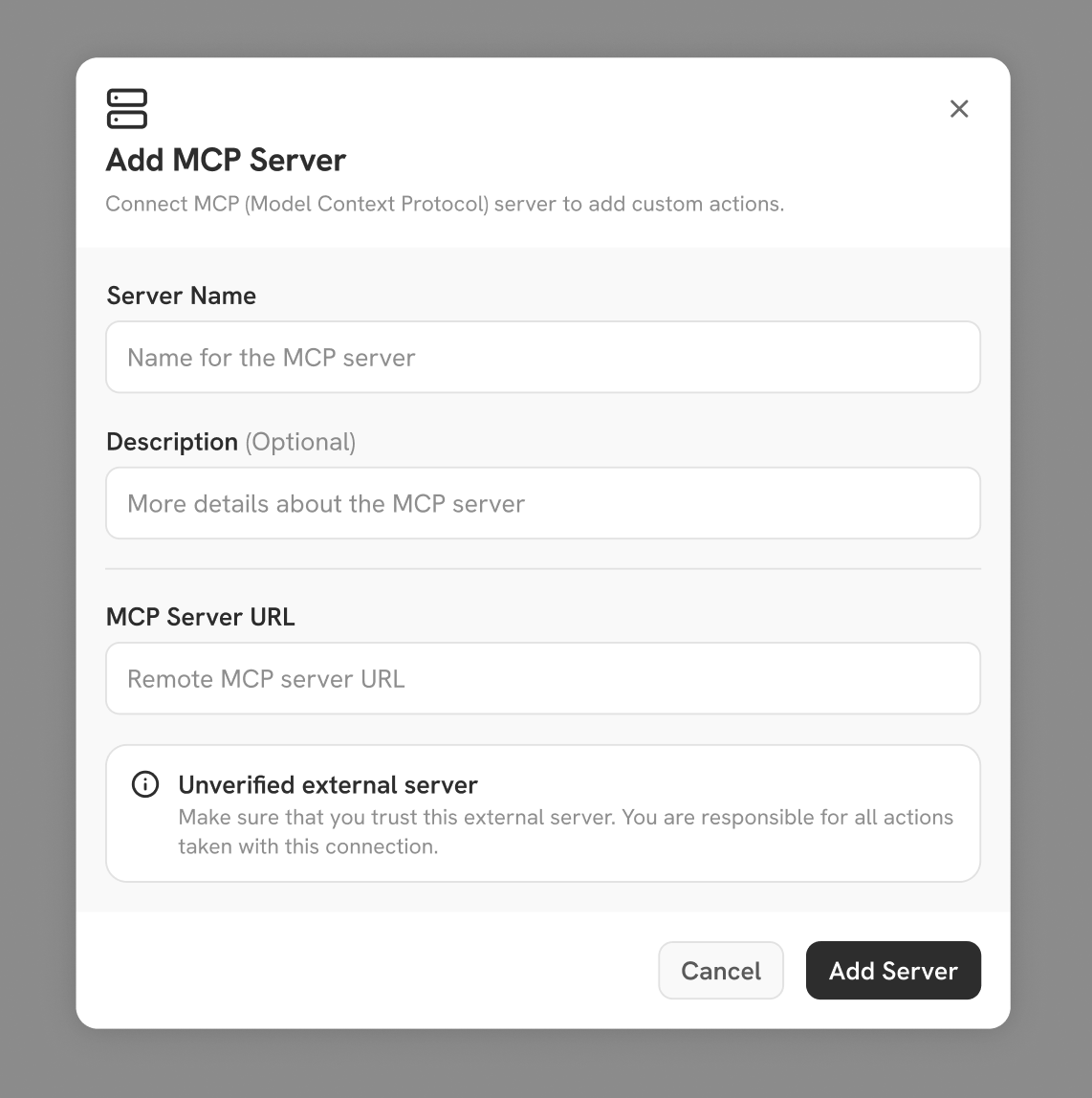 * **Server Name** — A human-readable name for this MCP server.
Typically the name of the service you're connecting to (e.g. "Slack", "Jira").
* **Description** — Any additional information that helps identify the server.
Useful for distinguishing multiple configured MCP server connections that talk to the same service.
* **MCP Server URL** — The URL of the MCP server, which must be reachable from your Onyx instance. Most URLs end in `/mcp`, or `/sse` for older servers.
* **Managed MCP server:** The URL is typically found in the provider's documentation describing how to connect.
* **Self-hosted MCP server:** You'll need to run your server in HTTP transport mode — Onyx doesn't currently support connecting via stdio. If the server is running on the same machine as Onyx, use `http://127.0.0.1:`. Otherwise, use the URL and port the server is exposed at.
When you click **Add Server**, Onyx will create the server in a **disconnected** state.
The next steps will set up authentication (if any) and validate that Onyx can connect to it.
* **Server Name** — A human-readable name for this MCP server.
Typically the name of the service you're connecting to (e.g. "Slack", "Jira").
* **Description** — Any additional information that helps identify the server.
Useful for distinguishing multiple configured MCP server connections that talk to the same service.
* **MCP Server URL** — The URL of the MCP server, which must be reachable from your Onyx instance. Most URLs end in `/mcp`, or `/sse` for older servers.
* **Managed MCP server:** The URL is typically found in the provider's documentation describing how to connect.
* **Self-hosted MCP server:** You'll need to run your server in HTTP transport mode — Onyx doesn't currently support connecting via stdio. If the server is running on the same machine as Onyx, use `http://127.0.0.1:`. Otherwise, use the URL and port the server is exposed at.
When you click **Add Server**, Onyx will create the server in a **disconnected** state.
The next steps will set up authentication (if any) and validate that Onyx can connect to it.
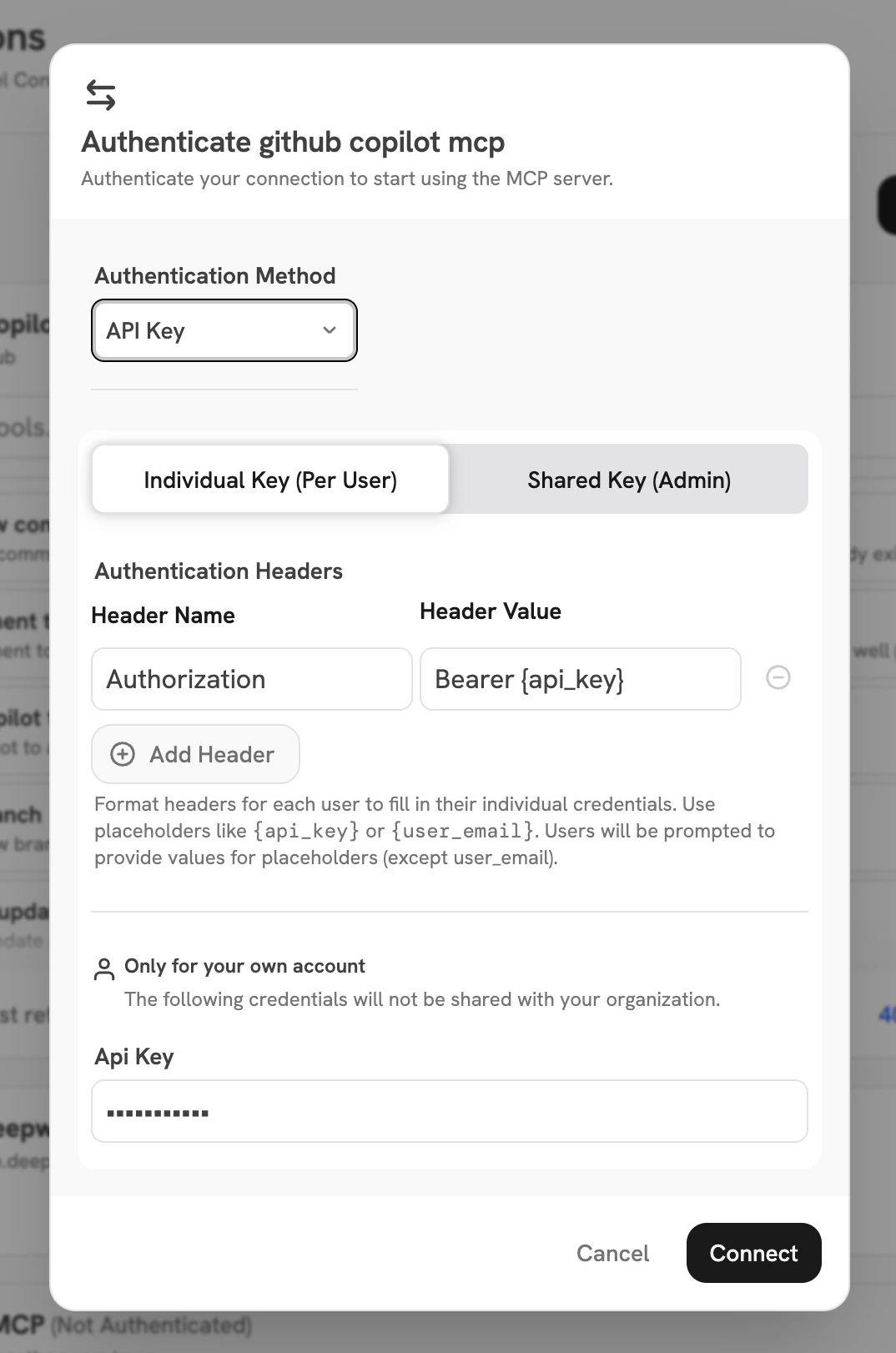 Onyx supports four authentication types when connecting to an MCP server:
### No Auth
Use this when your MCP server is unprotected.
Typically only used for testing when connecting to a local MCP server on a local Onyx instance,
but may be useful if the server is deployed inside a VPC and you want all users to have the same unrestricted access
to it.
### API Key
The server is protected by API key authentication, typically using the `Authorization: Bearer ` format.
There are two sub-modes:
* **Shared Key** — The admin configures a single API key used for all user requests.
Similar to No Auth in that users won't need any additional configuration and will all get the same level of access
(whatever is provided by the API key you choose).
* **Individual Key** — Users authenticate in the chat flow by providing their own API key(s)
to connect to the server. Useful when you want users to have differing access to an external service by identity.
This mode is also the most configurable — Onyx allows the admin to specify arbitrary header patterns to send to the
MCP server.
### OAuth
Many modern MCP servers support OAuth authentication to give users access to tools and data using the same login
flow they use when manually accessing the service.
Most OAuth-enabled MCP servers also support DCR (Dynamic Client Registration). If yours doesn't,
you will need to create an OAuth App in the IdP (Identity Provider)
the MCP server uses and provide Onyx with the generated **Client ID** and **Client Secret**. When DCR is supported,
no further configuration is necessary — clicking **Connect** will send the admin through the OAuth flow to confirm
that the server connection works.
### Pass-Through OAuth
Only available when your Onyx instance is configured to authenticate via OAuth. In this mode,
Onyx passes the user's OAuth access token through as an `Authorization: Bearer` header to the MCP server.
This is most often useful if your organization hosts its own MCP servers and would rather not require users to
authenticate again after already going through the OAuth flow to log in to Onyx.
***
Clicking **Connect** will validate that Onyx can reach the MCP server using the provided authentication method.
The MCP Actions dashboard then lets the admin list the tools available from the MCP server and select which subset
of tools should be made available for use in Agents across the organization.
Onyx supports four authentication types when connecting to an MCP server:
### No Auth
Use this when your MCP server is unprotected.
Typically only used for testing when connecting to a local MCP server on a local Onyx instance,
but may be useful if the server is deployed inside a VPC and you want all users to have the same unrestricted access
to it.
### API Key
The server is protected by API key authentication, typically using the `Authorization: Bearer ` format.
There are two sub-modes:
* **Shared Key** — The admin configures a single API key used for all user requests.
Similar to No Auth in that users won't need any additional configuration and will all get the same level of access
(whatever is provided by the API key you choose).
* **Individual Key** — Users authenticate in the chat flow by providing their own API key(s)
to connect to the server. Useful when you want users to have differing access to an external service by identity.
This mode is also the most configurable — Onyx allows the admin to specify arbitrary header patterns to send to the
MCP server.
### OAuth
Many modern MCP servers support OAuth authentication to give users access to tools and data using the same login
flow they use when manually accessing the service.
Most OAuth-enabled MCP servers also support DCR (Dynamic Client Registration). If yours doesn't,
you will need to create an OAuth App in the IdP (Identity Provider)
the MCP server uses and provide Onyx with the generated **Client ID** and **Client Secret**. When DCR is supported,
no further configuration is necessary — clicking **Connect** will send the admin through the OAuth flow to confirm
that the server connection works.
### Pass-Through OAuth
Only available when your Onyx instance is configured to authenticate via OAuth. In this mode,
Onyx passes the user's OAuth access token through as an `Authorization: Bearer` header to the MCP server.
This is most often useful if your organization hosts its own MCP servers and would rather not require users to
authenticate again after already going through the OAuth flow to log in to Onyx.
***
Clicking **Connect** will validate that Onyx can reach the MCP server using the provided authentication method.
The MCP Actions dashboard then lets the admin list the tools available from the MCP server and select which subset
of tools should be made available for use in Agents across the organization.