> ## Documentation Index
> Fetch the complete documentation index at: https://docs.onyx.app/llms.txt
> Use this file to discover all available pages before exploring further.

# Voice Mode

> Set up voice providers to enable Voice Mode for your Onyx instance

The Voice Mode action allows your users to have spoken conversations with Onyx using speech-to-text and text-to-speech
providers.

## Setting up Voice Mode

<Steps>
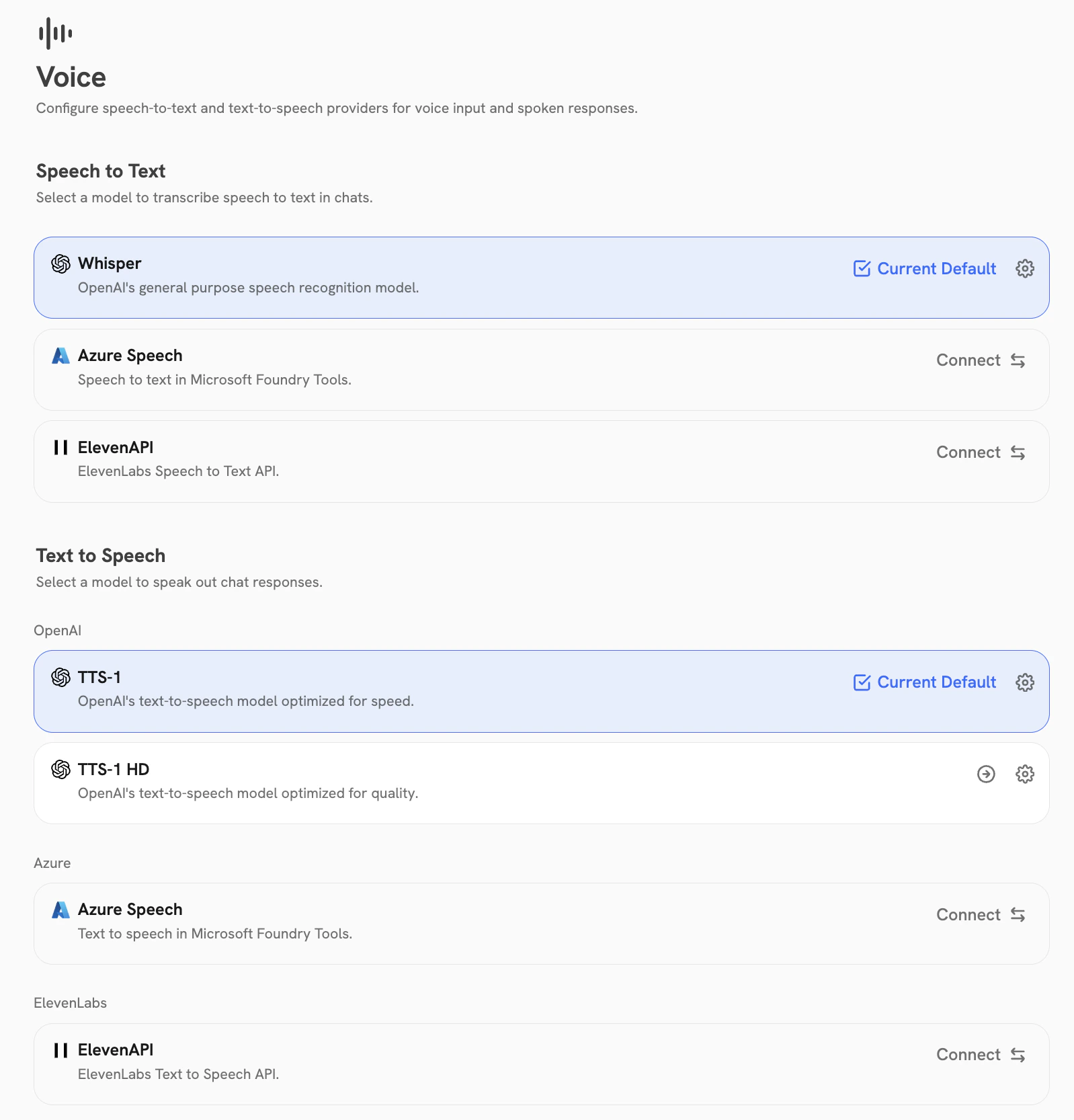
  <Step title="Navigate to the Voice Mode Dashboard">
    Click your user profile icon and select Admin Panel, then select the Voice Mode tab in the sidebar.

    <img className="rounded-image" src="https://mintcdn.com/danswer/0FJKtadZ_JMhoiX0/assets/admins/actions/voice-mode/voice_mode_dashboard.png?fit=max&auto=format&n=0FJKtadZ_JMhoiX0&q=85&s=dc3f0b470f463347cd19d4f29c6777c4" alt="Voice Mode dashboard in Onyx Admin Panel" width="1598" height="1666" data-path="assets/admins/actions/voice-mode/voice_mode_dashboard.png" />
  </Step>

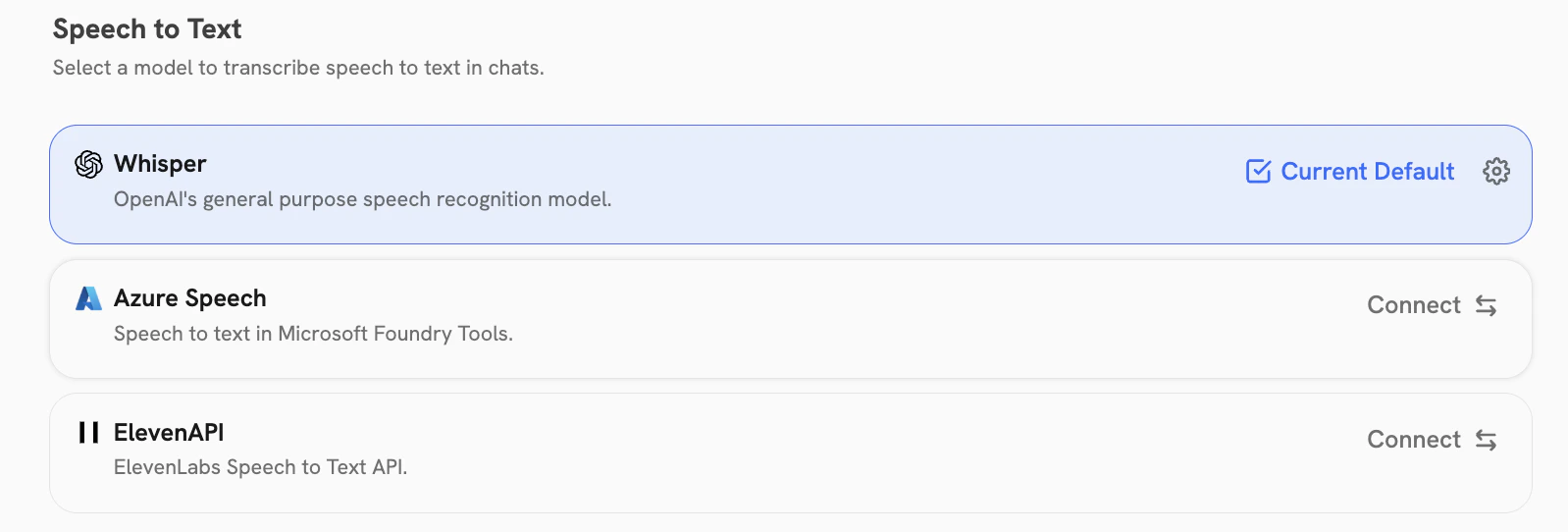
  <Step title="Set up Speech-to-Text (STT) provider">
    Configure a provider to transcribe user speech into text.

    <img className="rounded-image" src="https://mintcdn.com/danswer/0FJKtadZ_JMhoiX0/assets/admins/actions/voice-mode/stt.png?fit=max&auto=format&n=0FJKtadZ_JMhoiX0&q=85&s=a59795f38d618f37cdd12ba35e35810e" alt="Speech-to-Text Providers" width="1598" height="542" data-path="assets/admins/actions/voice-mode/stt.png" />

    <Tabs tabs={["OpenAI Whisper", "Azure STT", "ElevenLabs"]}>
      <Tab title="OpenAI Whisper">
        <div style={{ marginTop: '-2rem' }}>
          <Steps>
            <Step title="Get an OpenAI API key">
              Navigate to the [OpenAI dashboard](https://platform.openai.com/api-keys) and create a new API key,
              or reuse an existing OpenAI API key already configured for your LLM provider.
            </Step>

            <Step title="Enter the API key">
              Click **Connect** and enter the API key.
            </Step>
          </Steps>
        </div>
      </Tab>

      <Tab title="Azure STT">
        <div style={{ marginTop: '-2rem' }}>
          <Steps>
            <Step title="Get Azure Speech credentials">
              Navigate to the [Azure Portal](https://portal.azure.com) and create a Speech resource.
              Copy the API key and region.
            </Step>

            <Step title="Enter the credentials">
              Click **Connect** and enter the API key, region, and target URI.
            </Step>
          </Steps>
        </div>
      </Tab>

      <Tab title="ElevenLabs">
        <div style={{ marginTop: '-2rem' }}>
          <Steps>
            <Step title="Get an ElevenLabs API key">
              Navigate to the [ElevenLabs dashboard](https://elevenlabs.io/app/settings/api-keys)
              and create a new API key.
            </Step>

            <Step title="Enter the API key">
              Click **Connect** and enter the API key.
            </Step>
          </Steps>
        </div>
      </Tab>
    </Tabs>
  </Step>

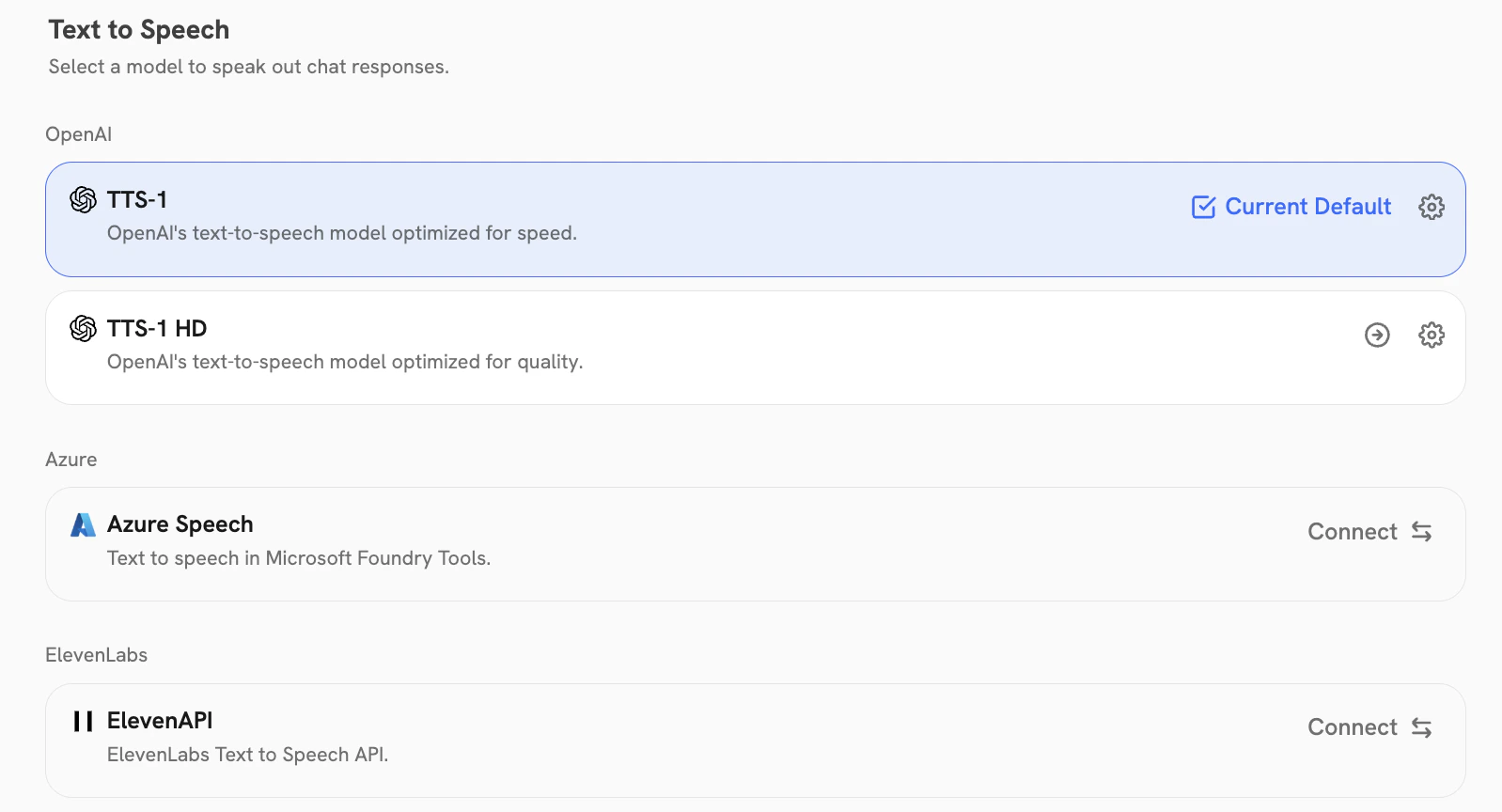
  <Step title="Set up Text-to-Speech (TTS) provider">
    Configure a provider to convert AI responses into spoken audio.

    <img className="rounded-image" src="https://mintcdn.com/danswer/0FJKtadZ_JMhoiX0/assets/admins/actions/voice-mode/tts.png?fit=max&auto=format&n=0FJKtadZ_JMhoiX0&q=85&s=3a3bfa90b6007e4db007e1e51e02ef7a" alt="Text-to-Speech Providers" width="1598" height="864" data-path="assets/admins/actions/voice-mode/tts.png" />

    <Tabs tabs={["OpenAI TTS-1", "OpenAI TTS-1 HD", "Azure TTS", "ElevenLabs"]}>
      <Tab title="OpenAI TTS-1">
        <div style={{ marginTop: '-2rem' }}>
          <Steps>
            <Step title="Get an OpenAI API key">
              Navigate to the [OpenAI dashboard](https://platform.openai.com/api-keys)
              and create a new API key (or reuse the one from Whisper).
            </Step>

            <Step title="Enter the API key">
              Click **Connect** and enter the API key.
            </Step>
          </Steps>
        </div>
      </Tab>

      <Tab title="OpenAI TTS-1 HD">
        <div style={{ marginTop: '-2rem' }}>
          <Steps>
            <Step title="Get an OpenAI API key">
              Navigate to the [OpenAI dashboard](https://platform.openai.com/api-keys)
              and create a new API key (or reuse the one from Whisper).
            </Step>

            <Step title="Enter the API key">
              Click **Connect** and enter the API key.
            </Step>
          </Steps>

          <Note>
            TTS-1 HD provides higher quality audio than TTS-1 but may have slightly higher latency and cost.
          </Note>
        </div>
      </Tab>

      <Tab title="Azure TTS">
        <div style={{ marginTop: '-2rem' }}>
          <Steps>
            <Step title="Get Azure Speech credentials">
              Navigate to the [Azure Portal](https://portal.azure.com) and create a Speech resource.
              Copy the API key and region.
            </Step>

            <Step title="Enter the credentials">
              Click **Connect** and enter the API key, region, and target URI.
            </Step>
          </Steps>
        </div>
      </Tab>

      <Tab title="ElevenLabs">
        <div style={{ marginTop: '-2rem' }}>
          <Steps>
            <Step title="Get an ElevenLabs API key">
              Navigate to the [ElevenLabs dashboard](https://elevenlabs.io/app/settings/api-keys)
              and create a new API key.
            </Step>

            <Step title="Enter the API key">
              Click **Connect** and enter the API key.
            </Step>
          </Steps>
        </div>
      </Tab>
    </Tabs>

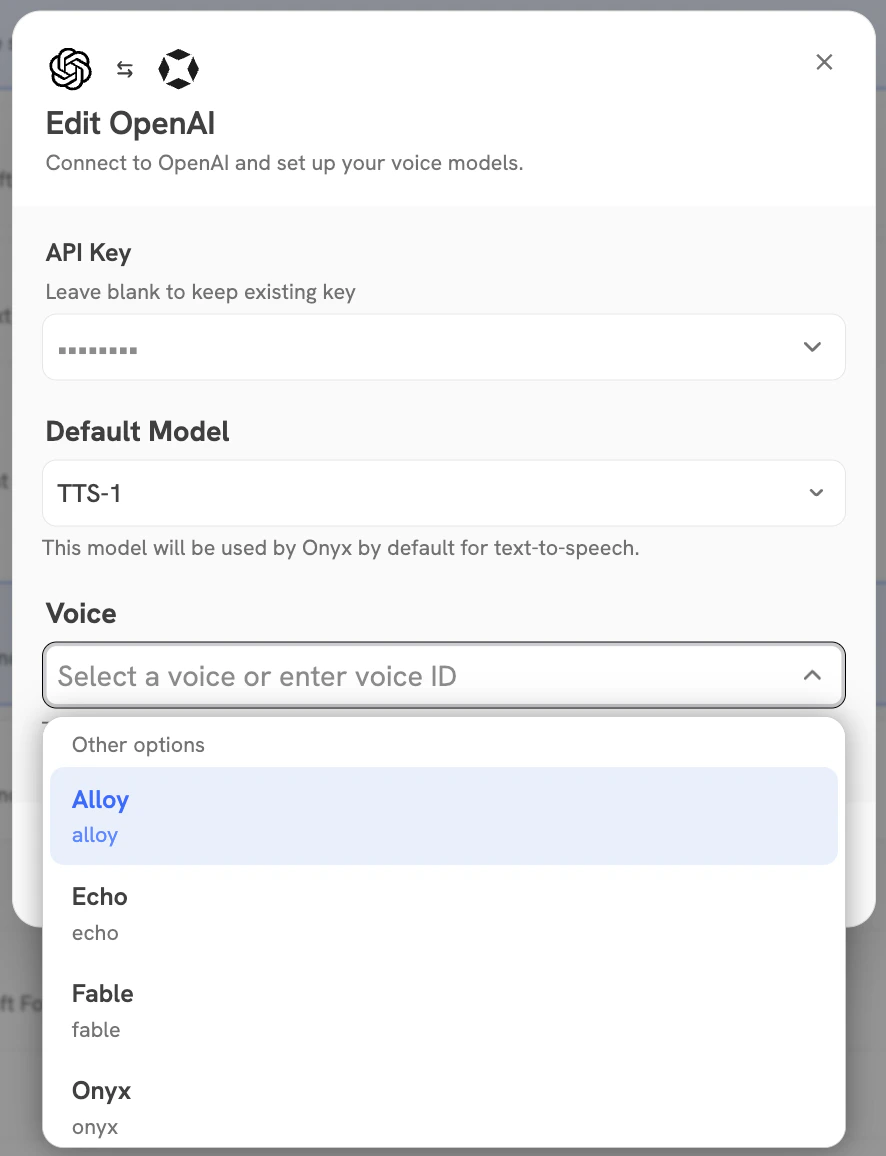
    Once your TTS provider is configured, select a voice from the dropdown or input a voice ID directly.
    <img className="rounded-image" src="https://mintcdn.com/danswer/0FJKtadZ_JMhoiX0/assets/admins/actions/voice-mode/voice_selection.png?fit=max&auto=format&n=0FJKtadZ_JMhoiX0&q=85&s=6bcddfa76c34af2f16f9e1b30d8145f9" alt="Voice Selection" width="886" height="1156" data-path="assets/admins/actions/voice-mode/voice_selection.png" />
  </Step>

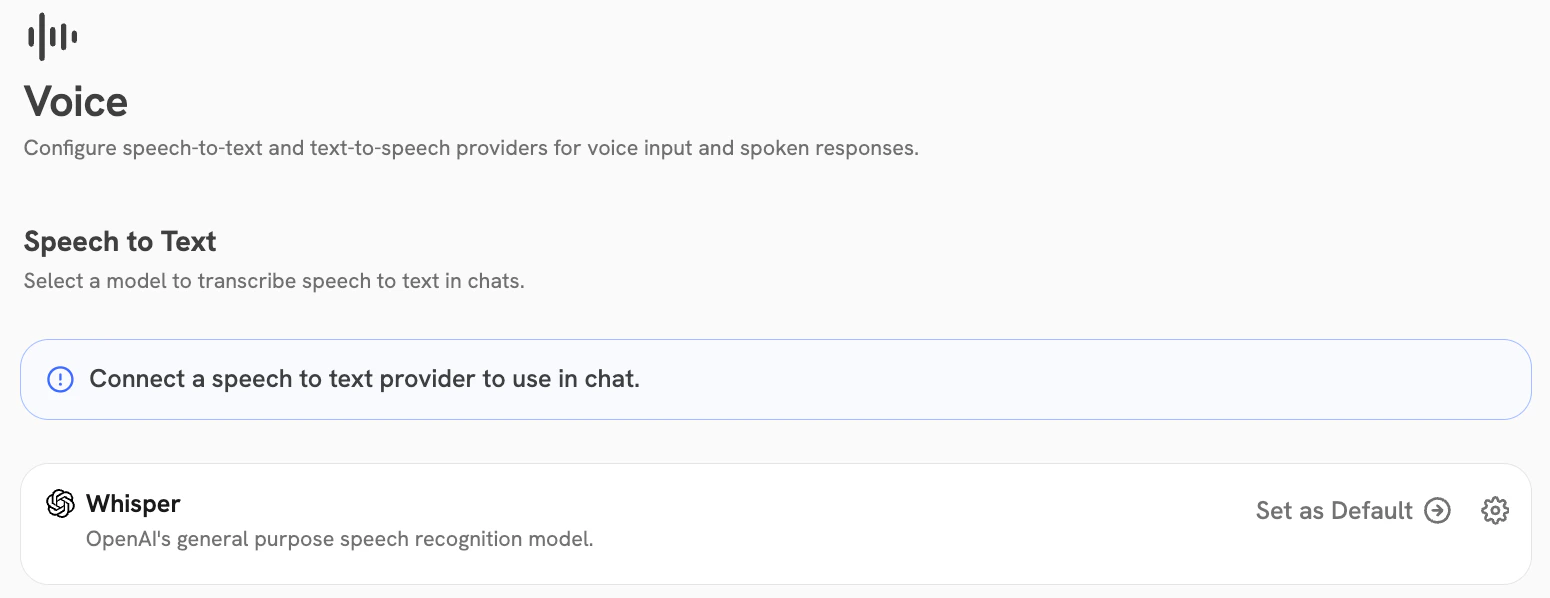
  <Step title="Set Default Provider">
    If you have multiple providers configured,
    make sure to **Set as Default** for both your preferred STT and TTS provider.

    <img className="rounded-image" src="https://mintcdn.com/danswer/0FJKtadZ_JMhoiX0/assets/admins/actions/voice-mode/set_default.png?fit=max&auto=format&n=0FJKtadZ_JMhoiX0&q=85&s=1a855aa245e8f2ea13fe74b7b24063d7" alt="Set Default Provider" width="1550" height="598" data-path="assets/admins/actions/voice-mode/set_default.png" />
  </Step>
</Steps>

<Note>
  Make sure your users have microphone access enabled in their browser to use Voice Mode.
</Note>