> ## Documentation Index
> Fetch the complete documentation index at: https://docs.onyx.app/llms.txt
> Use this file to discover all available pages before exploring further.
# Hook Extensions
> Inject custom logic into Onyx's pipeline at defined stages without modifying source code
Hook Extensions are an [Enterprise Edition](/deployment/miscellaneous/enterprise_edition)
feature and are only available on **single-tenant** deployments.
## Overview
Hook Extensions let you inject custom logic into Onyx's pipeline at defined stages — without modifying Onyx source code.
You provide an HTTP endpoint; Onyx calls it at the right moment, sends a JSON payload,
and uses your response to influence what happens next.
## Concepts
### Hook Points
A hook point is a defined stage in Onyx's pipeline where custom logic can be injected. Each hook point specifies:
* **When** it fires in the pipeline
* **What** payload it sends to your endpoint
* **What** response it expects back
* A default timeout and fail strategy
Hook points are intentional — once a hook point is added, Onyx commits to maintaining its payload structure,
response format, and behavior — meaning it won't change in a breaking way without a proper deprecation process.
Because of this long-term commitment, each proposal is evaluated carefully before being added.
### Hooks
A hook connects a hook point to your HTTPS endpoint. When the hook point is triggered,
Onyx POSTs a request to your endpoint and uses your response to continue, modify, or abort the pipeline.
Only one hook per hook point is allowed at a time.
## How It Works
The pipeline triggers at a defined stage.
If an active hook is configured for that point, Onyx sends a JSON payload to your endpoint URL.
Your endpoint processes the payload and returns a JSON response.
Onyx uses your response to continue, modify, or abort the pipeline.
If your endpoint is unreachable, times out, or returns an invalid response,
Onyx follows the **fail strategy** you configured.
## Adding a Hook
Go to the **Admin Panel** and select **Hook Extensions**.
Find the hook point you want to use and click **Connect**.
Complete the form:
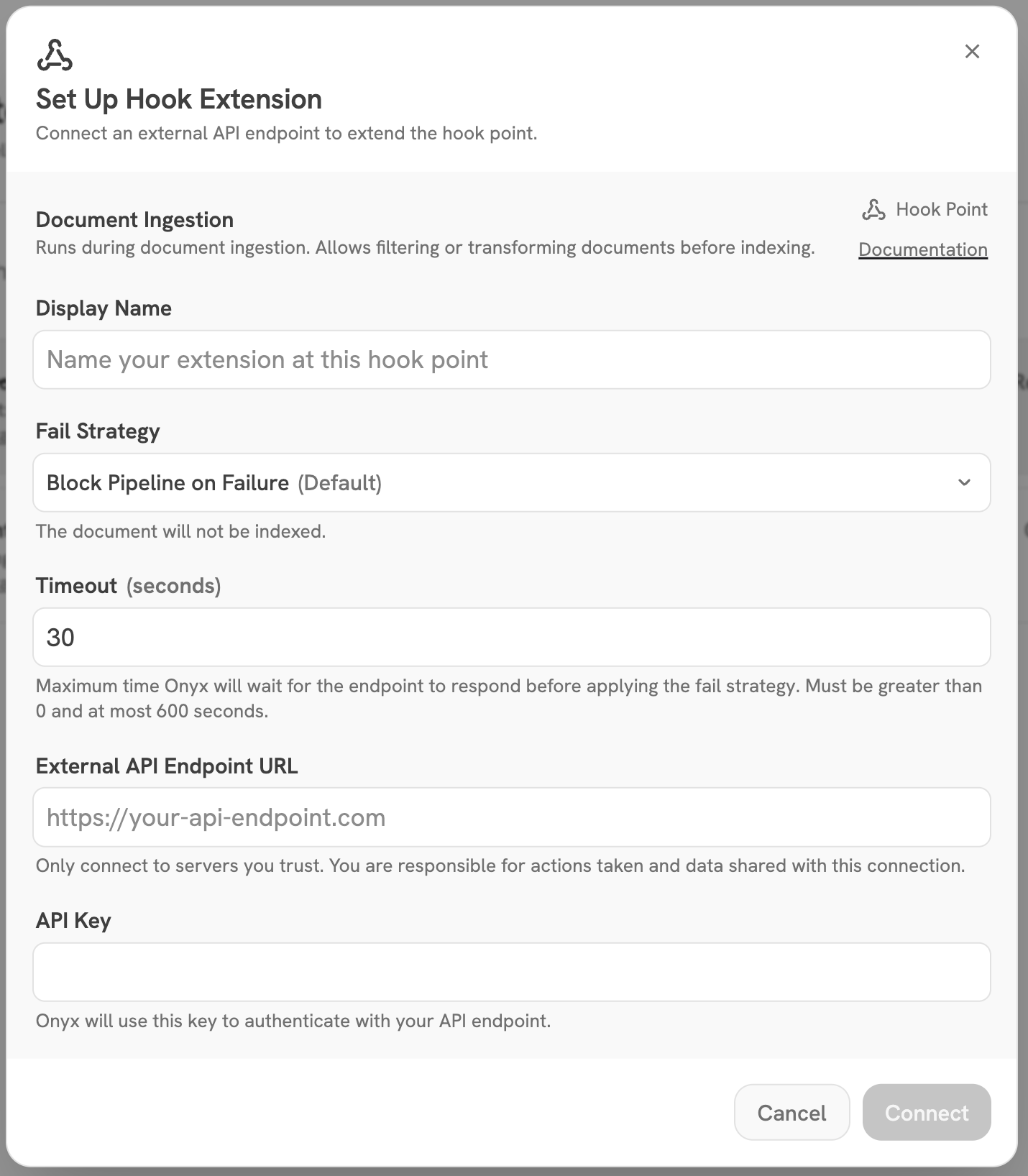 | Field | Required | Description |
| ------------- | -------- | ------------------------------------------------------------------------------------------------------------- |
| Display Name | Yes | A human-readable label for this hook |
| Fail Strategy | No | **Hard** — abort the pipeline. **Soft** — log and continue. Defaults to the hook point's recommended strategy |
| Timeout | No | Seconds to wait for your endpoint to respond (1–600). Defaults to the hook point's recommended timeout |
| Endpoint URL | Yes | The HTTPS URL Onyx will POST to when the hook point is triggered. Must use HTTPS. |
| API Key | No | If provided, Onyx sends this as `Authorization: Bearer ` on every request |
Click **Connect**. Onyx validates your endpoint with a test request before saving. On success,
the hook appears in the connected list.
## Managing a Hook
Once connected, you can:
* **Activate / Deactivate** — toggle whether the hook runs
* **Edit** — update the name, endpoint URL, API key, timeout, or fail strategy
* **Delete** — remove the hook entirely
* **View Logs** — inspect recent execution failures for debugging
## Hook Health
Onyx monitors your endpoint after the hook is registered and connected, displays its current health status.
| Status | Meaning |
| ----------------------------------------------------------------------------------------------------------------------------------------------------------------------------------------------------------------------------------------------------------------------------------------------------------------------------------------------------------------------------------------------------------------------------------------------------------------------------------------------------------------------------------------------------------------------------------------------------------------------------------------------------------------------------------------------------------------------------------------------------------------------------------------------------------------------------------------------------------------------------------------------------------------------------------------------------------------------------------------------------------------------------------------------------------------------------------------------------------------------------------------------------------------------------------------------------------------------------------------------------------------------------------------------------------------------------------------------------------------------------------------------------------------------------- | ------------------------------------------------- |
|
| Field | Required | Description |
| ------------- | -------- | ------------------------------------------------------------------------------------------------------------- |
| Display Name | Yes | A human-readable label for this hook |
| Fail Strategy | No | **Hard** — abort the pipeline. **Soft** — log and continue. Defaults to the hook point's recommended strategy |
| Timeout | No | Seconds to wait for your endpoint to respond (1–600). Defaults to the hook point's recommended timeout |
| Endpoint URL | Yes | The HTTPS URL Onyx will POST to when the hook point is triggered. Must use HTTPS. |
| API Key | No | If provided, Onyx sends this as `Authorization: Bearer ` on every request |
Click **Connect**. Onyx validates your endpoint with a test request before saving. On success,
the hook appears in the connected list.
## Managing a Hook
Once connected, you can:
* **Activate / Deactivate** — toggle whether the hook runs
* **Edit** — update the name, endpoint URL, API key, timeout, or fail strategy
* **Delete** — remove the hook entirely
* **View Logs** — inspect recent execution failures for debugging
## Hook Health
Onyx monitors your endpoint after the hook is registered and connected, displays its current health status.
| Status | Meaning |
| ----------------------------------------------------------------------------------------------------------------------------------------------------------------------------------------------------------------------------------------------------------------------------------------------------------------------------------------------------------------------------------------------------------------------------------------------------------------------------------------------------------------------------------------------------------------------------------------------------------------------------------------------------------------------------------------------------------------------------------------------------------------------------------------------------------------------------------------------------------------------------------------------------------------------------------------------------------------------------------------------------------------------------------------------------------------------------------------------------------------------------------------------------------------------------------------------------------------------------------------------------------------------------------------------------------------------------------------------------------------------------------------------------------------------------- | ------------------------------------------------- |
|  Connected | Reachable, no failures in the last hour |
|
Connected | Reachable, no failures in the last hour |
|  Degraded | Reachable, but failures occurred in the last hour |
|
Degraded | Reachable, but failures occurred in the last hour |
|  Connection Lost | Onyx cannot reach your endpoint |

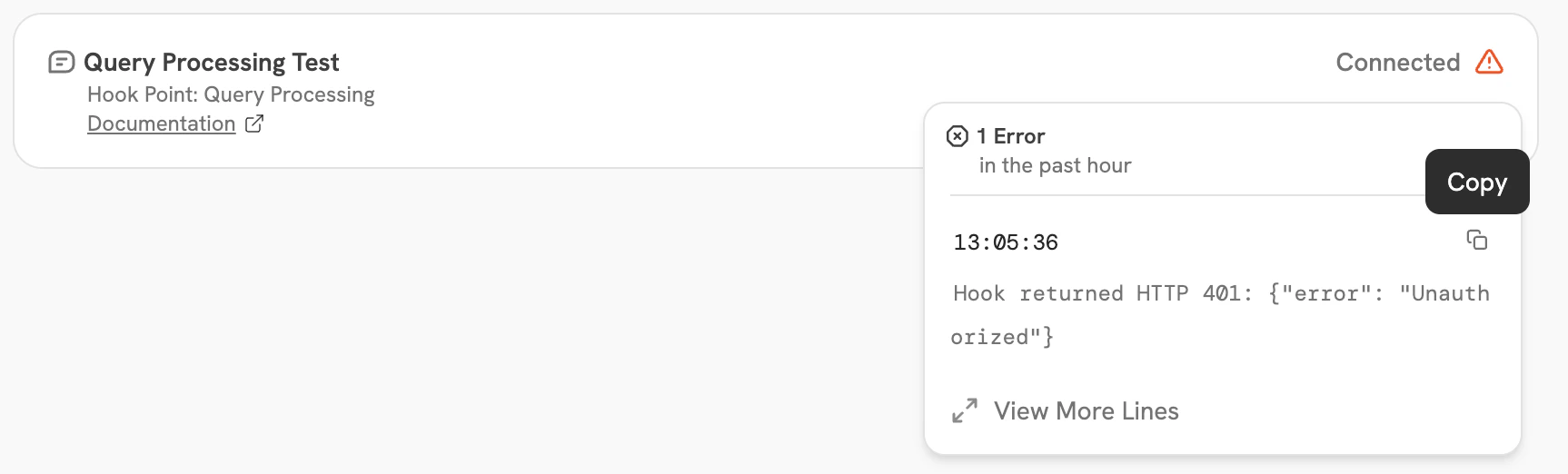
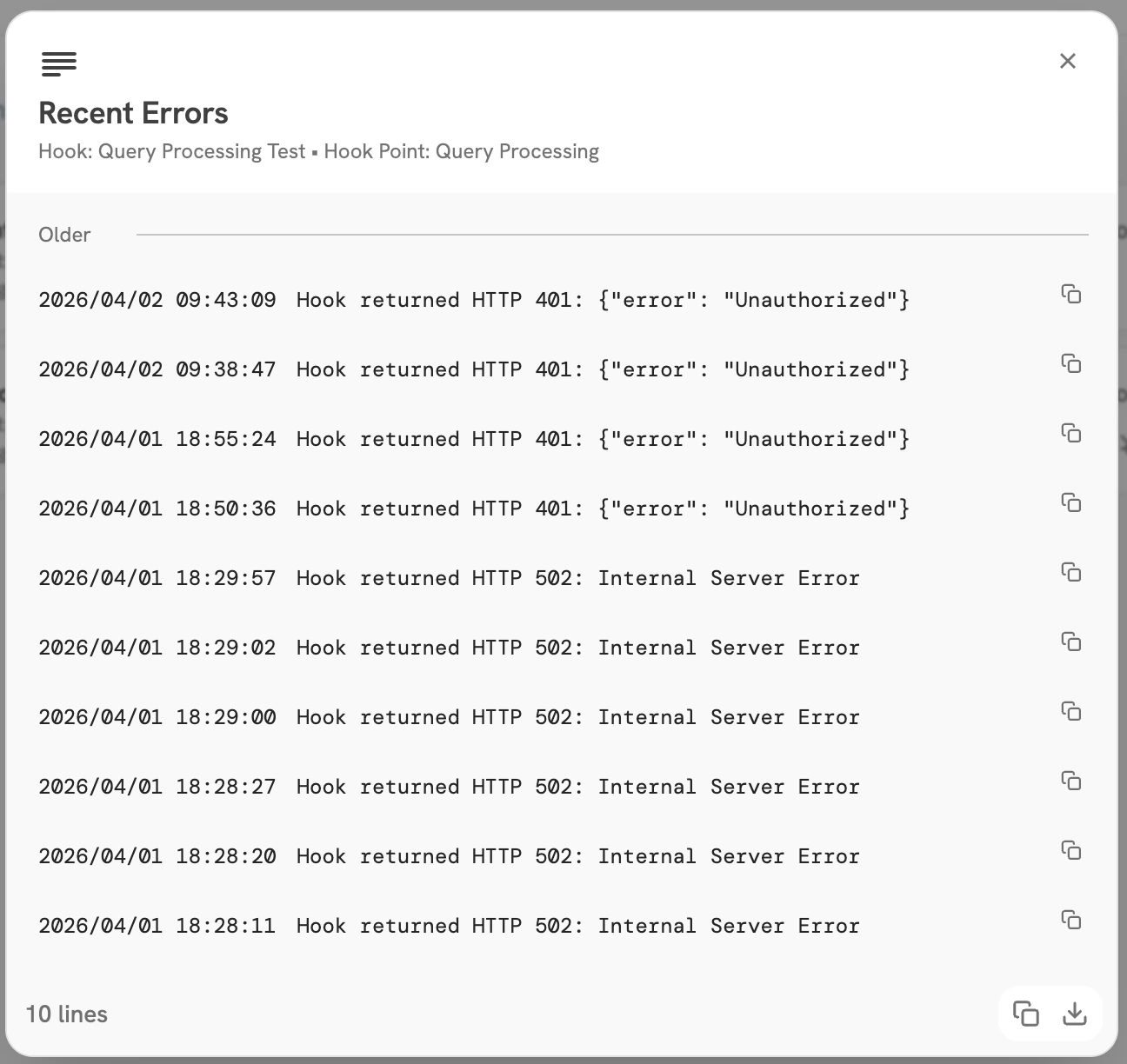
 The 10 most recent failures from the past 30 days are also shown to help with debugging.
 ***
## Document Ingestion
The Document Ingestion hook point lets you intercept every document before it enters the Onyx indexing pipeline.
Your endpoint receives the fully-formed document and can filter it out, rewrite its content,
or pass it through unchanged.
It runs immediately after Onyx's internal validation and before the indexing pipeline begins — no partial writes have
occurred yet.
| Setting | Value |
| --------------------- | -------------------------------- |
| Default Timeout | 30 seconds (configurable) |
| Default Fail Strategy | Hard (configurable) |
| On Hard Fail | The document will not be indexed |
### Input Schema
Onyx sends a `POST` request to your endpoint once per document with the following JSON body:
```json theme={null}
{
"document_id": "string",
"title": "string | null",
"semantic_identifier": "string",
"source": "string",
"sections": [
{
"text": "string | null",
"link": "string | null",
"image_file_id": "string | null"
}
],
"metadata": { "key": ["string"] },
"doc_updated_at": "string | null",
"primary_owners": [
{ "display_name": "string | null", "email": "string | null" }
],
"secondary_owners": [
{ "display_name": "string | null", "email": "string | null" }
]
}
```
All input fields are provided for context only.
Your endpoint can only influence the pipeline through the output schema — specifically the `sections` field.
| Field | Type | Required | Description |
| --------------------------------- | ----------------- | -------- | ---------------------------------------------------------------------------------------------------------------------------------------------------------------------------------------------- |
| `document_id` | string | Yes | Unique identifier for the document. |
| `title` | string \| null | Yes | Title of the document. |
| `semantic_identifier` | string | Yes | Human-readable identifier used for display (e.g. file name, page title). |
| `source` | string | Yes | Connector source type. For the full list of possible values, see [`DocumentSource`](https://github.com/onyx-dot-app/onyx/blob/main/backend/onyx/configs/constants.py) in the Onyx source code. |
| `sections` | object\[] | Yes | All sections of the document — both text sections and image sections. |
| `sections[].text` | string \| null | Yes | Text content. Set for text sections, `null` for image sections. |
| `sections[].link` | string \| null | No | Optional URL associated with this section. |
| `sections[].image_file_id` | string \| null | No | Opaque image identifier. Set for image sections, `null` for text sections. Image content is not included — hooks can reorder or drop image sections but cannot read or modify the image. |
| `metadata` | object | Yes | Key-value metadata. Values are always `string[]`. Connector-specific — see below. |
| `doc_updated_at` | string \| null | Yes | Timestamp of the last update at the source in the format `YYYY-MM-DDTHH:MM:SS.ffffff+00:00`, or `null` if unknown. |
| `primary_owners` | object\[] \| null | Yes | Primary owners of the document, or `null` if not available. |
| `primary_owners[].display_name` | string \| null | No | Human-readable name of the owner. |
| `primary_owners[].email` | string \| null | No | Email address of the owner. |
| `secondary_owners` | object\[] \| null | Yes | Secondary owners of the document, or `null` if not available. |
| `secondary_owners[].display_name` | string \| null | No | Human-readable name of the owner. |
| `secondary_owners[].email` | string \| null | No | Email address of the owner. |
#### Metadata Keys by Connector
The keys present in `metadata` depend on the connector source. Below are a few examples:
| Connector | Keys |
| ---------- | --------------------------------------------------------------------------------------------------------------------------------------------------------------------------------------------------------------------- |
| Confluence | `space`, `labels` |
| Jira | `key`, `project`, `project_name`, `issuetype`, `status`, `priority`, `assignee`, `assignee_email`, `reporter`, `reporter_email`, `labels`, `created`, `updated`, `duedate`, `resolution`, `resolution_date`, `parent` |
| File | Arbitrary user-defined tags. You can embed custom key-value pairs directly in the file using an `ONYX_METADATA` block — see the [File connector docs](/admins/connectors/official/file) for details. |
**Example**
```json theme={null}
{
"document_id": "FILE_CONNECTOR__0376357d-6431-4082-b71a-9f83688f1f16",
"title": "Q4 2024 Refund Policy",
"semantic_identifier": "Q4 2024 Refund Policy",
"source": "confluence",
"sections": [
{
"text": "Our refund policy allows returns within 30 days...",
"link": "https://wiki.example.com/pages/123456",
"image_file_id": null
},
{
"text": null,
"link": null,
"image_file_id": "846d6333-1a2b-4c5d-8e9f-0a1b2c3d4e5f"
}
],
"metadata": {
"space": ["HR"],
"labels": ["policy", "finance"]
},
"doc_updated_at": "2024-10-01T12:00:00.000000+00:00",
"primary_owners": [
{ "display_name": "Alice Smith", "email": "alice@example.com" }
],
"secondary_owners": null
}
```
### Output Schema
A successful response from your endpoint must return HTTP `200` and a JSON body:
| Field | Type | Required | Description |
| ------------------ | ----------------- | -------- | ------------------------------------------------------------------------------------------------------------------------------------------------ |
| `sections` | object\[] \| null | Yes | The sections to index, using the same schema as the input `sections`. The hook controls final ordering. `null` or empty list drops the document. |
| `rejection_reason` | string \| null | No | Logged when `sections` is `null` or empty. Falls back to a generic message if omitted. |
```json theme={null}
{
"sections": [
{
"text": "Our refund policy allows returns within 30 days...",
"link": "https://wiki.example.com/pages/123456",
"image_file_id": null
},
{
"text": null,
"link": null,
"image_file_id": "a1b2c3d4-e5f6-7890-abcd-ef1234567890"
}
],
"rejection_reason": null
}
```
```json theme={null}
{
"sections": [
{ "text": "Our refund policy allows returns within 30 days. Contact [REDACTED] for details." }
],
"rejection_reason": null
}
```
```json theme={null}
{
"sections": null,
"rejection_reason": "Document contains restricted classification label."
}
```
### Authentication
If you configured an API key when registering the hook, Onyx includes it in every request:
```
Authorization: Bearer
```
### Lambda Example
You can use an [AWS Lambda function](https://docs.aws.amazon.com/lambda/latest/dg/getting-started.html)
as your hook endpoint by exposing it over HTTPS via a [Lambda Function
URL](https://docs.aws.amazon.com/lambda/latest/dg/lambda-urls.html).
This is the simplest way to deploy a hook without managing a server.
When Onyx calls your endpoint, the request arrives as an API Gateway-style event.
Your handler reads the JSON body from `event["body"]`, processes the document,
and returns a response with a `statusCode` and a JSON-encoded `body`.
If you configured an API key on the hook, validate it against the `Authorization` header in the event before processing.
```python theme={null}
import json
import logging
import os
logger = logging.getLogger()
logger.setLevel(logging.INFO)
# Set the HOOK_API_KEY environment variable in your Lambda configuration.
# If not set, API key validation is skipped.
API_KEY = os.environ.get("HOOK_API_KEY")
def lambda_handler(event, context):
# Validate API key if configured
if API_KEY:
auth = (event.get("headers") or {}).get("authorization", "")
if auth != f"Bearer {API_KEY}":
logger.warning("Unauthorized request — invalid or missing API key")
return {"statusCode": 401, "body": json.dumps({"error": "Unauthorized"})}
body = json.loads(event.get("body", "{}"))
source = body.get("source", "")
document_id = body.get("document_id", "")
sections = body.get("sections", [])
logger.info("Received document: id=%s source=%s sections=%d", document_id, source, len(sections))
# Reject documents from the file connector
if source == "file":
logger.info("Rejecting document %s — file connector documents are not allowed", document_id)
return {
"statusCode": 200,
"body": json.dumps({
"sections": None,
"rejection_reason": "File connector documents are not allowed.",
}),
}
logger.info("Passing through document %s", document_id)
return {
"statusCode": 200,
"body": json.dumps({"sections": sections}),
}
```
### Testing
Use `curl` to test your Lambda Function URL before connecting it to Onyx.
**Pass-through (non-file source):**
```bash theme={null}
curl -X POST https:// \
-H "Content-Type: application/json" \
-H "Authorization: Bearer " \
-d '{
"document_id": "confluence::page::123456",
"title": "Q4 Refund Policy",
"semantic_identifier": "Q4 Refund Policy",
"source": "confluence",
"sections": [{"text": "Our refund policy allows returns within 30 days.", "link": null, "image_file_id": null}],
"metadata": {},
"doc_updated_at": null,
"primary_owners": null,
"secondary_owners": null
}'
```
**Rejected (file source):**
```bash theme={null}
curl -X POST https:// \
-H "Content-Type: application/json" \
-H "Authorization: Bearer " \
-d '{
"document_id": "FILE_CONNECTOR__abc123",
"title": "Internal Doc",
"semantic_identifier": "Internal Doc",
"source": "file",
"sections": [{"text": "Some content.", "link": null, "image_file_id": null}],
"metadata": {},
"doc_updated_at": null,
"primary_owners": null,
"secondary_owners": null
}'
```
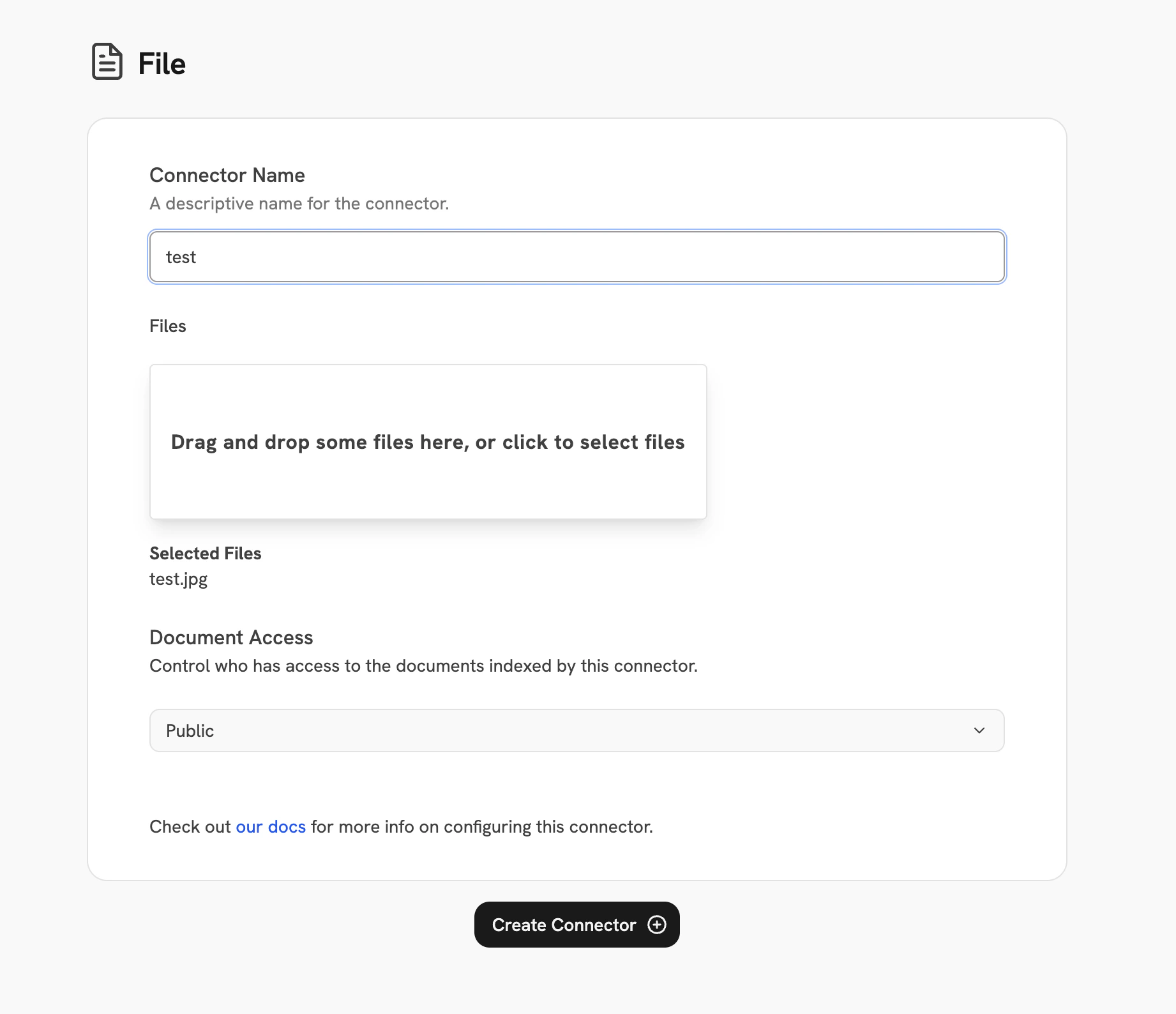
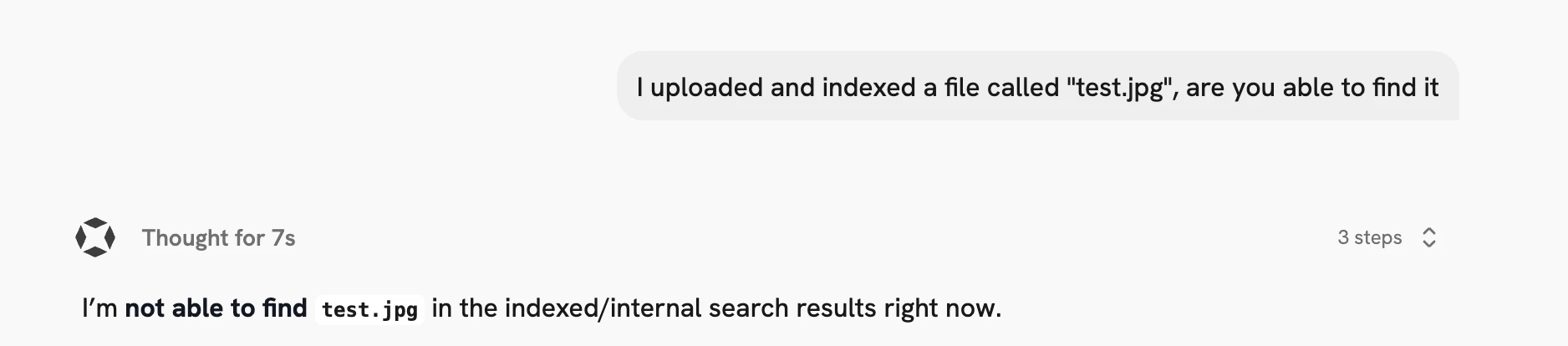
Once the hook is connected, you can validate end-to-end by adding a File connector and uploading a document.
After the connector syncs, search for content from that document in the chat window — if the hook is working correctly,
the material should not appear in results since file connector documents are being rejected.
***
## Document Ingestion
The Document Ingestion hook point lets you intercept every document before it enters the Onyx indexing pipeline.
Your endpoint receives the fully-formed document and can filter it out, rewrite its content,
or pass it through unchanged.
It runs immediately after Onyx's internal validation and before the indexing pipeline begins — no partial writes have
occurred yet.
| Setting | Value |
| --------------------- | -------------------------------- |
| Default Timeout | 30 seconds (configurable) |
| Default Fail Strategy | Hard (configurable) |
| On Hard Fail | The document will not be indexed |
### Input Schema
Onyx sends a `POST` request to your endpoint once per document with the following JSON body:
```json theme={null}
{
"document_id": "string",
"title": "string | null",
"semantic_identifier": "string",
"source": "string",
"sections": [
{
"text": "string | null",
"link": "string | null",
"image_file_id": "string | null"
}
],
"metadata": { "key": ["string"] },
"doc_updated_at": "string | null",
"primary_owners": [
{ "display_name": "string | null", "email": "string | null" }
],
"secondary_owners": [
{ "display_name": "string | null", "email": "string | null" }
]
}
```
All input fields are provided for context only.
Your endpoint can only influence the pipeline through the output schema — specifically the `sections` field.
| Field | Type | Required | Description |
| --------------------------------- | ----------------- | -------- | ---------------------------------------------------------------------------------------------------------------------------------------------------------------------------------------------- |
| `document_id` | string | Yes | Unique identifier for the document. |
| `title` | string \| null | Yes | Title of the document. |
| `semantic_identifier` | string | Yes | Human-readable identifier used for display (e.g. file name, page title). |
| `source` | string | Yes | Connector source type. For the full list of possible values, see [`DocumentSource`](https://github.com/onyx-dot-app/onyx/blob/main/backend/onyx/configs/constants.py) in the Onyx source code. |
| `sections` | object\[] | Yes | All sections of the document — both text sections and image sections. |
| `sections[].text` | string \| null | Yes | Text content. Set for text sections, `null` for image sections. |
| `sections[].link` | string \| null | No | Optional URL associated with this section. |
| `sections[].image_file_id` | string \| null | No | Opaque image identifier. Set for image sections, `null` for text sections. Image content is not included — hooks can reorder or drop image sections but cannot read or modify the image. |
| `metadata` | object | Yes | Key-value metadata. Values are always `string[]`. Connector-specific — see below. |
| `doc_updated_at` | string \| null | Yes | Timestamp of the last update at the source in the format `YYYY-MM-DDTHH:MM:SS.ffffff+00:00`, or `null` if unknown. |
| `primary_owners` | object\[] \| null | Yes | Primary owners of the document, or `null` if not available. |
| `primary_owners[].display_name` | string \| null | No | Human-readable name of the owner. |
| `primary_owners[].email` | string \| null | No | Email address of the owner. |
| `secondary_owners` | object\[] \| null | Yes | Secondary owners of the document, or `null` if not available. |
| `secondary_owners[].display_name` | string \| null | No | Human-readable name of the owner. |
| `secondary_owners[].email` | string \| null | No | Email address of the owner. |
#### Metadata Keys by Connector
The keys present in `metadata` depend on the connector source. Below are a few examples:
| Connector | Keys |
| ---------- | --------------------------------------------------------------------------------------------------------------------------------------------------------------------------------------------------------------------- |
| Confluence | `space`, `labels` |
| Jira | `key`, `project`, `project_name`, `issuetype`, `status`, `priority`, `assignee`, `assignee_email`, `reporter`, `reporter_email`, `labels`, `created`, `updated`, `duedate`, `resolution`, `resolution_date`, `parent` |
| File | Arbitrary user-defined tags. You can embed custom key-value pairs directly in the file using an `ONYX_METADATA` block — see the [File connector docs](/admins/connectors/official/file) for details. |
**Example**
```json theme={null}
{
"document_id": "FILE_CONNECTOR__0376357d-6431-4082-b71a-9f83688f1f16",
"title": "Q4 2024 Refund Policy",
"semantic_identifier": "Q4 2024 Refund Policy",
"source": "confluence",
"sections": [
{
"text": "Our refund policy allows returns within 30 days...",
"link": "https://wiki.example.com/pages/123456",
"image_file_id": null
},
{
"text": null,
"link": null,
"image_file_id": "846d6333-1a2b-4c5d-8e9f-0a1b2c3d4e5f"
}
],
"metadata": {
"space": ["HR"],
"labels": ["policy", "finance"]
},
"doc_updated_at": "2024-10-01T12:00:00.000000+00:00",
"primary_owners": [
{ "display_name": "Alice Smith", "email": "alice@example.com" }
],
"secondary_owners": null
}
```
### Output Schema
A successful response from your endpoint must return HTTP `200` and a JSON body:
| Field | Type | Required | Description |
| ------------------ | ----------------- | -------- | ------------------------------------------------------------------------------------------------------------------------------------------------ |
| `sections` | object\[] \| null | Yes | The sections to index, using the same schema as the input `sections`. The hook controls final ordering. `null` or empty list drops the document. |
| `rejection_reason` | string \| null | No | Logged when `sections` is `null` or empty. Falls back to a generic message if omitted. |
```json theme={null}
{
"sections": [
{
"text": "Our refund policy allows returns within 30 days...",
"link": "https://wiki.example.com/pages/123456",
"image_file_id": null
},
{
"text": null,
"link": null,
"image_file_id": "a1b2c3d4-e5f6-7890-abcd-ef1234567890"
}
],
"rejection_reason": null
}
```
```json theme={null}
{
"sections": [
{ "text": "Our refund policy allows returns within 30 days. Contact [REDACTED] for details." }
],
"rejection_reason": null
}
```
```json theme={null}
{
"sections": null,
"rejection_reason": "Document contains restricted classification label."
}
```
### Authentication
If you configured an API key when registering the hook, Onyx includes it in every request:
```
Authorization: Bearer
```
### Lambda Example
You can use an [AWS Lambda function](https://docs.aws.amazon.com/lambda/latest/dg/getting-started.html)
as your hook endpoint by exposing it over HTTPS via a [Lambda Function
URL](https://docs.aws.amazon.com/lambda/latest/dg/lambda-urls.html).
This is the simplest way to deploy a hook without managing a server.
When Onyx calls your endpoint, the request arrives as an API Gateway-style event.
Your handler reads the JSON body from `event["body"]`, processes the document,
and returns a response with a `statusCode` and a JSON-encoded `body`.
If you configured an API key on the hook, validate it against the `Authorization` header in the event before processing.
```python theme={null}
import json
import logging
import os
logger = logging.getLogger()
logger.setLevel(logging.INFO)
# Set the HOOK_API_KEY environment variable in your Lambda configuration.
# If not set, API key validation is skipped.
API_KEY = os.environ.get("HOOK_API_KEY")
def lambda_handler(event, context):
# Validate API key if configured
if API_KEY:
auth = (event.get("headers") or {}).get("authorization", "")
if auth != f"Bearer {API_KEY}":
logger.warning("Unauthorized request — invalid or missing API key")
return {"statusCode": 401, "body": json.dumps({"error": "Unauthorized"})}
body = json.loads(event.get("body", "{}"))
source = body.get("source", "")
document_id = body.get("document_id", "")
sections = body.get("sections", [])
logger.info("Received document: id=%s source=%s sections=%d", document_id, source, len(sections))
# Reject documents from the file connector
if source == "file":
logger.info("Rejecting document %s — file connector documents are not allowed", document_id)
return {
"statusCode": 200,
"body": json.dumps({
"sections": None,
"rejection_reason": "File connector documents are not allowed.",
}),
}
logger.info("Passing through document %s", document_id)
return {
"statusCode": 200,
"body": json.dumps({"sections": sections}),
}
```
### Testing
Use `curl` to test your Lambda Function URL before connecting it to Onyx.
**Pass-through (non-file source):**
```bash theme={null}
curl -X POST https:// \
-H "Content-Type: application/json" \
-H "Authorization: Bearer " \
-d '{
"document_id": "confluence::page::123456",
"title": "Q4 Refund Policy",
"semantic_identifier": "Q4 Refund Policy",
"source": "confluence",
"sections": [{"text": "Our refund policy allows returns within 30 days.", "link": null, "image_file_id": null}],
"metadata": {},
"doc_updated_at": null,
"primary_owners": null,
"secondary_owners": null
}'
```
**Rejected (file source):**
```bash theme={null}
curl -X POST https:// \
-H "Content-Type: application/json" \
-H "Authorization: Bearer " \
-d '{
"document_id": "FILE_CONNECTOR__abc123",
"title": "Internal Doc",
"semantic_identifier": "Internal Doc",
"source": "file",
"sections": [{"text": "Some content.", "link": null, "image_file_id": null}],
"metadata": {},
"doc_updated_at": null,
"primary_owners": null,
"secondary_owners": null
}'
```
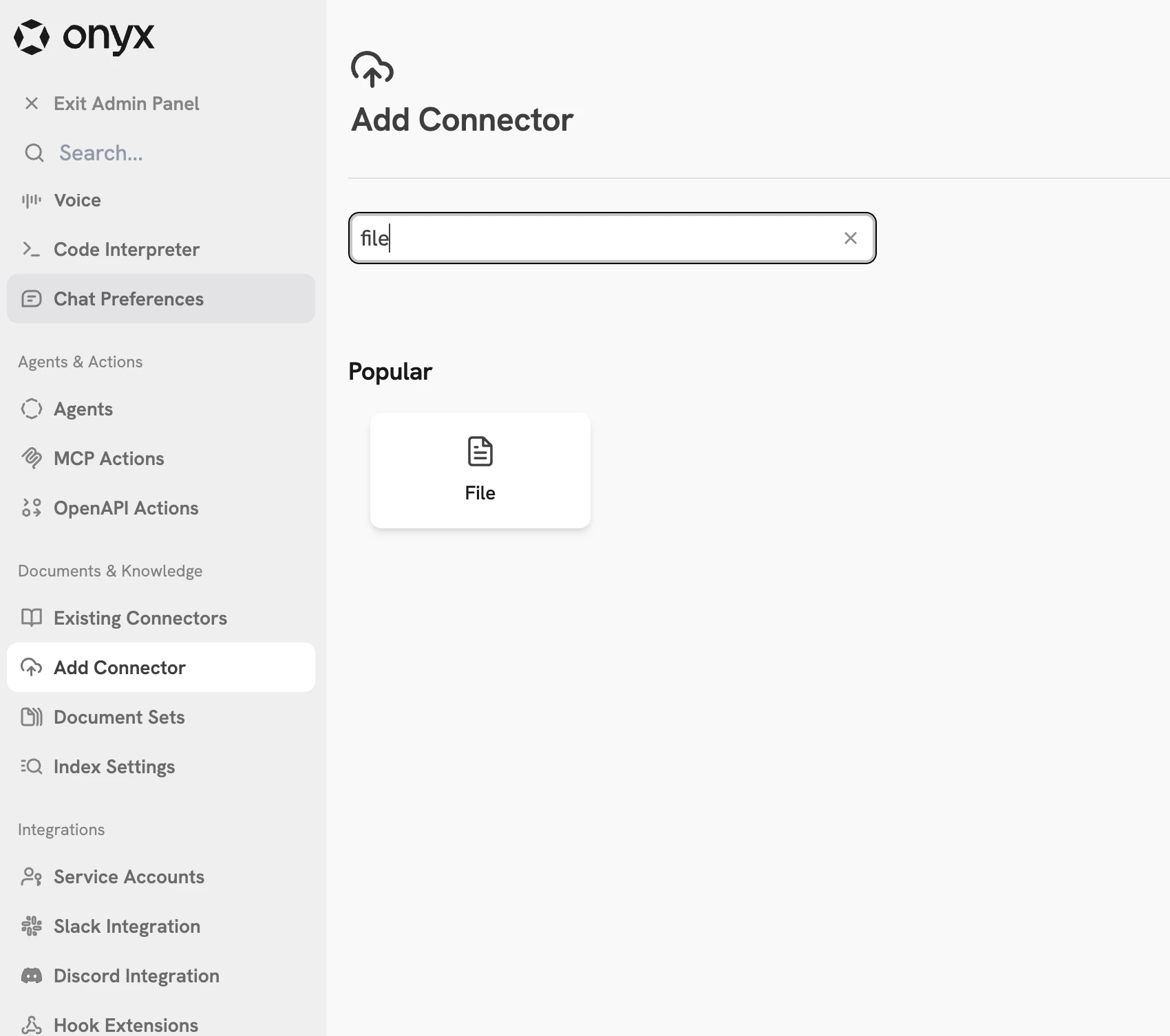
Once the hook is connected, you can validate end-to-end by adding a File connector and uploading a document.
After the connector syncs, search for content from that document in the chat window — if the hook is working correctly,
the material should not appear in results since file connector documents are being rejected.
 ***
## Document Push
The Document Push hook point fires after each document is successfully indexed.
Use it to push indexed content to an external destination such as a wiki, data warehouse, or audit log.
Unlike Document Ingestion (which runs before indexing and can modify or drop documents),
this hook fires **after** the document has been written to the index.
The response body is not used — any `2xx` response is treated as success.
Document Push only fires for **public connectors** in **single-tenant** deployments,
and only during **incremental syncs** — it does not fire during an initial index or a full re-index from the
beginning.
| Setting | Value |
| --------------------- | --------------------------------------- |
| Default Timeout | 30 seconds (configurable) |
| Default Fail Strategy | Soft (configurable) |
| On Soft Fail | The push is skipped; indexing continues |
| On Hard Fail | The indexing batch will fail |
### Input Schema
Onyx sends a `POST` request to your endpoint once per successfully indexed document with the following JSON body:
```json theme={null}
{
"document_id": "string",
"title": "string | null",
"content": "string",
"source": "string",
"url": "string | null",
"doc_updated_at": "string | null",
"metadata": { "key": ["string"] }
}
```
| Field | Type | Description |
| ---------------- | -------------- | ----------------------------------------------------------------------------------------------------------------------------------------------------------------------------------------------------------------------- |
| `document_id` | string | Unique identifier for the document. |
| `title` | string \| null | Title of the document. |
| `content` | string | Full text content (all text sections joined with a space). |
| `source` | string | Connector source type (e.g. `confluence`, `slack`, `google_drive`). For the full list see [`DocumentSource`](https://github.com/onyx-dot-app/onyx/blob/main/backend/onyx/configs/constants.py) in the Onyx source code. |
| `url` | string \| null | Canonical URL of the document at its source, if available. |
| `doc_updated_at` | string \| null | ISO 8601 UTC timestamp of the last update at the source, or `null` if unknown. |
| `metadata` | object | Key-value metadata. Values are always `string[]`. |
**Example**
```json theme={null}
{
"document_id": "confluence::page::789012",
"title": "Engineering Onboarding Guide",
"content": "Welcome to the engineering team. This guide covers...",
"source": "confluence",
"url": "https://wiki.example.com/pages/789012",
"doc_updated_at": "2025-03-15T09:30:00.000000+00:00",
"metadata": {
"space": ["Engineering"],
"labels": ["onboarding", "guide"]
}
}
```
### Output Schema
The response body is **not used** — any `2xx` status code is treated as success.
Your endpoint can return an empty body or any JSON object.
### Authentication
If you configured an API key when registering the hook, Onyx includes it in every request:
```
Authorization: Bearer
```
### Lambda Example
You can use an [AWS Lambda function](https://docs.aws.amazon.com/lambda/latest/dg/getting-started.html)
as your hook endpoint by exposing it over HTTPS via a [Lambda Function
URL](https://docs.aws.amazon.com/lambda/latest/dg/lambda-urls.html).
```python theme={null}
import json
import logging
import os
logger = logging.getLogger()
logger.setLevel(logging.INFO)
API_KEY = os.environ.get("HOOK_API_KEY")
def lambda_handler(event, context):
if API_KEY:
auth = (event.get("headers") or {}).get("authorization", "")
if auth != f"Bearer {API_KEY}":
return {"statusCode": 401, "body": json.dumps({"error": "Unauthorized"})}
body = json.loads(event.get("body", "{}"))
logger.info("Received document: id=%s title=%s", body.get("document_id"), body.get("title"))
return {"statusCode": 200, "body": "{}"}
```
### Testing
Use `curl` to test your endpoint before connecting it to Onyx:
```bash theme={null}
curl -X POST https:// \
-H "Content-Type: application/json" \
-H "Authorization: Bearer " \
-d '{
"document_id": "confluence::page::789012",
"title": "Engineering Onboarding Guide",
"content": "Welcome to the engineering team. This guide covers...",
"source": "confluence",
"url": "https://wiki.example.com/pages/789012",
"doc_updated_at": "2025-03-15T09:30:00.000000+00:00",
"metadata": { "space": ["Engineering"], "labels": ["onboarding"] }
}'
```
***
## Query Processing
The Query Processing hook point lets you intercept every user query before it enters the Onyx pipeline.
Your endpoint receives the raw query and the user's identity, and can rewrite the query, reject it entirely,
or pass it through unchanged.
It runs immediately after the user submits a message, before anything is saved to the database or sent to the LLM.
This is the earliest possible point in the pipeline — no side effects have occurred yet.
| Setting | Value |
| --------------------- | ---------------------------------------------------------------- |
| Default Timeout | 5 seconds (configurable) |
| Default Fail Strategy | Hard (configurable) |
| On Hard Fail | The query will be blocked and the user will see an error message |
### Input Schema
Onyx sends a `POST` request to your endpoint with the following JSON body:
```json theme={null}
{
"query": "What is our refund policy?",
"user_email": "alice@example.com",
"chat_session_id": "550e8400-e29b-41d4-a716-446655440000"
}
```
| Field | Type | Required | Description |
| ----------------- | -------------- | -------- | --------------------------------------------------------------------- |
| `query` | string | Yes | The raw query exactly as the user typed it. |
| `user_email` | string \| null | Yes | Email of the user submitting the query, or `null` if unauthenticated. |
| `chat_session_id` | string | Yes | UUID of the chat session. |
### Output Schema
A successful response from your endpoint must return HTTP `200` and a JSON body:
| Field | Type | Required | Description |
| ------------------- | -------------- | -------- | --------------------------------------------------------------------------------------------- |
| `query` | string \| null | Yes | The query to use downstream. Set to `null` or empty string to reject the query. |
| `rejection_message` | string \| null | No | Message shown to the user when `query` is `null`. Falls back to a generic message if omitted. |
```json theme={null}
{
"query": "What is our refund policy?",
"rejection_message": null
}
```
```json theme={null}
{
"query": "What is the refund policy for enterprise customers?",
"rejection_message": null
}
```
```json theme={null}
{
"query": null,
"rejection_message": "This topic is restricted. Please contact your administrator."
}
```
### Authentication
If you configured an API key when registering the hook, Onyx includes it in every request:
```
Authorization: Bearer
```
### Lambda Example
You can use an [AWS Lambda function](https://docs.aws.amazon.com/lambda/latest/dg/getting-started.html)
as your hook endpoint by exposing it over HTTPS via a [Lambda Function
URL](https://docs.aws.amazon.com/lambda/latest/dg/lambda-urls.html).
This is the simplest way to deploy a hook without managing a server.
When Onyx calls your endpoint, the request arrives as an API Gateway-style event.
Your handler reads the JSON body from `event["body"]`, processes the query,
and returns a response with a `statusCode` and a JSON-encoded `body`.
If you configured an API key on the hook, validate it against the `Authorization` header in the event before processing.
```python theme={null}
import json
import os
BLOCKED_KEYWORDS = ["ssn", "phone number"]
# Set the HOOK_API_KEY environment variable in your Lambda configuration.
# If not set, API key validation is skipped.
API_KEY = os.environ.get("HOOK_API_KEY")
def lambda_handler(event, context):
# Validate API key if configured
if API_KEY:
auth = (event.get("headers") or {}).get("authorization", "")
if auth != f"Bearer {API_KEY}":
return {"statusCode": 401, "body": json.dumps({"error": "Unauthorized"})}
body = json.loads(event.get("body", "{}"))
query = body.get("query", "")
# Reject queries containing blocked keywords
for keyword in BLOCKED_KEYWORDS:
if keyword.lower() in query.lower():
return {
"statusCode": 200,
"body": json.dumps({
"query": None,
"rejection_message": "Your query contains restricted terms. Please contact your administrator.",
}),
}
return {
"statusCode": 200,
"body": json.dumps({"query": query}),
}
```
### Testing
Use `curl` to test your Lambda Function URL before connecting it to Onyx.
**Pass-through (no blocked keywords):**
```bash theme={null}
curl -X POST https:// \
-H "Content-Type: application/json" \
-H "Authorization: Bearer " \
-d '{
"query": "What is our refund policy?",
"user_email": "alice@example.com",
"chat_session_id": "550e8400-e29b-41d4-a716-446655440000"
}'
```
**Rejected (contains blocked keyword):**
```bash theme={null}
curl -X POST https:// \
-H "Content-Type: application/json" \
-H "Authorization: Bearer " \
-d '{
"query": "What is the SSN format?",
"user_email": "alice@example.com",
"chat_session_id": "550e8400-e29b-41d4-a716-446655440000"
}'
```
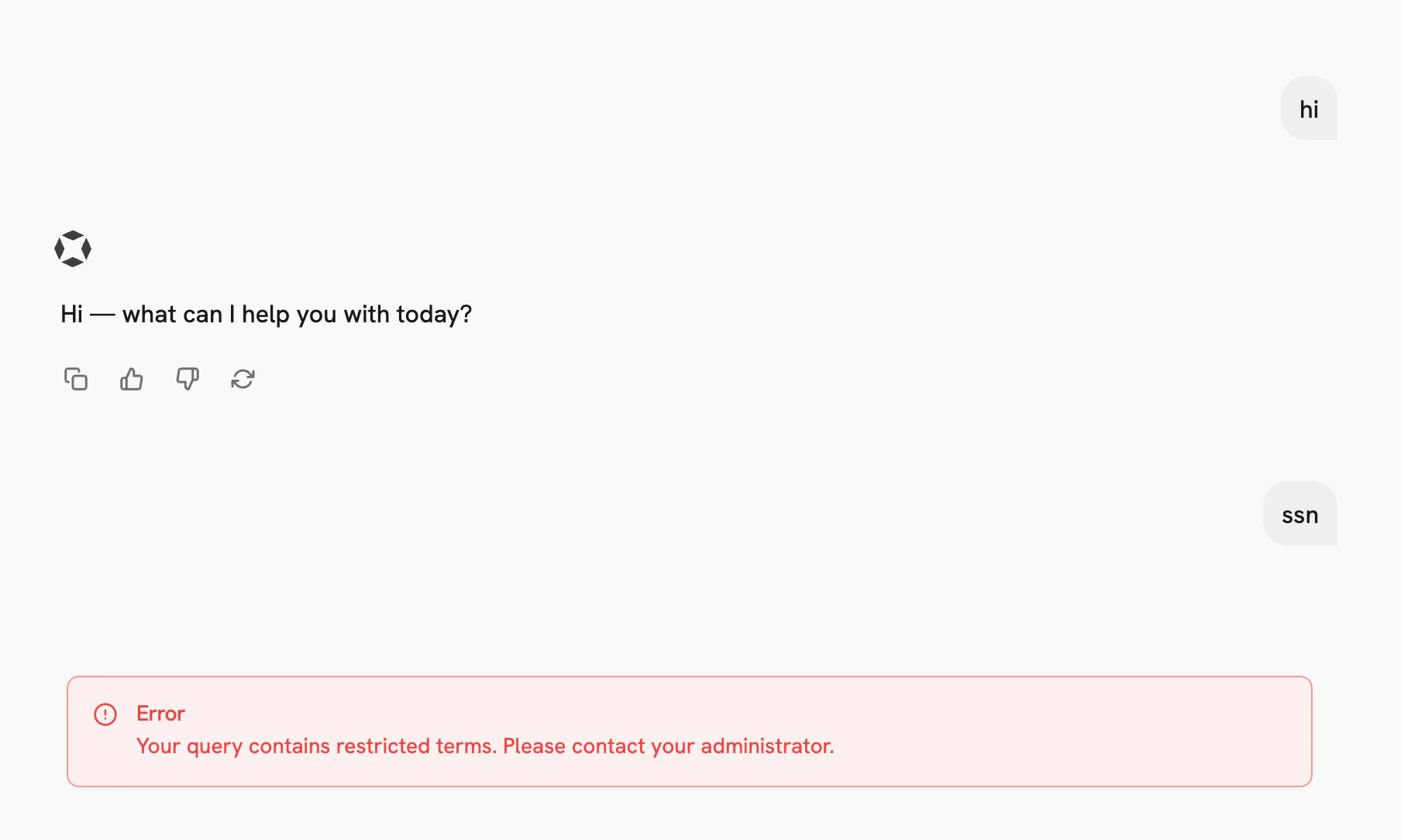
Once the hook is connected, you can also validate the logic directly in the Onyx chat window.
Try sending a query that contains a blocked keyword (e.g. "ssn" or "phone number")
— you should see the rejection message instead of a response.
Queries without blocked keywords should pass through normally.
***
## Document Push
The Document Push hook point fires after each document is successfully indexed.
Use it to push indexed content to an external destination such as a wiki, data warehouse, or audit log.
Unlike Document Ingestion (which runs before indexing and can modify or drop documents),
this hook fires **after** the document has been written to the index.
The response body is not used — any `2xx` response is treated as success.
Document Push only fires for **public connectors** in **single-tenant** deployments,
and only during **incremental syncs** — it does not fire during an initial index or a full re-index from the
beginning.
| Setting | Value |
| --------------------- | --------------------------------------- |
| Default Timeout | 30 seconds (configurable) |
| Default Fail Strategy | Soft (configurable) |
| On Soft Fail | The push is skipped; indexing continues |
| On Hard Fail | The indexing batch will fail |
### Input Schema
Onyx sends a `POST` request to your endpoint once per successfully indexed document with the following JSON body:
```json theme={null}
{
"document_id": "string",
"title": "string | null",
"content": "string",
"source": "string",
"url": "string | null",
"doc_updated_at": "string | null",
"metadata": { "key": ["string"] }
}
```
| Field | Type | Description |
| ---------------- | -------------- | ----------------------------------------------------------------------------------------------------------------------------------------------------------------------------------------------------------------------- |
| `document_id` | string | Unique identifier for the document. |
| `title` | string \| null | Title of the document. |
| `content` | string | Full text content (all text sections joined with a space). |
| `source` | string | Connector source type (e.g. `confluence`, `slack`, `google_drive`). For the full list see [`DocumentSource`](https://github.com/onyx-dot-app/onyx/blob/main/backend/onyx/configs/constants.py) in the Onyx source code. |
| `url` | string \| null | Canonical URL of the document at its source, if available. |
| `doc_updated_at` | string \| null | ISO 8601 UTC timestamp of the last update at the source, or `null` if unknown. |
| `metadata` | object | Key-value metadata. Values are always `string[]`. |
**Example**
```json theme={null}
{
"document_id": "confluence::page::789012",
"title": "Engineering Onboarding Guide",
"content": "Welcome to the engineering team. This guide covers...",
"source": "confluence",
"url": "https://wiki.example.com/pages/789012",
"doc_updated_at": "2025-03-15T09:30:00.000000+00:00",
"metadata": {
"space": ["Engineering"],
"labels": ["onboarding", "guide"]
}
}
```
### Output Schema
The response body is **not used** — any `2xx` status code is treated as success.
Your endpoint can return an empty body or any JSON object.
### Authentication
If you configured an API key when registering the hook, Onyx includes it in every request:
```
Authorization: Bearer
```
### Lambda Example
You can use an [AWS Lambda function](https://docs.aws.amazon.com/lambda/latest/dg/getting-started.html)
as your hook endpoint by exposing it over HTTPS via a [Lambda Function
URL](https://docs.aws.amazon.com/lambda/latest/dg/lambda-urls.html).
```python theme={null}
import json
import logging
import os
logger = logging.getLogger()
logger.setLevel(logging.INFO)
API_KEY = os.environ.get("HOOK_API_KEY")
def lambda_handler(event, context):
if API_KEY:
auth = (event.get("headers") or {}).get("authorization", "")
if auth != f"Bearer {API_KEY}":
return {"statusCode": 401, "body": json.dumps({"error": "Unauthorized"})}
body = json.loads(event.get("body", "{}"))
logger.info("Received document: id=%s title=%s", body.get("document_id"), body.get("title"))
return {"statusCode": 200, "body": "{}"}
```
### Testing
Use `curl` to test your endpoint before connecting it to Onyx:
```bash theme={null}
curl -X POST https:// \
-H "Content-Type: application/json" \
-H "Authorization: Bearer " \
-d '{
"document_id": "confluence::page::789012",
"title": "Engineering Onboarding Guide",
"content": "Welcome to the engineering team. This guide covers...",
"source": "confluence",
"url": "https://wiki.example.com/pages/789012",
"doc_updated_at": "2025-03-15T09:30:00.000000+00:00",
"metadata": { "space": ["Engineering"], "labels": ["onboarding"] }
}'
```
***
## Query Processing
The Query Processing hook point lets you intercept every user query before it enters the Onyx pipeline.
Your endpoint receives the raw query and the user's identity, and can rewrite the query, reject it entirely,
or pass it through unchanged.
It runs immediately after the user submits a message, before anything is saved to the database or sent to the LLM.
This is the earliest possible point in the pipeline — no side effects have occurred yet.
| Setting | Value |
| --------------------- | ---------------------------------------------------------------- |
| Default Timeout | 5 seconds (configurable) |
| Default Fail Strategy | Hard (configurable) |
| On Hard Fail | The query will be blocked and the user will see an error message |
### Input Schema
Onyx sends a `POST` request to your endpoint with the following JSON body:
```json theme={null}
{
"query": "What is our refund policy?",
"user_email": "alice@example.com",
"chat_session_id": "550e8400-e29b-41d4-a716-446655440000"
}
```
| Field | Type | Required | Description |
| ----------------- | -------------- | -------- | --------------------------------------------------------------------- |
| `query` | string | Yes | The raw query exactly as the user typed it. |
| `user_email` | string \| null | Yes | Email of the user submitting the query, or `null` if unauthenticated. |
| `chat_session_id` | string | Yes | UUID of the chat session. |
### Output Schema
A successful response from your endpoint must return HTTP `200` and a JSON body:
| Field | Type | Required | Description |
| ------------------- | -------------- | -------- | --------------------------------------------------------------------------------------------- |
| `query` | string \| null | Yes | The query to use downstream. Set to `null` or empty string to reject the query. |
| `rejection_message` | string \| null | No | Message shown to the user when `query` is `null`. Falls back to a generic message if omitted. |
```json theme={null}
{
"query": "What is our refund policy?",
"rejection_message": null
}
```
```json theme={null}
{
"query": "What is the refund policy for enterprise customers?",
"rejection_message": null
}
```
```json theme={null}
{
"query": null,
"rejection_message": "This topic is restricted. Please contact your administrator."
}
```
### Authentication
If you configured an API key when registering the hook, Onyx includes it in every request:
```
Authorization: Bearer
```
### Lambda Example
You can use an [AWS Lambda function](https://docs.aws.amazon.com/lambda/latest/dg/getting-started.html)
as your hook endpoint by exposing it over HTTPS via a [Lambda Function
URL](https://docs.aws.amazon.com/lambda/latest/dg/lambda-urls.html).
This is the simplest way to deploy a hook without managing a server.
When Onyx calls your endpoint, the request arrives as an API Gateway-style event.
Your handler reads the JSON body from `event["body"]`, processes the query,
and returns a response with a `statusCode` and a JSON-encoded `body`.
If you configured an API key on the hook, validate it against the `Authorization` header in the event before processing.
```python theme={null}
import json
import os
BLOCKED_KEYWORDS = ["ssn", "phone number"]
# Set the HOOK_API_KEY environment variable in your Lambda configuration.
# If not set, API key validation is skipped.
API_KEY = os.environ.get("HOOK_API_KEY")
def lambda_handler(event, context):
# Validate API key if configured
if API_KEY:
auth = (event.get("headers") or {}).get("authorization", "")
if auth != f"Bearer {API_KEY}":
return {"statusCode": 401, "body": json.dumps({"error": "Unauthorized"})}
body = json.loads(event.get("body", "{}"))
query = body.get("query", "")
# Reject queries containing blocked keywords
for keyword in BLOCKED_KEYWORDS:
if keyword.lower() in query.lower():
return {
"statusCode": 200,
"body": json.dumps({
"query": None,
"rejection_message": "Your query contains restricted terms. Please contact your administrator.",
}),
}
return {
"statusCode": 200,
"body": json.dumps({"query": query}),
}
```
### Testing
Use `curl` to test your Lambda Function URL before connecting it to Onyx.
**Pass-through (no blocked keywords):**
```bash theme={null}
curl -X POST https:// \
-H "Content-Type: application/json" \
-H "Authorization: Bearer " \
-d '{
"query": "What is our refund policy?",
"user_email": "alice@example.com",
"chat_session_id": "550e8400-e29b-41d4-a716-446655440000"
}'
```
**Rejected (contains blocked keyword):**
```bash theme={null}
curl -X POST https:// \
-H "Content-Type: application/json" \
-H "Authorization: Bearer " \
-d '{
"query": "What is the SSN format?",
"user_email": "alice@example.com",
"chat_session_id": "550e8400-e29b-41d4-a716-446655440000"
}'
```
Once the hook is connected, you can also validate the logic directly in the Onyx chat window.
Try sending a query that contains a blocked keyword (e.g. "ssn" or "phone number")
— you should see the rejection message instead of a response.
Queries without blocked keywords should pass through normally.
 ***
## Suggesting a New Hook Point
If your use case requires a pipeline injection point that doesn't exist yet, open a GitHub issue describing:
* **Where** in the pipeline you need to inject logic (e.g. after retrieval, before document indexing)
* **What your endpoint would receive** — what context does it need to do its job?
* **What your endpoint would return** — how should Onyx change its behavior based on your response?
* **Use cases** — what problem does this solve? Are other customers likely to need the same point?
The Onyx team reviews proposals and implements hook points that have broad applicability. Once a hook point is added,
Onyx commits to maintaining its payload structure, response format,
and behavior — meaning it won't change in a breaking way without a proper deprecation process.
Because of this long-term commitment, each proposal is evaluated carefully before being added.
***
## Suggesting a New Hook Point
If your use case requires a pipeline injection point that doesn't exist yet, open a GitHub issue describing:
* **Where** in the pipeline you need to inject logic (e.g. after retrieval, before document indexing)
* **What your endpoint would receive** — what context does it need to do its job?
* **What your endpoint would return** — how should Onyx change its behavior based on your response?
* **Use cases** — what problem does this solve? Are other customers likely to need the same point?
The Onyx team reviews proposals and implements hook points that have broad applicability. Once a hook point is added,
Onyx commits to maintaining its payload structure, response format,
and behavior — meaning it won't change in a breaking way without a proper deprecation process.
Because of this long-term commitment, each proposal is evaluated carefully before being added.