> ## Documentation Index
> Fetch the complete documentation index at: https://docs.onyx.app/llms.txt
> Use this file to discover all available pages before exploring further.
# Language Model Access Controls
> Configure access controls for language model providers
## Overview
Onyx provides fine-grained access control for language model providers,
allowing administrators to control **who** can use specific models and **which agents** can use them.
This enables better cost control, governance, and enforcement of model usage policies.
 ### Access Control Types
**Public Providers**
* Accessible to all users and agents
* No restrictions applied
* Useful for default, unrestricted models
**Private Providers**
* Subject to user group and/or agent restrictions
* Enables fine-grained access control
* Recommended for expensive or specialized models
Control **who** can use specific language model providers by restricting access to specific user groups.
**How it works:**
* Assign one or more user groups to a provider
* Only users in those groups can use the provider
* Admins bypass group restrictions (but not agent restrictions)
* Leave empty for no group restrictions
**Use cases:**
* Restrict expensive models to specific teams
* Provide specialized models to certain departments
* Implement cost controls by team
Control **which agents** can use specific language model providers.
**How it works:**
* Assign one or more agents to a provider via the "Agent Whitelist"
* The provider will only appear as an option when using those agents
* Applies to **all users**, including admins
* Leave empty for no agent restrictions
**Use cases:**
* Reserve GPT-4 for "Code Review Agent" only
* Use Claude Opus exclusively with "Legal Document Analyzer"
* Prevent users from selecting inappropriate models for specific use cases
* Enforce model policies per agent type
You can combine both user group and agent restrictions for maximum control.
**Access Rules (AND logic):**
* User must be in an allowed group **AND** using an allowed agent
* Both conditions must be satisfied for access
* Admins bypass group restrictions but still require allowed agents
**Example:**
* Provider: GPT-4
* User Groups: "Engineering Team"
* Agent Whitelist: "Code Review Agent", "Architecture Advisor"
* **Result:** Only Engineering Team members can use GPT-4, and only with those two agents
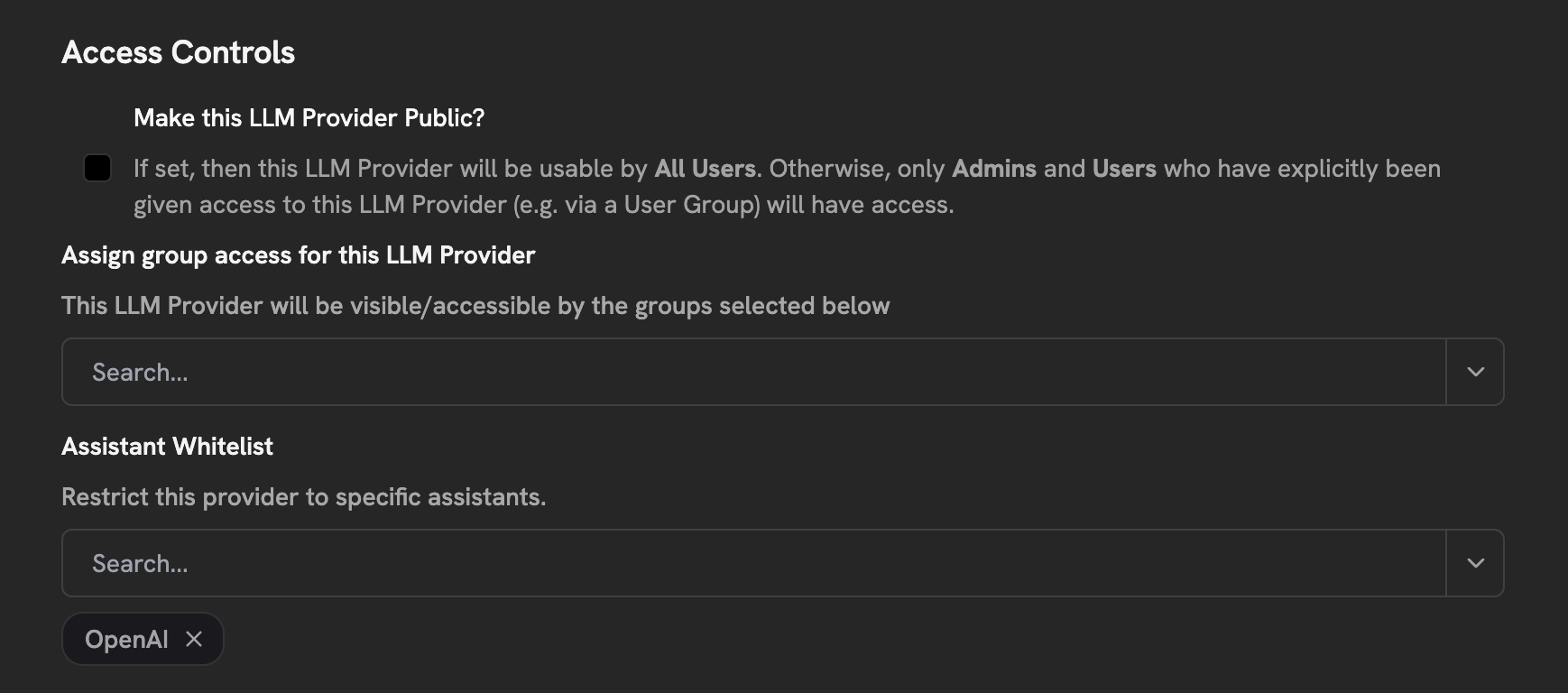
### Configuring Access Controls
To configure access controls for a language model provider:
Navigate to **Admin Panel → Configuration → Language Models**
Click on an existing provider or create a new one
In the **Access Controls** section nested under Advanced options:
* Toggle **Make Public** off to enable restrictions
* Select user groups in **User Group Access** (optional)
* Select agents in **Agent Whitelist** (optional)
Save your changes
When a provider is set to public, the access control selectors are automatically disabled.
### Access Decision Logic
The system determines access based on the following logic:
| is\_public | Groups Set | Agents Set | Access Rule |
| ---------- | ---------- | ---------- | -------------------------------------------- |
| `true` | Any | Any | Everyone has access |
| `false` | Yes | Yes | Must be in group **AND** using allowed agent |
| `false` | Yes | No | Must be in group (admins bypass) |
| `false` | No | Yes | Must use allowed agent (applies to admins) |
| `false` | No | No | Admin-only access |
### Provider Visibility
Users will only see the language model providers they have access to:
* In the agent creation/editing interface
* In the chat UI model selector
* When using the API to list available providers
Restricted providers are completely hidden from users who don't have access,
preventing confusion and unauthorized usage attempts.
### Access Control Types
**Public Providers**
* Accessible to all users and agents
* No restrictions applied
* Useful for default, unrestricted models
**Private Providers**
* Subject to user group and/or agent restrictions
* Enables fine-grained access control
* Recommended for expensive or specialized models
Control **who** can use specific language model providers by restricting access to specific user groups.
**How it works:**
* Assign one or more user groups to a provider
* Only users in those groups can use the provider
* Admins bypass group restrictions (but not agent restrictions)
* Leave empty for no group restrictions
**Use cases:**
* Restrict expensive models to specific teams
* Provide specialized models to certain departments
* Implement cost controls by team
Control **which agents** can use specific language model providers.
**How it works:**
* Assign one or more agents to a provider via the "Agent Whitelist"
* The provider will only appear as an option when using those agents
* Applies to **all users**, including admins
* Leave empty for no agent restrictions
**Use cases:**
* Reserve GPT-4 for "Code Review Agent" only
* Use Claude Opus exclusively with "Legal Document Analyzer"
* Prevent users from selecting inappropriate models for specific use cases
* Enforce model policies per agent type
You can combine both user group and agent restrictions for maximum control.
**Access Rules (AND logic):**
* User must be in an allowed group **AND** using an allowed agent
* Both conditions must be satisfied for access
* Admins bypass group restrictions but still require allowed agents
**Example:**
* Provider: GPT-4
* User Groups: "Engineering Team"
* Agent Whitelist: "Code Review Agent", "Architecture Advisor"
* **Result:** Only Engineering Team members can use GPT-4, and only with those two agents
### Configuring Access Controls
To configure access controls for a language model provider:
Navigate to **Admin Panel → Configuration → Language Models**
Click on an existing provider or create a new one
In the **Access Controls** section nested under Advanced options:
* Toggle **Make Public** off to enable restrictions
* Select user groups in **User Group Access** (optional)
* Select agents in **Agent Whitelist** (optional)
Save your changes
When a provider is set to public, the access control selectors are automatically disabled.
### Access Decision Logic
The system determines access based on the following logic:
| is\_public | Groups Set | Agents Set | Access Rule |
| ---------- | ---------- | ---------- | -------------------------------------------- |
| `true` | Any | Any | Everyone has access |
| `false` | Yes | Yes | Must be in group **AND** using allowed agent |
| `false` | Yes | No | Must be in group (admins bypass) |
| `false` | No | Yes | Must use allowed agent (applies to admins) |
| `false` | No | No | Admin-only access |
### Provider Visibility
Users will only see the language model providers they have access to:
* In the agent creation/editing interface
* In the chat UI model selector
* When using the API to list available providers
Restricted providers are completely hidden from users who don't have access,
preventing confusion and unauthorized usage attempts.