> ## Documentation Index
> Fetch the complete documentation index at: https://docs.onyx.app/llms.txt
> Use this file to discover all available pages before exploring further.
# Bitbucket Connector
> Access knowledge from your Bitbucket Repositories (Cloud only)
## How it works
The Bitbucket Connector indexes all Pull Requests from a specified Bitbucket Cloud repository, project,
or entire workspace.
* It indexes `OPEN`, `MERGED`, and `DECLINED` pull requests, including their titles and descriptions.
* It also captures key metadata such as the author, reviewers, current state, creation/update timestamps,
and a direct link back to the original pull request in Bitbucket.
## Setting up
This connector can only be used with Bitbucket Cloud.
### Authorization
The Bitbucket Connector uses an API Token for authentication.
To create an API token:
Log in to your Bitbucket account.
Select the **Settings** cog in the upper-right corner of the top navigation bar.
Under **Personal settings**, select **Atlassian account settings**.
Select the **Security** tab on the top navigation bar.
Select **Create and manage API tokens**.
Select **Create API token with scopes**.
Give the API token a name and an expiry date,
usually related to the application that will use the token and select **Next**.
Select **Bitbucket** as the app and select **Next**.
Select the scopes (permissions) the API token needs and select **Next**.
* **Projects**: `read:project:bitbucket`
* **Repositories**: `read:repository:bitbucket`
* **Pull Requests**: `read:pullrequest:bitbucket`
Review your token and select the *Create token* button. The page will display the new API token.
Copy the generated API token and either record or paste it into the application you want to give access.
The token is only displayed once and can't be retrieved later.
For the most up-to-date instructions,
refer to the [official Bitbucket
documentation](https://support.atlassian.com/bitbucket-cloud/docs/create-an-api-token/).
### Indexing
Navigate to the Admin Dashboard and select the **Bitbucket** Connector.
Click **Create new credentials** and provide the following:
* **Name**: A descriptive name for your credentials.
* **Email**: The email address for your Bitbucket account.
* **API token**: The API token you created in the previous step.
 Fill in the connector details:
* **Name**: A descriptive name for the connector.
* **Workspace name**: The `WORKSPACE_NAME` from your Bitbucket URL (`https://bitbucket.org/{WORKSPACE_NAME}/...`).
* **Repositories or Projects (Optional)**: A comma-separated list of repository slugs or project keys to index.
Fill in the connector details:
* **Name**: A descriptive name for the connector.
* **Workspace name**: The `WORKSPACE_NAME` from your Bitbucket URL (`https://bitbucket.org/{WORKSPACE_NAME}/...`).
* **Repositories or Projects (Optional)**: A comma-separated list of repository slugs or project keys to index.
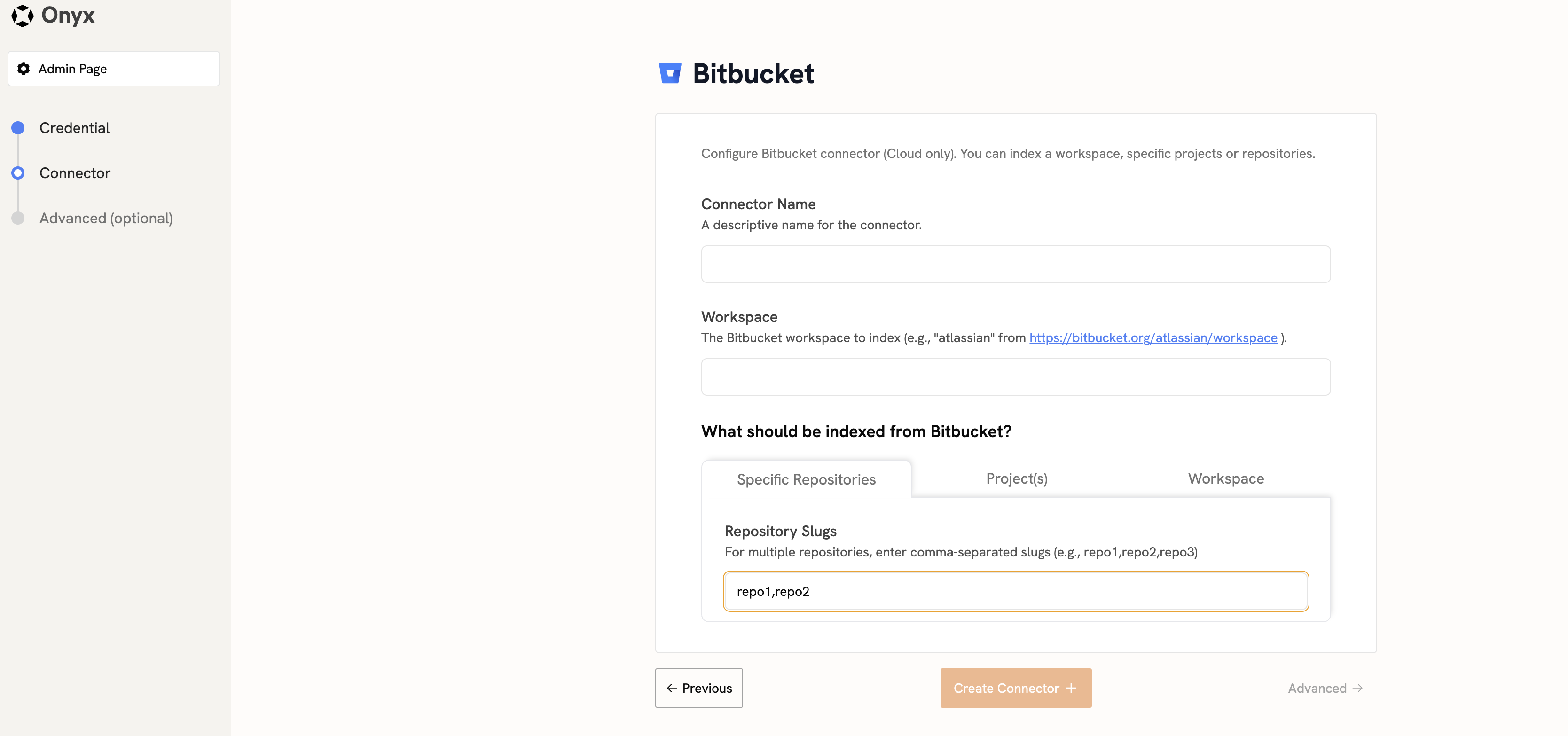 This configuration will index all pull requests from the specified repositories.
You can also configure it to index all repositories within a project or an entire workspace.
This configuration will index all pull requests from the specified repositories.
You can also configure it to index all repositories within a project or an entire workspace.