> ## Documentation Index
> Fetch the complete documentation index at: https://docs.onyx.app/llms.txt
> Use this file to discover all available pages before exploring further.
# BookStack
> Access knowledge from your own BookStack instance
## How it works
The BookStack connector fetches all shelves, books, chapters and pages from the connected instance upon connector setup.
From that point on, the connector will pull in everything updated since last sync every **10** minutes.
## Setting up
### Authorization
You will need API credentials for a user in your BookStack instance. To do this:
Find or create a user you'd want to use as the connection user.
* Visibility of BookStack contents will depend on this user's permissions.
* This user must have a role assigned that has the "Access system API" system permission.
Edit that user using an admin account, and find the "API Tokens" section at the bottom of the view.
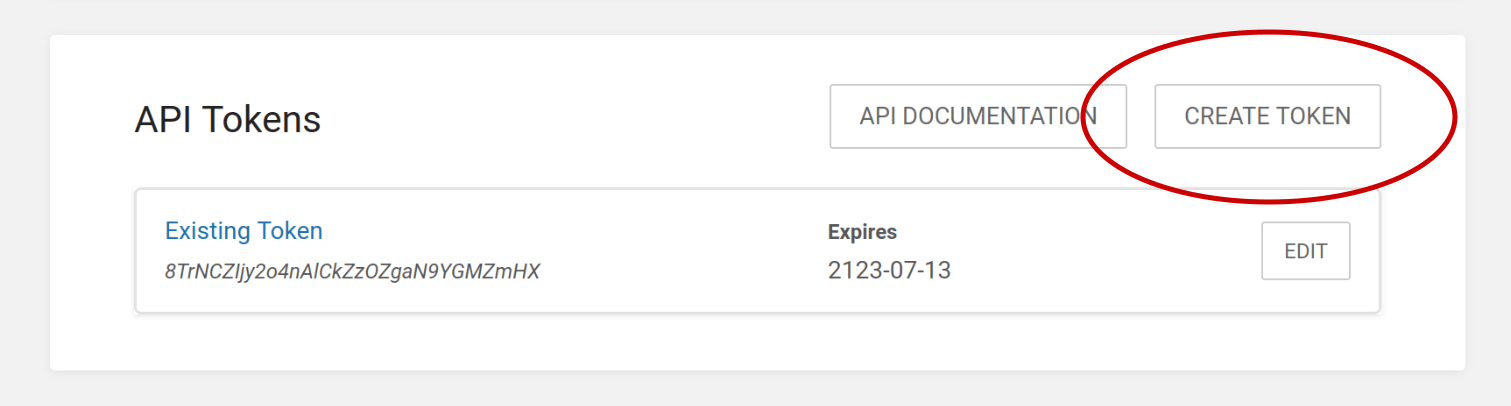 Click the "Create Token" button, then enter a name and (optionally) an expiry date for the token. Then press save.
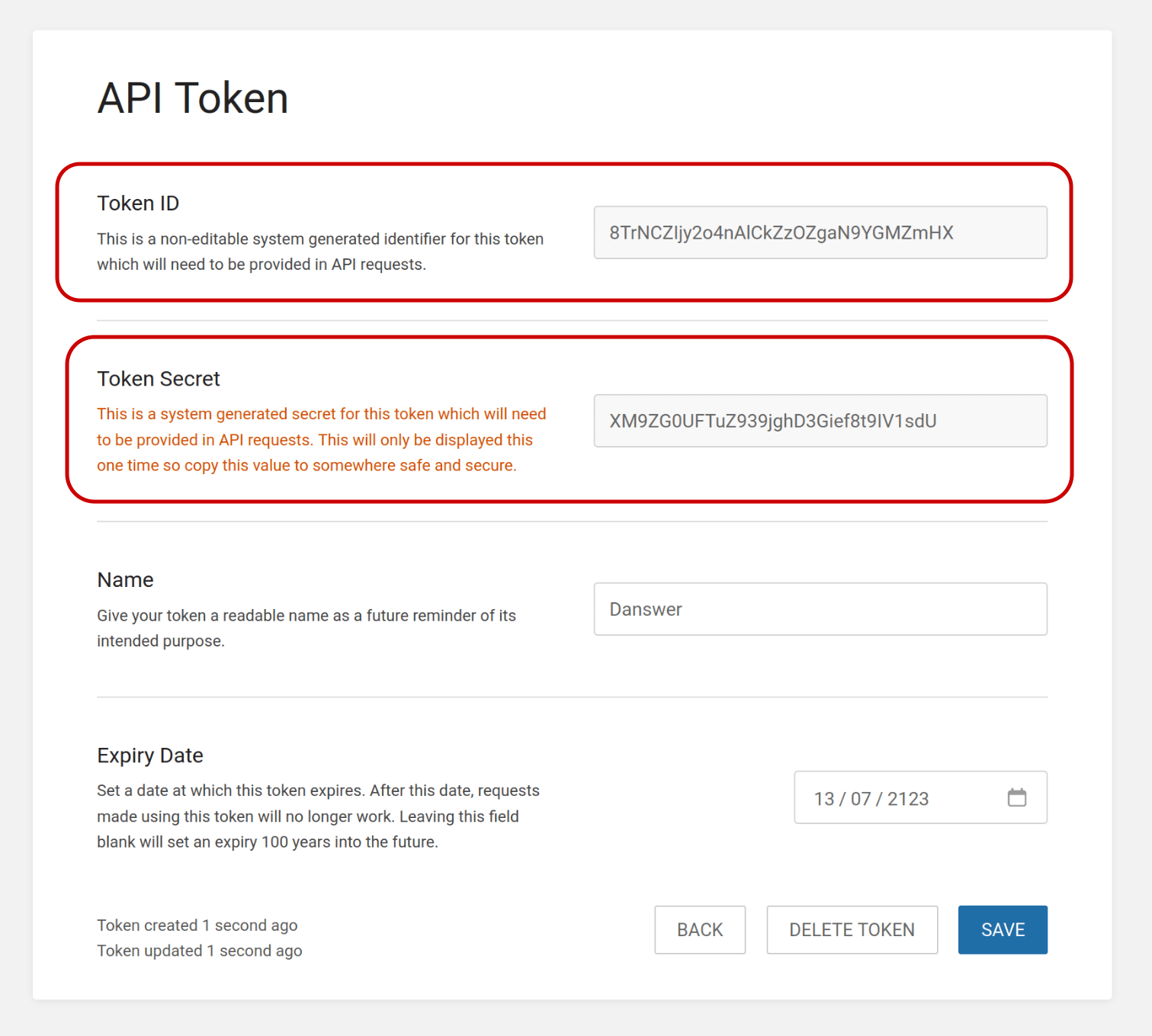
Copy the shown "Token ID" and "Token Secret" values for the "Indexing" section below.
Click the "Create Token" button, then enter a name and (optionally) an expiry date for the token. Then press save.
Copy the shown "Token ID" and "Token Secret" values for the "Indexing" section below.
 ### Indexing
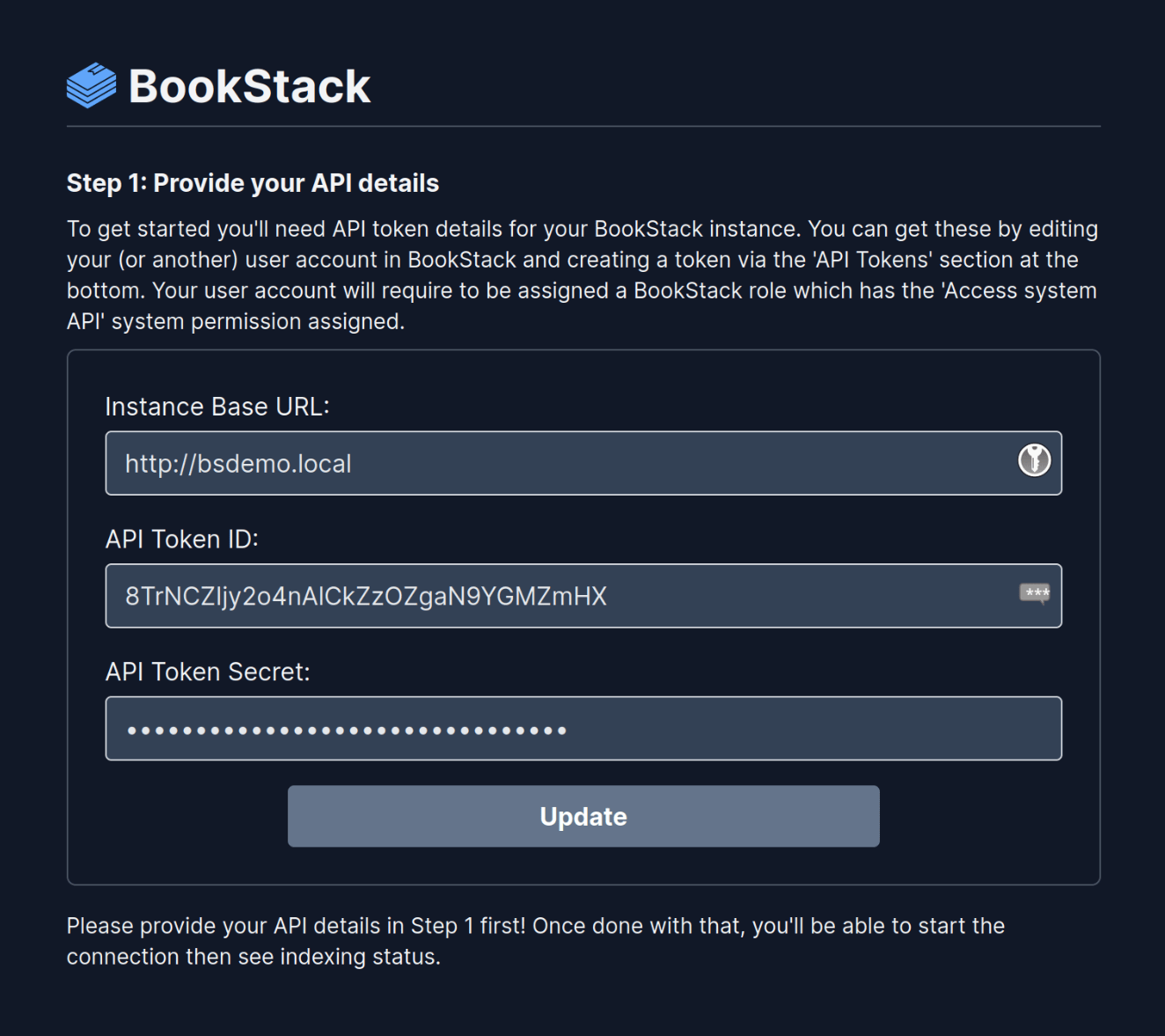
Navigate to the Admin Panel and select the **BookStack** connector.
In **Step 1**, provide the base URL of your BookStack instance,
along with the API **Token ID** and the API **Token Secret** you obtained in the "Authorization" steps above:
### Indexing
Navigate to the Admin Panel and select the **BookStack** connector.
In **Step 1**, provide the base URL of your BookStack instance,
along with the API **Token ID** and the API **Token Secret** you obtained in the "Authorization" steps above:
 Click the `Connect` button! Your content will then be pulled into Onyx every **10** minutes.