> ## Documentation Index
> Fetch the complete documentation index at: https://docs.onyx.app/llms.txt
> Use this file to discover all available pages before exploring further.
# Coda
> Index pages and tables from Coda docs
The Coda connector indexes the pages and the tables of every Coda doc that the configured API token can open.
There is no doc picker. Onyx indexes every doc the token's Coda account can reach.
## How it works
| Content | Behavior |
| ----------- | --------------------------------------------------------------------------------------------------------------------------- |
| Pages | One document per Coda page. Onyx indexes the page name, its link, and the page text. |
| Tables | One document per table, with one section per row. A row is indexed as its name followed by the values of its cells. |
| Links | Every page, table and row keeps its Coda browser link, so a citation opens the item in Coda. |
| Permissions | Not available. **Auto Sync Permissions** is not offered for Coda, so the access type can only be **Public** or **Private**. |
Each refresh re-reads the docs the token can open and indexes the pages and tables changed since the last run.
A table whose rows cannot be read is still indexed from its name alone,
so the table appears in search even when its contents are unavailable.
The connector indexes everything the token's account can open, and the access type applies to all of it at once.
A token belonging to a user with wide Coda access, combined with **Public**,
makes every doc that user can read visible to every Onyx user.
Create the token from an account whose Coda access matches what you want in Onyx.
## Before you begin
You need:
* A Coda account that can open the docs you want Onyx to index
* A Coda API token for that account
* An Onyx administrator account
## Configure Coda
In Coda, open your account settings and generate an API token. Copy it right away.
See Coda's [API authentication documentation](https://coda.io/developers/apis/v1#section/Authentication)
for their current steps.
The token carries the same Coda access as the account that created it. Onyx indexes only the docs,
pages and tables that account can open.
## Configure Onyx
In Onyx, go to **Admin Panel → Add Connector** and select **Coda**.
Paste the token into **Coda Bearer Token**.
Onyx checks the token as you save the credential and rejects it if Coda returns an authentication error.
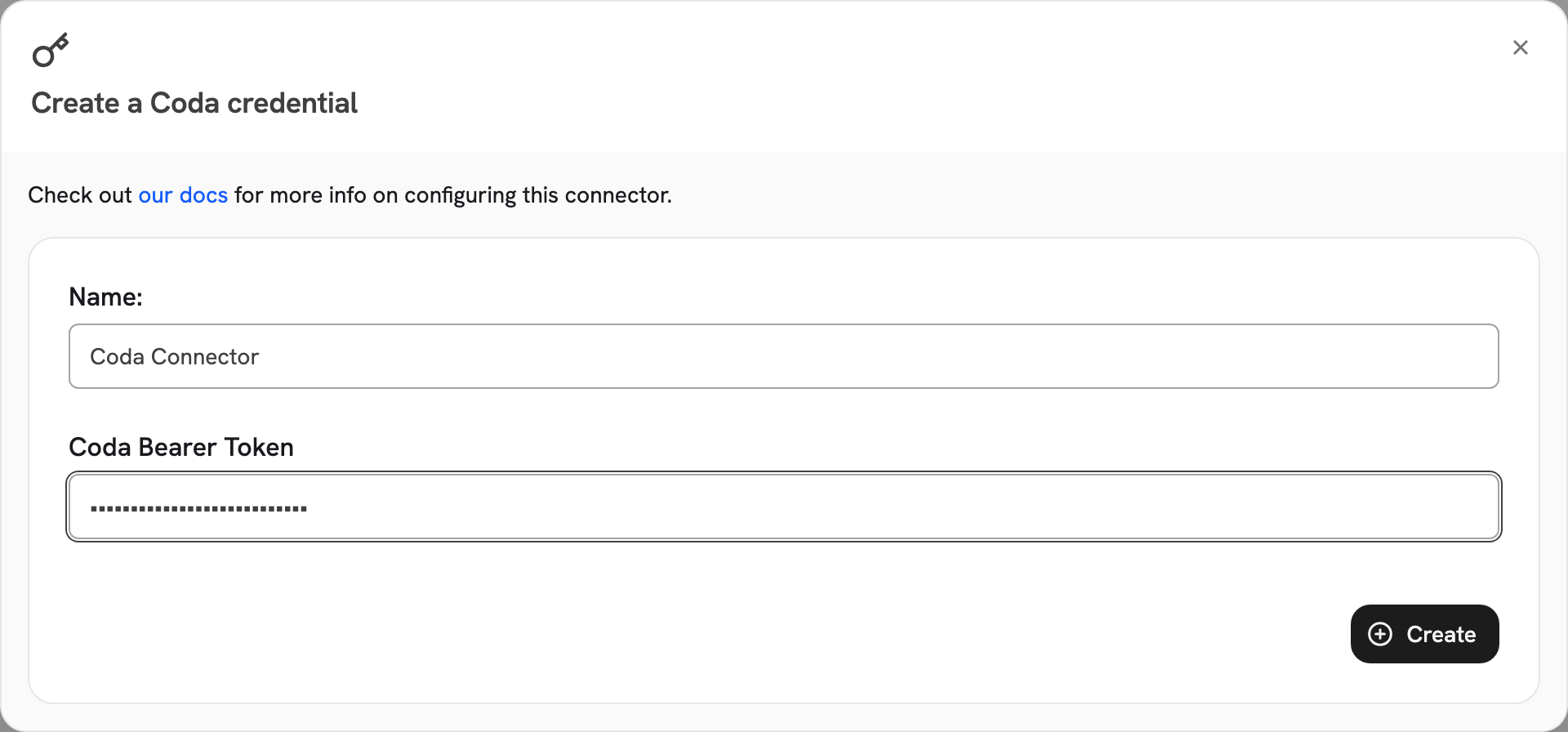 Give the connector a descriptive name. Coda has no other connector settings: the token decides what is indexed.
**Public** makes all indexed Coda content visible to every Onyx user.
**Private** limits the connector to selected Onyx user groups, and is a paid feature:
the Business and Enterprise tiers on Onyx Cloud, and the Enterprise Edition when self-hosted.
Select **Create Connector**. Then open **Admin Panel → Existing Connectors**, select the connector,
and confirm its first indexing attempt completes.
## Limits
| Limit | Value | Notes |
| ------------------- | ----- | -------------------------------------------------------------------------- |
| Coda API call | 30s | A Coda request that does not answer in time fails after the retries below. |
| Retries per request | 3 | Backed off between attempts. |
Onyx rate-limits its own calls to the Coda API. The connector downloads no files, so it has no file-size cap:
it indexes page text and table cell values through the API.
## Troubleshooting
`Coda credential appears to be invalid or expired (HTTP 401)` means the token is wrong or has been revoked.
Generate a new token in Coda and update the Onyx credential.
`Coda workspace not found or not accessible (HTTP 404)` means the token's account cannot reach the workspace.
Confirm the workspace is shared with that account.
`Validation failed due to Coda rate-limits being exceeded (HTTP 429)` means Coda is throttling the account.
Wait and retry. Onyx already rate-limits and retries its own calls,
so a persistent 429 usually means something else is also using the token.
Confirm the token's Coda account can open it. Onyx indexes only what that account can reach,
so a doc shared with a different account is not indexed.
A table whose rows cannot be read is indexed from its name alone.
Give the connector a descriptive name. Coda has no other connector settings: the token decides what is indexed.
**Public** makes all indexed Coda content visible to every Onyx user.
**Private** limits the connector to selected Onyx user groups, and is a paid feature:
the Business and Enterprise tiers on Onyx Cloud, and the Enterprise Edition when self-hosted.
Select **Create Connector**. Then open **Admin Panel → Existing Connectors**, select the connector,
and confirm its first indexing attempt completes.
## Limits
| Limit | Value | Notes |
| ------------------- | ----- | -------------------------------------------------------------------------- |
| Coda API call | 30s | A Coda request that does not answer in time fails after the retries below. |
| Retries per request | 3 | Backed off between attempts. |
Onyx rate-limits its own calls to the Coda API. The connector downloads no files, so it has no file-size cap:
it indexes page text and table cell values through the API.
## Troubleshooting
`Coda credential appears to be invalid or expired (HTTP 401)` means the token is wrong or has been revoked.
Generate a new token in Coda and update the Onyx credential.
`Coda workspace not found or not accessible (HTTP 404)` means the token's account cannot reach the workspace.
Confirm the workspace is shared with that account.
`Validation failed due to Coda rate-limits being exceeded (HTTP 429)` means Coda is throttling the account.
Wait and retry. Onyx already rate-limits and retries its own calls,
so a persistent 429 usually means something else is also using the token.
Confirm the token's Coda account can open it. Onyx indexes only what that account can reach,
so a doc shared with a different account is not indexed.
A table whose rows cannot be read is indexed from its name alone.