> ## Documentation Index
> Fetch the complete documentation index at: https://docs.onyx.app/llms.txt
> Use this file to discover all available pages before exploring further.
# Document360
> 'Access wiki articles from Document360'
## How it works
The Document360 connector will pull in all the articles given the workspace and categories that the user specifies.
Articles in Document360 can be saved in either HTML or Markdown format.
Currently the implementation only handles HTML format. If HTML format is desired,
please submit an issue [here](https://github.com/onyx-dot-app/onyx/issues)
Articles are updated every **10** minutes.
## Setting up
### Authorization
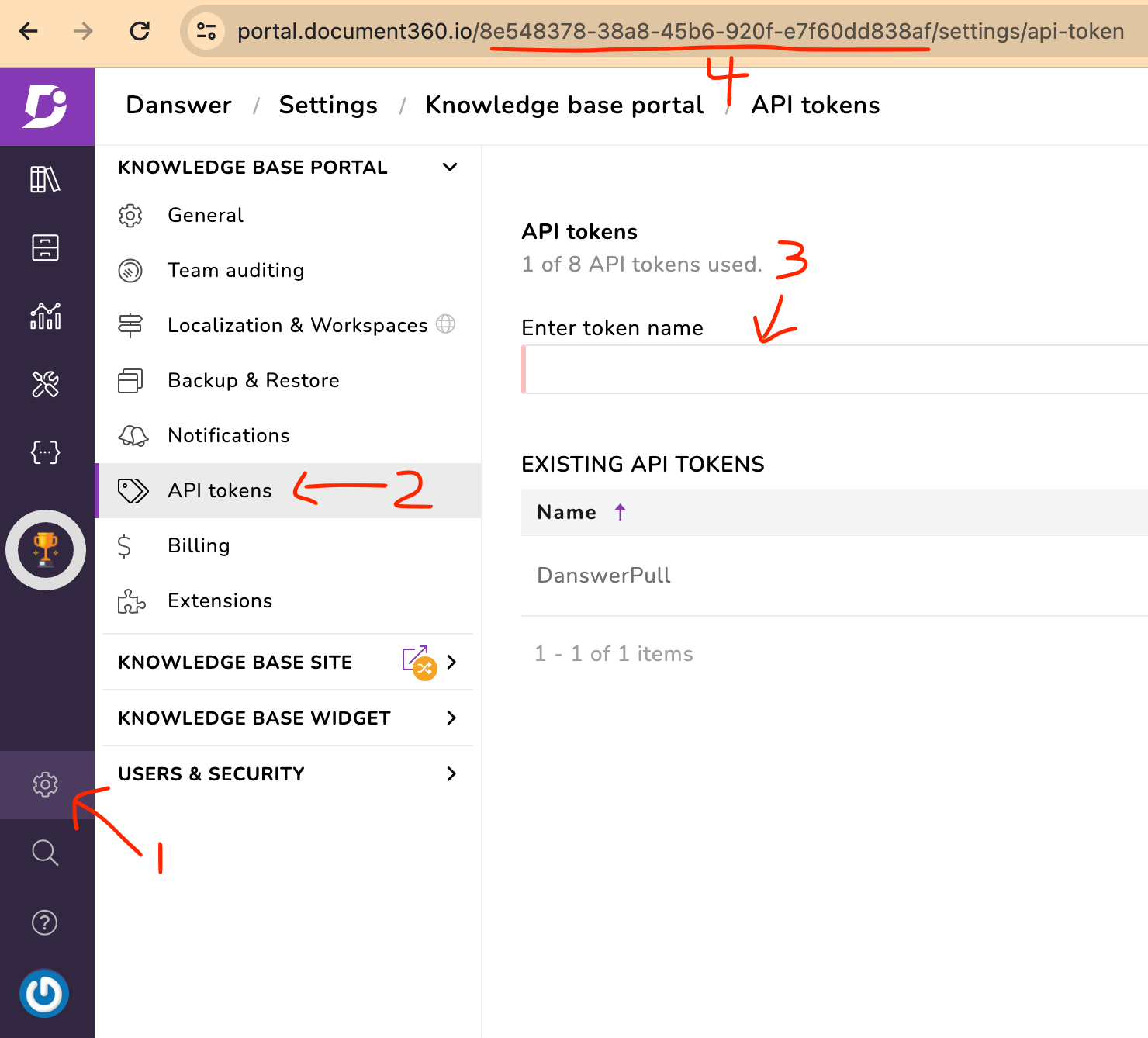
Go to Settings > Knowledge base portal > API tokens.
Click Generate. Enter a token name and select the allowed request methods. Click Generate again.
Your portal ID and API key will be displayed.
 ### Indexing
Navigate to the Admin Panel and select the **Document360** Connector
In **Step 1**, provide your **Portal ID** and the **API Key** from above.
### Indexing
Navigate to the Admin Panel and select the **Document360** Connector
In **Step 1**, provide your **Portal ID** and the **API Key** from above.
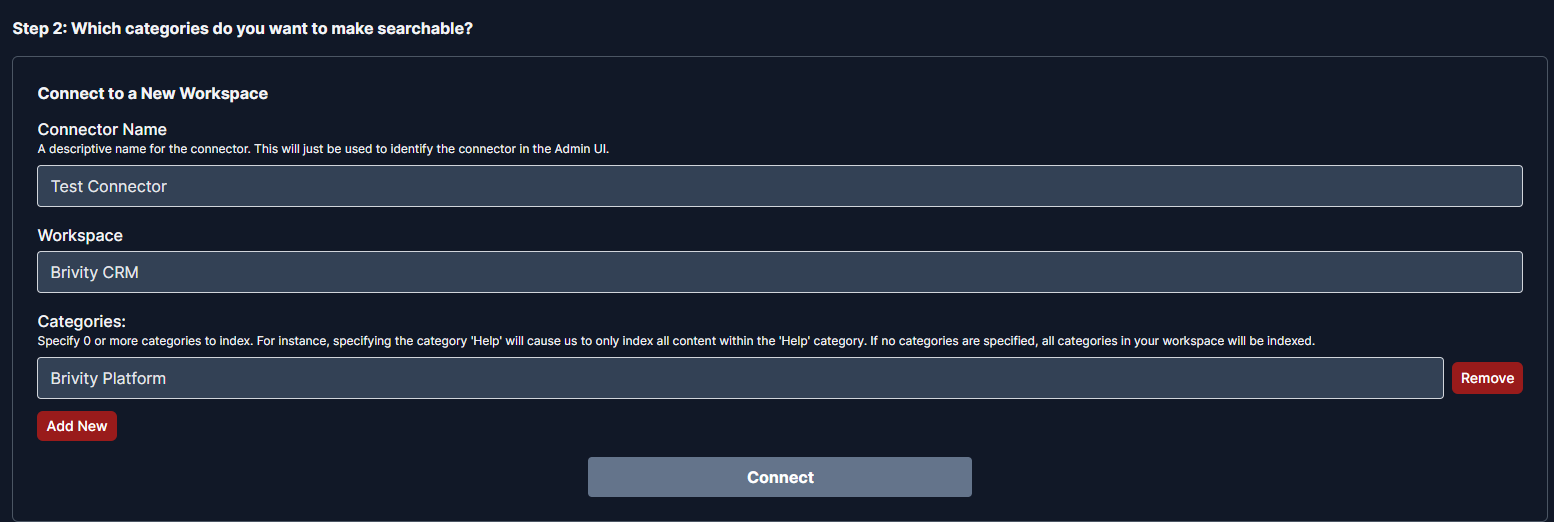
 Set the **Workspace ID** (see below) and **Categories**. To include all categories, leave the categories empty.
Click `Connect` to begin indexing
Set the **Workspace ID** (see below) and **Categories**. To include all categories, leave the categories empty.
Click `Connect` to begin indexing