> ## Documentation Index
> Fetch the complete documentation index at: https://docs.onyx.app/llms.txt
> Use this file to discover all available pages before exploring further.
# Dropbox
> Access knowledge from Dropbox
## How it works
The Dropbox connector ingests all documents from your Dropbox account into Onyx.
The connector recursively pulls all files from the root directory of your Dropbox account.
It is currently not possible to pull files only from specific directories.
The connector will only pull once upon initialization. If you would like to pull more documents,
you must generate a new access token (step 6 below), put that token into the connector, and re-initialize the connector.
## Setting up
### Authorization
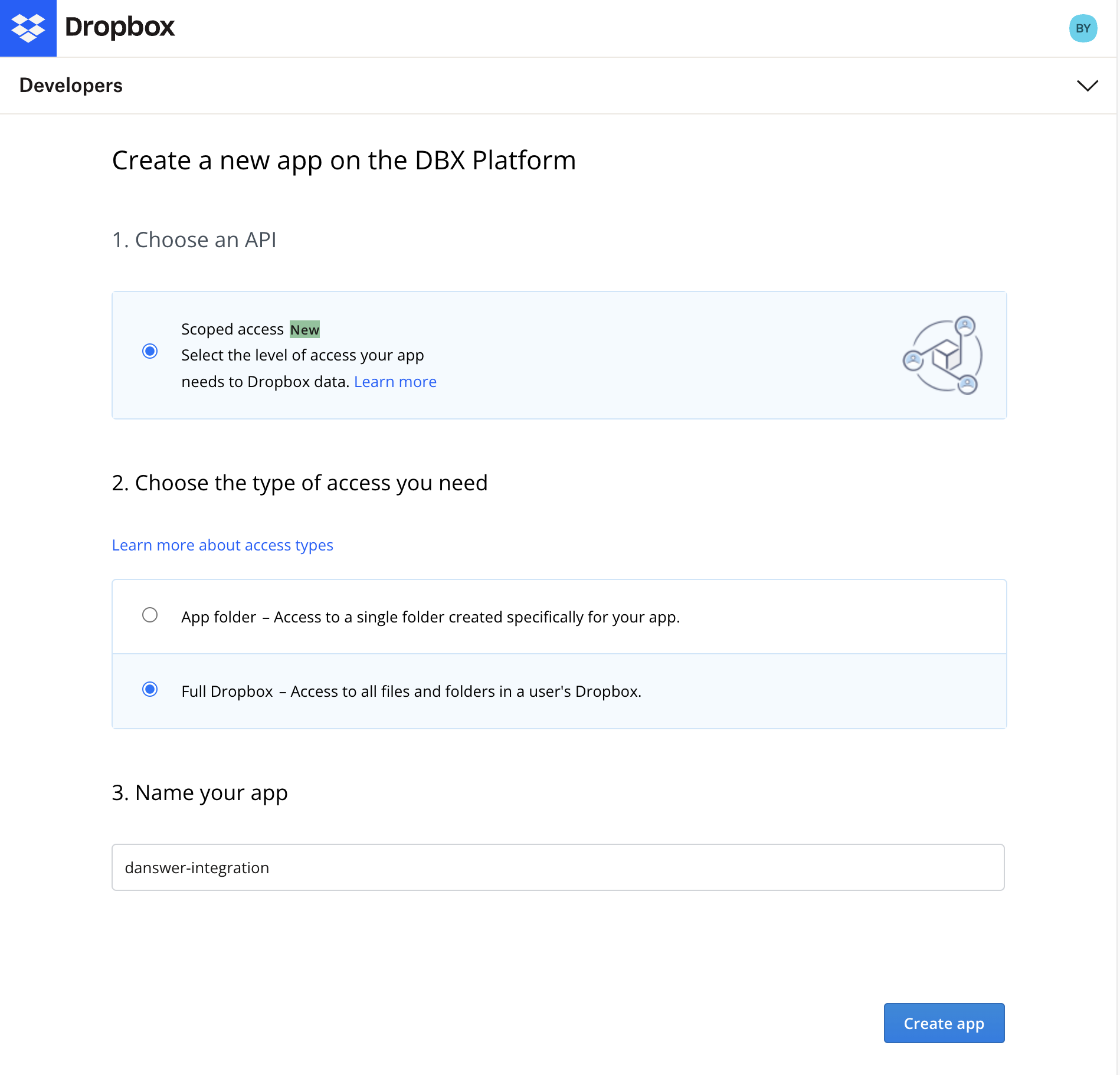
Head over to [https://www.dropbox.com/developers/apps](https://www.dropbox.com/developers/apps) and click the `Create app` button on the top right.
Select `Scoped access` and `Full Dropbox` as the type of access.
Give your app a name like 'Onyx Connector' and click `Create app`.
 Click on the `Permissions` tab.
 Check the `files.content.read` and `sharing.write` permissions so the files can be read and links for the documents
can be created. Click `Submit` to save the changes.
Check the `files.content.read` and `sharing.write` permissions so the files can be read and links for the documents
can be created. Click `Submit` to save the changes.
 Navigate to the `Settings` tab and scroll down to the `OAuth 2` section.
Click `Generate` to generate an access token.
You must complete granting permissions before generating an access token.
Changing permissions will not affect existing access tokens, and Onyx will be unable to index your Dropbox.
Navigate to the `Settings` tab and scroll down to the `OAuth 2` section.
Click `Generate` to generate an access token.
You must complete granting permissions before generating an access token.
Changing permissions will not affect existing access tokens, and Onyx will be unable to index your Dropbox.
 Copy the access token.
Refresh the page if you need to regenerate your access token
Copy the access token.
Refresh the page if you need to regenerate your access token
 ### Indexing
In the Onyx UI, navigate to the Admin Panel and select the **Dropbox** Connector
Provide the access token from the previous step
Click `Connect` to begin indexing your Dropbox files
### Indexing
In the Onyx UI, navigate to the Admin Panel and select the **Dropbox** Connector
Provide the access token from the previous step
Click `Connect` to begin indexing your Dropbox files