> ## Documentation Index
> Fetch the complete documentation index at: https://docs.onyx.app/llms.txt
> Use this file to discover all available pages before exploring further.
# File
> Index files from a local or network drive
## How it works
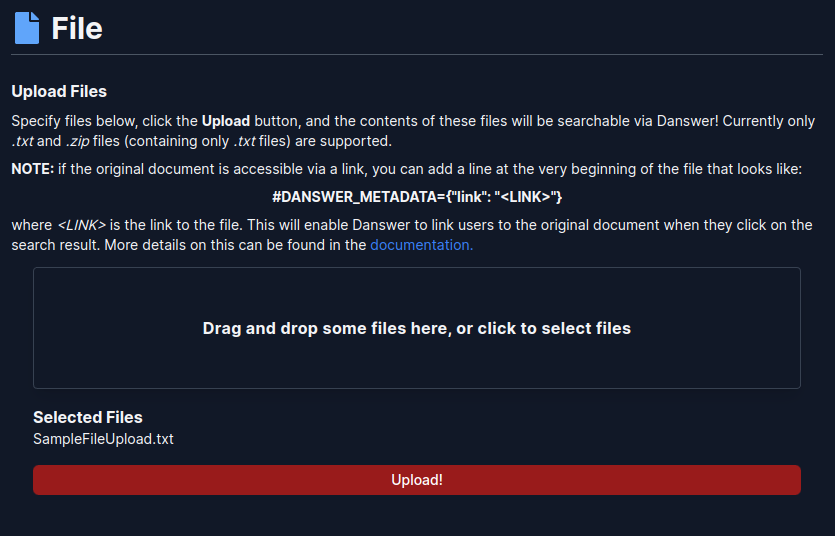
The File Connector indexes user uploaded files. Currently supports `.txt`, `.pdf`, `.docx`, `.pptx`, `.xlsx`, `.csv`,
`.md`, `.mdx`, `.conf`, `.log`, `.json`, `.tsv`, `.xml`, `.yml`, `.yaml`, `.eml`, and `.epub` files.
You can also upload a `.zip` containing these files - If there are other file types in the zip,
the other file types are ignored. There is also an optional metadata line that supports links, document owners,
and time updated as metadata for Onyx's retrieval and AI Answer.
## Adding Metadata
The metadata line should be placed at the very top of the file and can take one of two formats:
* `#ONYX_METADATA={"link": ""}`
* ``
Where ONYX\_METADATA= is followed by a json. The valid json keys are:
* link
* primary\_owners
* secondary\_owners
* doc\_updated\_at
* file\_display\_name
You can also include arbitrary key/value pairs which will be understood as "tags".
These tags can then be used in the UI as a filter if you want to constrain your search / conversation to only documents
with certain tag(s) attached
For example:
```
#ONYX_METADATA={"link": "https://github.com/onyx-dot-app/onyx/blob/main/CONTRIBUTING.md", "primary_owners": ["yuhong@onyx.app", "chris@onyx.app"], "secondary_owners": ["founders@onyx.app"], "doc_updated_at": "2023-11-30T13:06:08.589616-08:00", "file_display_name": "Desired File Name!", "tag_of_your_choice": "tag_value"}
```
Full file example:
```
#ONYX_METADATA={"link": "https://www.onyx.com/captcha", "file_display_name": "Captcha Setup"}
How to set up captcha
Follow the example below to set up a captcha
like you saw when you visited this page!
By including a captcha, this page is able to
prevent web scrapers from reading it.
```
As we can see, there are many web pages or internal tools that aren't directly scrape-able.
In addition to handling local file uploads,
the file connector is offered as an option for these tools which may have APIs for accessing the contents.
Alternatively, if you are uploading a `.zip` filled with files,
you can define a `.onyx_metadata.json` file and include that in the root of the zip file.
If your zip file structure looks like:
```
| file1.txt
| file2.txt
| .onyx_metadata.json
```
then your `.onyx_metadata.json` file might look like:
```json theme={null}
[
{
"filename": "file1.txt",
"link": "",
"file_display_name": ""},
"primary_owners": [""],
// this is an arbitrary tag, can be any key/value pair and can be used in the UI as
// a filter if you want to constrain your search / conversation to only documents with
// this tag attached
"status": ""
},
{
"filename": "file2.txt",
"link": "",
"file_display_name": ""},
"primary_owners": [""],
// this is an arbitrary tag, can be any key/value pair and can be used in the UI as
// a filter if you want to constrain your search / conversation to only documents with
// this tag attached
"status": ""
}
]
```
## Setting up
### Authorization
* No external auth flows required.
* Admins can upload files and make them available to everyone
* \[WIP] Admins or normal users will be able to upload files via personal connectors and make
them accessible for just themselves.
### Indexing
Navigate to the Admin Panel and select the **File** Connector.
Select a `.txt` file or a `.zip` file and click