> ## Documentation Index
> Fetch the complete documentation index at: https://docs.onyx.app/llms.txt
> Use this file to discover all available pages before exploring further.
# GitLab
> Index repositories and issues from GitLab
## How it works
The GitLab Connector picks up all of the Merge Requests and Issues in a specified repository.
* It will index both Open and Closed MRs. This includes the Title and Summary.
* It will index Issues (and Incidents) including comments both Open and Closed.
* Includes certain other metadata such as the URL, creator, etc.
## Setting up
### Authorization
This Connector uses a GitLab Access Token.
Log in to GitLab. On the left sidebar, select your avatar. Select Edit **profile**. Select **Add new token**.
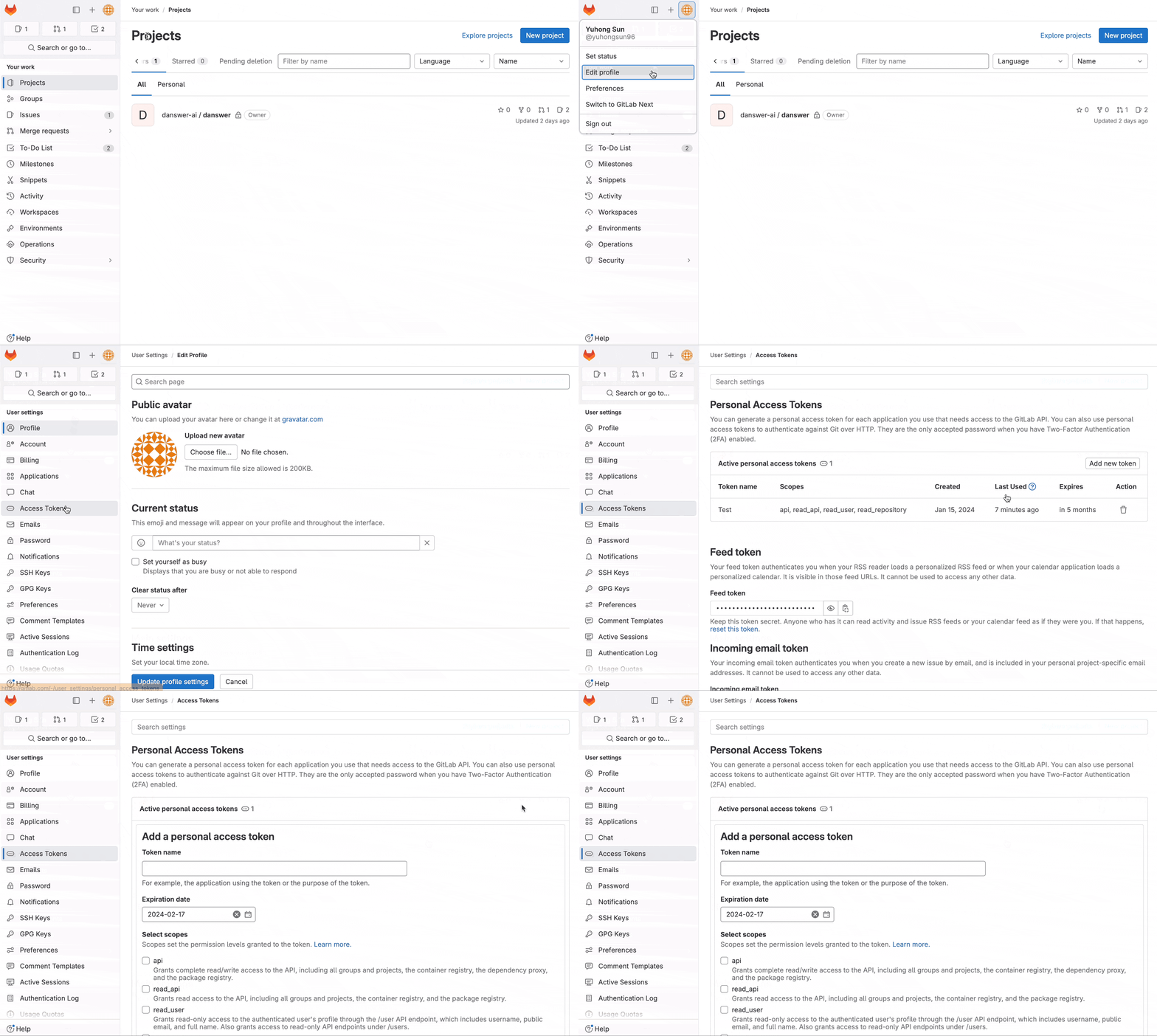 Enter a name and expiry date for the token.
* The token expires on that date at midnight UTC.
* If you do not enter an expiry date,
the expiry date is automatically set to 365 days later than the current date.
* By default, this date can be a maximum of 365 days later than the current date.
Select the desired scopes,
further details
[here](https://docs.gitlab.com/ee/user/profile/personal_access_tokens.html#personal-access-token-scopes).
Then select **Create personal access token**.
### Indexing
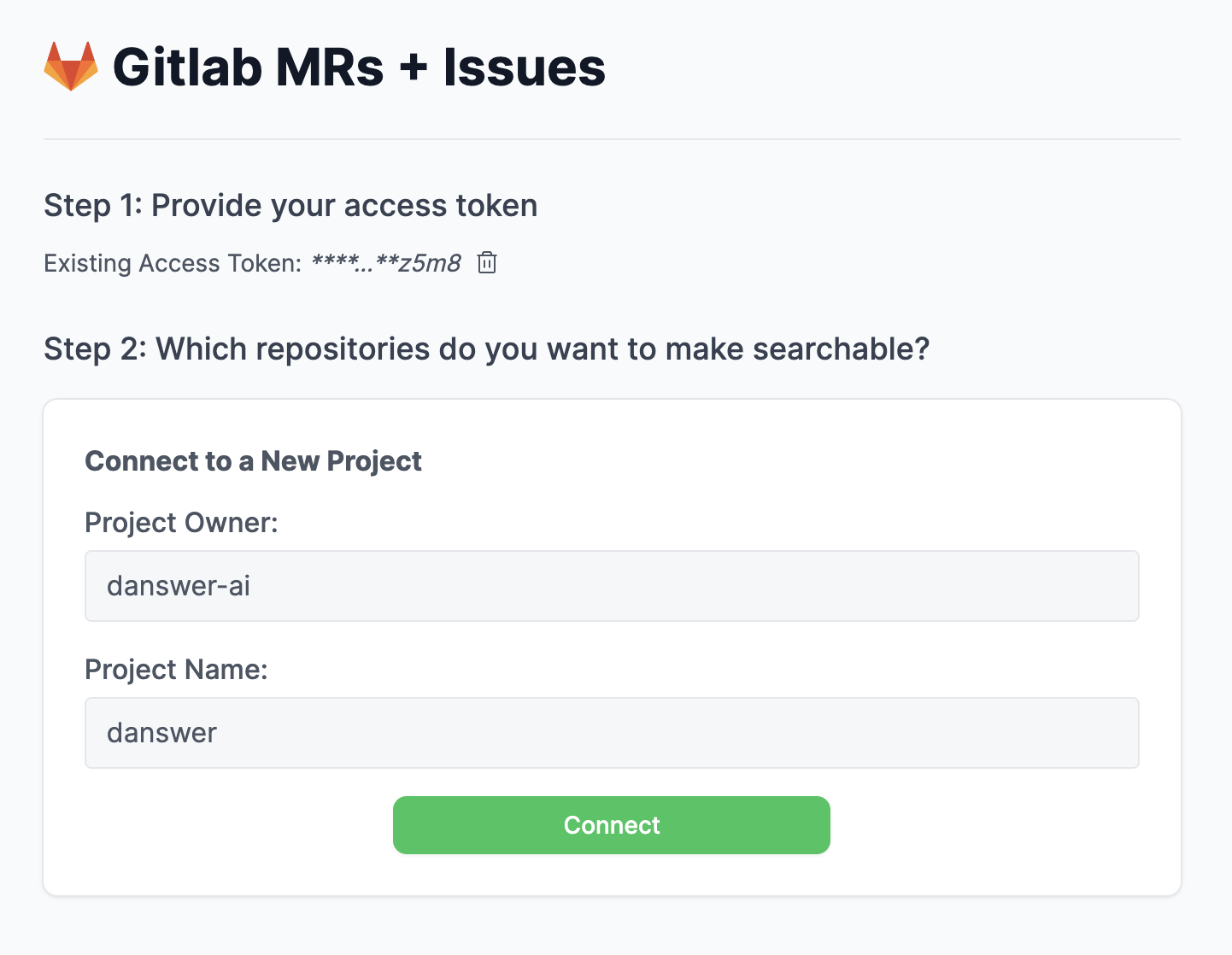
Navigate to the Admin Panel and select the **GitLab** Connector
If you're using GitLab Cloud and not self-hosting, keep the GitLab URL as the default
For a project with a url such as "[https://gitlab.com/onyx-ai/onyx](https://gitlab.com/onyx-ai/onyx)", configure it as below:
Enter a name and expiry date for the token.
* The token expires on that date at midnight UTC.
* If you do not enter an expiry date,
the expiry date is automatically set to 365 days later than the current date.
* By default, this date can be a maximum of 365 days later than the current date.
Select the desired scopes,
further details
[here](https://docs.gitlab.com/ee/user/profile/personal_access_tokens.html#personal-access-token-scopes).
Then select **Create personal access token**.
### Indexing
Navigate to the Admin Panel and select the **GitLab** Connector
If you're using GitLab Cloud and not self-hosting, keep the GitLab URL as the default
For a project with a url such as "[https://gitlab.com/onyx-ai/onyx](https://gitlab.com/onyx-ai/onyx)", configure it as below: