> ## Documentation Index
> Fetch the complete documentation index at: https://docs.onyx.app/llms.txt
> Use this file to discover all available pages before exploring further.
# Google Cloud Storage
> Access files from Google Cloud Storage buckets
## How it works
The Google Cloud Storage connector pulls in all documents from the specified GCS bucket.
It supports various file formats including PDF, DOC, DOCX, TXT, and more.
Documents are updated every **1** day.
## Setting up
### Authorization
Log into your [Google Cloud Console](https://console.cloud.google.com/).
Navigate to "Cloud Storage" > "Settings" > "Interoperability".
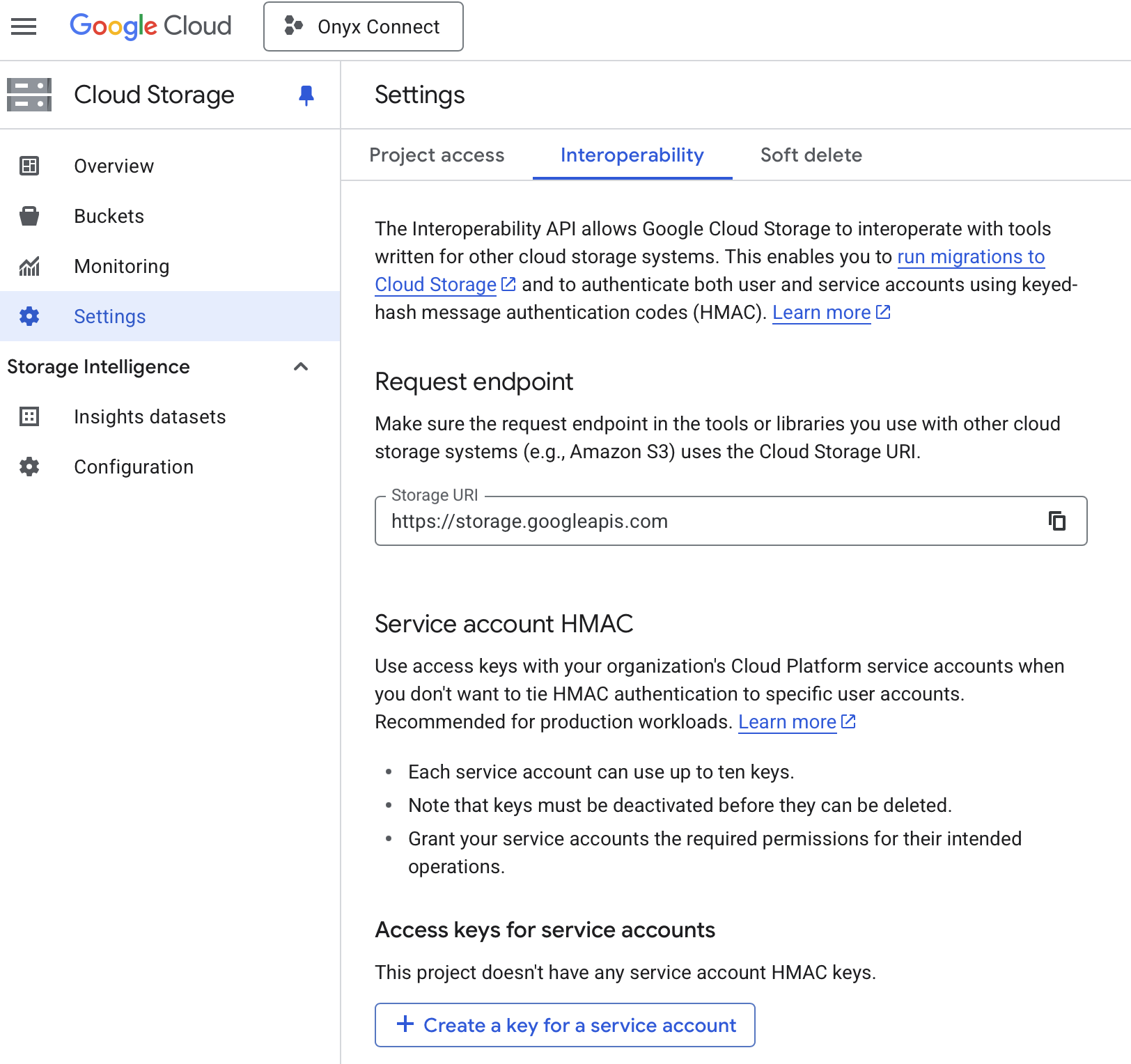 Click "Create a key for a service account".
Click "Create new account" (or select an existing account and click Create key).
Click "Create a key for a service account".
Click "Create new account" (or select an existing account and click Create key).
 Set a name for the new service account (e.g., "onyx-gcs-connector") and click "Create and continue".
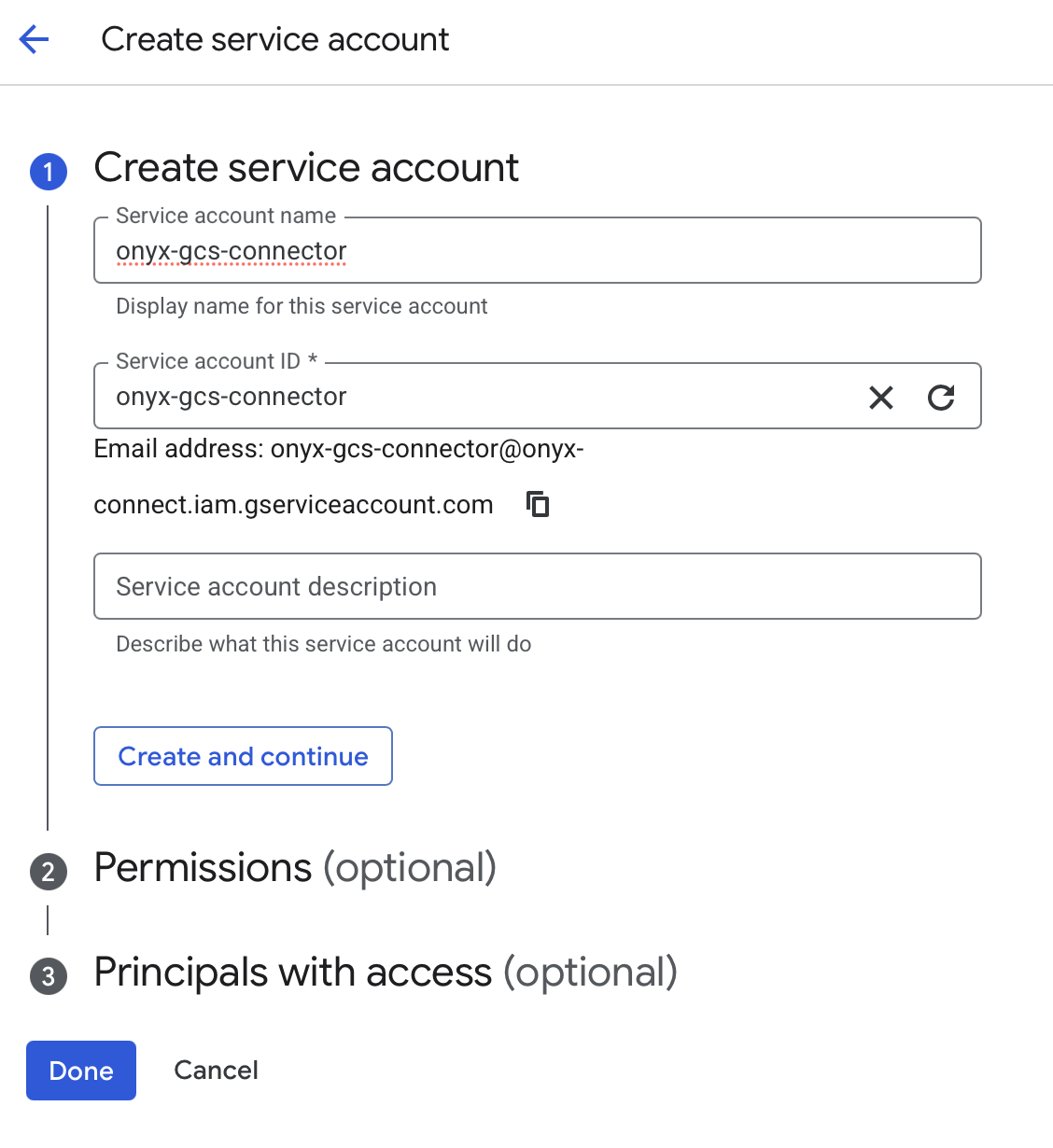 Click "Select a role" and select Storage Object Viewer or another, more permissive role. Click "Done".
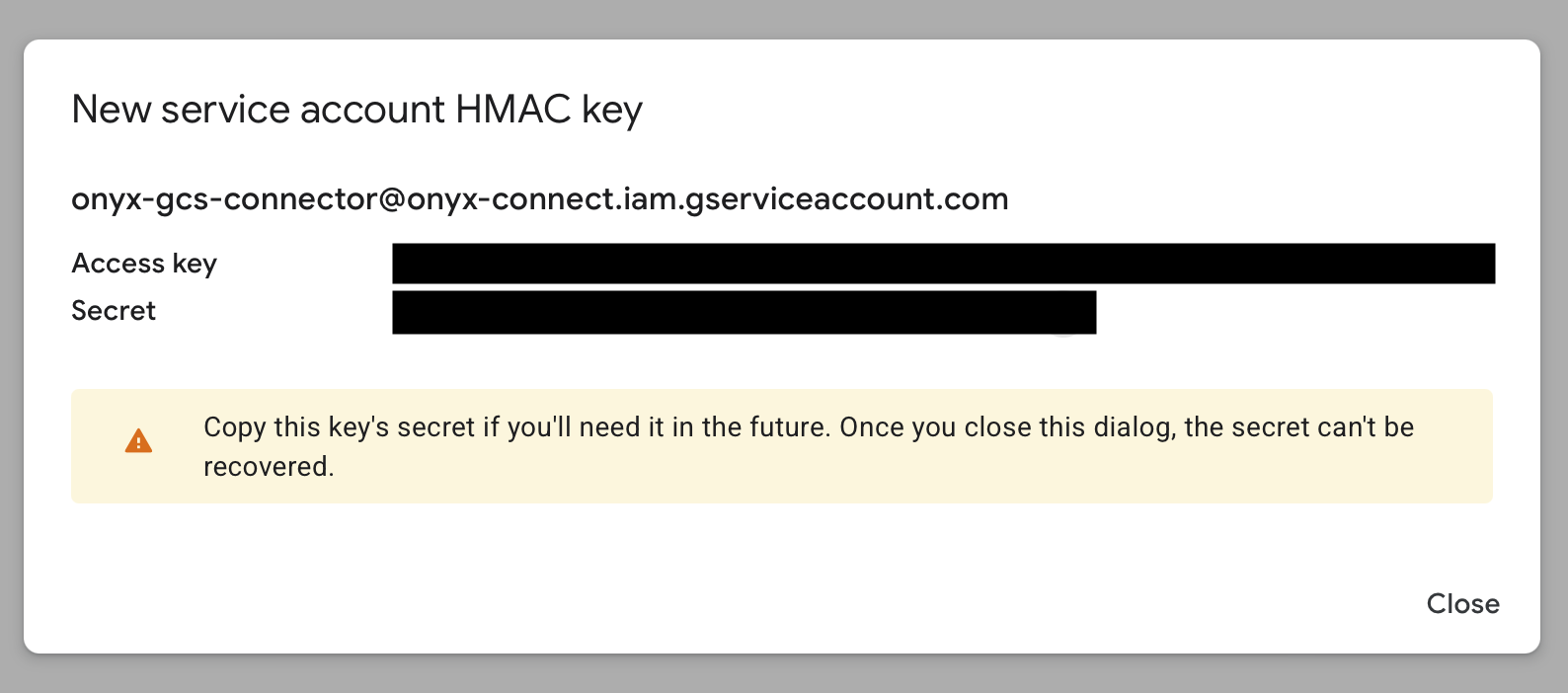
 Back on the Interoperability page you should see the new credentials. Record both `Access key` and `Secret`.
 ### Indexing
Navigate to the Admin Panel > Add Connector > **Google Storage**.
Click Create New to create a new credential.
### Indexing
Navigate to the Admin Panel > Add Connector > **Google Storage**.
Click Create New to create a new credential.
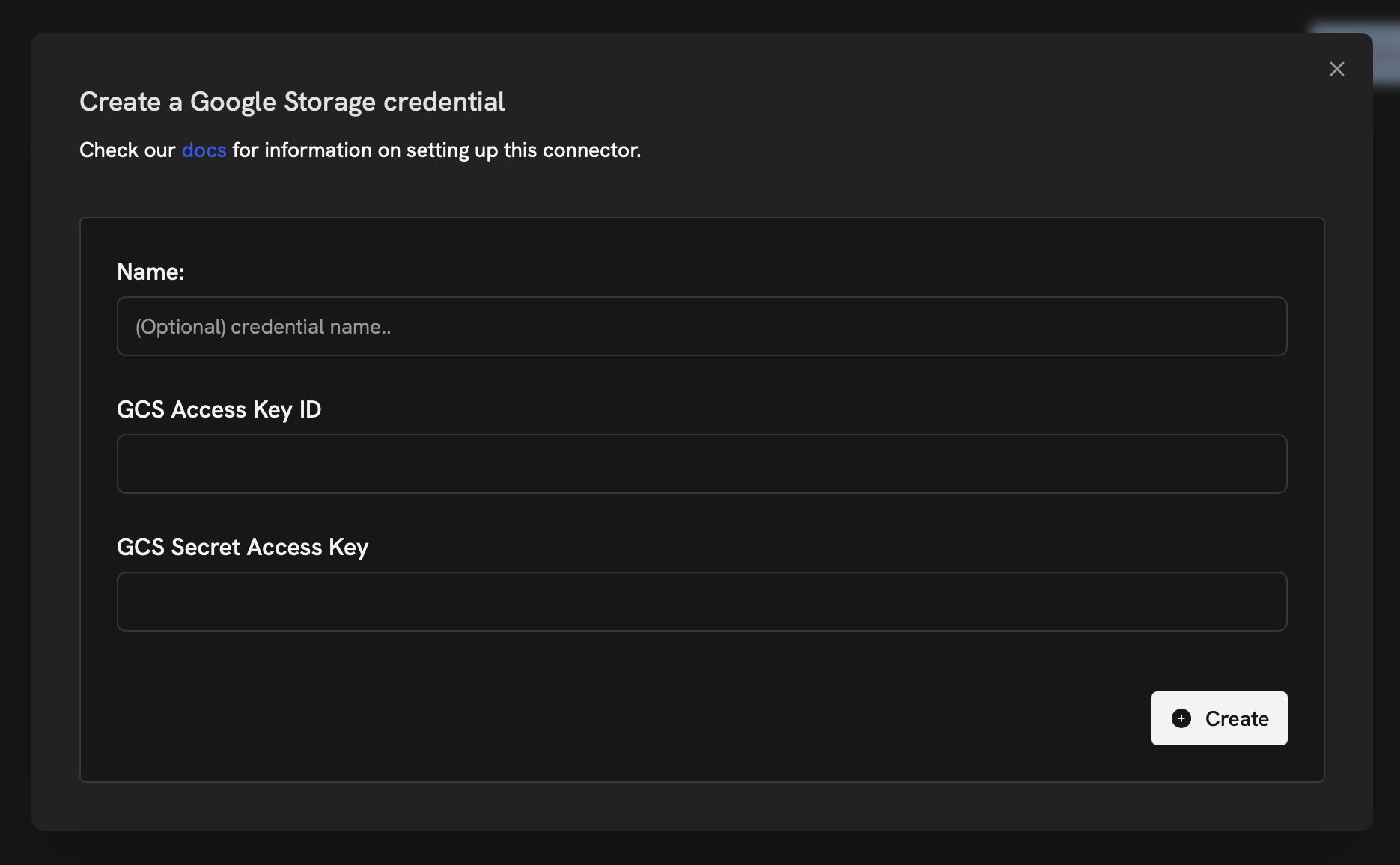 Paste your Access key and Secret in the form. Click Create and Continue. Name your connector,
specify the GCS bucket you would like to index, and click Create Connector.
Paste your Access key and Secret in the form. Click Create and Continue. Name your connector,
specify the GCS bucket you would like to index, and click Create Connector.
 ## Understanding Google Cloud Storage Structure
Google Cloud Storage organizes data into buckets. Each bucket can contain an unlimited number of objects (files).
You can think of a bucket as a root directory, and the objects as files within that directory.
For more information on Google Cloud Storage structure,
visit the [Google Cloud Storage documentation](https://cloud.google.com/storage/docs).
## Understanding Google Cloud Storage Structure
Google Cloud Storage organizes data into buckets. Each bucket can contain an unlimited number of objects (files).
You can think of a bucket as a root directory, and the objects as files within that directory.
For more information on Google Cloud Storage structure,
visit the [Google Cloud Storage documentation](https://cloud.google.com/storage/docs).