> ## Documentation Index
> Fetch the complete documentation index at: https://docs.onyx.app/llms.txt
> Use this file to discover all available pages before exploring further.
# Guru
> Access cards and collections from Guru
## How it works
The Guru connector pulls in all the Cards your user has access to based on a User Access Token.
Cards are updated every **10** minutes.
## Setting up
### Authorization
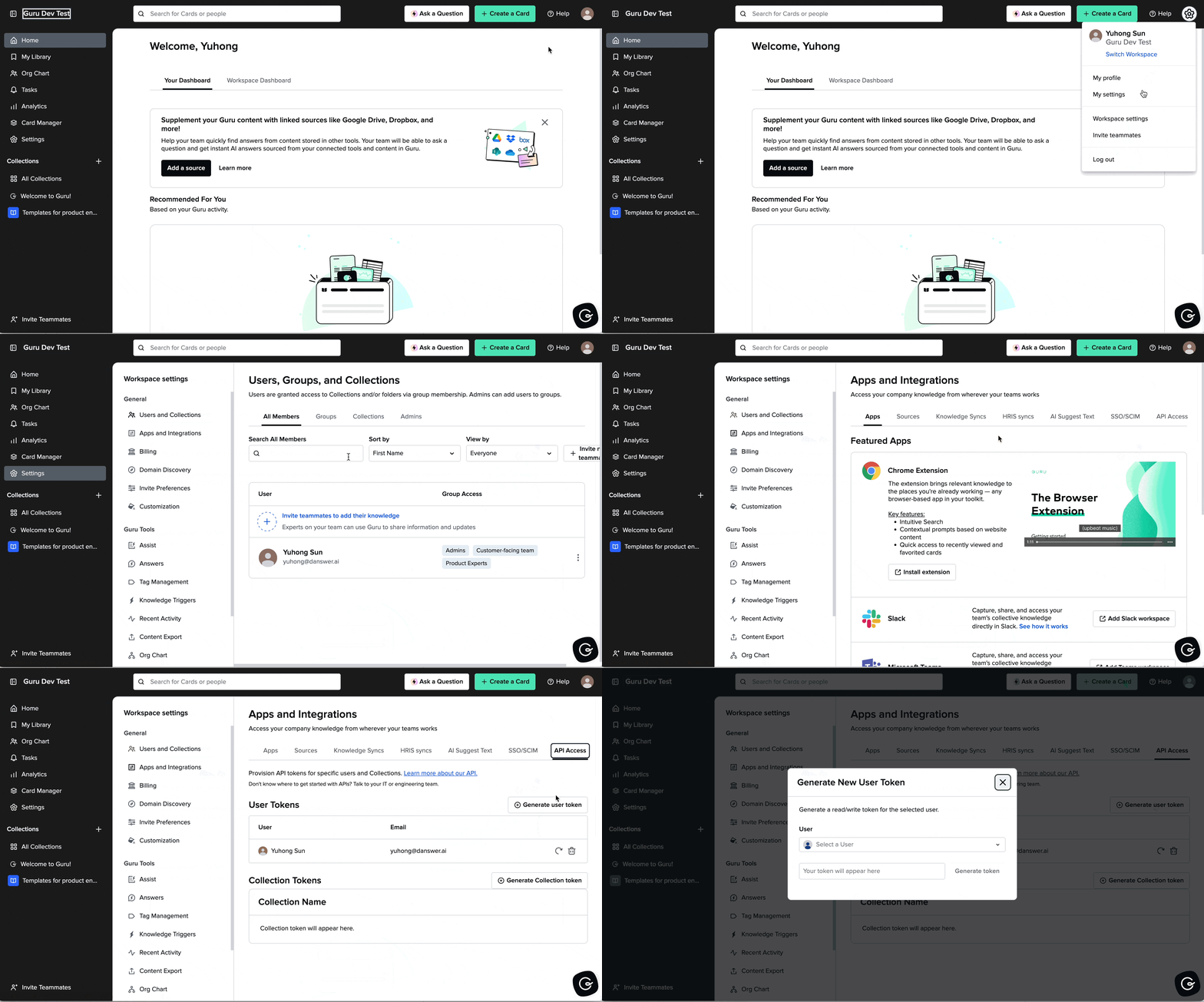
Obtain a User Access Token.
Follow the Guru API guide described [here](https://developer.getguru.com/docs/getting-started) for more details.
 ### Indexing
Navigate to the Admin Panel and select the **Guru** Connector
In **Step 1**, provide your **Username** (most likely your email) and the **Access Token** from above.
### Indexing
Navigate to the Admin Panel and select the **Guru** Connector
In **Step 1**, provide your **Username** (most likely your email) and the **Access Token** from above.
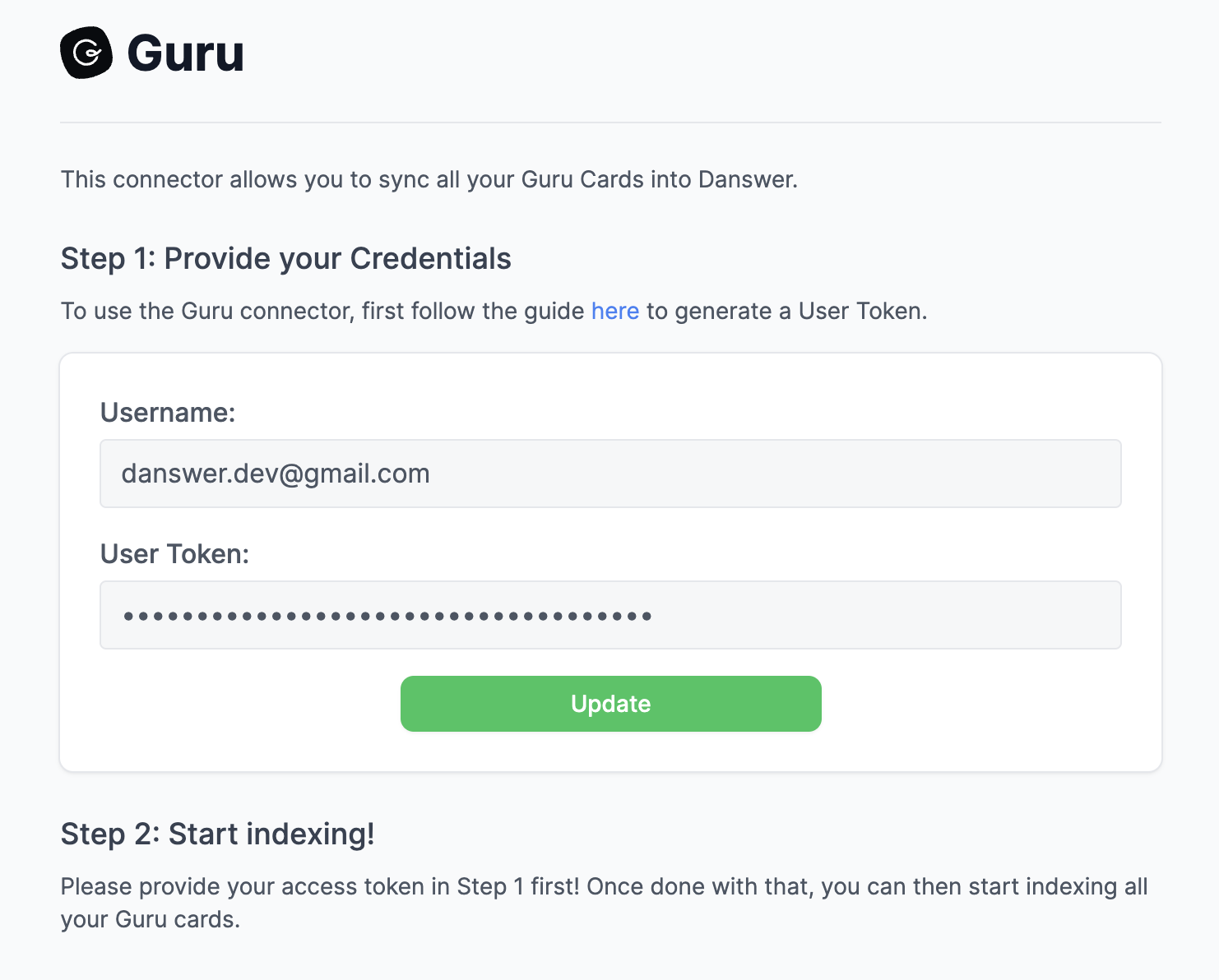 Click `Connect` to begin indexing