> ## Documentation Index
> Fetch the complete documentation index at: https://docs.onyx.app/llms.txt
> Use this file to discover all available pages before exploring further.
# Highspot
> Access sales content from Highspot
## How it works
The Highspot connector indexes documents from your Highspot instance.
It can index either specific spots you add or all spots where you have view access and download permissions.
## Setting up
### Authorization
> **IMPORTANT:** Highspot Platform Plus is an add-on feature that provides access to the API. Without Platform Plus, users cannot access the API features required for this connector. Please ensure your organization has purchased the Platform Plus add-on before proceeding.
#### Enabling Developer Options
Log into your Highspot account as an administrator.
Click on your profile icon in the top right corner and select "Settings".
Select "your company" under company settings.
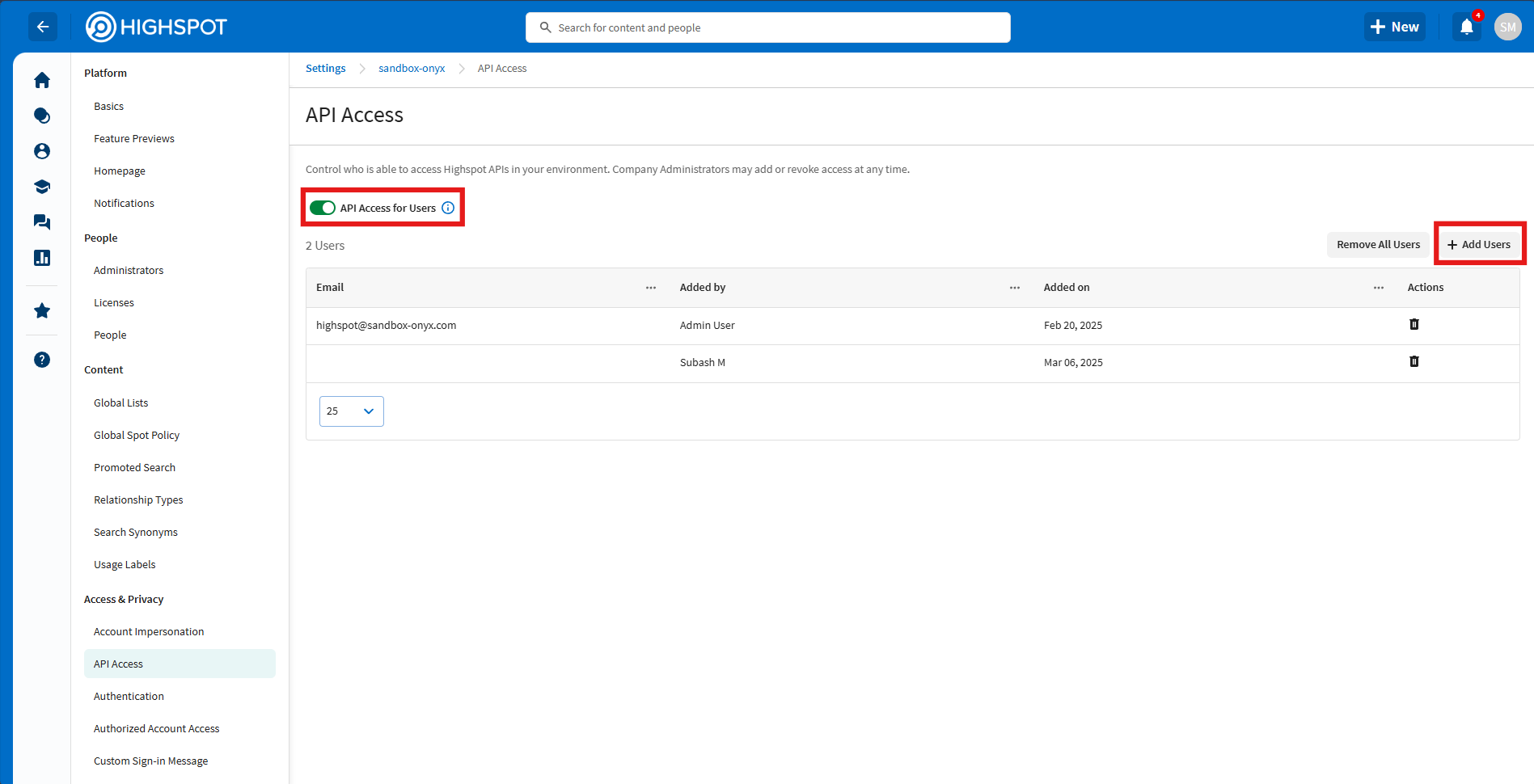
Navigate to "Access and Privacy" and click on "API Access". Add the user(s)
who will need to generate API keys and secrets. Confirm "API Access for Users" is enabled.
 #### Generating API Credentials
Log in as the user who has been granted API access.
Click on the profile icon in the top right corner and select "Settings".
Look for the "Developer" tab under user settings.
Navigate to the developer section and generate a new API key. After generation, you'll receive a key and secret.
#### Generating API Credentials
Log in as the user who has been granted API access.
Click on the profile icon in the top right corner and select "Settings".
Look for the "Developer" tab under user settings.
Navigate to the developer section and generate a new API key. After generation, you'll receive a key and secret.
 Make a note of your API key, secret and base URL as you will need them for indexing.
### Indexing
Navigate to the Admin Panel and select the **Highspot** Connector Tile
Provide your **API Key**, **Secret**, and **Base URL** from the steps above
Choose one of the following:
* Enter specific spots you want to index
* Index all spots where your user has view access and download permissions
Click "Connect" to begin indexing your Highspot content
Make a note of your API key, secret and base URL as you will need them for indexing.
### Indexing
Navigate to the Admin Panel and select the **Highspot** Connector Tile
Provide your **API Key**, **Secret**, and **Base URL** from the steps above
Choose one of the following:
* Enter specific spots you want to index
* Index all spots where your user has view access and download permissions
Click "Connect" to begin indexing your Highspot content