> ## Documentation Index
> Fetch the complete documentation index at: https://docs.onyx.app/llms.txt
> Use this file to discover all available pages before exploring further.
# HubSpot
> Access CRM data from HubSpot
## How it works
The HubSpot connector pulls in data from your HubSpot CRM, including:
* **Tickets** - Support tickets with their title, content, associated emails and notes
* **Companies** - Company records with associated data and relationships
* **Deals** - Sales opportunities with pipeline information and associated contacts
* **Contacts** - Contact records with their information and associated activities
You can configure which object types to index based on your needs.
All selected data types are updated every **10** minutes.
## Setting up
### Authorization
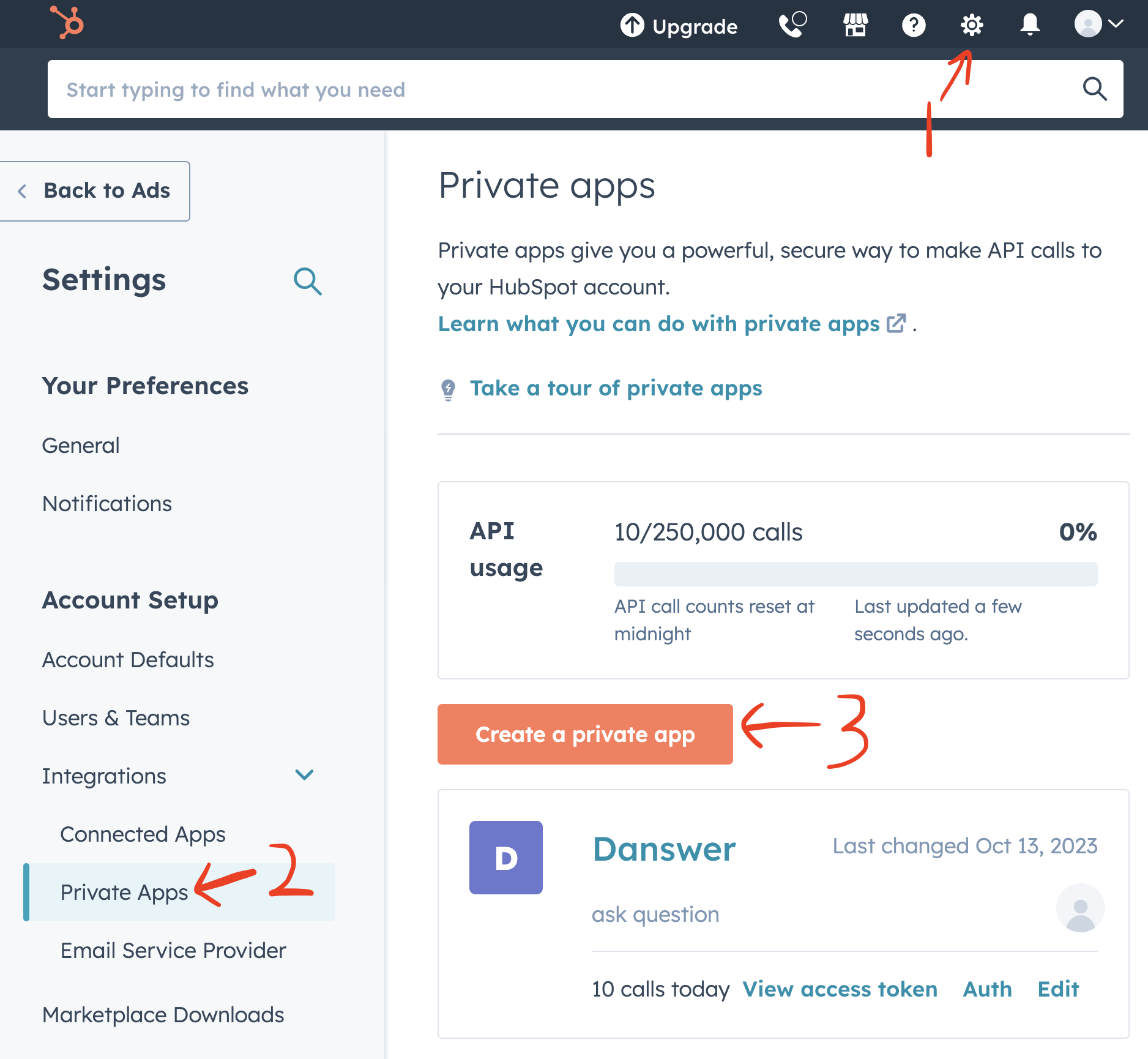
Create a Private App Integration (see below).
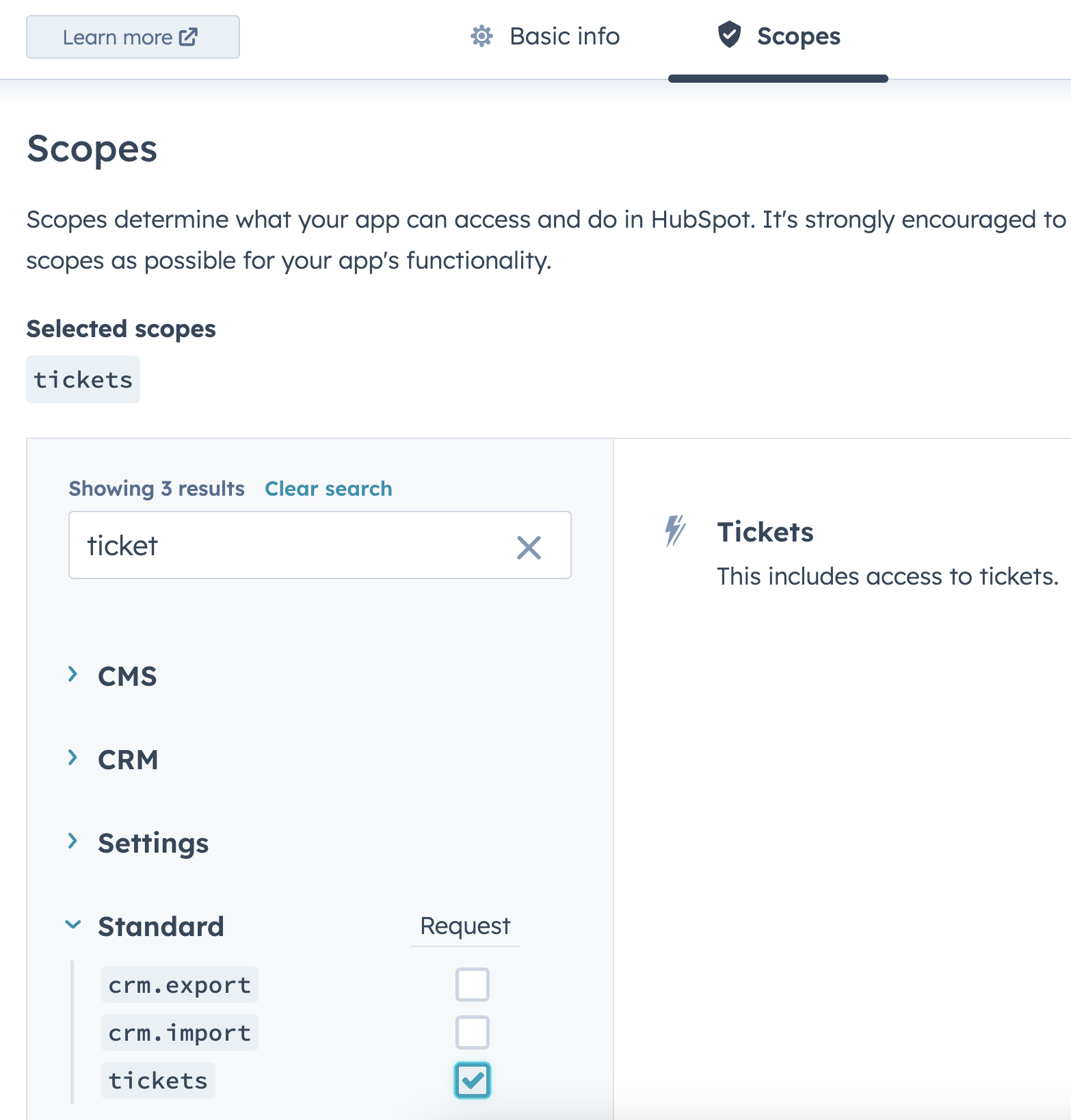
 Under **Scopes** (top bar), select the appropriate scopes based on what data you want to index:
* For **Tickets**: Select the `Tickets` scope
* For **Companies**: Select the `Companies` scope
* For **Deals**: Select the `Deals` scope
* For **Contacts**: Select the `Contacts` scope
Under **Scopes** (top bar), select the appropriate scopes based on what data you want to index:
* For **Tickets**: Select the `Tickets` scope
* For **Companies**: Select the `Companies` scope
* For **Deals**: Select the `Deals` scope
* For **Contacts**: Select the `Contacts` scope
 Copy the Access Token that is shown when the App is created.
### Indexing
Navigate to the Admin Panel and select the **HubSpot** Connector
In **Step 1**, provide the Access Token from above
In **Step 2**, select which object types you want to index:
* **Companies** - Index company records and their associated data
* **Deals** - Index sales opportunities and pipeline information
* **Contacts** - Index contact records and their activities
* **Tickets** - Index support tickets and related communications
Click `Connect` to begin indexing your selected HubSpot data types
Make sure your HubSpot Access Token has the appropriate scopes enabled for the object types you want to index.
The connector will only be able to access data for which you've granted the necessary permissions.
Copy the Access Token that is shown when the App is created.
### Indexing
Navigate to the Admin Panel and select the **HubSpot** Connector
In **Step 1**, provide the Access Token from above
In **Step 2**, select which object types you want to index:
* **Companies** - Index company records and their associated data
* **Deals** - Index sales opportunities and pipeline information
* **Contacts** - Index contact records and their activities
* **Tickets** - Index support tickets and related communications
Click `Connect` to begin indexing your selected HubSpot data types
Make sure your HubSpot Access Token has the appropriate scopes enabled for the object types you want to index.
The connector will only be able to access data for which you've granted the necessary permissions.