> ## Documentation Index
> Fetch the complete documentation index at: https://docs.onyx.app/llms.txt
> Use this file to discover all available pages before exploring further.
# Jira
> Access issues and projects from Jira
## How it works
The Jira connector pulls in all tickets from the specified projects every **10** minutes.
For every jira issue this connector will pull:
* Title
* Description
* [Common fields](#indexed-metadata)
* Comments
## Setting up
### Authorization
**Jira Cloud**:
follow the guide described
[here](https://docs.searchunify.com/Content/Content-Sources/Atlassian-Jira-Confluence-Authentication-Create-API-Token.htm)
to get an access token.
**Jira Server**:
follow the guide described
[here](https://confluence.atlassian.com/enterprise/using-personal-access-tokens-1026032365.html)
to get a personal access token.
### Indexing
Navigate to the Admin Panel and select the **Jira** Connector
For Cloud, provide the **Access Token** and the **Username** it belongs to:
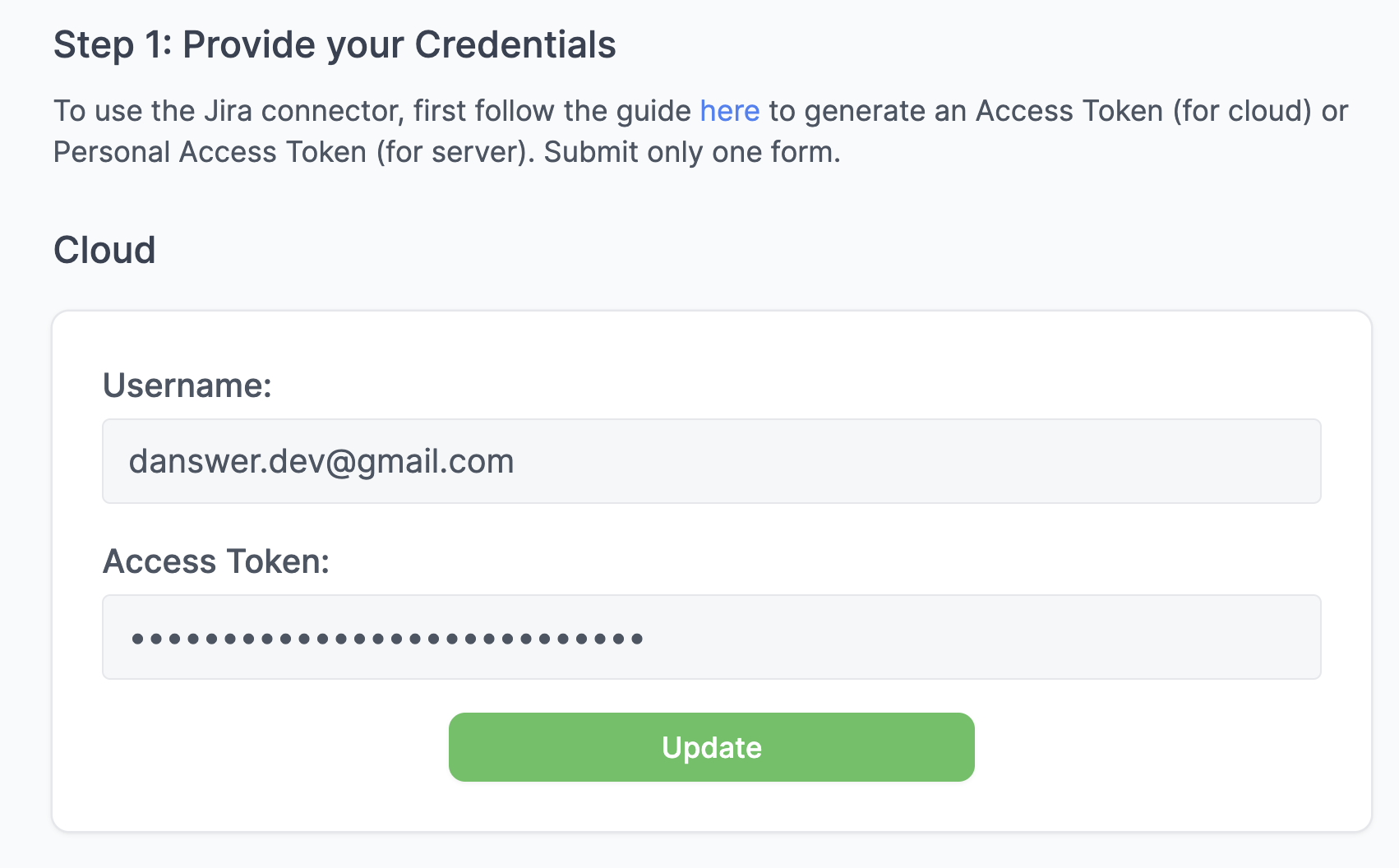 For Server, provide the **Personal Access Token**:
 For each project you want to index, provide a single URL to any page in the project.
Optionally specify users whose comments should not be indexed (useful to ignore certain bots). For example:
For each project you want to index, provide a single URL to any page in the project.
Optionally specify users whose comments should not be indexed (useful to ignore certain bots). For example:
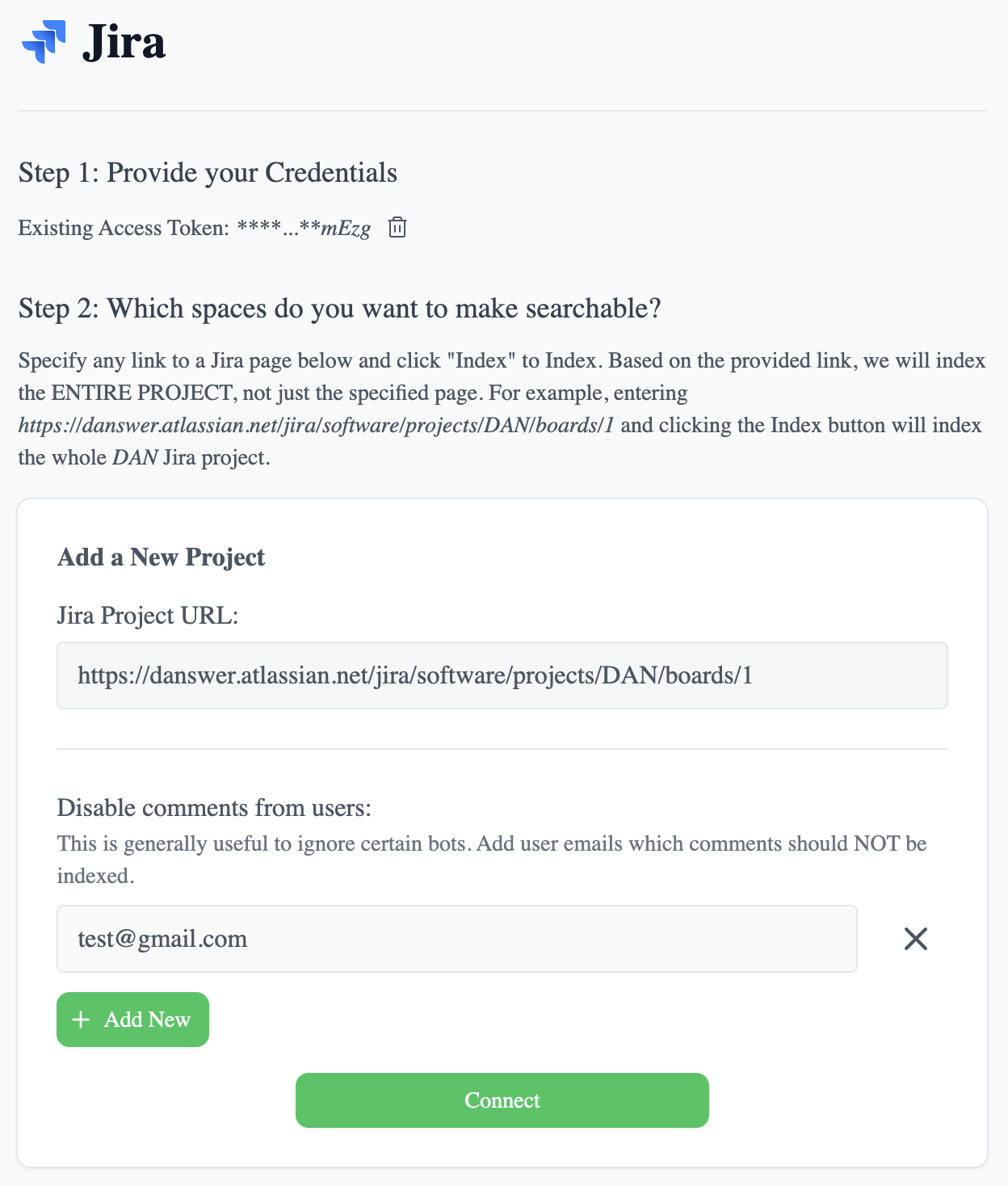 Click the `Connect` button! All your Jira tickets in that space will now be pulled into Onyx every **10** minutes.
### Indexed metadata
```
- Project ID
- Issue Type
- Issue Key
- Summary
- Description
- Priority
- Labels
- Assignee
- Reporter
- Comments
- Status
- Resolution
- Created
- Updated
```
Click the `Connect` button! All your Jira tickets in that space will now be pulled into Onyx every **10** minutes.
### Indexed metadata
```
- Project ID
- Issue Type
- Issue Key
- Summary
- Description
- Priority
- Labels
- Assignee
- Reporter
- Comments
- Status
- Resolution
- Created
- Updated
```