> ## Documentation Index
> Fetch the complete documentation index at: https://docs.onyx.app/llms.txt
> Use this file to discover all available pages before exploring further.
# Notion
> Access pages and databases from Notion
## How it works
The Notion connector uses the Notion search API to fetch all pages that the connector has access to within a workspace.
For follow up indexing runs, the connector only retrieves pages that have been updated since the last indexing attempt.
Indexing is configured to run every **10 minutes**, so page updates should appear within 10 minutes.
## Setting up
### Authorization
In order to authorize Onyx to connect to your Notion workspace, you'll need to create a new integration in Notion,
which will then provide you with a secret token.
These steps are pulled from [this Notion guide](https://developers.notion.com/docs/create-a-notion-integration)
which you can also follow.
#### Step 1: Create an integration
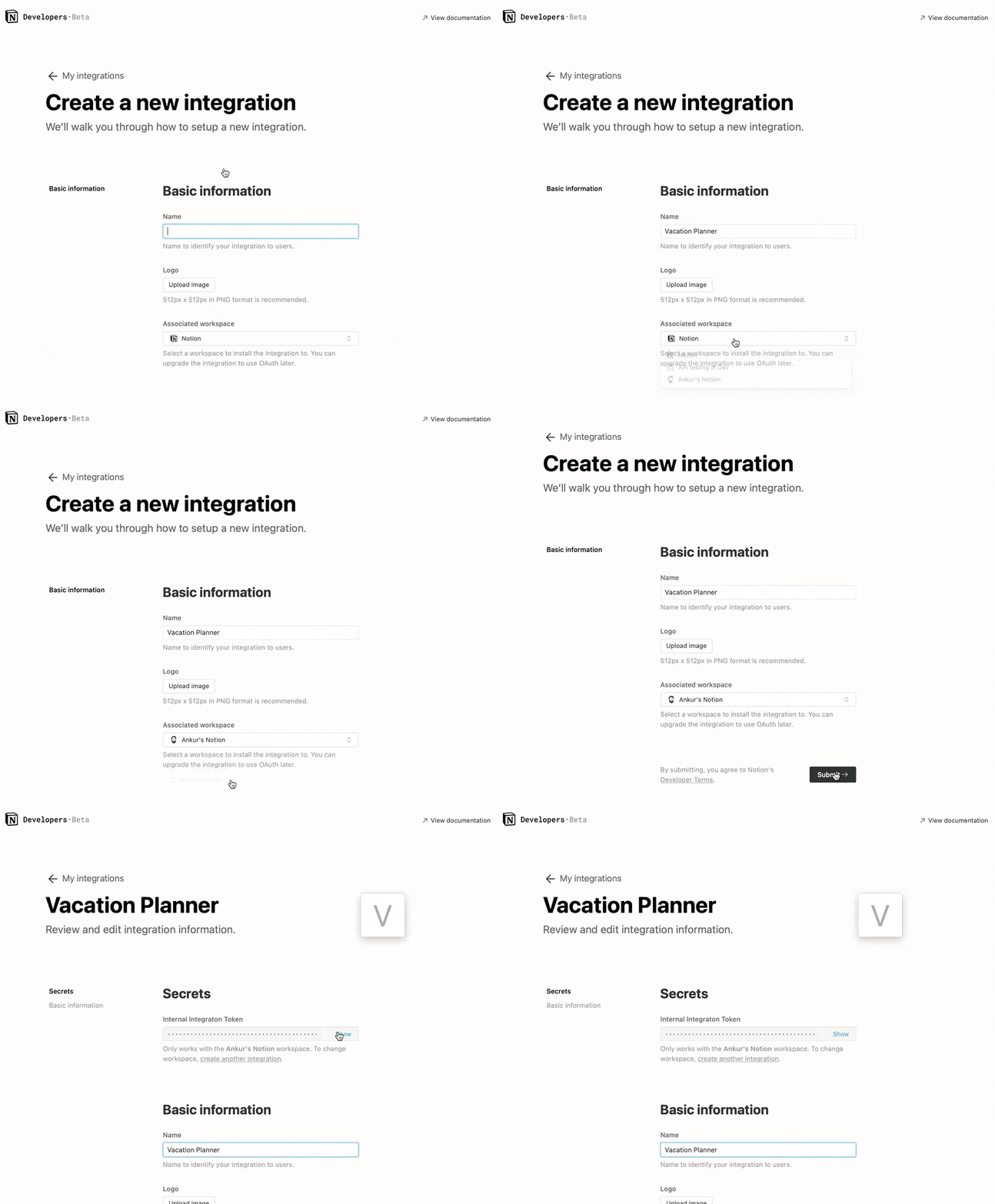
Visit [https://www.notion.com/my-integrations](https://www.notion.com/my-integrations) in your browser.
Click the + New integration button.
Name the integration (something like "Onyx" could work).
Select "Read content" as the only capability required for Onyx.
Click Submit to create the integration.
On the next page, you'll find your Notion integration token, also called an API key.
You'll need this token to configure Onyx to index Notion, so make a copy of it.
The integration has been added to the workspace, so any member can share pages and databases with it.
There's no requirement to be an Admin to share information with an integration.
 #### Step 2: Share pages/databases with your integration
Now that you've created an integration, you need to grant it access to Notion pages/databases.
To keep your information secure, integrations don't have access to any pages or databases in the workspace at first.
You must share specific pages with an integration in order for Onyx to access those pages.
To share a page/database with your integration:
Go to the page/database in your workspace.
Click the `•••` on the top right corner of the page.
Scroll to the bottom of the pop-up and click Add connections.
Search for and select the new integration in the `Search for connections...` menu.
If you've added a page, all child pages also become accessible to Onyx.
If you've added a database, all rows (and their children) become accessible to Onyx.
#### Step 2: Share pages/databases with your integration
Now that you've created an integration, you need to grant it access to Notion pages/databases.
To keep your information secure, integrations don't have access to any pages or databases in the workspace at first.
You must share specific pages with an integration in order for Onyx to access those pages.
To share a page/database with your integration:
Go to the page/database in your workspace.
Click the `•••` on the top right corner of the page.
Scroll to the bottom of the pop-up and click Add connections.
Search for and select the new integration in the `Search for connections...` menu.
If you've added a page, all child pages also become accessible to Onyx.
If you've added a database, all rows (and their children) become accessible to Onyx.
 Once you've granted access to a page/database, you can start configuring Onyx to index those databases.
### Indexing
Navigate to the Admin Panel and select the **Notion** connector.
In **Step 1**, provide the **Integration Token Secret** you obtained in the "Authorization" steps above:
Once you've granted access to a page/database, you can start configuring Onyx to index those databases.
### Indexing
Navigate to the Admin Panel and select the **Notion** connector.
In **Step 1**, provide the **Integration Token Secret** you obtained in the "Authorization" steps above:
 Click the `Connect` button! Your content will then be pulled into Onyx every **10** minutes.
 Note - As mentioned, the Notion connector currently indexes everything it has access to.
If you want to limit specific content being indexed, simply unshare the database from Notion with the integration.
Note - As mentioned, the Notion connector currently indexes everything it has access to.
If you want to limit specific content being indexed, simply unshare the database from Notion with the integration.