> ## Documentation Index
> Fetch the complete documentation index at: https://docs.onyx.app/llms.txt
> Use this file to discover all available pages before exploring further.
# S3 Overview
> Overview of the S3 connector
## How it works
The S3 connector pulls in all documents from the specified Amazon S3 bucket.
It supports various file formats including PDF, DOC, DOCX, TXT, and more.
Documents are updated every **1** day.
## Setting up
### Authorization
We support three authorization methods—pick one that fits your environment:
* [AWS Access Keys](./access-keys) - Uses traditional access key credentials
* [IAM Role-Based Authorization](./iam-role) - Uses AWS IAM roles for secure access
* [Assume Role](./assume-role) - Automatically uses the EC2 instance's attached role for S3 access
### Indexing
Once you've set up your authorization method, follow these steps to index your S3 bucket:
Navigate to the Onyx Admin Panel and select the **S3** Connector.
In **Step 1**, configure your authorization:
* If you have existing credentials, select them from the list
* If you don't have existing credentials, click **Create New** to add new authorization:
* **Access Keys**: Enter your AWS Access Key ID and Secret Access Key
* **IAM Role**: Click the IAM Role tab and enter your Role ARN
* **Assume Role**: Click the Assume Role tab (no credentials required)
Click **Create** to save your configuration.
Ensure your chosen credential is selected, then click **Continue**
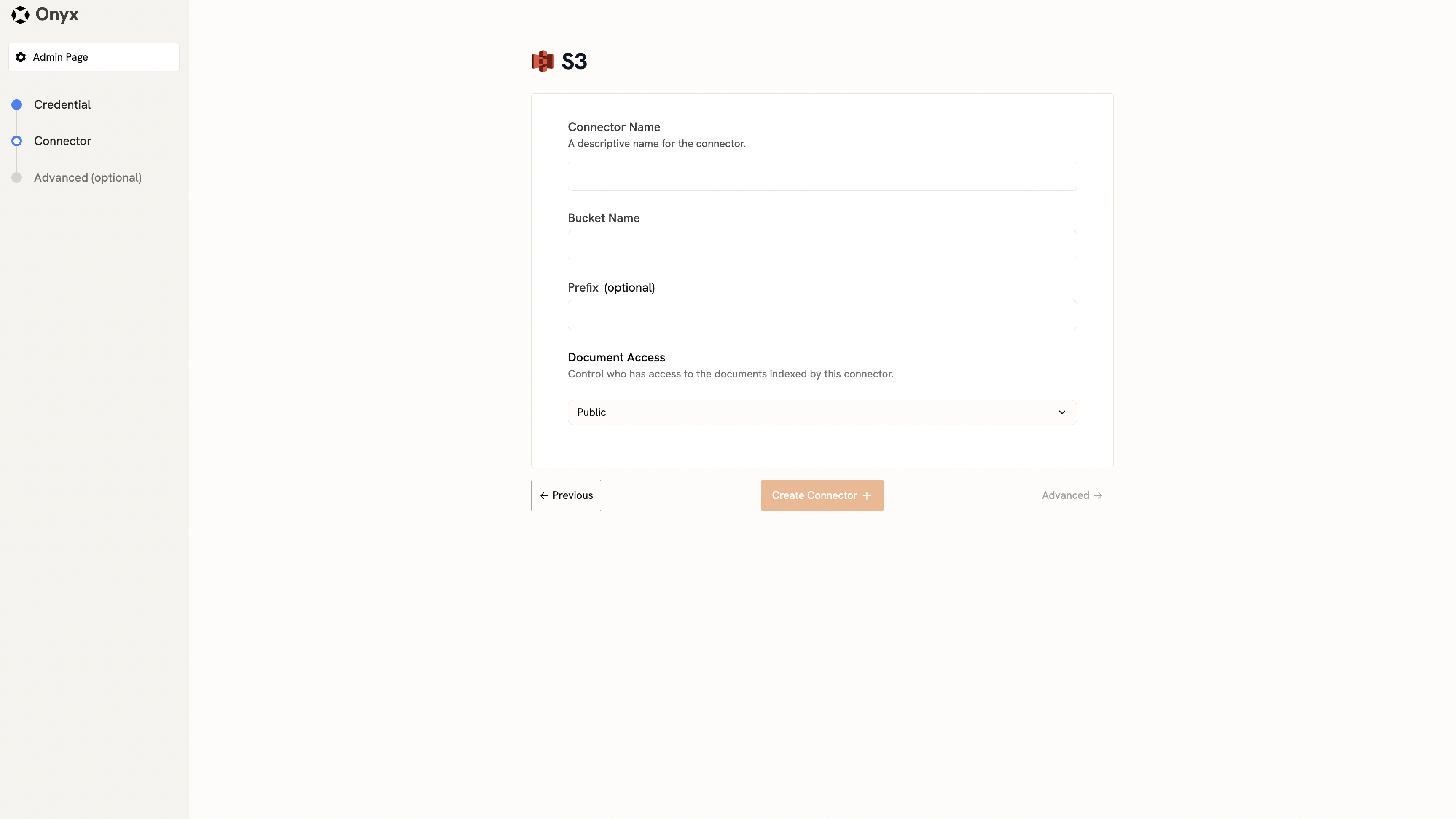
In **Step 2**, specify your S3 bucket details:
* **Connector Name**: Enter a name for the connector (e.g., "MyS3Connector")
* **Bucket Name**: Specify the name of the S3 bucket you want to index
* **Prefix (Optional)**: Provide a prefix to limit indexing to a specific folder or path
* **Access Type**: Choose whether documents are **Public** or **Private**
Click **Create Connector** to begin indexing.
The connector will start indexing your S3 bucket and you can add more buckets or modify settings as needed.
 ## Understanding S3 Structure
Amazon S3 organizes data into buckets. Each bucket can contain an unlimited number of objects (files).
You can think of a bucket as a root directory, and the objects as files within that directory.
For more information on S3 structure,
visit the [Amazon S3 documentation](https://docs.aws.amazon.com/AmazonS3/latest/userguide/Welcome.html).
## Understanding S3 Structure
Amazon S3 organizes data into buckets. Each bucket can contain an unlimited number of objects (files).
You can think of a bucket as a root directory, and the objects as files within that directory.
For more information on S3 structure,
visit the [Amazon S3 documentation](https://docs.aws.amazon.com/AmazonS3/latest/userguide/Welcome.html).