> ## Documentation Index
> Fetch the complete documentation index at: https://docs.onyx.app/llms.txt
> Use this file to discover all available pages before exploring further.
# Salesforce
> Access CRM data from Salesforce
## How it works
The Salesforce connector indexes documents from your Salesforce.
These documents organized around the **Objects** that you indicate. Examples are below.
## Setting up
### Authorization
Log into Salesforce.
The Salesforce user must be an organization member or have admin access to the data you would like to index.
Click the profile avatar and choose Settings.
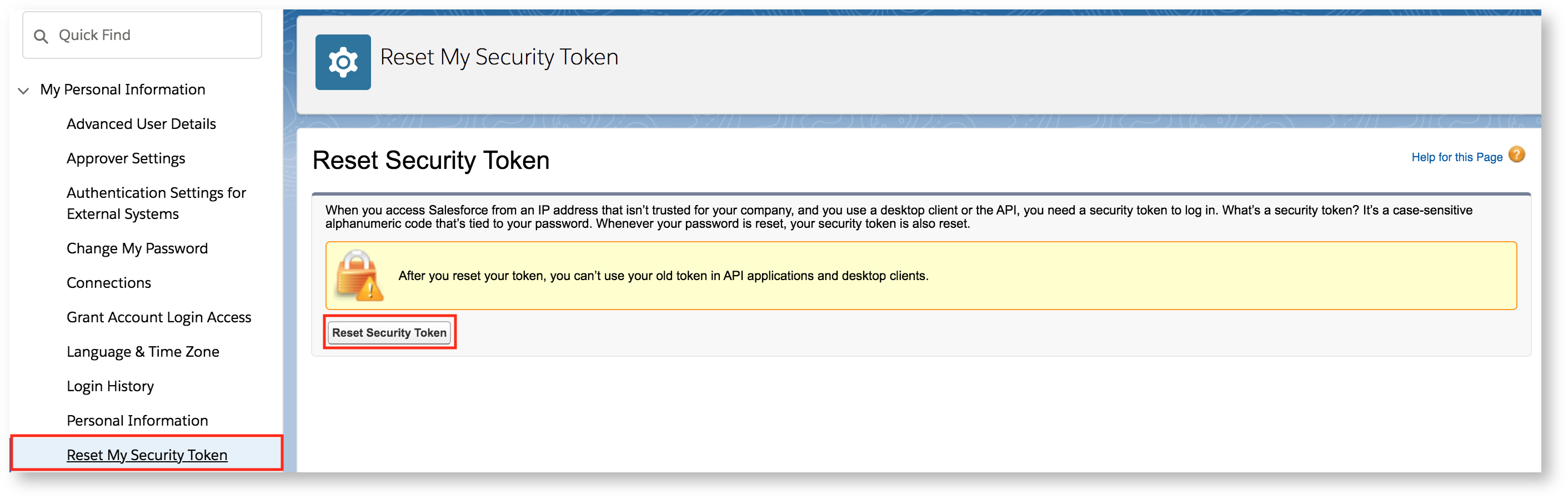
 Select **My Personal Information** → **Reset My Security Token**.
 Check your email for the security token.
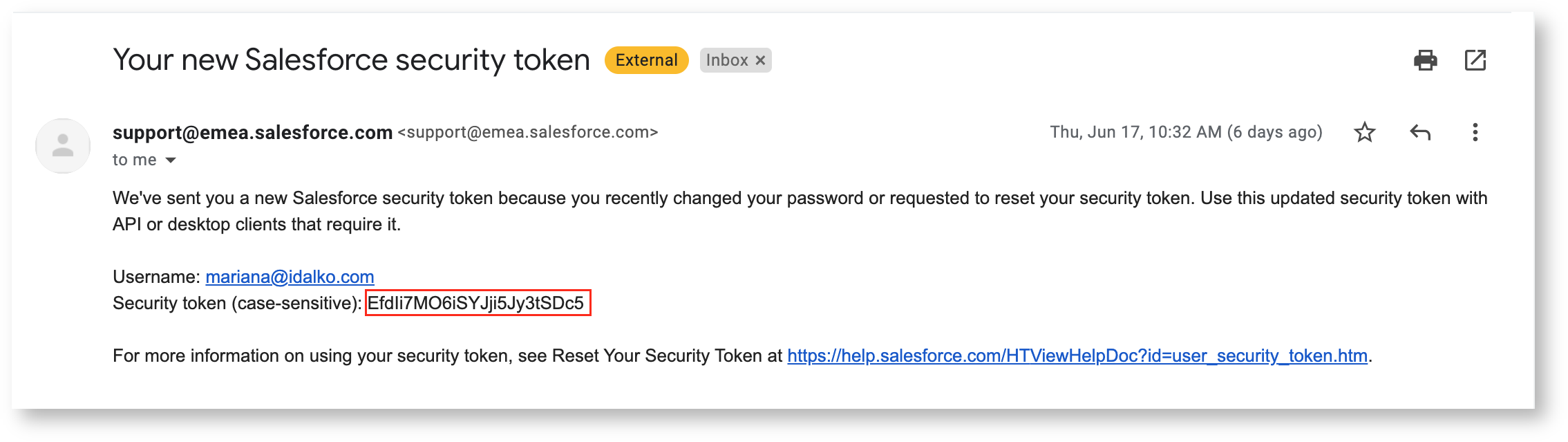 Once the token has been regenerated, you can use it (as well as your username and password)
to authorize your Onyx connector.
### Indexing
Navigate to the Admin Panel and select the **Salesforce** Connector Tile.
Click on the **Create New** button and provide your **Username**,
**Password** and the **Security Token** received from the above steps.
Select the new credential and click **Continue**.
Enter the [Salesforce
Object(s)](https://developer.salesforce.com/docs/atlas.en-us.object_reference.meta/object_reference/sforce_api_objects_list.htm)
you wish to index and organize your Onyx documents by.
* Make sure to use the singular version of object name (e.g. Opportunity instead of
Opportunities)
* If no objects are indicated, it will default to indexing by **Account**
* Each Onyx Document extracted from Salesforce contains all fields and associations of each
object. For example,
when indexing each Account we include the fields of the AccountFeed and AccountShare objects as well (but not the
associations of those objects).
This can lead to bloated queries and memory intensive indexing in larger salesforce instances.
Use the Advanced mode to have finer grain control over what is indexed.
Specify which objects, fields, and associations get indexed with a json object.
Top level keys are Salesforce Objects, each value is a JSON object specifying:
* `fields`: a list of strings describing the fields of the object to index
* `associations`: a JSON object mapping a Salesforce Object associated with the parent object to a list of fields to be indexed for the child object
```json Example theme={null}
{
"Account": {
"fields": ["Id", "Name", "Industry", "CreatedDate", "lastModifiedDate"],
"associations": {
"Contact": ["Id", "FirstName", "LastName", "Email"],
"Opportunity": ["Id", "Name", "StageName", "Amount", "CloseDate"]
}
},
"Lead": {
"fields": ["Id", "FirstName", "LastName", "Company", "Status"],
"associations": {}
}
}
```
Click on the **Connect** button and your connector will be created.
Onyx will automatically begin indexing your Salesforce data.
### An Example
You indicate you'd like to organize information by **Account** and click connect
Once the token has been regenerated, you can use it (as well as your username and password)
to authorize your Onyx connector.
### Indexing
Navigate to the Admin Panel and select the **Salesforce** Connector Tile.
Click on the **Create New** button and provide your **Username**,
**Password** and the **Security Token** received from the above steps.
Select the new credential and click **Continue**.
Enter the [Salesforce
Object(s)](https://developer.salesforce.com/docs/atlas.en-us.object_reference.meta/object_reference/sforce_api_objects_list.htm)
you wish to index and organize your Onyx documents by.
* Make sure to use the singular version of object name (e.g. Opportunity instead of
Opportunities)
* If no objects are indicated, it will default to indexing by **Account**
* Each Onyx Document extracted from Salesforce contains all fields and associations of each
object. For example,
when indexing each Account we include the fields of the AccountFeed and AccountShare objects as well (but not the
associations of those objects).
This can lead to bloated queries and memory intensive indexing in larger salesforce instances.
Use the Advanced mode to have finer grain control over what is indexed.
Specify which objects, fields, and associations get indexed with a json object.
Top level keys are Salesforce Objects, each value is a JSON object specifying:
* `fields`: a list of strings describing the fields of the object to index
* `associations`: a JSON object mapping a Salesforce Object associated with the parent object to a list of fields to be indexed for the child object
```json Example theme={null}
{
"Account": {
"fields": ["Id", "Name", "Industry", "CreatedDate", "lastModifiedDate"],
"associations": {
"Contact": ["Id", "FirstName", "LastName", "Email"],
"Opportunity": ["Id", "Name", "StageName", "Amount", "CloseDate"]
}
},
"Lead": {
"fields": ["Id", "FirstName", "LastName", "Company", "Status"],
"associations": {}
}
}
```
Click on the **Connect** button and your connector will be created.
Onyx will automatically begin indexing your Salesforce data.
### An Example
You indicate you'd like to organize information by **Account** and click connect
 Onyx will generate a document for every single **Account** in your Salesforce.
Attached to each document will be all the information associated with that **Account**.
This information would also include information from the **Account**'s children objects (E.g.
all associated **Contacts**, **Notes**, etc.).
This means indicating **Account** means that all **Contact**s that are attached to an account will also be grabbed
If you want to index any **Contacts** that aren't attached to any **Accounts**, (as well as **Accounts**),
you would indicate that like so:
Onyx will generate a document for every single **Account** in your Salesforce.
Attached to each document will be all the information associated with that **Account**.
This information would also include information from the **Account**'s children objects (E.g.
all associated **Contacts**, **Notes**, etc.).
This means indicating **Account** means that all **Contact**s that are attached to an account will also be grabbed
If you want to index any **Contacts** that aren't attached to any **Accounts**, (as well as **Accounts**),
you would indicate that like so:
