> ## Documentation Index
> Fetch the complete documentation index at: https://docs.onyx.app/llms.txt
> Use this file to discover all available pages before exploring further.
# Slack Federated
> Set up the Slack Federated connector
## Jan 2026 Update
In June 2025, Slack introduced ToS and API changes that restricted customers from indexing their own data.
Onyx introduced the Slack Federated connector that uses the Search APIs as an alternative to the indexing connector.
However, Slack has recently reversed these API restrictions, which allows the indexing connector to work again.
We have found that the Indexed Connector performs signficantly better than the Slack Search APIs at finding relevant
results. We strongly recommend using the [Slack Indexed Connector](/admins/connectors/official/slack/slack_indexed)
if possible.
## Setting up
### Authorization
You must be an admin of the Slack workspace to set up the connector.
Navigate and sign in to [https://api.slack.com/apps](https://api.slack.com/apps).
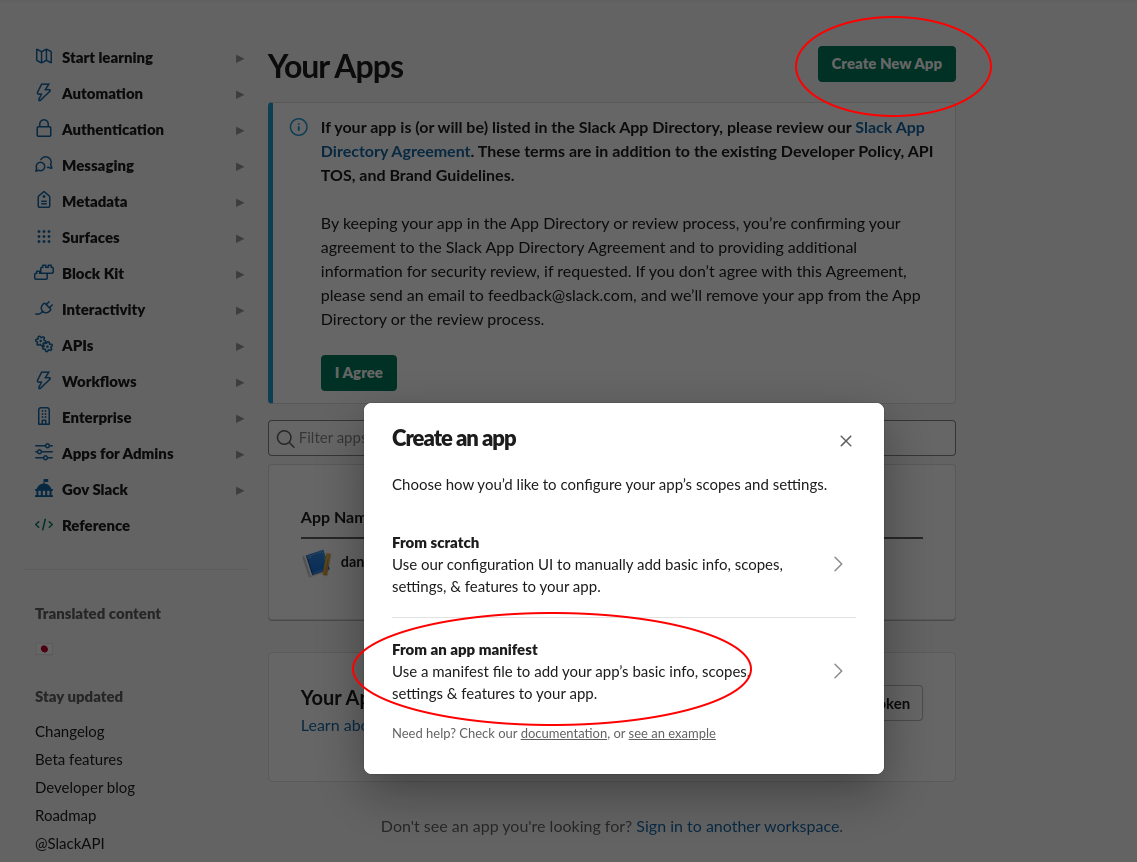
Click the **Create New App** button in the top right. Select **From an app manifest** option.
Select the relevant workspace from the dropdown and click **Next**.
 Select the "YAML" tab, paste the following manifest into the text box, and click **Next**:
```
display_information:
name: Onyx Search Assistant
description: Search your Slack data as yourself
background_color: "#4A154B"
oauth_config:
redirect_urls:
- https:///federated/oauth/callback
scopes:
user:
- channels:read
- groups:read
- im:read
- mpim:read
- search:read
- channels:history
- groups:history
- im:history
- mpim:history
- users:read
settings:
org_deploy_enabled: false
socket_mode_enabled: false
token_rotation_enabled: false
```
For Onyx Cloud, the `redirect_urls` value should be `https://cloud.onyx.app/federated/oauth/callback`.
We do not currently support token rotation, so `token_rotation_enabled: false` is necessary.
Click the **Create** button.
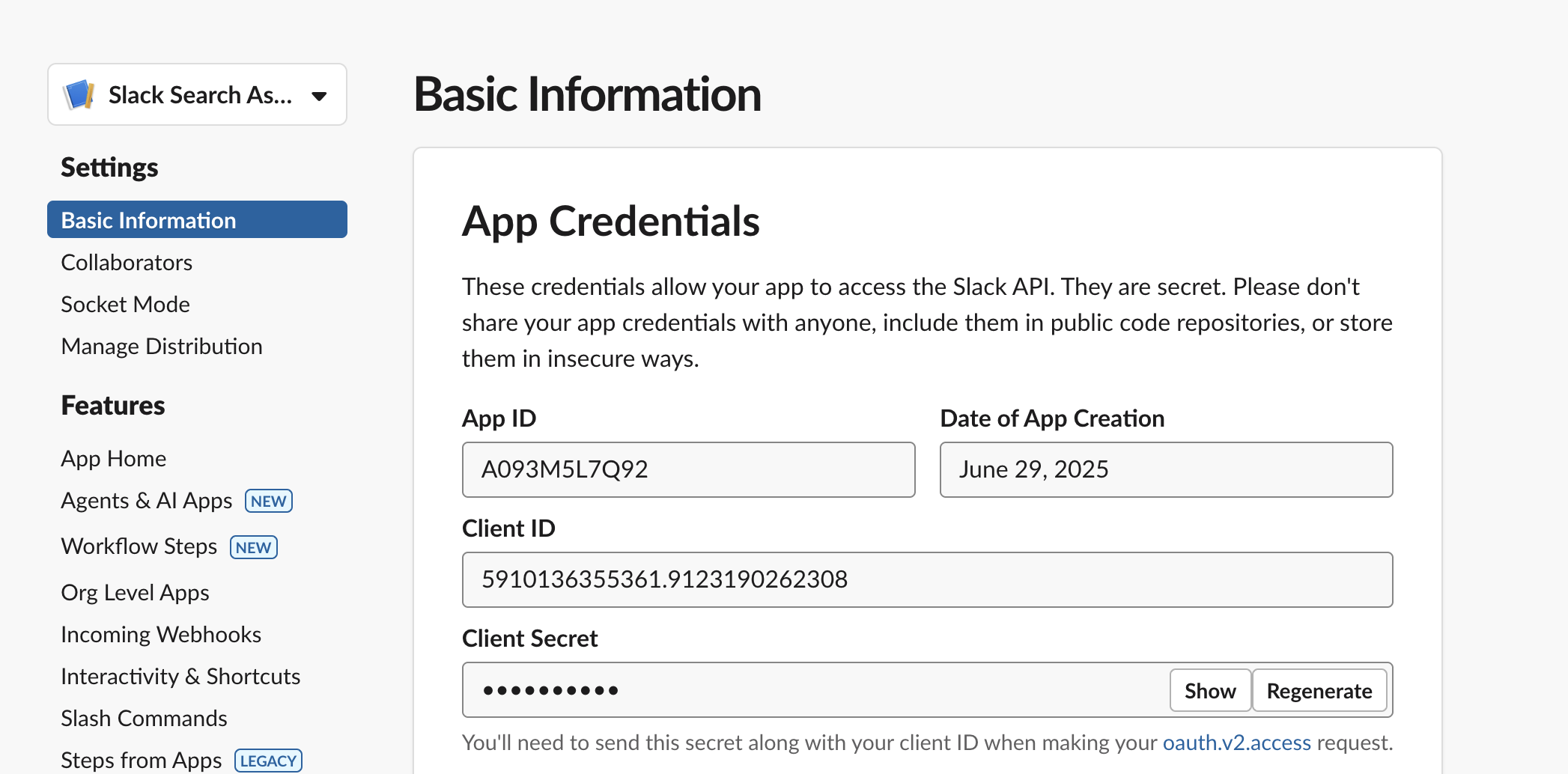
In the app page, navigate to the **Basic Information** tab under the **Settings** header.
Copy the **Client ID** and **Client Secret**. Store those somewhere safe for the next step.
Select the "YAML" tab, paste the following manifest into the text box, and click **Next**:
```
display_information:
name: Onyx Search Assistant
description: Search your Slack data as yourself
background_color: "#4A154B"
oauth_config:
redirect_urls:
- https:///federated/oauth/callback
scopes:
user:
- channels:read
- groups:read
- im:read
- mpim:read
- search:read
- channels:history
- groups:history
- im:history
- mpim:history
- users:read
settings:
org_deploy_enabled: false
socket_mode_enabled: false
token_rotation_enabled: false
```
For Onyx Cloud, the `redirect_urls` value should be `https://cloud.onyx.app/federated/oauth/callback`.
We do not currently support token rotation, so `token_rotation_enabled: false` is necessary.
Click the **Create** button.
In the app page, navigate to the **Basic Information** tab under the **Settings** header.
Copy the **Client ID** and **Client Secret**. Store those somewhere safe for the next step.
 ### Indexing
Navigate to the Connector Dashboard and select the **Slack** Connector.
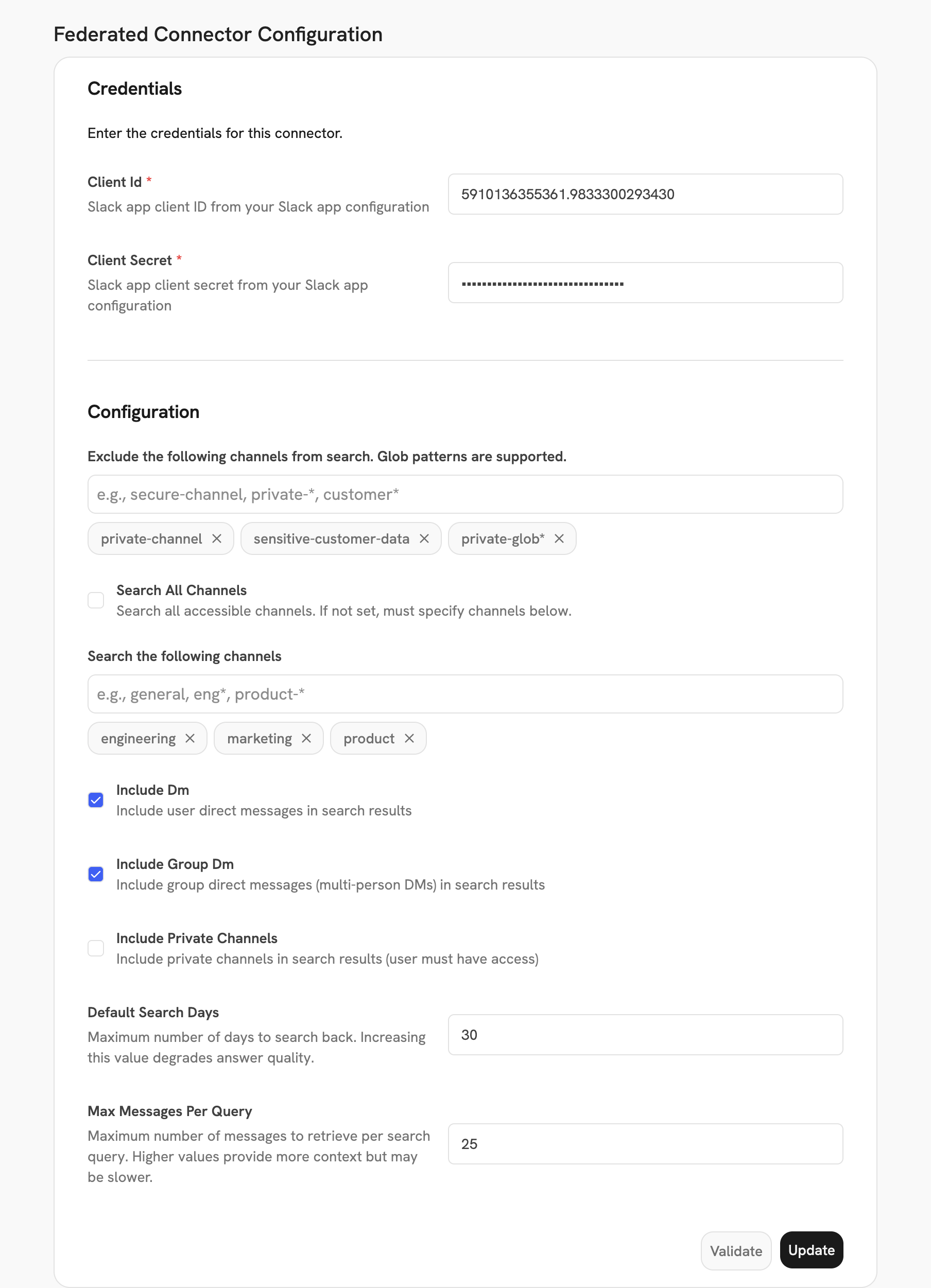
Enter the **Client ID** and **Client Secret** from step 7.
Configure the search scope for the federated connector. The following configuration options are available:
**Channel Selection:**
* **Search All Channels**: Enable to search all accessible channels. When enabled, the Channels field is disabled.
* **Channels**: Specify which channels to search (only used if Search All Channels is disabled). Supports glob patterns (e.g., `general`, `eng*`, `product-*`).
* **Exclude Channels**: Exclude specific channels from search. Supports glob patterns (e.g., `secure-channel`, `private-*`, `customer*`).
**Message Types:**
* **Include Direct Messages**: Include user direct messages (1:1 DMs) in search results.
* **Include Group Direct Messages**: Include multi-person direct messages (MPIMs) in search results.
* **Include Private Channels**: Include private channels in search results (user must have access).
**Search Parameters:**
* **Default Search Days**: Maximum number of days to search back (default: 30).
Increasing this value may degrade answer quality.
* **Max Messages Per Query**: Maximum number of messages to retrieve per search query (default: 25).
Higher values provide more context but may be slower.
Once configured, click the **Create/Update** button.
### Indexing
Navigate to the Connector Dashboard and select the **Slack** Connector.
Enter the **Client ID** and **Client Secret** from step 7.
Configure the search scope for the federated connector. The following configuration options are available:
**Channel Selection:**
* **Search All Channels**: Enable to search all accessible channels. When enabled, the Channels field is disabled.
* **Channels**: Specify which channels to search (only used if Search All Channels is disabled). Supports glob patterns (e.g., `general`, `eng*`, `product-*`).
* **Exclude Channels**: Exclude specific channels from search. Supports glob patterns (e.g., `secure-channel`, `private-*`, `customer*`).
**Message Types:**
* **Include Direct Messages**: Include user direct messages (1:1 DMs) in search results.
* **Include Group Direct Messages**: Include multi-person direct messages (MPIMs) in search results.
* **Include Private Channels**: Include private channels in search results (user must have access).
**Search Parameters:**
* **Default Search Days**: Maximum number of days to search back (default: 30).
Increasing this value may degrade answer quality.
* **Max Messages Per Query**: Maximum number of messages to retrieve per search query (default: 25).
Higher values provide more context but may be slower.
Once configured, click the **Create/Update** button.
 Head back to the main Chat page and go through the OAuth flow!
Every user will need to go through this OAuth flow. The searchable content depends on:
* The connector configuration settings (channels, DMs, private channels, etc.)
* The OAuth scopes granted during setup
* The user's individual access permissions in Slack
If certain OAuth scopes are missing (e.g., `mpim:read`, `im:history`),
the connector will gracefully continue searching other available channel types and log warnings about the missing
scopes.
Head back to the main Chat page and go through the OAuth flow!
Every user will need to go through this OAuth flow. The searchable content depends on:
* The connector configuration settings (channels, DMs, private channels, etc.)
* The OAuth scopes granted during setup
* The user's individual access permissions in Slack
If certain OAuth scopes are missing (e.g., `mpim:read`, `im:history`),
the connector will gracefully continue searching other available channel types and log warnings about the missing
scopes.