> ## Documentation Index
> Fetch the complete documentation index at: https://docs.onyx.app/llms.txt
> Use this file to discover all available pages before exploring further.
# Web
> Index public or internal web pages
## How it works
The Web Connector scrapes sites based on a base URL.
* It only indexes files from the same domain and containing the same base path.
* It will index pages reachable via hyperlinks from the base URL.
* The text contents are cleaned up via some heuristics and some metadata such as the page Title
is extracted.
## Setting up
### Authorization
* As long as the page is reachable, no additional authorization is necessary.
### Indexing
Navigate to the Admin Panel and select the **Web** Connector.
Input the base URL to index and click on Index.
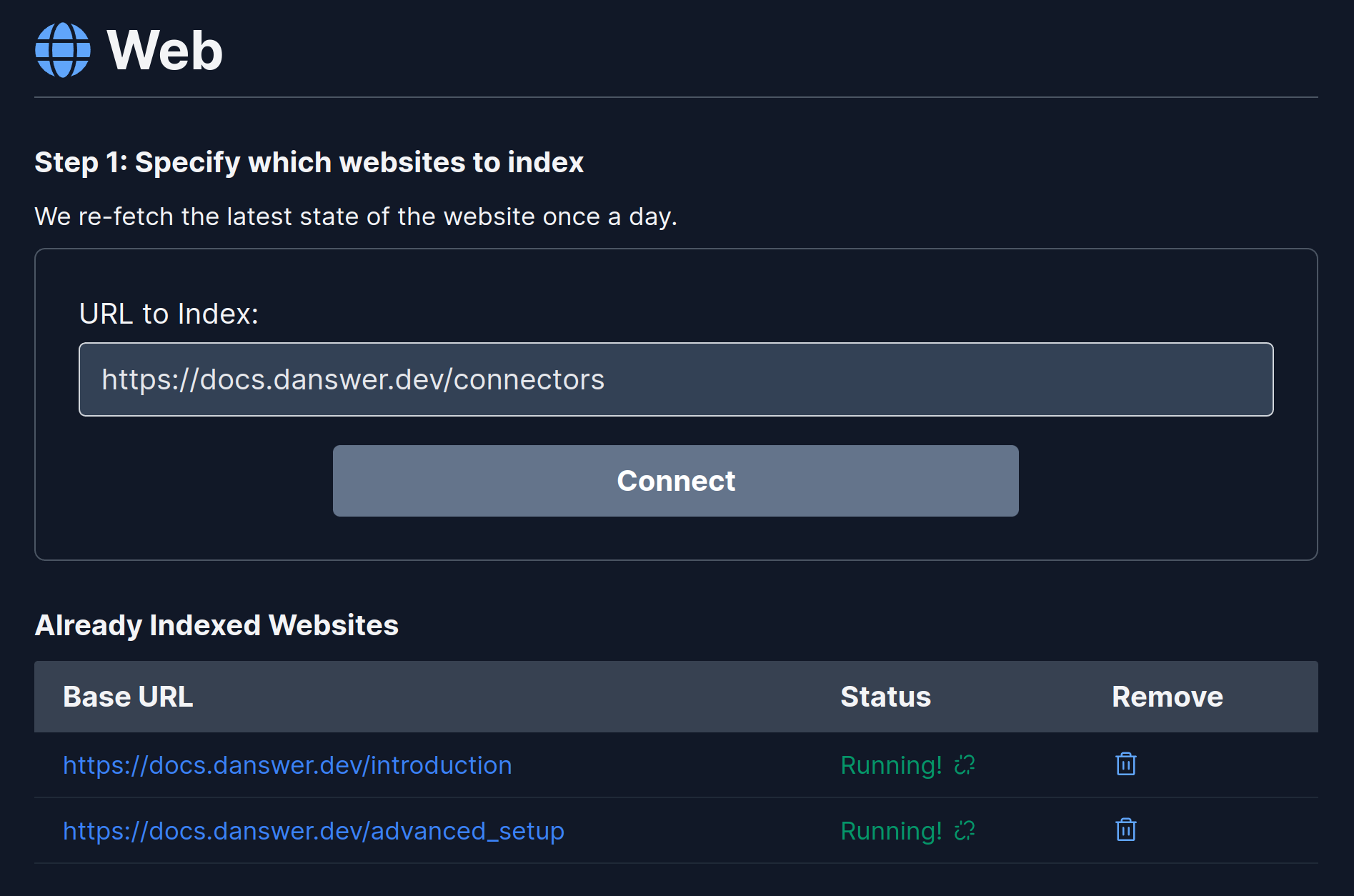 To see the status of the indexing, visit the Connectors Status page (top left).
