> ## Documentation Index
> Fetch the complete documentation index at: https://docs.onyx.app/llms.txt
> Use this file to discover all available pages before exploring further.

# Zulip

> Access messages from Zulip streams

## How it works

The Zulip connector pulls in all streams and topics according to the permissions assigned to the bot user.

## Setting up

### Authorization

<Steps>
  <Step title="Understand Zulip bot auth">
    Onyx interfaces with Zulip as a Zulip Bot which is authenticated using the `zuliprc` config format.
    For more context directly from Zulip, refer to the following docs:

    * [https://zulip.com/api/running-bots](https://zulip.com/api/running-bots)
    * [https://zulip.com/api/configuring-python-bindings](https://zulip.com/api/configuring-python-bindings)
  </Step>

  <Step title="Create a Zulip Bot">
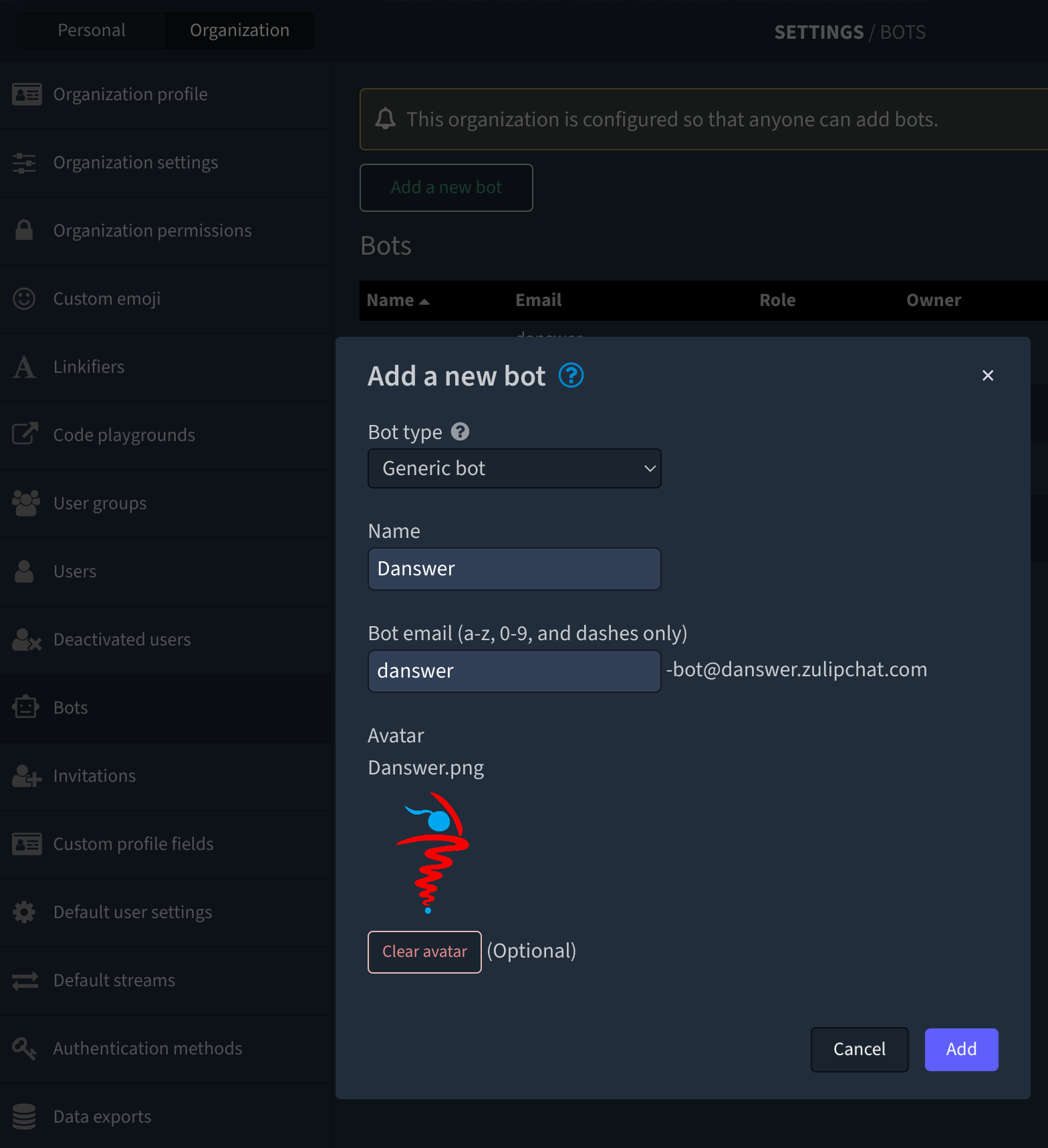
    Start by creating a Zulip Bot.

    <img className="rounded-image" src="https://mintcdn.com/danswer/2sYx2-qEkfFozZU5/assets/admins/connectors/zulip/ZulipBot.png?fit=max&auto=format&n=2sYx2-qEkfFozZU5&q=85&s=8fc51209cb5fe3335b92ec9a0bde8d6d" alt="Creating a bot user in Zulip settings" width="1568" height="1718" data-path="assets/admins/connectors/zulip/ZulipBot.png" />
  </Step>

  <Step title="Copy zuliprc contents">
    Copy the Bot authentication info (`zuliprc` contents), see red arrow below:
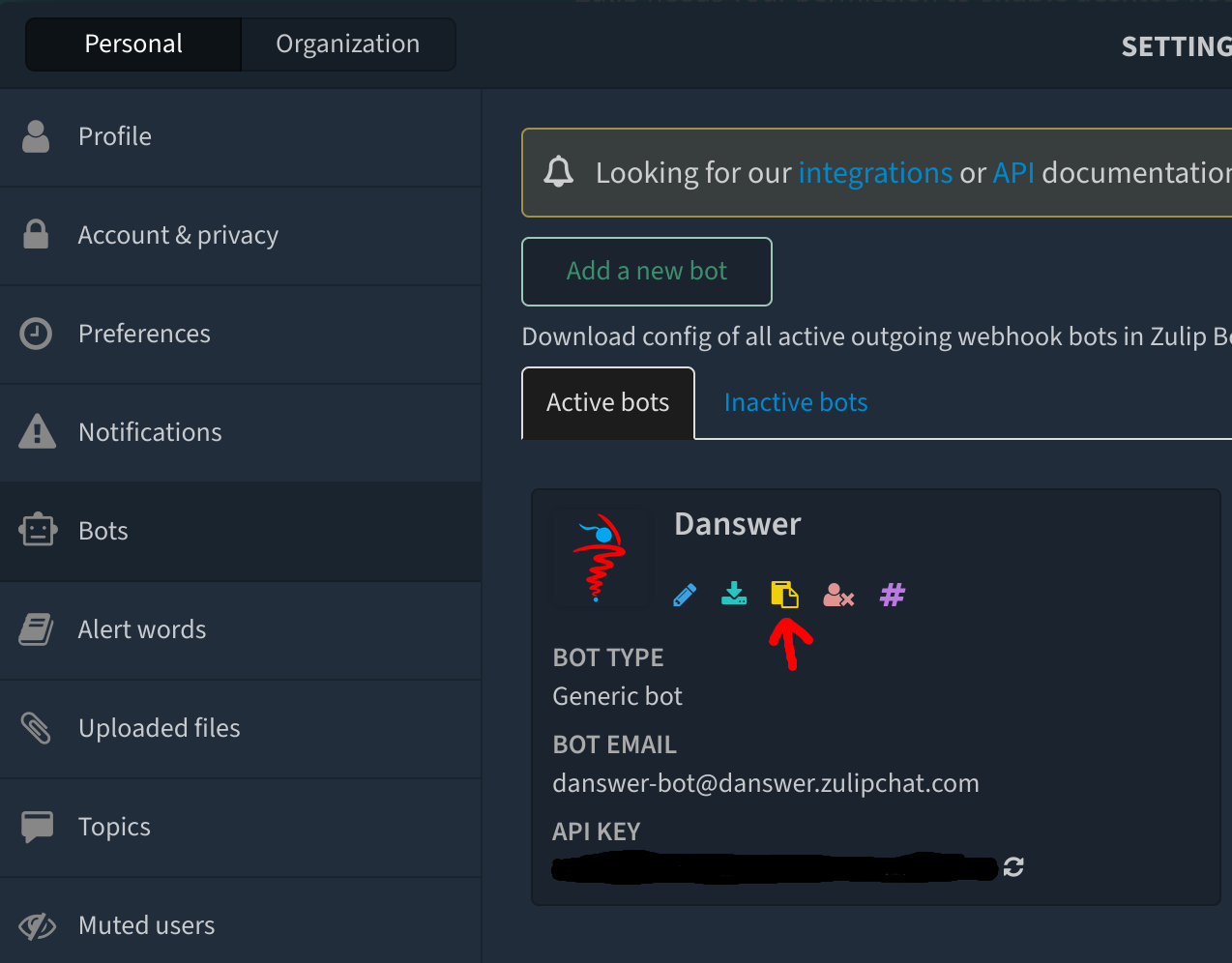
    <img className="rounded-image" src="https://mintcdn.com/danswer/2sYx2-qEkfFozZU5/assets/admins/connectors/zulip/ZulipRC.png?fit=max&auto=format&n=2sYx2-qEkfFozZU5&q=85&s=002fb64c2adeaf7fbc1c21cb6738e984" alt="Zulip bot page highlighting the zuliprc configuration download" width="1274" height="996" data-path="assets/admins/connectors/zulip/ZulipRC.png" />

    Keep this copied text to provide to Onyx in the next step
  </Step>
</Steps>

### Indexing

<Steps>
  <Step title="Open Zulip connector">
    Navigate to the Admin Panel and select the **Zulip** Connector
  </Step>

  <Step title="Paste zuliprc">
    In **Step 1**, paste in the copied `zuliprc` value
  </Step>

  <Step title="Get Realm/URL">
    Grab your Zulip Realm/URL info, see below:
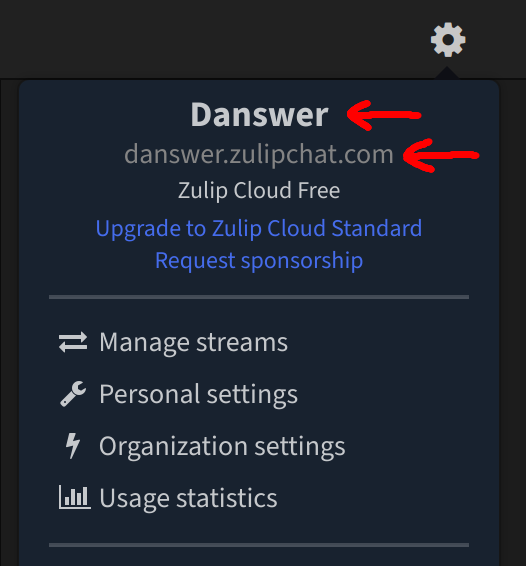
    <img className="rounded-image" src="https://mintcdn.com/danswer/2sYx2-qEkfFozZU5/assets/admins/connectors/zulip/ZulipRealmURL.png?fit=max&auto=format&n=2sYx2-qEkfFozZU5&q=85&s=2048a949b5e6b4ff3f15c94ca059a565" alt="Zulip UI showing Realm and URL details" width="526" height="566" data-path="assets/admins/connectors/zulip/ZulipRealmURL.png" />
  </Step>

  <Step title="Enter Realm and URL">
    In **Step 2**, provide the values for the Realm and URL
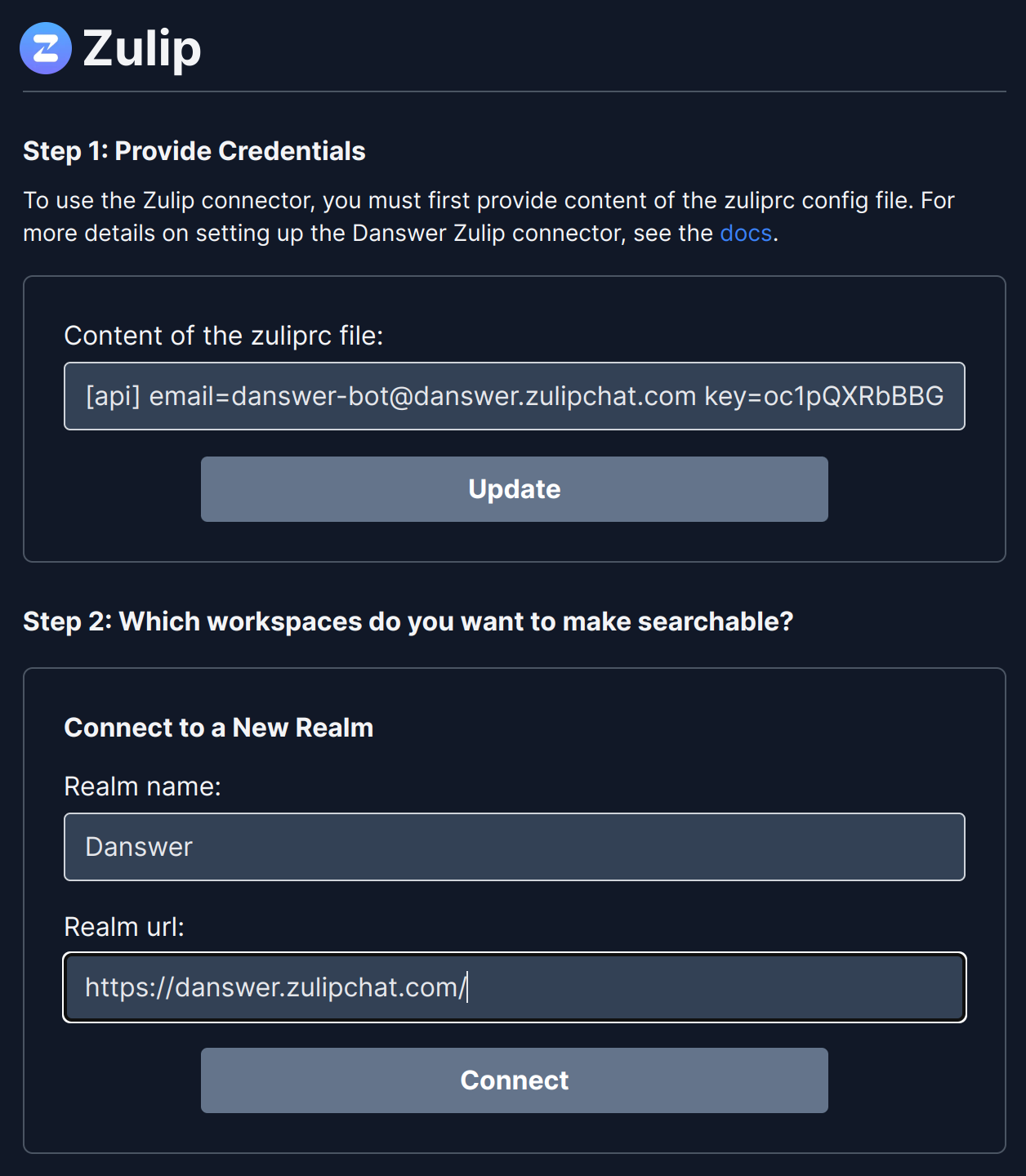
    <img className="rounded-image" src="https://mintcdn.com/danswer/2sYx2-qEkfFozZU5/assets/admins/connectors/zulip/OnyxZulipConfig.png?fit=max&auto=format&n=2sYx2-qEkfFozZU5&q=85&s=4cafcb9527f1117f5f349d483f3baa66" alt="Onyx Zulip connector configuration with realm, URL, and zuliprc" width="1256" height="1440" data-path="assets/admins/connectors/zulip/OnyxZulipConfig.png" />
  </Step>
</Steps>