> ## Documentation Index
> Fetch the complete documentation index at: https://docs.onyx.app/llms.txt
> Use this file to discover all available pages before exploring further.
# Slack Bot
> How to set up a Slack bot connected to Onyx
## Overview
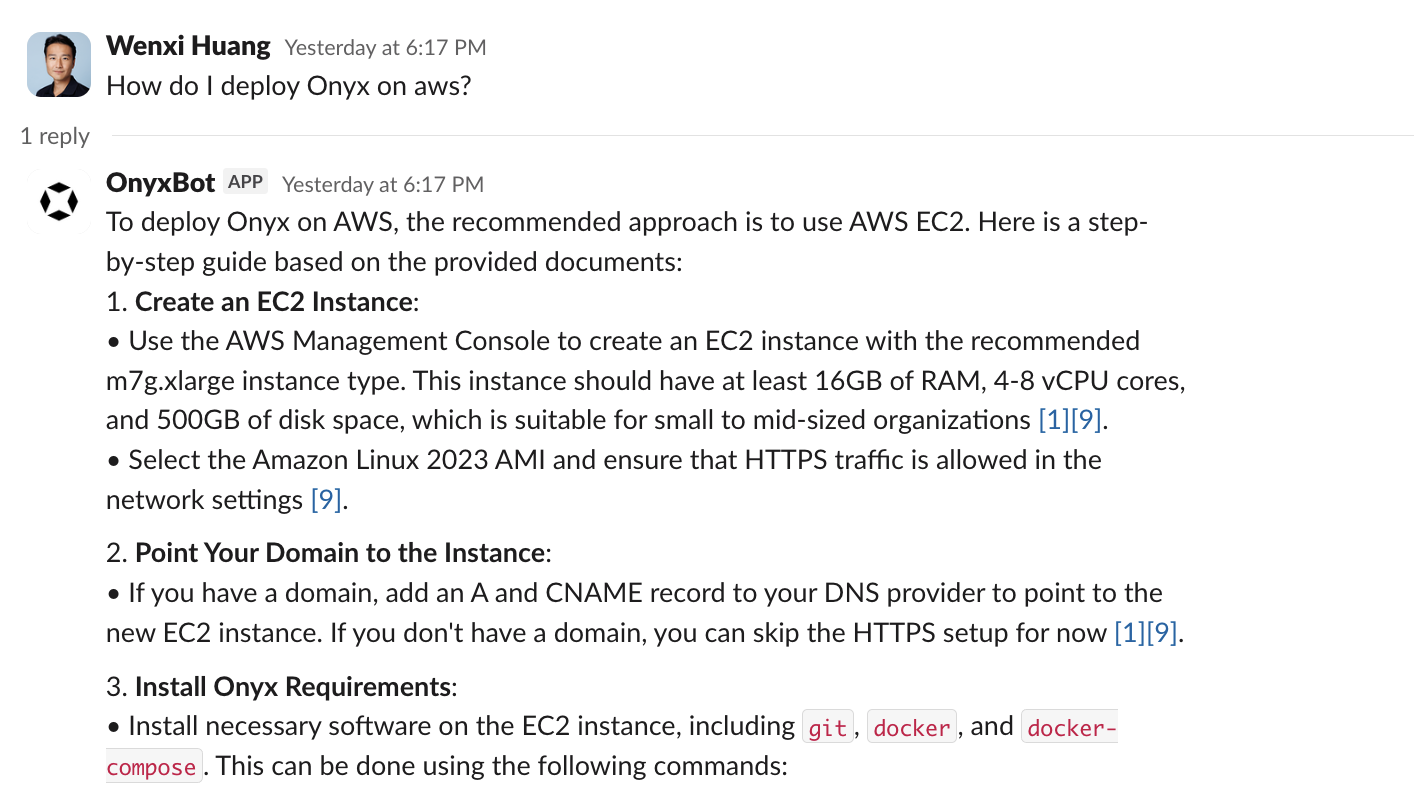
Onyx can connect to your Slack workspace and answer questions like an expert teammate.
You can configure OnyxBot to respond to certain types of messages, in specific channels,
and with selected data from your index.
 ## Setup
You must be an admin of the Slack workspace to set up the Slack bot.
Navigate to the [Slack App Dashboard](https://api.slack.com/apps)
and click **Create New App** → **From a manifest**.
Select the workspace you want to connect to Onyx.
Click the **YAML** tab and paste the following manifest into the box:
```yaml YAML Manifest expandable theme={null}
display_information:
name: OnyxBot
description: I help answer questions in Slack!
features:
app_home:
home_tab_enabled: false
messages_tab_enabled: true
messages_tab_read_only_enabled: false
bot_user:
display_name: OnyxBot
always_online: true
slash_commands:
- command: /onyx
description: Get back a private answer!
usage_hint: Put your question here!
should_escape: false
oauth_config:
scopes:
bot:
- app_mentions:read
- channels:history
- channels:join
- channels:read
- chat:write
- commands
- groups:history
- groups:read
- im:history
- im:read
- mpim:history
- reactions:write
- reactions:read
- usergroups:read
- users:read.email
- users:read
user:
- channels:history
- channels:read
- groups:read
- im:read
- mpim:history
- mpim:read
- search:read
settings:
event_subscriptions:
bot_events:
- app_mention
- message.channels
- message.groups
- message.im
- message.mpim
interactivity:
is_enabled: true
org_deploy_enabled: false
socket_mode_enabled: true
token_rotation_enabled: false
```
Click **Create** and you will be taken to the app page.
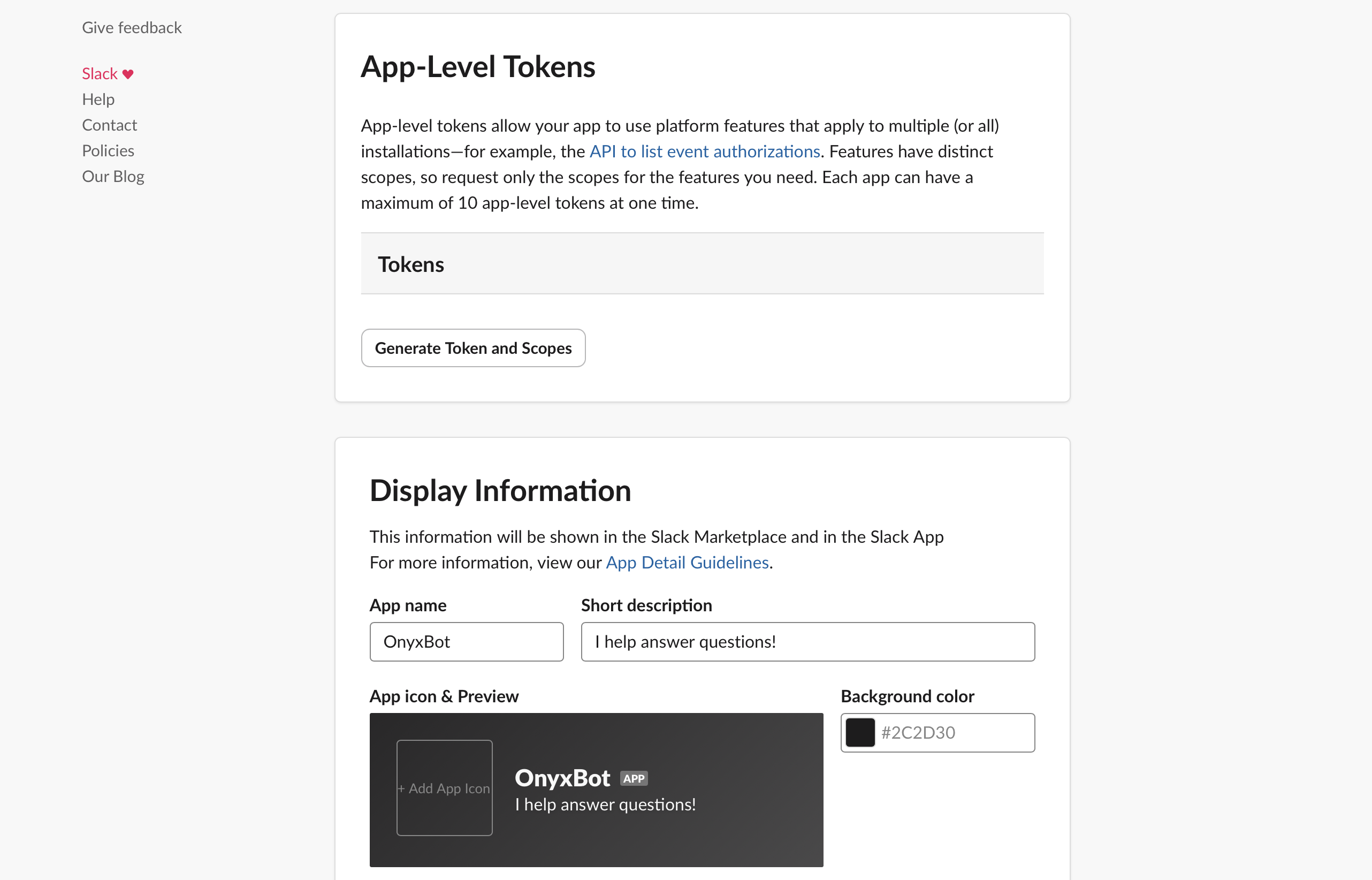
Scroll down to the **App-Level Tokens** section and click **Generate Token and Scopes**.
Give your token a name, add the `connections:write` scope to the app-level token and click **Generate**.
Save this token for later.
You can customize your Slack bot's name, description, and icon in the **Display Information** section.
## Setup
You must be an admin of the Slack workspace to set up the Slack bot.
Navigate to the [Slack App Dashboard](https://api.slack.com/apps)
and click **Create New App** → **From a manifest**.
Select the workspace you want to connect to Onyx.
Click the **YAML** tab and paste the following manifest into the box:
```yaml YAML Manifest expandable theme={null}
display_information:
name: OnyxBot
description: I help answer questions in Slack!
features:
app_home:
home_tab_enabled: false
messages_tab_enabled: true
messages_tab_read_only_enabled: false
bot_user:
display_name: OnyxBot
always_online: true
slash_commands:
- command: /onyx
description: Get back a private answer!
usage_hint: Put your question here!
should_escape: false
oauth_config:
scopes:
bot:
- app_mentions:read
- channels:history
- channels:join
- channels:read
- chat:write
- commands
- groups:history
- groups:read
- im:history
- im:read
- mpim:history
- reactions:write
- reactions:read
- usergroups:read
- users:read.email
- users:read
user:
- channels:history
- channels:read
- groups:read
- im:read
- mpim:history
- mpim:read
- search:read
settings:
event_subscriptions:
bot_events:
- app_mention
- message.channels
- message.groups
- message.im
- message.mpim
interactivity:
is_enabled: true
org_deploy_enabled: false
socket_mode_enabled: true
token_rotation_enabled: false
```
Click **Create** and you will be taken to the app page.
Scroll down to the **App-Level Tokens** section and click **Generate Token and Scopes**.
Give your token a name, add the `connections:write` scope to the app-level token and click **Generate**.
Save this token for later.
You can customize your Slack bot's name, description, and icon in the **Display Information** section.
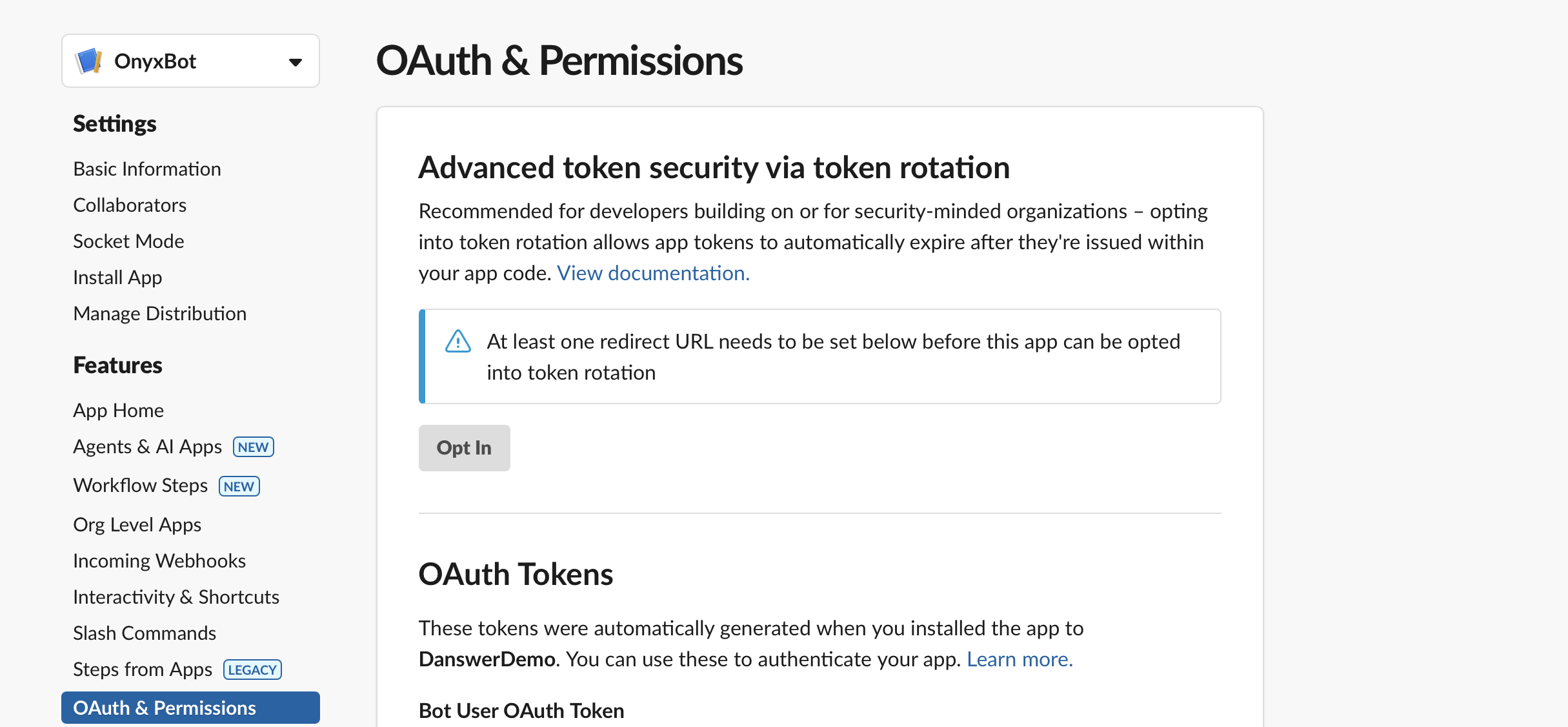
 Navigate to the **OAuth & Permissions** tab, click **Install to Workspace**,
and follow the instructions to install the app.
Copy the **Bot User OAuth Token** and **User OAuth Token** (Recommended) and save it for later.
Onyx does not currently support token rotation.
Navigate to the **OAuth & Permissions** tab, click **Install to Workspace**,
and follow the instructions to install the app.
Copy the **Bot User OAuth Token** and **User OAuth Token** (Recommended) and save it for later.
Onyx does not currently support token rotation.
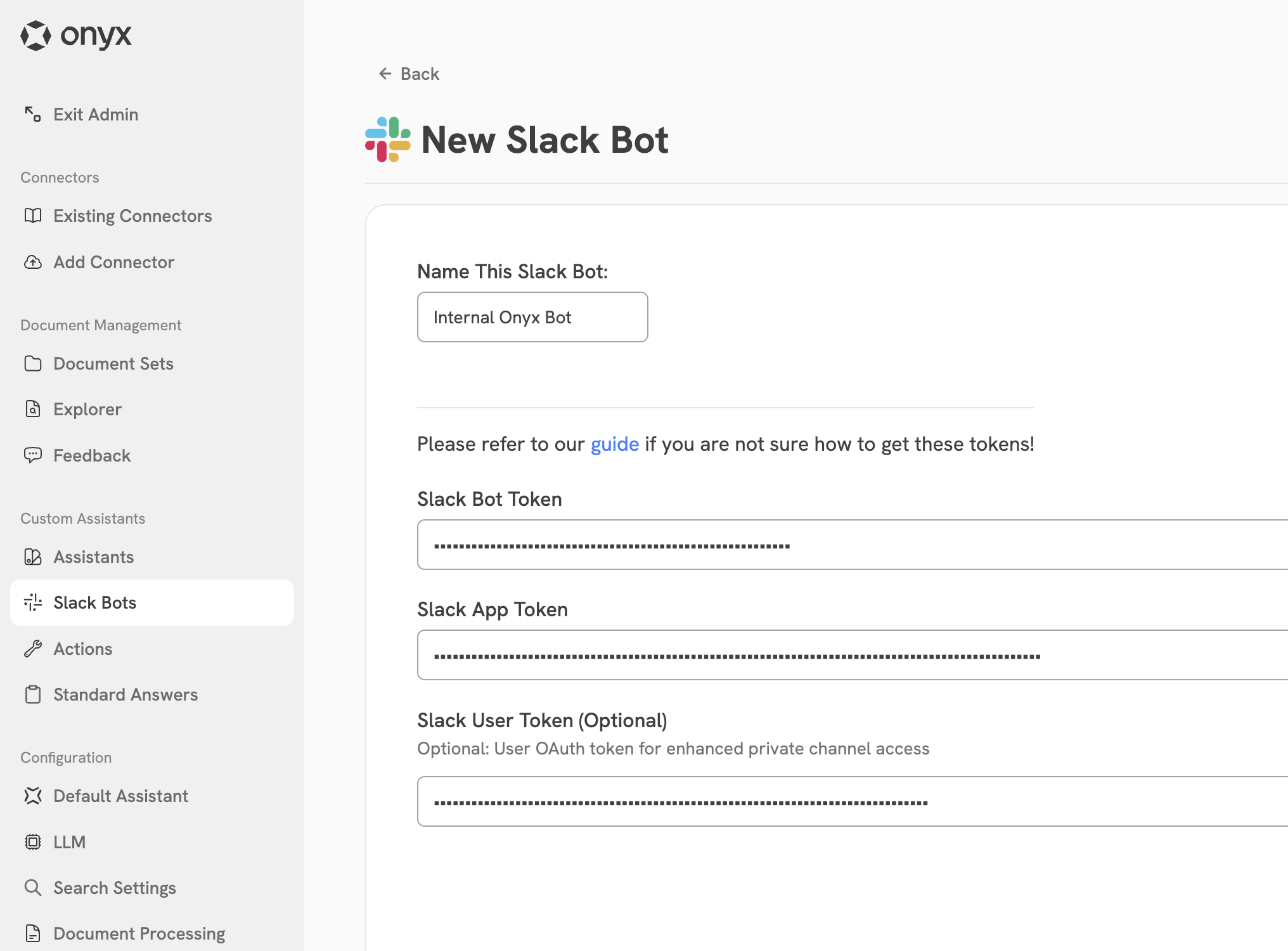
 Navigate to the Onyx Admin Panel and select the **Slack Bots** tab.
Enter the **Bot Token**, **App Token**, and **User Token** (Recommended) and click **Create!**
Navigate to the Onyx Admin Panel and select the **Slack Bots** tab.
Enter the **Bot Token**, **App Token**, and **User Token** (Recommended) and click **Create!**
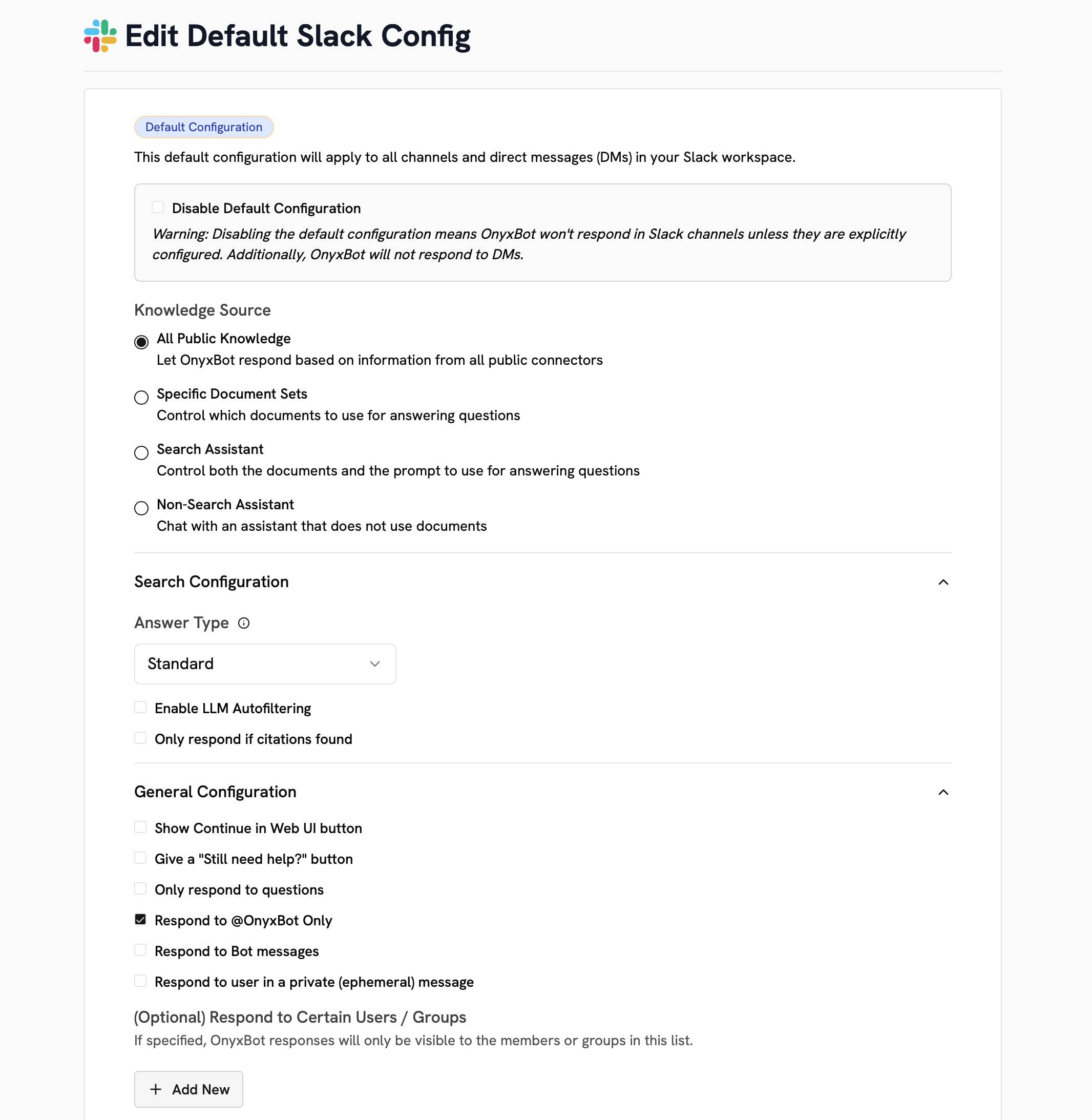
 Once your Slack bot is created, you can configure it's universal behavior through the **Default Configuration**.
You can also set channel-specific behavior using **Channel Configurations**.
Once your Slack bot is created, you can configure it's universal behavior through the **Default Configuration**.
You can also set channel-specific behavior using **Channel Configurations**.
 ### How to use the Onyx Slack Bot
There are a few ways to chat with the Onyx Slack bot:
Your admin may enable any or all of these methods in your Slack workspace. Additionally,
the configurations may change based on the channel you are in.
```
@onyxbot What is the best practice for handling 429 errors in connectors?
```
OnyxBot will respond in a thread to your message.
```
/onyx How many PTO days do I get per year? Do they roll over?
```
OnyxBot will send an ephemeral message. This means only you will see the response.
```
What were the takeaways from Katie's meeting with our big prospect last week?
```
OnyxBot may be configured to answer any question in Slack even if you didn't tag it. In this case,
it will respond in a thread to your message.
```
Look for conversations about this stack trace...
```
You can direct message the OnyxBot app to ask private questions.
OnyxBot may also be configured with none, some, or all of your indexed data.
Ask your admin what is available through your OnyxBot.
## Advanced Configuration
There are a set of advanced configuration options available via environment variables that control your Slack bot's
behavior.
You can find the full list of configuration options [in the Onyx
GitHub](https://github.com/onyx-dot-app/onyx/blob/main/backend/onyx/configs/onyxbot_configs.py).
These configuration options are rarely needed and should be used with caution.
Number of retry attempts for generating an answer before failing.
Default: `5 (int)`
Number of documents shown under "Reference Documents".
Default: `5 (int)`
Disable responses that only show "Reference Documents" when the LLM cannot answer.
Default: `false (bool)`
Emoji reaction shown while Onyx considers a message.
Default: `eyes (str)`
Emoji used to suggest that the user may need more help.
Default: `sos (str)`
Visibility for AI answer feedback submitted to OnyxBot. Options: `private` (only the clicking user),
`anonymous` (public but anonymous), `public` (public with username).
Default: `private (str)`
If enabled, OnyxBot sends a brief apology message when it cannot find an answer, so users aren't left wondering.
Default: `false (bool)`
Show brief error explanations when something goes wrong answering a question (useful for debugging).
Default: `false (bool)`
Respond in all channels by default, instead of only those configured in the UI.
Default: `false (bool)`
Maximum questions per minute the bot can answer. Set to `0` or leave unset for uncapped.
Default: `uncapped (int)`
Maximum time in seconds a question will wait in the queue before timing out.
Default: `180 (seconds; 3 minutes)`
Minutes after which a reminder DM is sent to request feedback on an answer. Set to `0` to disable.
Default: `0 (disabled; 0 minutes)`
Rephrase Slack user messages before sending to the LLM (may improve clarity for the model).
Default: `false (bool)`
Number of responses OnyxBot can send within a time window. Set to `0` to disable the limit.
Default: `5000 (int)`
Length of the response limit window in seconds.
Default: `86400 (seconds; 24 hours)`
### How to use the Onyx Slack Bot
There are a few ways to chat with the Onyx Slack bot:
Your admin may enable any or all of these methods in your Slack workspace. Additionally,
the configurations may change based on the channel you are in.
```
@onyxbot What is the best practice for handling 429 errors in connectors?
```
OnyxBot will respond in a thread to your message.
```
/onyx How many PTO days do I get per year? Do they roll over?
```
OnyxBot will send an ephemeral message. This means only you will see the response.
```
What were the takeaways from Katie's meeting with our big prospect last week?
```
OnyxBot may be configured to answer any question in Slack even if you didn't tag it. In this case,
it will respond in a thread to your message.
```
Look for conversations about this stack trace...
```
You can direct message the OnyxBot app to ask private questions.
OnyxBot may also be configured with none, some, or all of your indexed data.
Ask your admin what is available through your OnyxBot.
## Advanced Configuration
There are a set of advanced configuration options available via environment variables that control your Slack bot's
behavior.
You can find the full list of configuration options [in the Onyx
GitHub](https://github.com/onyx-dot-app/onyx/blob/main/backend/onyx/configs/onyxbot_configs.py).
These configuration options are rarely needed and should be used with caution.
Number of retry attempts for generating an answer before failing.
Default: `5 (int)`
Number of documents shown under "Reference Documents".
Default: `5 (int)`
Disable responses that only show "Reference Documents" when the LLM cannot answer.
Default: `false (bool)`
Emoji reaction shown while Onyx considers a message.
Default: `eyes (str)`
Emoji used to suggest that the user may need more help.
Default: `sos (str)`
Visibility for AI answer feedback submitted to OnyxBot. Options: `private` (only the clicking user),
`anonymous` (public but anonymous), `public` (public with username).
Default: `private (str)`
If enabled, OnyxBot sends a brief apology message when it cannot find an answer, so users aren't left wondering.
Default: `false (bool)`
Show brief error explanations when something goes wrong answering a question (useful for debugging).
Default: `false (bool)`
Respond in all channels by default, instead of only those configured in the UI.
Default: `false (bool)`
Maximum questions per minute the bot can answer. Set to `0` or leave unset for uncapped.
Default: `uncapped (int)`
Maximum time in seconds a question will wait in the queue before timing out.
Default: `180 (seconds; 3 minutes)`
Minutes after which a reminder DM is sent to request feedback on an answer. Set to `0` to disable.
Default: `0 (disabled; 0 minutes)`
Rephrase Slack user messages before sending to the LLM (may improve clarity for the model).
Default: `false (bool)`
Number of responses OnyxBot can send within a time window. Set to `0` to disable the limit.
Default: `5000 (int)`
Length of the response limit window in seconds.
Default: `86400 (seconds; 24 hours)`