> ## Documentation Index
> Fetch the complete documentation index at: https://docs.onyx.app/llms.txt
> Use this file to discover all available pages before exploring further.
# Overview
> An Overview of Administering Onyx
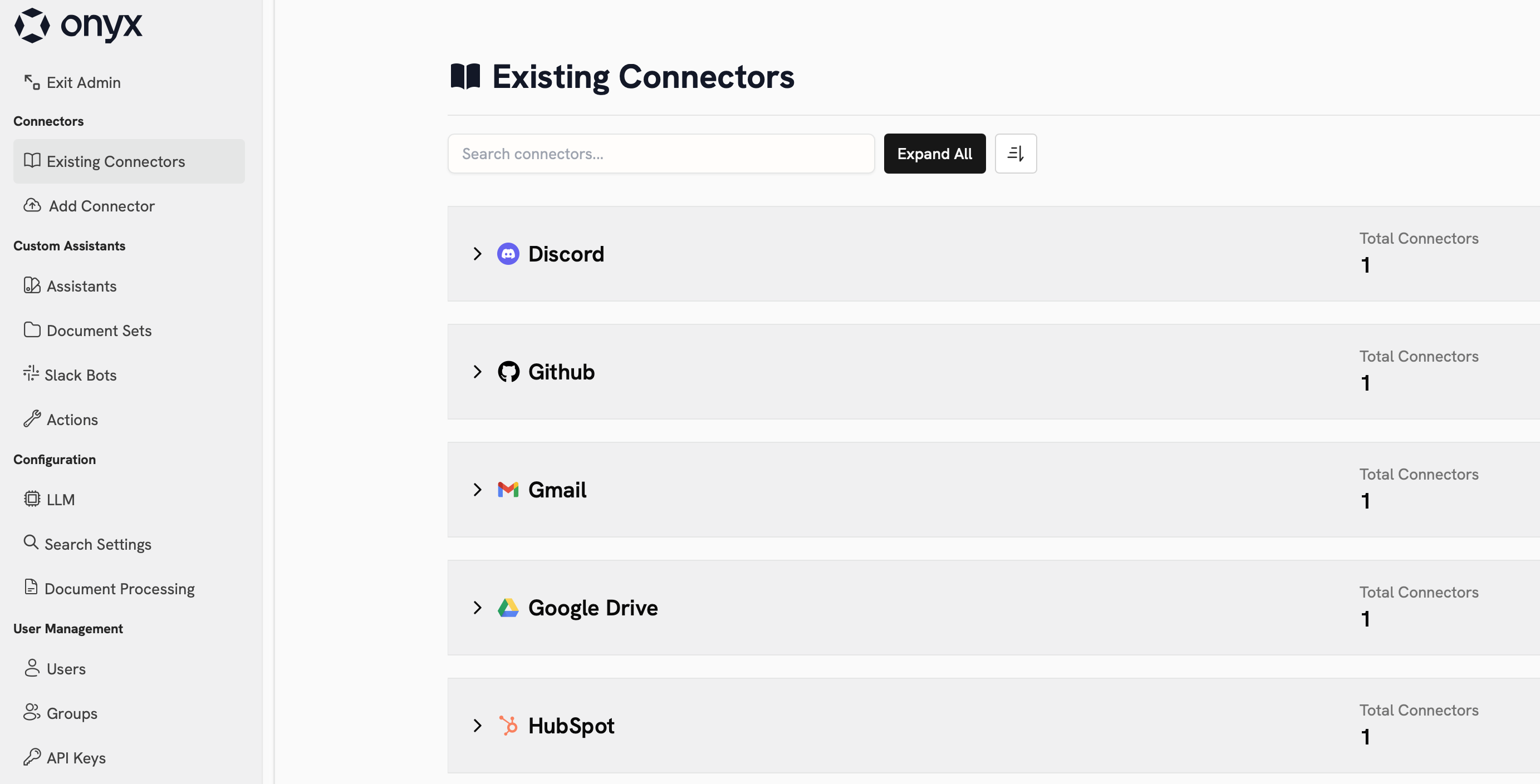
## Admin Panel
The Onyx Admin Panel is accessed by clicking your user profile icon and selecting **Admin Panel**.
This centralized dashboard gives administrators comprehensive control over their Onyx workspace.
The first user in your Onyx instance will automatically be an Admin. Only Admins can designate other users as Admins.
 ## Core Admin Features
Not sure where to start? Click the cards below to see commonly configured features in Onyx!
Configure the language model providers and models available to your users.
Configure your connectors to index your organization's data in Onyx.
Create custom actions for your Agents to leverage and connect your MCP servers.
Publish custom Agents for every use case.
Configure a Slack Bot powered by your knowledge, Agents, and Actions.
Manage users, groups, and API keys.
Monitor usage and performance across your workspace.
Configure search, processing, multilingual settings, rate limits, and branding.
Subscribe to a plan, manage seats, and view your billing details.
## Core Admin Features
Not sure where to start? Click the cards below to see commonly configured features in Onyx!
Configure the language model providers and models available to your users.
Configure your connectors to index your organization's data in Onyx.
Create custom actions for your Agents to leverage and connect your MCP servers.
Publish custom Agents for every use case.
Configure a Slack Bot powered by your knowledge, Agents, and Actions.
Manage users, groups, and API keys.
Monitor usage and performance across your workspace.
Configure search, processing, multilingual settings, rate limits, and branding.
Subscribe to a plan, manage seats, and view your billing details.