> ## Documentation Index
> Fetch the complete documentation index at: https://docs.onyx.app/llms.txt
> Use this file to discover all available pages before exploring further.

# Understanding Permissions

> How group-based permissions, Group Managers, and document access work in Onyx

Onyx permissions are based on groups.
A user's access is the combination of the permissions from every group they belong to,
plus any scoped access they receive as a **Group Manager**.

<Info>
  This permission system is available in Onyx **v4.7 and later**. If you are using an older version,
  see [Users and Groups before v4.7](/admins/user_management/users_and_groups_legacy).
</Info>

Migrating from the old Curator role model? See [What's Changing in Permissions](/admins/permissions/whats_changing).

The main rule is simple: **permissions expand**. If a user belongs to multiple groups,
Onyx adds those permissions together. Being in one group does not take away access granted by another group.

## The Permission Layers

Think of permissions as layers. Each layer can add more access for a user.

<div className="permission-pyramid" aria-label="Permission layers expand from a group-less service account to Basic access, Group Manager access, group permissions, and Admin access.">
  <div className="permission-pyramid-layer permission-pyramid-limited">
    <strong>Service account, no group</strong>
    <span>Chat only — no search, no admin access</span>
  </div>

  <div className="permission-pyramid-layer permission-pyramid-basic">
    <strong>Basic</strong>
    <span>Core access for chat, search, and personal use</span>
  </div>

  <div className="permission-pyramid-layer permission-pyramid-scoped">
    <strong>Group Manager</strong>
    <span>Scoped management for one group's members and resources</span>
  </div>

  <div className="permission-pyramid-layer permission-pyramid-org">
    <strong>Group permissions</strong>
    <span>Organization-wide permissions granted to every member of a group</span>
  </div>

  <div className="permission-pyramid-layer permission-pyramid-admin">
    <strong>Admin</strong>
    <span>Full workspace access</span>
  </div>
</div>

The pyramid widens as access expands:

* **Service account with no group** is the narrowest level. A service account that belongs to
  no group can post to chat, but it cannot search and cannot reach any admin page. Only service accounts land here;
  regular users always start in a group.
* **Basic** gives users core workspace access: chat, search, and personal use.
* **Group Manager** adds management access for one specific group's members and resources.
* **Group permissions** grant organization-wide permissions to everyone in that group.
* **Admin** has full access across the workspace.

<Note>
  The layers show **how far access reaches**, not a strict ranking.
  A Group Manager and a group permission are different mechanisms:
  a Group Manager's access always stays inside the groups they manage,
  while a group permission applies across the whole organization. Depending on what you grant,
  one is not automatically "more" than the other.
</Note>

## Default Groups

Onyx includes two default groups:

| Group | Purpose                                                                   |
| ----- | ------------------------------------------------------------------------- |
| Basic | Gives users core platform access, such as chat, search, and personal use. |
| Admin | Gives full workspace administration access.                               |

Standard users are assigned to default groups based on their access level. Service accounts, such as API keys,
can also be assigned to groups when configured.

Custom groups let you grant specific permissions to the users in that group.

<Info>
  Custom groups and configurable group permissions are an Enterprise Edition feature.
</Info>

<Warning>
  Because all access comes from groups, a user who belongs to **no group at all** has no permissions.
</Warning>

## Service Accounts and Groups

A service account gets its access the same way a user does: from the groups it belongs to.
You choose those groups in the **Groups** selector when you create the API key.

A service account that belongs to **no group** can post to chat,
but it cannot search and it cannot reach any admin page. This is the narrowest level in the permission layers.

To give a service account more access, add it to a group.
It then receives that group's permissions exactly as a user would.

<Tip>
  If an API key can chat but returns nothing from search, check whether its service account is in a group.
</Tip>

## How Onyx Calculates a User's Permissions

Onyx checks every group a user belongs to and combines the permissions from those groups.
If the same user is also made a **Group Manager** from a group detail page, Onyx adds that scoped manager access too.

For example, say Priya has these assignments:

| Assignment                       | What it grants                                                            |
| -------------------------------- | ------------------------------------------------------------------------- |
| Member of **Basic**              | Core platform access.                                                     |
| Member of **Analytics Viewers**  | Any organization-wide permissions granted to the Analytics Viewers group. |
| Group Manager of **Engineering** | Scoped management access for Engineering's members and resources.         |

Priya receives all three sets of access. The Analytics Viewers group does not limit her Engineering manager access,
and her Engineering manager access does not remove anything from Basic.

## Group Permissions

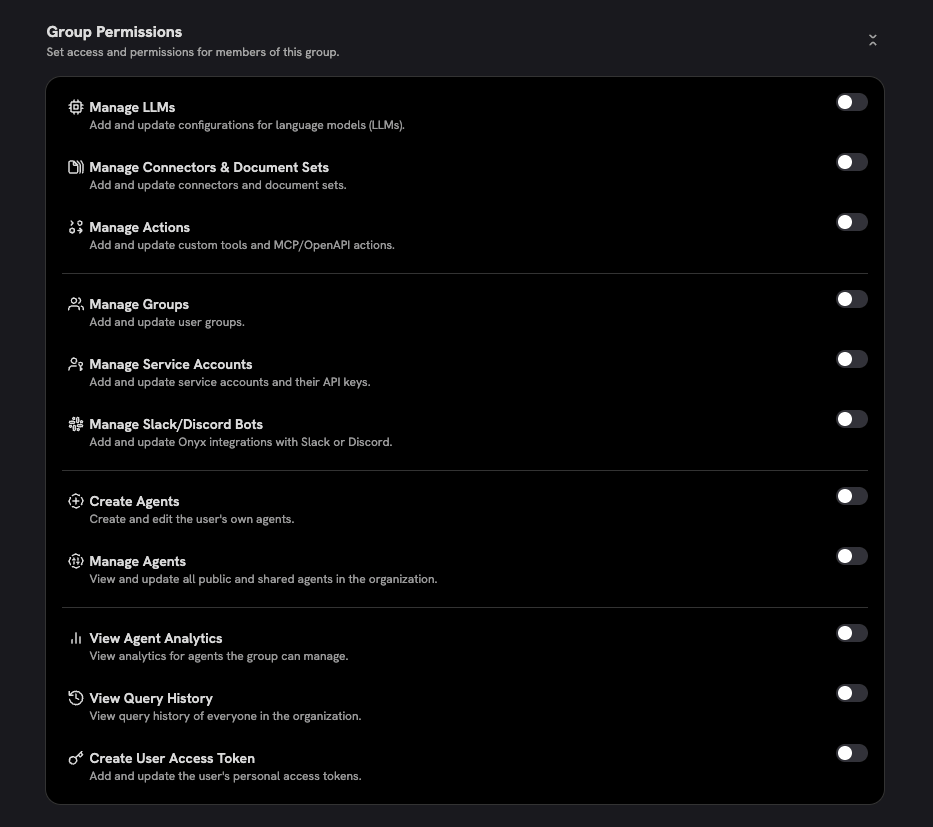
Group permissions are granted to a group and apply to every member of that group.

<Warning>
  Group permissions are organization-wide. If you grant **Manage Connectors & Document Sets** to a group,
  every member of that group can manage connectors and document sets across the workspace.
</Warning>

Use group permissions when you want a team to have the same organization-wide capability.

Common examples:

* Give an IT administrators group **Manage Connectors & Document Sets** so they can manage all connectors.
* Give a model operations group **Manage LLMs** so they can configure language models.
* Give an analytics group **View Query History** so they can review query activity.
* Give a developer platform group **Manage Actions** so they can maintain workspace actions and MCP servers.

You set these permissions on the group's detail page in the Admin Panel.
For a tour of where the Users and Groups pages live, see [Users and Groups](/admins/user_management/users_and_groups).

<img className="rounded-image" src="https://mintcdn.com/danswer/M92fHKzuFDY76aIP/assets/admins/user_management/group_permission_toggle.png?fit=max&auto=format&n=M92fHKzuFDY76aIP&q=85&s=e36fe1c5d0e6221bd7bff1cb4245773f" alt="Group Permissions panel showing a toggle for each available permission" width="933" height="827" data-path="assets/admins/user_management/group_permission_toggle.png" />

## Group Managers

A **Group Manager** is a user who can manage one specific group from that group's detail page.
This is the scoped permission model in Onyx.

Group Managers are useful when a team lead should manage their own team's users and resources,
but should not receive organization-wide admin powers.

Scoped to the group they manage, a Group Manager can:

* Add and remove members from that group.
* Manage connectors and document sets shared only with that group.
* Manage agents shared only with that group.
* Manage actions through the agents shared with that group.

A Group Manager cannot:

* Manage resources that are not shared with a group they manage.
* Make a resource public.
* Share a resource with a group they do not manage.
* Grant organization-wide permissions.

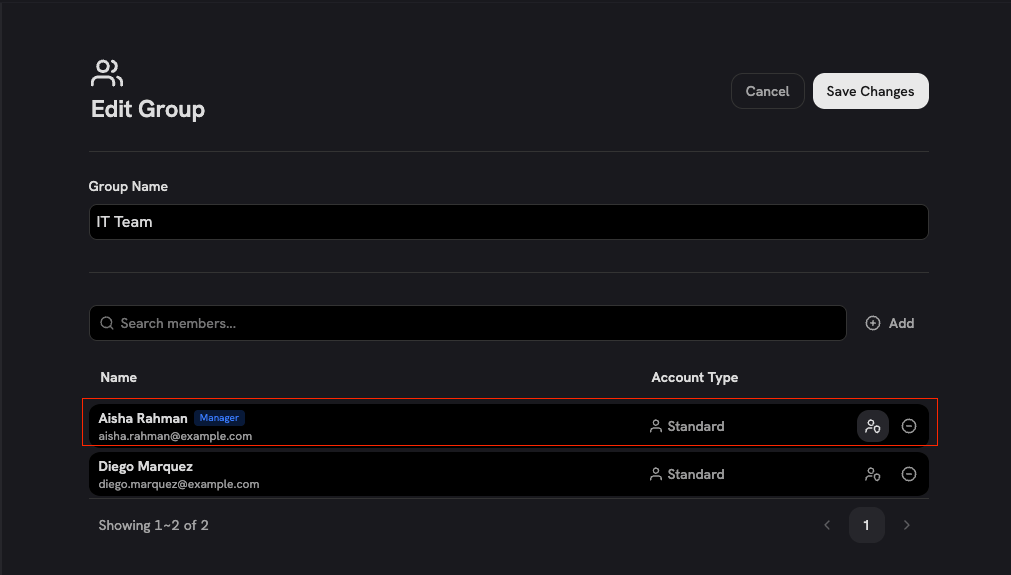
You promote a member to Group Manager from the member list on that group's detail page.
Members who manage the group are marked with a **Manager** badge.
See [Users and Groups](/admins/user_management/users_and_groups) for a tour of that page.
<img className="rounded-image" src="https://mintcdn.com/danswer/M92fHKzuFDY76aIP/assets/admins/user_management/group_manager_row.png?fit=max&auto=format&n=M92fHKzuFDY76aIP&q=85&s=4c4b07de711e831baa4ba9dc74e36261" alt="Edit Group member list with one member marked as Manager" width="1011" height="575" data-path="assets/admins/user_management/group_manager_row.png" />

## Group Permission vs. Group Manager

This is the most important distinction:

| Mechanism        | Who receives it?                    | Scope             | Best for                                                        |
| ---------------- | ----------------------------------- | ----------------- | --------------------------------------------------------------- |
| Group permission | Every member of the group           | Organization-wide | Teams that need the same workspace-wide capability.             |
| Group Manager    | One member on one group detail page | Only that group   | Team leads who should manage one group's members and resources. |

If you want someone to manage only one group's resources, make them a **Group Manager** from that group detail page.
Do not grant a group-wide **Manage** permission, because group permissions are organization-wide.

## Available Group Permissions

The following permissions can be assigned to custom groups:

| Permission                        | What it allows                                                                                           |
| --------------------------------- | -------------------------------------------------------------------------------------------------------- |
| Manage LLMs                       | Add and update language model configurations.                                                            |
| Manage Connectors & Document Sets | Add and update connectors and document sets across the workspace.                                        |
| Manage Actions                    | Add and update custom tools, MCP servers, and OpenAPI actions across the workspace.                      |
| Manage Groups                     | Add and update user groups across the workspace.                                                         |
| Manage Service Accounts           | Add and update service accounts and their API keys.                                                      |
| Manage Slack/Discord Bots         | Add and update Onyx integrations with Slack or Discord.                                                  |
| Create Agents                     | Create and edit the user's own agents.                                                                   |
| Manage Agents                     | View and update public and shared agents across the workspace.                                           |
| View Agent Analytics              | View analytics for agents the user owns. Users with **Manage Agents** can view analytics for all agents. |
| View Query History                | View query history across the workspace.                                                                 |
| Create User Access Token          | Add and update the user's personal access tokens.                                                        |

<Note>
  **View Agent Analytics** is not scoped through Group Manager access. The permission can be granted to a group,
  but agent-level analytics still require the user to own the agent unless the user also has **Manage Agents**.
</Note>

<Info>
  Community Edition has no group permission configuration, so **Create Agents** is available to everyone.
  The permissions in this table are configured per group in Enterprise Edition.
</Info>

## Document Access Is Separate

Permissions decide what a user can do in the Admin Panel and which resources they can manage.
Document visibility is still controlled by connector and resource access settings.

Connectors can be:

* **Private**: Visible only to the creator, plus any users or groups explicitly granted access.
* **Public**: Visible to all Onyx users.
* **Auto Sync Permissions**: Restricted using permissions synced from the source system.

That means a user can have a management permission without automatically seeing every document in search.
Search results still respect document access controls.

## Common Setups

| Goal                                              | Recommended setup                                                       |
| ------------------------------------------------- | ----------------------------------------------------------------------- |
| Give everyone normal workspace access             | Keep users in **Basic**.                                                |
| Give a few people full administration access      | Add them to **Admin**.                                                  |
| Let IT manage all connectors                      | Create an IT group and grant **Manage Connectors & Document Sets**.     |
| Let a team lead manage only Engineering resources | Make the user a **Group Manager** on the Engineering group detail page. |
| Let analysts review query history                 | Create an Analytics group and grant **View Query History**.             |

## Quick Checklist

* Put regular users in **Basic**.
* Put full administrators in **Admin**.
* Use **group permissions** only when the access should be organization-wide.
* Use **Group Manager** when the access should stay scoped to one group.
* Confirm connector access settings separately,
  because document visibility is enforced outside the group permission list.

## Frequently Asked Questions

<AccordionGroup>
  <Accordion title="Do permissions add together or override each other?">
    Permissions add together. If a user belongs to multiple groups,
    Onyx combines the permissions from all of those groups.
    Membership in one group does not remove access granted by another group.
  </Accordion>

  <Accordion title="Are group permissions scoped to that group?">
    No. Group permissions are organization-wide. Only **Group Manager** access is scoped to a specific group.
  </Accordion>

  <Accordion title="When should I use Group Manager instead of a group permission?">
    Use **Group Manager** when one person should manage only one group's members and resources.
    Use a group permission when everyone in that group should receive an organization-wide capability.
  </Accordion>

  <Accordion title="Can a Group Manager make a resource public?">
    No. Group Managers cannot make connectors, document sets, or agents public,
    and they cannot share resources with groups they do not manage.
  </Accordion>

  <Accordion title="Does View Agent Analytics show analytics for all agents?">
    No. **View Agent Analytics** lets users view analytics for agents they own.
    Users with **Manage Agents** can view analytics for all agents.
  </Accordion>

  <Accordion title="Does a management permission show all documents in search?">
    No. Document visibility is controlled separately by connector access settings: **Private**, **Public**,
    and **Auto Sync Permissions**.
  </Accordion>

  <Accordion title="What are the default groups?">
    The default groups are **Basic** and **Admin**.
  </Accordion>

  <Accordion title="Do service accounts use group permissions?">
    Yes. Service accounts, such as API keys, are assigned to groups and receive permissions from those groups,
    exactly like a user. You pick the groups in the **Groups** selector when you create the key.
    A service account that belongs to no group can post to chat,
    but it cannot search and it cannot reach any admin page. Bot, anonymous,
    and external placeholder accounts are system-managed and are not managed like regular users.
  </Accordion>

  <Accordion title="What happens if a user is not in any group?">
    They have no permissions. All access in Onyx comes from group membership.
  </Accordion>

  <Accordion title="How do anonymous users fit into permissions?">
    Anonymous users only exist when anonymous access is enabled, and they can only reach the chat surface.
    They have no account and belong to no group,
    so they cannot be given permissions and never appear in the permission layers as a separate level.
  </Accordion>

  <Accordion title="Can I create custom roles?">
    Yes. Create a custom group and assign the permissions that match the role you want.
  </Accordion>
</AccordionGroup>
