> ## Documentation Index
> Fetch the complete documentation index at: https://docs.onyx.app/llms.txt
> Use this file to discover all available pages before exploring further.
# Service Accounts before v4.7
> Create and manage API keys in Onyx versions before v4.7
This page applies to Onyx versions before **v4.7**. For Onyx v4.7 and later,
see [Service Accounts](/admins/user_management/api_keys).
API Keys provide programmatic access to Onyx APIs, enabling you to build custom applications,
integrate with external systems, and automate workflows.
API Keys exist as distinct users in Onyx, allowing you to trace activity and manage permissions at the key level.
## API Key Types
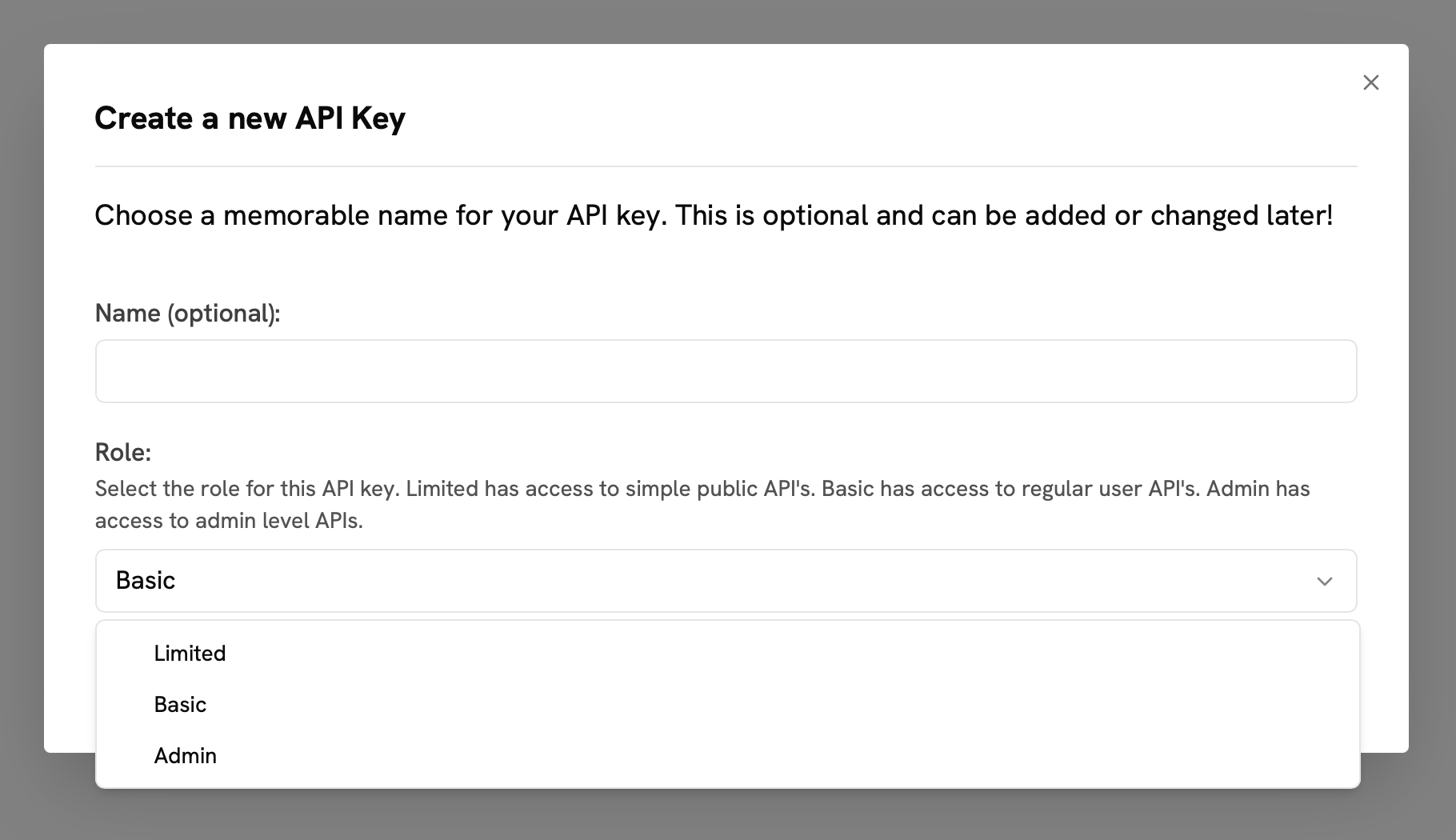
Each key is created with a role, and that role decides what the key can reach:
Can access all endpoints, including those pre-fixed with `admin/`.
**Use cases:**
* Full system administration
* User management operations
* Data management and analytics
* Complete access to all Onyx features
**⚠️ Use with caution:** Admin keys have unrestricted access to your Onyx instance.
Can access the non-admin endpoints like Search, Chat, Agents, and Actions.
**Use cases:**
* Building chat applications
* Implementing search functionality
* Creating and managing agents
* Running actions and workflows
**✅ Recommended:** Most users should use Basic API Keys for application development.
Read-only Agent access. Can post messages to Chat endpoints, but cannot read chat history.
**Use cases:**
* Highly restricted environments
* Specific use cases requiring minimal permissions
* Testing with limited scope
Looking for user-scoped tokens?
Any user can create a [Personal Access Token](/developers/overview_legacy#personal-access-tokens)
from **Settings** > **Accounts & Access** to authenticate API requests as themselves.
## Creating API Keys
Only Admins can create and manage API keys.
In the Admin Panel, go to **Service Accounts**.
Click **New Service Account**, give the key a name, and select the role for your use case.
 After creation, immediately copy and securely store the API key. It is shown only once.
You will see your new API key along with all of your existing keys on the Service Accounts page.
From this page, you can regenerate, rename, or delete your API keys.
Regenerating a key revokes the old one. Any application still using it stops working until you give it the new key.
After creation, immediately copy and securely store the API key. It is shown only once.
You will see your new API key along with all of your existing keys on the Service Accounts page.
From this page, you can regenerate, rename, or delete your API keys.
Regenerating a key revokes the old one. Any application still using it stops working until you give it the new key.