> ## Documentation Index
> Fetch the complete documentation index at: https://docs.onyx.app/llms.txt
> Use this file to discover all available pages before exploring further.
# Users and Groups
> Manage users, roles, groups, and invitations in Onyx
## Overview
Onyx allows you to manage users, roles, groups,
and invitations in your workspace from the Users and Groups pages in the Admin Panel.
### Users
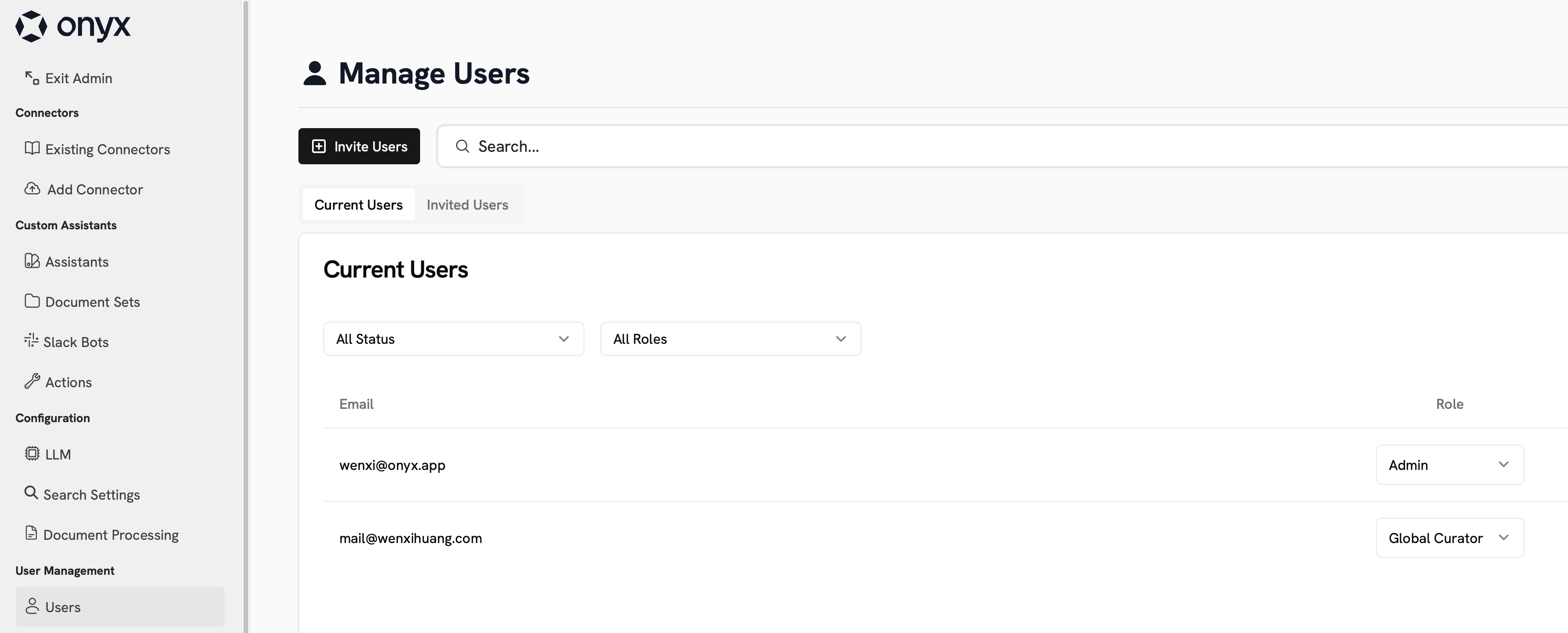
As users join your workspace, they will appear in the Users page.
You can promote users to Admins and Curators through the Role dropdown.
You can also deactivate and delete users through this page.
Unable to delete a User? They may have a Document Set or Agent still associated with their profile.
 ### Inviting Users
You may use the **Invite Users** button to send an email invitation to join your workspace.
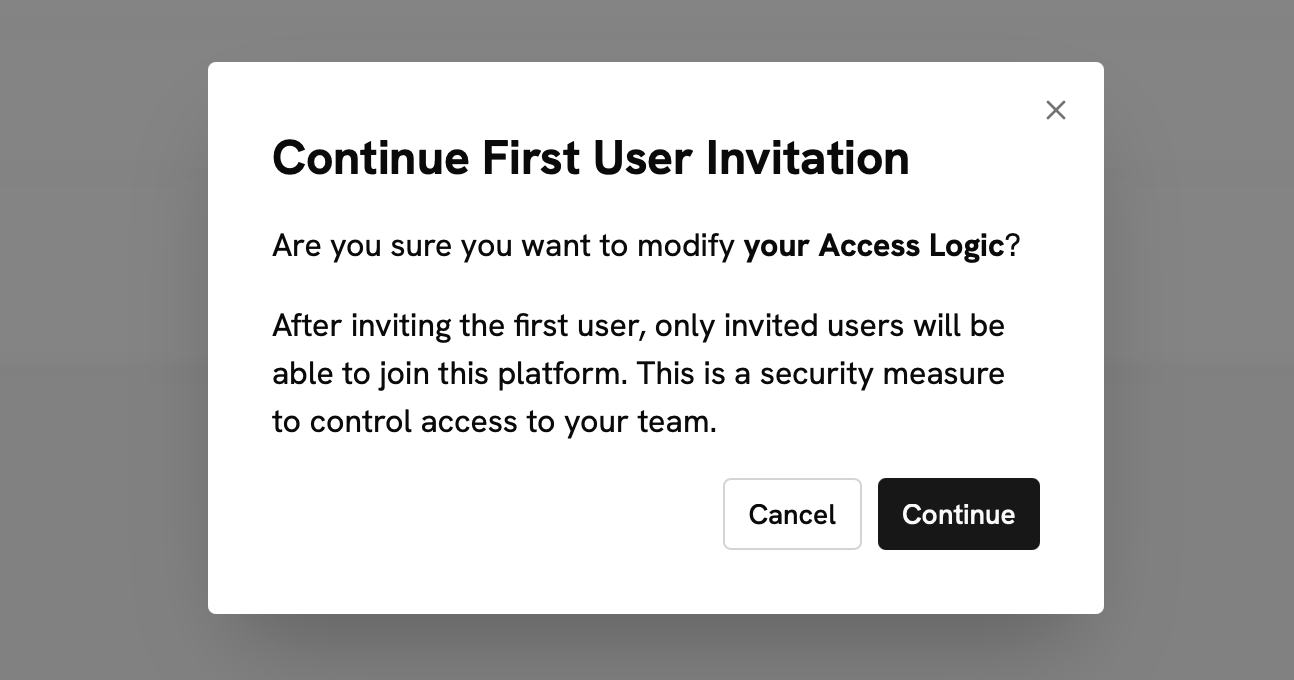
Inviting Users will disallow new users from automatically joining your workspace!
You will need to invite all users or none.
### Inviting Users
You may use the **Invite Users** button to send an email invitation to join your workspace.
Inviting Users will disallow new users from automatically joining your workspace!
You will need to invite all users or none.
 ## Groups
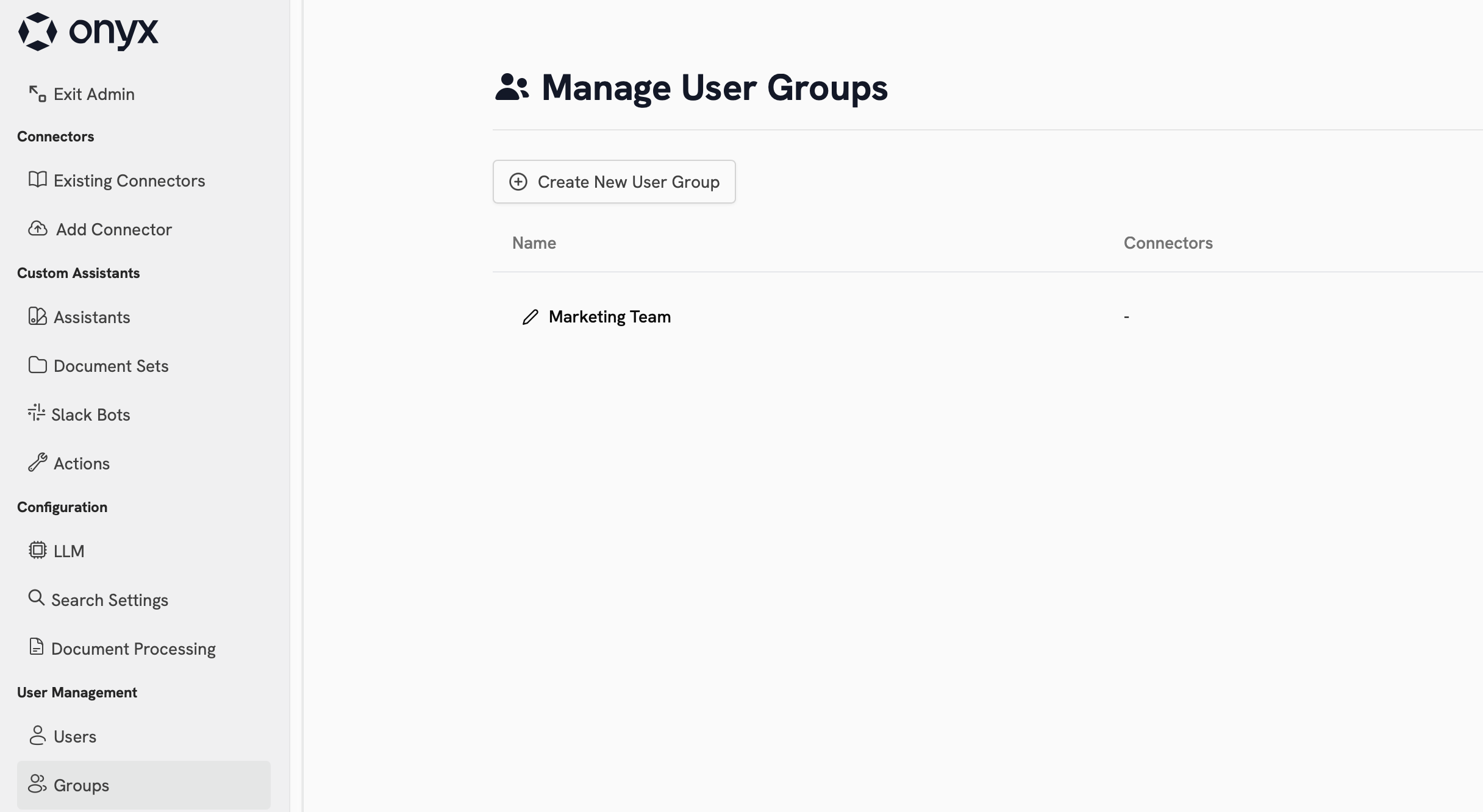
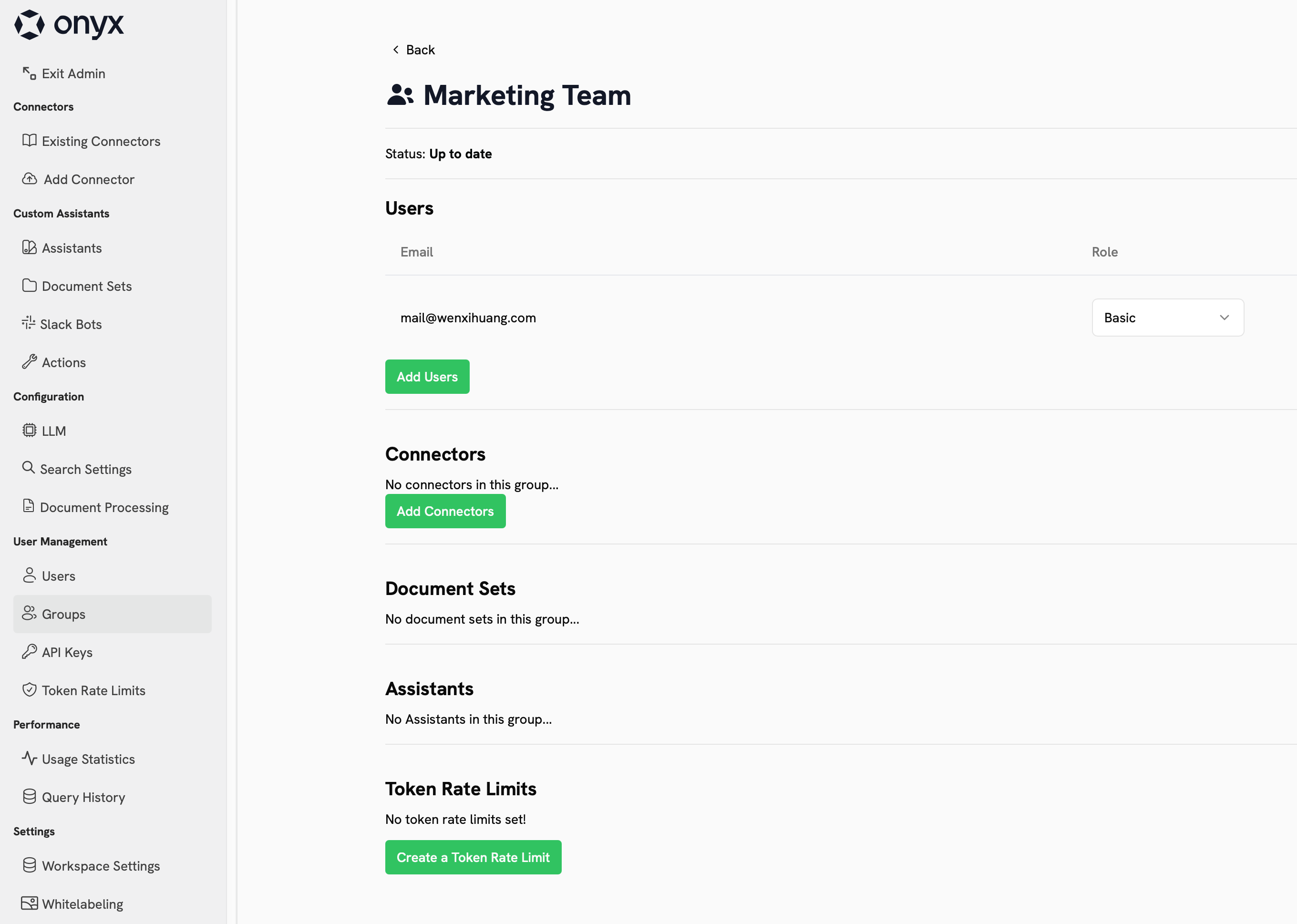
You can organize your Users into Groups to manage their access controls at the same time.
Specifically, you can attach private Connectors, Document Sets, and Agents to a Group,
granting all users in the Group access to these resources.
Additionally, you can impose token rate limits on a Group to monitor and control AI model usage.
## Groups
You can organize your Users into Groups to manage their access controls at the same time.
Specifically, you can attach private Connectors, Document Sets, and Agents to a Group,
granting all users in the Group access to these resources.
Additionally, you can impose token rate limits on a Group to monitor and control AI model usage.
 Want to automate user and group provisioning? Set up [SCIM](/deployment/authentication/scim)
to sync directly from your identity provider.
Want to automate user and group provisioning? Set up [SCIM](/deployment/authentication/scim)
to sync directly from your identity provider.