> ## Documentation Index
> Fetch the complete documentation index at: https://docs.onyx.app/llms.txt
> Use this file to discover all available pages before exploring further.
# LLM Gateway
> Route application LLM requests through the models and access controls configured in Onyx
The Onyx LLM Gateway gives applications one endpoint for the language models your organization has configured in Onyx.
Requests use your Onyx identity, so model access and usage attribution stay in one place.
Use the gateway when you want an application, automation,
or coding tool to use organization-approved models without storing a separate provider key.
The LLM Gateway is available with Onyx Enterprise.
An administrator must configure at least one visible language model before it can serve requests.
## What the gateway provides
* An [OpenAI-compatible Chat Completions endpoint](https://platform.openai.com/docs/api-reference/chat/completions).
* An [OpenAI Responses endpoint](https://platform.openai.com/docs/api-reference/responses).
* An [Anthropic Messages endpoint](https://platform.claude.com/docs/en/api/messages) and [token-count endpoint](https://platform.claude.com/docs/en/api/messages/count_tokens).
* The models that your Onyx identity can access.
* Usage attribution through the existing Onyx usage views.
* The same model access controls and token limits that apply in Onyx.
The gateway does not replace your model-provider configuration.
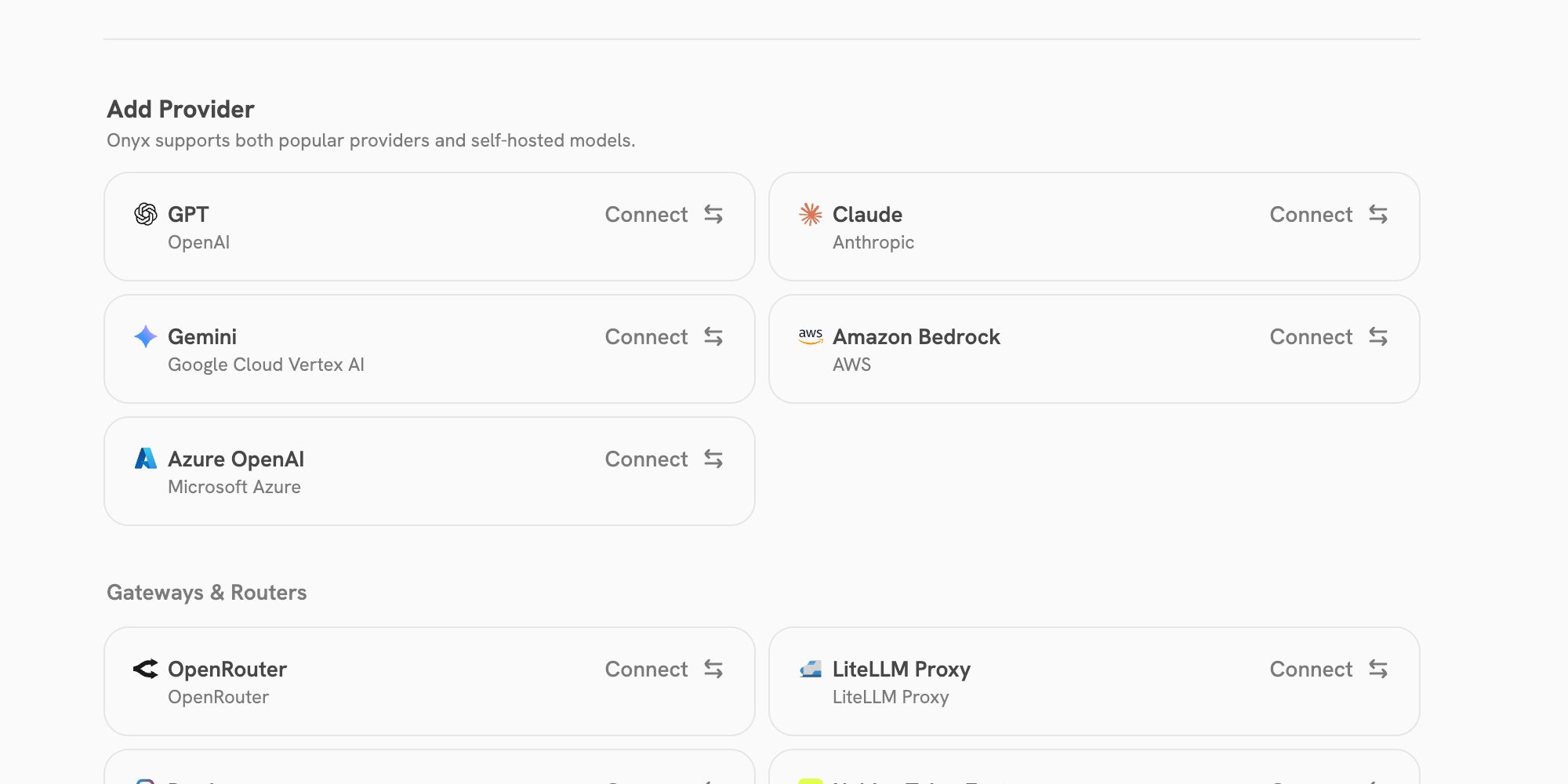
An administrator still configures providers and decides which models are visible in [Language
Models](/admins/ai_models/overview).
 ## Before you begin
You need all of the following:
* An Onyx administrator has configured a language model and made it visible.
* Your Onyx account has access to that model.
* A Personal Access Token (PAT) with the **LLM Gateway** scope.
Create a [Personal Access Token](/developers/overview#personal-access-tokens) from **Settings** > **Accounts & Access**.
Choose **Limited access** and select **LLM Gateway**. Treat the token as a password. Onyx shows it only once.
Use a scoped PAT for an application or local development.
It limits the token to gateway requests while preserving the model access of the user who created it.
## Gateway address
For a standard Onyx deployment, use:
```text theme={null}
https://your-onyx-domain.com/api/gateway/v1
```
Self-hosted deployments can expose the API at a different public path. Use the public API address for your deployment,
followed by `/gateway/v1`.
Every request uses a Bearer token:
```bash theme={null}
export ONYX_GATEWAY_URL="https://your-onyx-domain.com/api/gateway/v1"
export ONYX_GATEWAY_API_KEY="onyx_pat_..."
```
## Find an available model
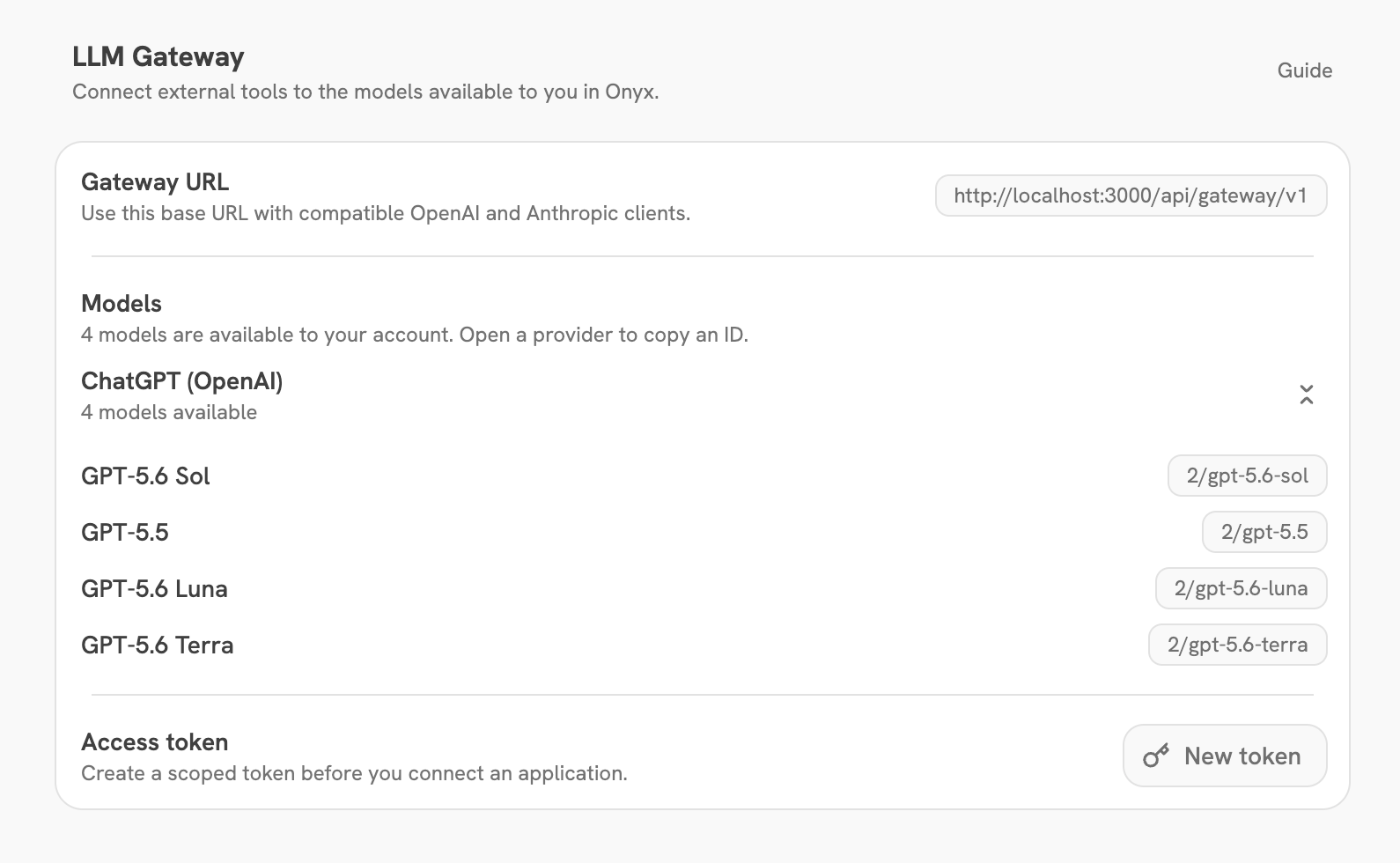
The easiest way to find a model ID is in **Settings** > **LLM Gateway**.
The section appears only when at least one model is visible and accessible to your account.
Open a provider, then copy the ID beside the model that you want to use.
The copied value already has the required format:
## Before you begin
You need all of the following:
* An Onyx administrator has configured a language model and made it visible.
* Your Onyx account has access to that model.
* A Personal Access Token (PAT) with the **LLM Gateway** scope.
Create a [Personal Access Token](/developers/overview#personal-access-tokens) from **Settings** > **Accounts & Access**.
Choose **Limited access** and select **LLM Gateway**. Treat the token as a password. Onyx shows it only once.
Use a scoped PAT for an application or local development.
It limits the token to gateway requests while preserving the model access of the user who created it.
## Gateway address
For a standard Onyx deployment, use:
```text theme={null}
https://your-onyx-domain.com/api/gateway/v1
```
Self-hosted deployments can expose the API at a different public path. Use the public API address for your deployment,
followed by `/gateway/v1`.
Every request uses a Bearer token:
```bash theme={null}
export ONYX_GATEWAY_URL="https://your-onyx-domain.com/api/gateway/v1"
export ONYX_GATEWAY_API_KEY="onyx_pat_..."
```
## Find an available model
The easiest way to find a model ID is in **Settings** > **LLM Gateway**.
The section appears only when at least one model is visible and accessible to your account.
Open a provider, then copy the ID beside the model that you want to use.
The copied value already has the required format:
 ```text theme={null}
/
```
For example, `12/gpt-5-mini` means:
* `12` is the Onyx ID for the configured provider.
* `gpt-5-mini` is the model name configured for that provider.
Use the copied value exactly as the `model` value in your client. Do not replace the provider ID with the provider name.
Use **Settings** to find a model ID for each client configuration.
## OpenAI Chat Completions
Point OpenAI-compatible clients at the gateway URL. This example uses the official OpenAI JavaScript SDK.
```ts TypeScript theme={null}
import OpenAI from "openai";
const client = new OpenAI({
apiKey: process.env.ONYX_GATEWAY_API_KEY,
baseURL: process.env.ONYX_GATEWAY_URL,
});
const completion = await client.chat.completions.create({
model: "12/gpt-5-mini",
messages: [{ role: "user", content: "Write a one-line release note." }],
});
console.log(completion.choices[0].message.content);
```
The same request with `stream: true` uses server-sent events.
## OpenAI Responses
The gateway also supports the OpenAI Responses API. Use the same base URL and model ID.
```ts TypeScript theme={null}
const response = await client.responses.create({
model: "12/gpt-5-mini",
input: "Summarize the purpose of this service in one sentence.",
});
console.log(response.output_text);
```
Gateway responses are stateless. Send the context that a later turn needs;
do not rely on a previous response ID being stored by Onyx.
## Anthropic Messages
For Anthropic-compatible clients,
send requests to the gateway's `messages` endpoint with the same Bearer token and model ID.
```bash theme={null}
curl "$ONYX_GATEWAY_URL/messages" \
-H "Authorization: Bearer $ONYX_GATEWAY_API_KEY" \
-H "Content-Type: application/json" \
-d '{
"model": "18/claude-haiku-4-5",
"max_tokens": 256,
"messages": [
{"role": "user", "content": "Reply with one friendly greeting."}
]
}'
```
To estimate the input tokens for an Anthropic Messages request,
send the same request shape to `POST /messages/count_tokens`.
## Use with coding agents
Use the gateway with [Claude Code](https://docs.anthropic.com/en/docs/claude-code/overview)
or [Codex](https://developers.openai.com/codex) to give coding-agent requests the same model access controls,
usage attribution, and token limits as other gateway traffic.
### Claude Code
Set the gateway's parent endpoint as the Anthropic base URL, then use a Claude model ID from **Settings**:
```bash theme={null}
export ANTHROPIC_BASE_URL="https://your-onyx-domain.com/api/gateway"
export ANTHROPIC_AUTH_TOKEN="$ONYX_GATEWAY_API_KEY"
export ANTHROPIC_MODEL="18/claude-haiku-4-5"
export ANTHROPIC_SMALL_FAST_MODEL="18/claude-haiku-4-5"
claude
```
Claude Code appends `/v1/messages`, which resolves to the gateway's Anthropic Messages endpoint.
Use a model ID from your own Settings page. Provider IDs differ by deployment.
### Codex
Create a [Codex profile](https://developers.openai.com/codex) at `~/.codex/onyx.config.toml`:
```toml theme={null}
model = "12/gpt-5-mini"
model_provider = "onyx_gateway"
[model_providers.onyx_gateway]
name = "Onyx Gateway"
base_url = "https://your-onyx-domain.com/api/gateway/v1"
wire_api = "responses"
env_key = "ONYX_GATEWAY_API_KEY"
```
Then export the PAT and start Codex with that profile:
```bash theme={null}
export ONYX_GATEWAY_API_KEY="onyx_pat_..."
codex -p onyx
```
The configured model must be an OpenAI-compatible model ID from **Settings**.
### OpenCode
Add the gateway as an OpenAI-compatible provider in your project's `opencode.json`:
```json theme={null}
{
"$schema": "https://opencode.ai/config.json",
"model": "onyx_gateway/12/gpt-5-mini",
"provider": {
"onyx_gateway": {
"npm": "@ai-sdk/openai-compatible",
"name": "Onyx Gateway",
"options": {
"baseURL": "https://your-onyx-domain.com/api/gateway/v1",
"apiKey": "{env:ONYX_GATEWAY_API_KEY}"
},
"models": {
"12/gpt-5-mini": {
"name": "GPT-5 mini via Onyx"
}
}
}
}
}
```
Export a PAT before starting OpenCode:
```bash theme={null}
export ONYX_GATEWAY_API_KEY="onyx_pat_..."
opencode
```
The `@ai-sdk/openai-compatible` provider uses the gateway's Chat Completions endpoint.
Replace the example model with one from your Gateway Settings.
## Usage and limits
Gateway requests use the calling user's Onyx permissions. If the user loses access to a model,
the gateway no longer exposes or accepts that model for the user.
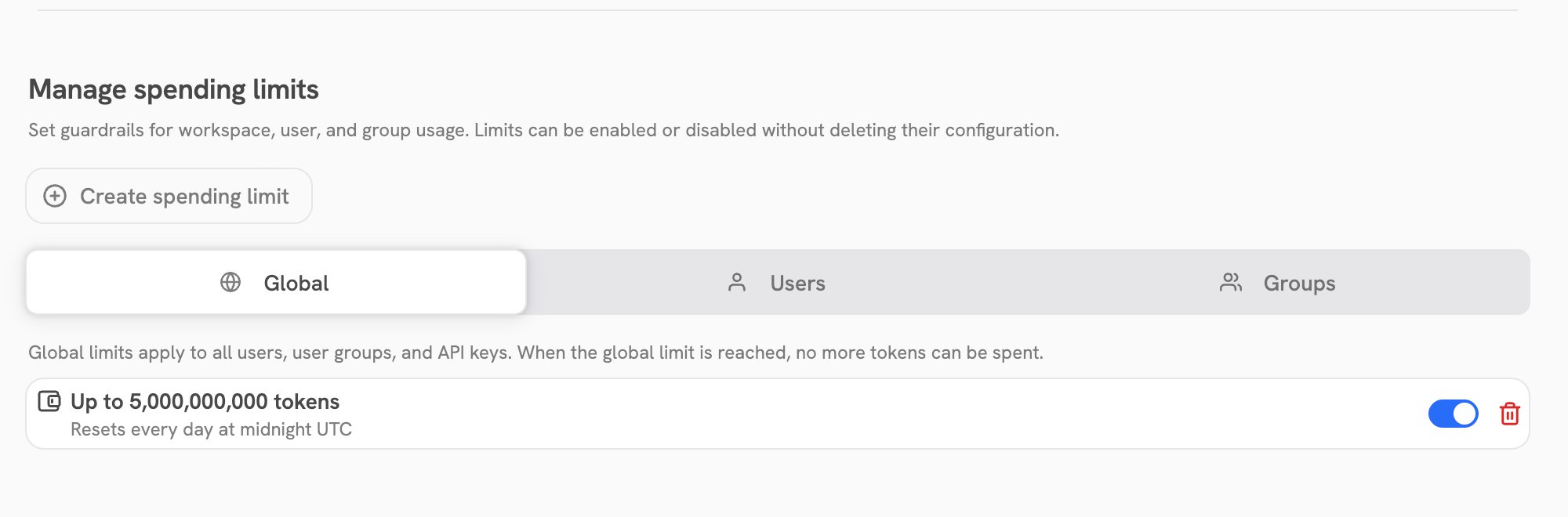
Administrators can review token use and estimated model cost in **Admin Panel**
> **Usage**. They can also apply global, group, or user token limits there.
> Those limits apply before the gateway sends a generation request to a model provider.
```text theme={null}
/
```
For example, `12/gpt-5-mini` means:
* `12` is the Onyx ID for the configured provider.
* `gpt-5-mini` is the model name configured for that provider.
Use the copied value exactly as the `model` value in your client. Do not replace the provider ID with the provider name.
Use **Settings** to find a model ID for each client configuration.
## OpenAI Chat Completions
Point OpenAI-compatible clients at the gateway URL. This example uses the official OpenAI JavaScript SDK.
```ts TypeScript theme={null}
import OpenAI from "openai";
const client = new OpenAI({
apiKey: process.env.ONYX_GATEWAY_API_KEY,
baseURL: process.env.ONYX_GATEWAY_URL,
});
const completion = await client.chat.completions.create({
model: "12/gpt-5-mini",
messages: [{ role: "user", content: "Write a one-line release note." }],
});
console.log(completion.choices[0].message.content);
```
The same request with `stream: true` uses server-sent events.
## OpenAI Responses
The gateway also supports the OpenAI Responses API. Use the same base URL and model ID.
```ts TypeScript theme={null}
const response = await client.responses.create({
model: "12/gpt-5-mini",
input: "Summarize the purpose of this service in one sentence.",
});
console.log(response.output_text);
```
Gateway responses are stateless. Send the context that a later turn needs;
do not rely on a previous response ID being stored by Onyx.
## Anthropic Messages
For Anthropic-compatible clients,
send requests to the gateway's `messages` endpoint with the same Bearer token and model ID.
```bash theme={null}
curl "$ONYX_GATEWAY_URL/messages" \
-H "Authorization: Bearer $ONYX_GATEWAY_API_KEY" \
-H "Content-Type: application/json" \
-d '{
"model": "18/claude-haiku-4-5",
"max_tokens": 256,
"messages": [
{"role": "user", "content": "Reply with one friendly greeting."}
]
}'
```
To estimate the input tokens for an Anthropic Messages request,
send the same request shape to `POST /messages/count_tokens`.
## Use with coding agents
Use the gateway with [Claude Code](https://docs.anthropic.com/en/docs/claude-code/overview)
or [Codex](https://developers.openai.com/codex) to give coding-agent requests the same model access controls,
usage attribution, and token limits as other gateway traffic.
### Claude Code
Set the gateway's parent endpoint as the Anthropic base URL, then use a Claude model ID from **Settings**:
```bash theme={null}
export ANTHROPIC_BASE_URL="https://your-onyx-domain.com/api/gateway"
export ANTHROPIC_AUTH_TOKEN="$ONYX_GATEWAY_API_KEY"
export ANTHROPIC_MODEL="18/claude-haiku-4-5"
export ANTHROPIC_SMALL_FAST_MODEL="18/claude-haiku-4-5"
claude
```
Claude Code appends `/v1/messages`, which resolves to the gateway's Anthropic Messages endpoint.
Use a model ID from your own Settings page. Provider IDs differ by deployment.
### Codex
Create a [Codex profile](https://developers.openai.com/codex) at `~/.codex/onyx.config.toml`:
```toml theme={null}
model = "12/gpt-5-mini"
model_provider = "onyx_gateway"
[model_providers.onyx_gateway]
name = "Onyx Gateway"
base_url = "https://your-onyx-domain.com/api/gateway/v1"
wire_api = "responses"
env_key = "ONYX_GATEWAY_API_KEY"
```
Then export the PAT and start Codex with that profile:
```bash theme={null}
export ONYX_GATEWAY_API_KEY="onyx_pat_..."
codex -p onyx
```
The configured model must be an OpenAI-compatible model ID from **Settings**.
### OpenCode
Add the gateway as an OpenAI-compatible provider in your project's `opencode.json`:
```json theme={null}
{
"$schema": "https://opencode.ai/config.json",
"model": "onyx_gateway/12/gpt-5-mini",
"provider": {
"onyx_gateway": {
"npm": "@ai-sdk/openai-compatible",
"name": "Onyx Gateway",
"options": {
"baseURL": "https://your-onyx-domain.com/api/gateway/v1",
"apiKey": "{env:ONYX_GATEWAY_API_KEY}"
},
"models": {
"12/gpt-5-mini": {
"name": "GPT-5 mini via Onyx"
}
}
}
}
}
```
Export a PAT before starting OpenCode:
```bash theme={null}
export ONYX_GATEWAY_API_KEY="onyx_pat_..."
opencode
```
The `@ai-sdk/openai-compatible` provider uses the gateway's Chat Completions endpoint.
Replace the example model with one from your Gateway Settings.
## Usage and limits
Gateway requests use the calling user's Onyx permissions. If the user loses access to a model,
the gateway no longer exposes or accepts that model for the user.
Administrators can review token use and estimated model cost in **Admin Panel**
> **Usage**. They can also apply global, group, or user token limits there.
> Those limits apply before the gateway sends a generation request to a model provider.
 ## Common errors
| Error | What to check |
| ----------------- | -------------------------------------------------------------------------------------------- |
| `401` or `403` | Use a valid PAT with the LLM Gateway scope. Check that the user still has model access. |
| Model not found | Copy the model ID again from Gateway Settings. The provider ID is part of the identifier. |
| Rate limited | Ask an administrator to review the user, group, or workspace token limit. |
| Model unavailable | Ask an administrator to configure the provider or make the model visible in Language Models. |
## Next steps
Add providers and control which models are visible.
Create and manage the token used by your application.
## Common errors
| Error | What to check |
| ----------------- | -------------------------------------------------------------------------------------------- |
| `401` or `403` | Use a valid PAT with the LLM Gateway scope. Check that the user still has model access. |
| Model not found | Copy the model ID again from Gateway Settings. The provider ID is part of the identifier. |
| Rate limited | Ask an administrator to review the user, group, or workspace token limit. |
| Model unavailable | Ask an administrator to configure the provider or make the model visible in Language Models. |
## Next steps
Add providers and control which models are visible.
Create and manage the token used by your application.