> ## Documentation Index
> Fetch the complete documentation index at: https://docs.onyx.app/llms.txt
> Use this file to discover all available pages before exploring further.
# Apps
> Connect external tools so Craft can retrieve live context and take approved actions
Apps give Craft controlled access to the tools where your work already happens. After you connect an app,
Craft can retrieve live information from your account and, when allowed, create or update content on your behalf.
Examples include finding customer context in HubSpot, drafting a reply in Gmail, creating a Linear issue,
writing a document to Google Drive, or opening a pull request in GitHub.
 ## Apps, company knowledge, and files
These sources serve different purposes in a Craft session:
| Source | Best for | Can change the source? |
| ----------------------- | ------------------------------------------------------------------------ | --------------------------------------------------------------------------------- |
| **Apps** | Live information and actions in your connected account. | Yes, when the app and action policy allow it. |
| **Onyx knowledge** | Searching indexed company content you already have permission to access. | No. Search is read-only. |
| **Session attachments** | Files needed for one session. | Craft works on a sandboxed copy. |
| **User Library** | Templates and reference files you reuse across sessions. | Craft reads synchronized library files and writes new work to the session output. |
## Available apps
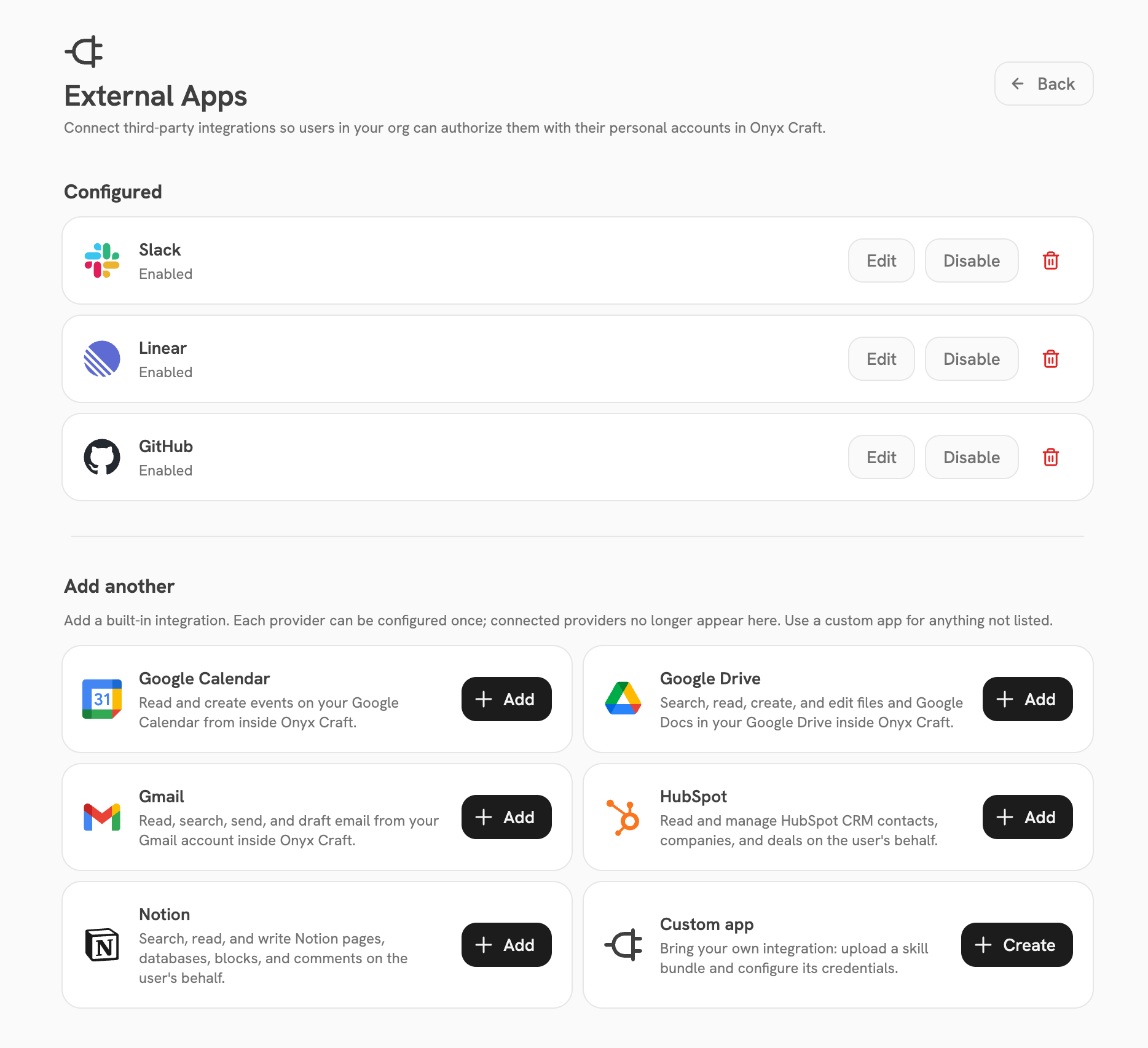
Your Apps page shows only the apps your organization has enabled. Onyx includes built-in support for:
| App | Example uses |
| ------------------- | --------------------------------------------------------------------------------------------------- |
| **Slack** | Search conversations, read messages, post updates, and upload files. |
| **Google Calendar** | Check availability and read, create, update, or delete events. |
| **Google Drive** | Find and read files, export content, and create or edit files and Google Docs. |
| **Gmail** | Search mail, read threads and attachments, manage drafts, and send messages. |
| **Linear** | Read issues and projects, create issues, and add comments. |
| **GitHub** | Inspect repositories, issues, and pull requests; create issues, branches, files, and pull requests. |
| **HubSpot** | Search contacts, companies, and deals, and create or update CRM records. |
| **Notion** | Search and read workspace content, then create or update pages, databases, blocks, and comments. |
Your organization can also provide custom apps for APIs or services that are not in the built-in catalog.
The actions available to you depend on the access granted by the external service and your organization's policies.
## Connect an app
Select **Apps** in the Craft sidebar. Connected accounts appear first;
everything else your organization has enabled appears under **Browse apps**.
Select **Connect**. Built-in apps open the service's authorization flow.
A custom app may instead ask for fields defined by your admin.
In the external service, confirm the account and permissions you are granting. When setup finishes,
the app moves to **Connected**.
Describe the app in your prompt, or select **+** > **Apps** and choose it. For example:
“Summarize the launch discussion in Slack and draft a follow-up in Gmail.”
Craft can also recognize that an unconnected app is needed while it works. In that case,
a connection card appears in the session with **Connect** and **Not now** options.
Connect the app to let the current task continue, or choose **Not now** and ask Craft to use another source.
Connect the account you want Craft to act as. For example,
the Gmail account you authorize is the account Craft reads from and uses for drafts or sends.
## Guide Craft to the right data
Connecting an app makes it available; your prompt should still identify the relevant scope. Include concrete names,
dates, channels, repositories, projects, folders, or records whenever possible.
| Goal | Example prompt |
| ------------------------ | ----------------------------------------------------------------------------------------------------------------------------- |
| **Ground a deliverable** | “Build a Q2 account review using the Acme deal in HubSpot, the `#acme-account` Slack channel, and the latest notes in Drive.” |
| **Prepare, then act** | “Review the launch thread in Slack, draft a concise follow-up email, and wait for my approval before sending it.” |
| **Update a workflow** | “Find unresolved launch blockers in Linear, group them by owner, and add a comment to issues that have no next step.” |
| **Ship code work** | “Inspect the open GitHub issue, make the requested documentation change, and open a pull request for review.” |
## Review approval requests
Your organization controls every app action with one of three policies:
| Policy | What you experience |
| ---------------- | --------------------------------------------------------------------- |
| **Auto-approve** | Craft performs the action without pausing. Common for low-risk reads. |
| **Ask** | Craft pauses and shows an approval card before sending the request. |
| **Deny** | Craft cannot perform the action and reports that it was blocked. |
When an action uses **Ask**, expand the approval card to review the app, action, description,
and request payload before deciding.
## Apps, company knowledge, and files
These sources serve different purposes in a Craft session:
| Source | Best for | Can change the source? |
| ----------------------- | ------------------------------------------------------------------------ | --------------------------------------------------------------------------------- |
| **Apps** | Live information and actions in your connected account. | Yes, when the app and action policy allow it. |
| **Onyx knowledge** | Searching indexed company content you already have permission to access. | No. Search is read-only. |
| **Session attachments** | Files needed for one session. | Craft works on a sandboxed copy. |
| **User Library** | Templates and reference files you reuse across sessions. | Craft reads synchronized library files and writes new work to the session output. |
## Available apps
Your Apps page shows only the apps your organization has enabled. Onyx includes built-in support for:
| App | Example uses |
| ------------------- | --------------------------------------------------------------------------------------------------- |
| **Slack** | Search conversations, read messages, post updates, and upload files. |
| **Google Calendar** | Check availability and read, create, update, or delete events. |
| **Google Drive** | Find and read files, export content, and create or edit files and Google Docs. |
| **Gmail** | Search mail, read threads and attachments, manage drafts, and send messages. |
| **Linear** | Read issues and projects, create issues, and add comments. |
| **GitHub** | Inspect repositories, issues, and pull requests; create issues, branches, files, and pull requests. |
| **HubSpot** | Search contacts, companies, and deals, and create or update CRM records. |
| **Notion** | Search and read workspace content, then create or update pages, databases, blocks, and comments. |
Your organization can also provide custom apps for APIs or services that are not in the built-in catalog.
The actions available to you depend on the access granted by the external service and your organization's policies.
## Connect an app
Select **Apps** in the Craft sidebar. Connected accounts appear first;
everything else your organization has enabled appears under **Browse apps**.
Select **Connect**. Built-in apps open the service's authorization flow.
A custom app may instead ask for fields defined by your admin.
In the external service, confirm the account and permissions you are granting. When setup finishes,
the app moves to **Connected**.
Describe the app in your prompt, or select **+** > **Apps** and choose it. For example:
“Summarize the launch discussion in Slack and draft a follow-up in Gmail.”
Craft can also recognize that an unconnected app is needed while it works. In that case,
a connection card appears in the session with **Connect** and **Not now** options.
Connect the app to let the current task continue, or choose **Not now** and ask Craft to use another source.
Connect the account you want Craft to act as. For example,
the Gmail account you authorize is the account Craft reads from and uses for drafts or sends.
## Guide Craft to the right data
Connecting an app makes it available; your prompt should still identify the relevant scope. Include concrete names,
dates, channels, repositories, projects, folders, or records whenever possible.
| Goal | Example prompt |
| ------------------------ | ----------------------------------------------------------------------------------------------------------------------------- |
| **Ground a deliverable** | “Build a Q2 account review using the Acme deal in HubSpot, the `#acme-account` Slack channel, and the latest notes in Drive.” |
| **Prepare, then act** | “Review the launch thread in Slack, draft a concise follow-up email, and wait for my approval before sending it.” |
| **Update a workflow** | “Find unresolved launch blockers in Linear, group them by owner, and add a comment to issues that have no next step.” |
| **Ship code work** | “Inspect the open GitHub issue, make the requested documentation change, and open a pull request for review.” |
## Review approval requests
Your organization controls every app action with one of three policies:
| Policy | What you experience |
| ---------------- | --------------------------------------------------------------------- |
| **Auto-approve** | Craft performs the action without pausing. Common for low-risk reads. |
| **Ask** | Craft pauses and shows an approval card before sending the request. |
| **Deny** | Craft cannot perform the action and reports that it was blocked. |
When an action uses **Ask**, expand the approval card to review the app, action, description,
and request payload before deciding.
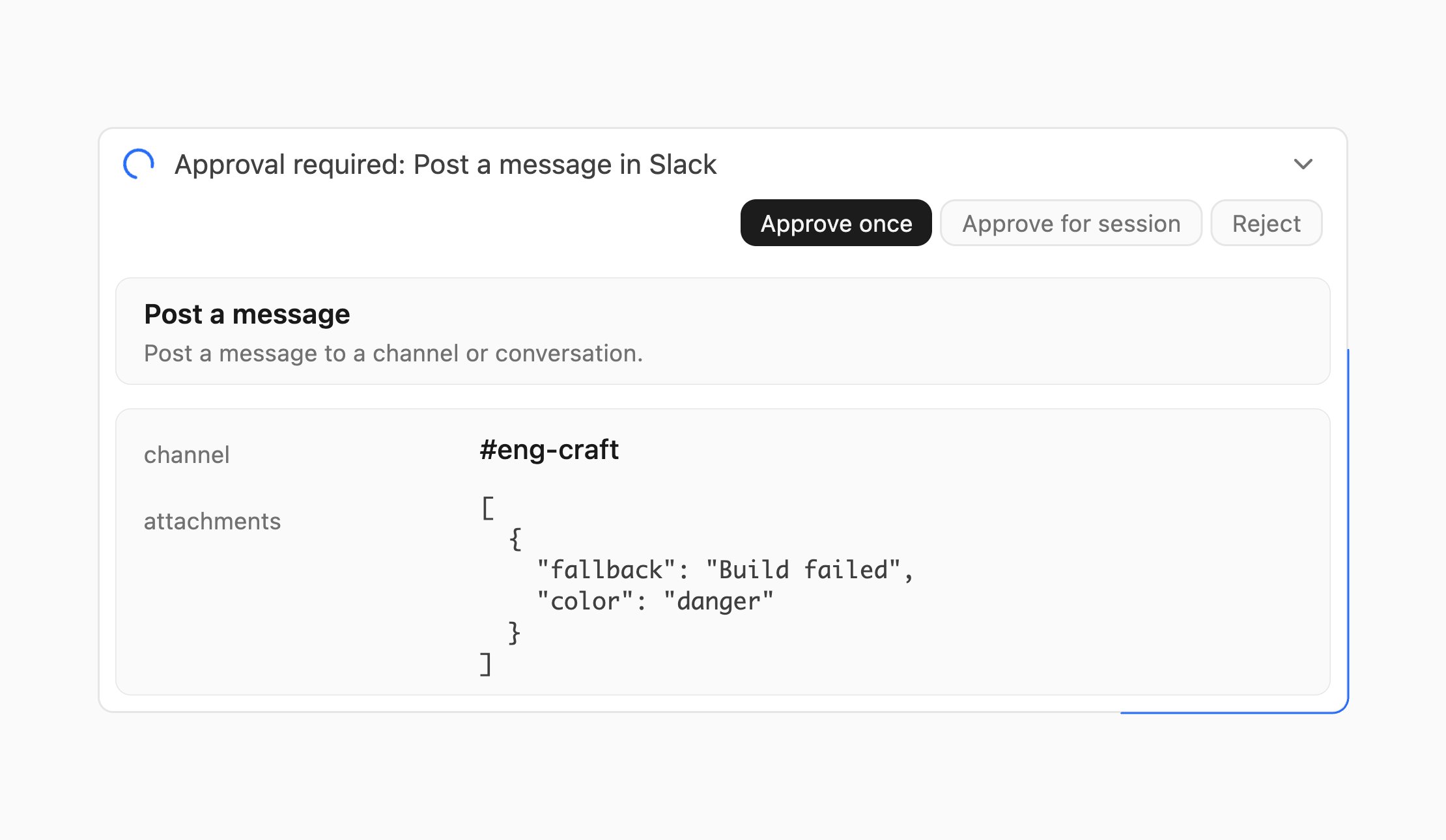 | Choice | Effect |
| ----------------------- | ------------------------------------------------------------------------------------------------------- |
| **Approve once** | Allows only the displayed request. |
| **Approve for session** | Allows matching actions for the rest of the current session. It does not create a permanent permission. |
| **Reject** | Blocks the request. Craft receives the rejection and can suggest another approach. |
Before approving, confirm:
* The app and connected account are the ones you intended.
* The destination, such as a channel, recipient, repository, calendar, or record, is correct.
* The content and payload match what you asked Craft to do.
* The action is not broader or more destructive than necessary.
Prefer **Approve once** for sends, deletes, customer-facing changes, calendar changes,
and other consequential actions. If an approval expires before you respond, the request fails closed and does not run.
## Apps in Scheduled Tasks
A [Scheduled Task](/overview/core_features/craft_scheduled_tasks) runs without you present.
Select its expected apps under **Pre-approved apps** so those apps can act without waiting for a live response.
Pre-approval applies only to that Scheduled Task. An app action with a **Deny** policy remains blocked,
and an app you did not pre-approve can leave the run waiting for approval.
## Disconnect an app
Open **Apps**, find the account under **Connected**, and select **Disconnect**.
Craft can no longer make authenticated requests through that connection.
You can reconnect later by completing the connection flow again.
Raw app credentials never enter Craft's sandbox workspace.
The sandbox proxy injects them only into approved outbound requests. For the full trust and network model,
see [Craft Architecture](/security/architecture/craft).
## Troubleshooting
Your organization has not enabled it, or its setup is incomplete.
Ask an admin to review the app configuration and your access.
Admins can use the [Craft Apps setup guide](/admins/managing_features/craft_apps).
Confirm you selected the intended external account, allowed the setup window to open,
and granted the requested access. For a custom app, verify the credential fields with your admin.
Then return to Apps and try again.
The action may be denied by policy, outside the connected account's access, rejected,
or expired while awaiting approval. Craft does not retry a blocked action automatically;
adjust the request or contact an admin if the action should be available.
Edit the task and confirm the required app is selected under **Pre-approved apps**. If it is already selected,
an admin may have denied that action or the run may need a different app.
Enable built-in or custom apps, configure credentials, and set action policies.
Give Craft reusable methods, examples, templates, and helper files.
| Choice | Effect |
| ----------------------- | ------------------------------------------------------------------------------------------------------- |
| **Approve once** | Allows only the displayed request. |
| **Approve for session** | Allows matching actions for the rest of the current session. It does not create a permanent permission. |
| **Reject** | Blocks the request. Craft receives the rejection and can suggest another approach. |
Before approving, confirm:
* The app and connected account are the ones you intended.
* The destination, such as a channel, recipient, repository, calendar, or record, is correct.
* The content and payload match what you asked Craft to do.
* The action is not broader or more destructive than necessary.
Prefer **Approve once** for sends, deletes, customer-facing changes, calendar changes,
and other consequential actions. If an approval expires before you respond, the request fails closed and does not run.
## Apps in Scheduled Tasks
A [Scheduled Task](/overview/core_features/craft_scheduled_tasks) runs without you present.
Select its expected apps under **Pre-approved apps** so those apps can act without waiting for a live response.
Pre-approval applies only to that Scheduled Task. An app action with a **Deny** policy remains blocked,
and an app you did not pre-approve can leave the run waiting for approval.
## Disconnect an app
Open **Apps**, find the account under **Connected**, and select **Disconnect**.
Craft can no longer make authenticated requests through that connection.
You can reconnect later by completing the connection flow again.
Raw app credentials never enter Craft's sandbox workspace.
The sandbox proxy injects them only into approved outbound requests. For the full trust and network model,
see [Craft Architecture](/security/architecture/craft).
## Troubleshooting
Your organization has not enabled it, or its setup is incomplete.
Ask an admin to review the app configuration and your access.
Admins can use the [Craft Apps setup guide](/admins/managing_features/craft_apps).
Confirm you selected the intended external account, allowed the setup window to open,
and granted the requested access. For a custom app, verify the credential fields with your admin.
Then return to Apps and try again.
The action may be denied by policy, outside the connected account's access, rejected,
or expired while awaiting approval. Craft does not retry a blocked action automatically;
adjust the request or contact an admin if the action should be available.
Edit the task and confirm the required app is selected under **Pre-approved apps**. If it is already selected,
an admin may have denied that action or the run may need a different app.
Enable built-in or custom apps, configure credentials, and set action policies.
Give Craft reusable methods, examples, templates, and helper files.