> ## Documentation Index
> Fetch the complete documentation index at: https://docs.onyx.app/llms.txt
> Use this file to discover all available pages before exploring further.
# Scheduled Tasks
> Run a Craft prompt automatically on a recurring schedule
A Scheduled Task runs a Craft prompt for you on a recurring schedule.
Each run starts a fresh Craft session in the background, records its result in run history,
and continues whether or not you have Onyx open.
Use Scheduled Tasks for work that has a predictable cadence and a clear definition of done.
| Use case | Example |
| ---------------------------- | ------------------------------------------------------------------------------------------------------------ |
| **Send a daily briefing** | Summarize new customer escalations every morning and send the important items to a Slack channel. |
| **Monitor for changes** | Check an inbox, project, or data source regularly and report only material changes that need attention. |
| **Build a recurring report** | Gather the latest numbers each week, update a standard report, and save it to the right destination. |
| **Maintain a workflow** | Review open work on a schedule, identify stale items, and add an approved comment or follow-up where needed. |
Test the prompt in a normal Craft session first. Schedule it only after it reliably finds the right information,
produces the intended output, and handles missing data safely.
## What each run can access
Scheduled Tasks run as the person who created them. Each run uses that person's current:
* Onyx permissions and company knowledge access.
* Connected Apps and external-account permissions.
* Available Skills.
* User Library files.
A run starts in a new session,
so it does **not** inherit the conversation or attachments from the session where you tested the prompt.
Move reusable reference files to your User Library, or point the prompt to company knowledge or a connected App.
A Scheduled Task does not automatically send you its result. If the output should go to Slack, Gmail, Google Drive,
or another destination, say so in the prompt and configure that App for unattended use. Otherwise,
review the output from the task's run history.
## Create a Scheduled Task
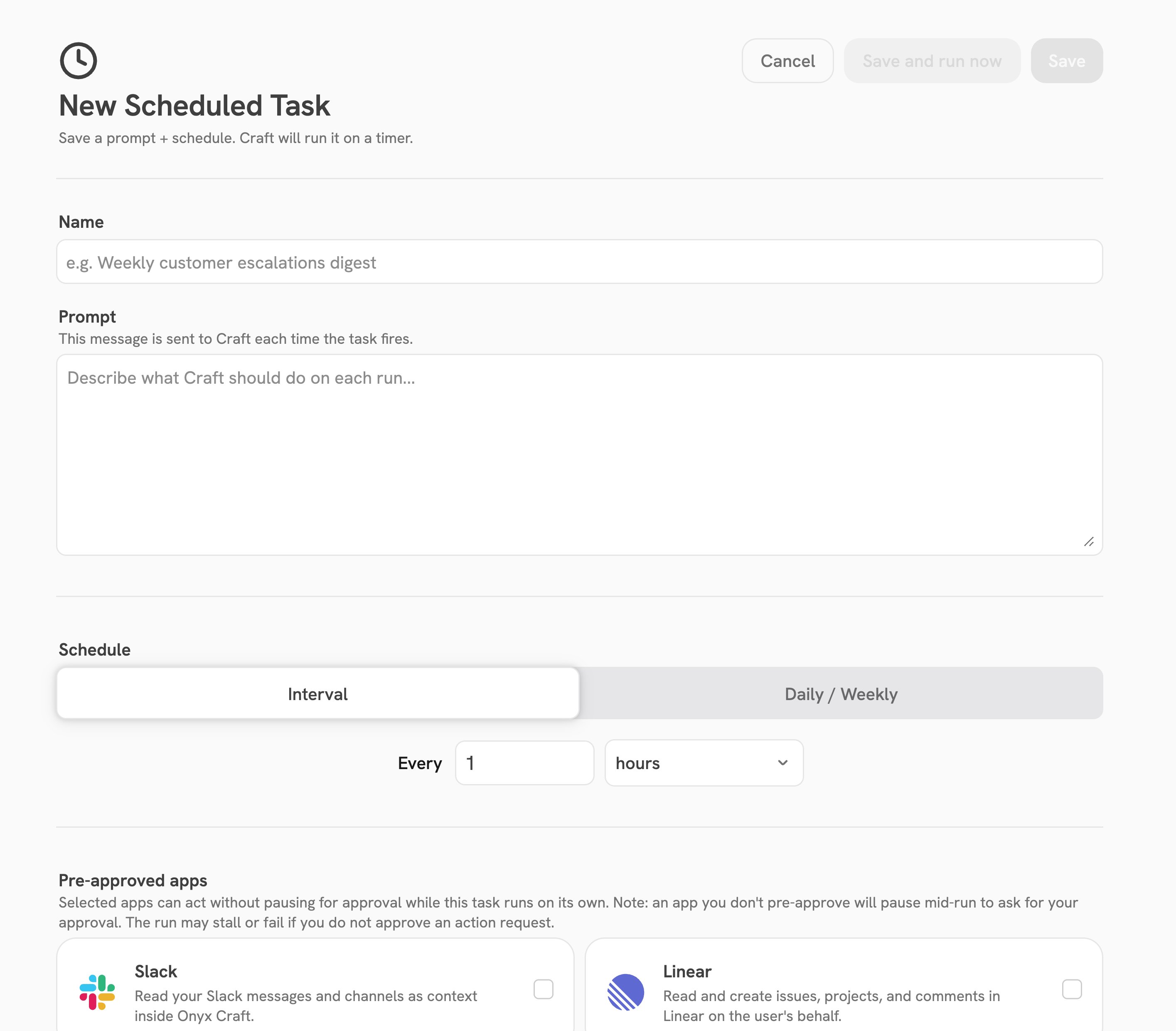
Open **Scheduled Tasks** from the Craft sidebar, then select **New Scheduled Task**.
Use a name that makes the cadence and result easy to recognize, such as “Weekday customer escalations digest.”
Describe what Craft should inspect, the time window, what qualifies for inclusion, the desired output,
and where to deliver it. Type **/** to select a specific Skill or connected App from the prompt picker.
Use **Interval** to run every set number of minutes or hours. Use **Daily / Weekly** to choose a time and,
optionally, specific days of the week.
Select only the Apps the task must use without you present. Connect required Apps before creating the task.
Select **Save** to wait for the next scheduled time, or **Save and run now** to queue the first run immediately.
 ### Write a prompt that can run unattended
Craft cannot ask you a useful follow-up while a Scheduled Task runs in the background.
Front-load the decisions it would otherwise need from you:
| Include | Example |
| ---------------------- | ---------------------------------------------------------------------------------------- |
| **Scope** | “Review messages in `#customer-escalations` and open P1 issues in Linear.” |
| **Time window** | “Include activity from the last 24 hours.” |
| **Selection criteria** | “Include only items that are blocked, overdue, or need an executive decision.” |
| **Output** | “Use a table with account, owner, issue, impact, and next step.” |
| **Destination** | “Post the final digest to `#support-leads` in Slack.” |
| **Fallback** | “If there are no qualifying items, post ‘No new escalations’ and do not invent content.” |
For example:
> Review the `#customer-escalations` Slack channel and open P1 issues in Linear for activity from the last 24 hours.
> Include only items that are blocked, overdue, or need an executive decision. Group them by account and list the owner,
> impact, and next step. Post the final digest to `#support-leads`. If nothing qualifies, post “No new escalations.”
Use a relative time window that matches the cadence, such as “during the last 24 hours” for a daily task.
Fixed dates quickly become stale in a recurring prompt.
### Understand schedule timing
Daily and weekly times are interpreted using your browser's local time when you save the task.
Interval schedules run on repeating clock boundaries rather than a fixed delay after the previous run finishes.
The saved schedule does not automatically adjust when your UTC offset changes.
Review and resave time-based tasks after traveling, changing time zones, or a daylight-saving transition.
## Pre-approve Apps carefully
App actions configured as **Ask** normally pause for your approval. Because a Scheduled Task runs unattended,
selecting an App under **Pre-approved Apps** allows the task to perform those actions without asking during the run.
| App policy | During a Scheduled Task |
| ---------------- | --------------------------------------------------------------------------------------- |
| **Auto-approve** | The action runs without prompting, whether or not the App is selected for pre-approval. |
| **Ask** | The action runs unattended only when that App is pre-approved for the task. |
| **Deny** | The action remains blocked. Pre-approval cannot override a Deny policy. |
Pre-approval applies to the **App**, not to one specific action. If you pre-approve Slack, for example,
any Slack action governed by **Ask** can run when it matches the task prompt and the connected account's access.
Keep the prompt and pre-approved App list as narrow as possible.
Be especially cautious with Apps that can send messages, modify customer data, delete content, or publish externally.
Onyx records a notification when a Scheduled Task uses a pre-approved App action.
For more about connections and action policies, see [Apps](/overview/core_features/craft_apps).
## Review run history
Open a task to see its pre-approved Apps and run history. The table shows when each run started,
its status and duration, a short summary, and whether it came from the schedule or **Run now**.
Select a run after it creates a session to inspect its messages, files, previews, and artifacts.
Queued runs do not have a session yet, and skipped runs never create one, so those rows cannot be opened.
| Status | Meaning |
| --------------------- | ----------------------------------------------------------------------------------------------------------------------- |
| **Queued** | Waiting for a worker to start the run. |
| **Running** | Craft is actively working in the generated session. |
| **Succeeded** | Craft completed the run normally. |
| **Failed** | The run hit an error or exceeded its execution window. Open its session when available to investigate. |
| **Skipped** | The run did not start, usually because a previous run was still queued or running, or Craft was disabled for the owner. |
| **Awaiting approval** | The run reached an App action that required approval but was not pre-approved. It will not resume automatically. |
Watch for Onyx notifications when a run fails or reaches **Awaiting approval**.
Failed and approval-blocked runs are not retried automatically.
For an **Awaiting approval** run, open the generated session to see which action stopped it.
Then edit the task's pre-approved Apps—or narrow the prompt so it avoids that action—and use **Run now** to try again.
## Manage a task
From the task detail page, you can:
| Action | What it does |
| ----------- | ------------------------------------------------------------------------------------------------------- |
| **Run now** | Queues a one-off run without changing the recurring schedule. This also works while the task is paused. |
| **Pause** | Stops future scheduled runs. It does not cancel a run that is already queued or running. |
| **Resume** | Reactivates the schedule and computes the next run from the current time. |
| **Edit** | Changes the name, prompt, schedule, or pre-approved Apps for future runs. |
| **Delete** | Removes the task and stops future runs. Sessions created by previous runs remain in your Craft history. |
Deleting a task does not cancel a run that is already queued or running.
If you only need to stop future runs temporarily, pause it instead.
## Troubleshooting
Open the run session from history and inspect its output. If the task should deliver somewhere else,
add an explicit destination to the prompt, connect that App,
and pre-approve it when the delivery action uses **Ask**.
Check the row summary. If the previous run was still queued or running,
make the prompt smaller or use a less frequent schedule.
A run can also be skipped when Craft is disabled for the task owner.
Open the generated session when available. Confirm required Apps are still connected,
Skills and User Library files still exist, and the prompt can finish within one run. After correcting the task,
select **Run now**.
Daily and weekly schedules use the browser's local time at save time.
Edit and resave the task after a time-zone or daylight-saving change. For an interval schedule,
remember that runs align to repeating clock boundaries.
Connect delivery destinations and understand approvals before running work unattended.
Enable Craft and review the deployment, worker, App, and governance requirements.
### Write a prompt that can run unattended
Craft cannot ask you a useful follow-up while a Scheduled Task runs in the background.
Front-load the decisions it would otherwise need from you:
| Include | Example |
| ---------------------- | ---------------------------------------------------------------------------------------- |
| **Scope** | “Review messages in `#customer-escalations` and open P1 issues in Linear.” |
| **Time window** | “Include activity from the last 24 hours.” |
| **Selection criteria** | “Include only items that are blocked, overdue, or need an executive decision.” |
| **Output** | “Use a table with account, owner, issue, impact, and next step.” |
| **Destination** | “Post the final digest to `#support-leads` in Slack.” |
| **Fallback** | “If there are no qualifying items, post ‘No new escalations’ and do not invent content.” |
For example:
> Review the `#customer-escalations` Slack channel and open P1 issues in Linear for activity from the last 24 hours.
> Include only items that are blocked, overdue, or need an executive decision. Group them by account and list the owner,
> impact, and next step. Post the final digest to `#support-leads`. If nothing qualifies, post “No new escalations.”
Use a relative time window that matches the cadence, such as “during the last 24 hours” for a daily task.
Fixed dates quickly become stale in a recurring prompt.
### Understand schedule timing
Daily and weekly times are interpreted using your browser's local time when you save the task.
Interval schedules run on repeating clock boundaries rather than a fixed delay after the previous run finishes.
The saved schedule does not automatically adjust when your UTC offset changes.
Review and resave time-based tasks after traveling, changing time zones, or a daylight-saving transition.
## Pre-approve Apps carefully
App actions configured as **Ask** normally pause for your approval. Because a Scheduled Task runs unattended,
selecting an App under **Pre-approved Apps** allows the task to perform those actions without asking during the run.
| App policy | During a Scheduled Task |
| ---------------- | --------------------------------------------------------------------------------------- |
| **Auto-approve** | The action runs without prompting, whether or not the App is selected for pre-approval. |
| **Ask** | The action runs unattended only when that App is pre-approved for the task. |
| **Deny** | The action remains blocked. Pre-approval cannot override a Deny policy. |
Pre-approval applies to the **App**, not to one specific action. If you pre-approve Slack, for example,
any Slack action governed by **Ask** can run when it matches the task prompt and the connected account's access.
Keep the prompt and pre-approved App list as narrow as possible.
Be especially cautious with Apps that can send messages, modify customer data, delete content, or publish externally.
Onyx records a notification when a Scheduled Task uses a pre-approved App action.
For more about connections and action policies, see [Apps](/overview/core_features/craft_apps).
## Review run history
Open a task to see its pre-approved Apps and run history. The table shows when each run started,
its status and duration, a short summary, and whether it came from the schedule or **Run now**.
Select a run after it creates a session to inspect its messages, files, previews, and artifacts.
Queued runs do not have a session yet, and skipped runs never create one, so those rows cannot be opened.
| Status | Meaning |
| --------------------- | ----------------------------------------------------------------------------------------------------------------------- |
| **Queued** | Waiting for a worker to start the run. |
| **Running** | Craft is actively working in the generated session. |
| **Succeeded** | Craft completed the run normally. |
| **Failed** | The run hit an error or exceeded its execution window. Open its session when available to investigate. |
| **Skipped** | The run did not start, usually because a previous run was still queued or running, or Craft was disabled for the owner. |
| **Awaiting approval** | The run reached an App action that required approval but was not pre-approved. It will not resume automatically. |
Watch for Onyx notifications when a run fails or reaches **Awaiting approval**.
Failed and approval-blocked runs are not retried automatically.
For an **Awaiting approval** run, open the generated session to see which action stopped it.
Then edit the task's pre-approved Apps—or narrow the prompt so it avoids that action—and use **Run now** to try again.
## Manage a task
From the task detail page, you can:
| Action | What it does |
| ----------- | ------------------------------------------------------------------------------------------------------- |
| **Run now** | Queues a one-off run without changing the recurring schedule. This also works while the task is paused. |
| **Pause** | Stops future scheduled runs. It does not cancel a run that is already queued or running. |
| **Resume** | Reactivates the schedule and computes the next run from the current time. |
| **Edit** | Changes the name, prompt, schedule, or pre-approved Apps for future runs. |
| **Delete** | Removes the task and stops future runs. Sessions created by previous runs remain in your Craft history. |
Deleting a task does not cancel a run that is already queued or running.
If you only need to stop future runs temporarily, pause it instead.
## Troubleshooting
Open the run session from history and inspect its output. If the task should deliver somewhere else,
add an explicit destination to the prompt, connect that App,
and pre-approve it when the delivery action uses **Ask**.
Check the row summary. If the previous run was still queued or running,
make the prompt smaller or use a less frequent schedule.
A run can also be skipped when Craft is disabled for the task owner.
Open the generated session when available. Confirm required Apps are still connected,
Skills and User Library files still exist, and the prompt can finish within one run. After correcting the task,
select **Run now**.
Daily and weekly schedules use the browser's local time at save time.
Edit and resave the task after a time-zone or daylight-saving change. For an interval schedule,
remember that runs align to repeating clock boundaries.
Connect delivery destinations and understand approvals before running work unattended.
Enable Craft and review the deployment, worker, App, and governance requirements.