> ## Documentation Index
> Fetch the complete documentation index at: https://docs.onyx.app/llms.txt
> Use this file to discover all available pages before exploring further.
# Skills
> Give Craft reusable instructions, examples, and files for repeatable work
Skills teach Craft **how to do a kind of work**. A skill can provide a workflow, quality standards, examples, templates,
scripts, and other supporting files that Craft can reuse across sessions.
For example, a slide skill can tell Craft how to choose layouts, apply a template, validate the finished deck,
and save the presentation in the right format. You provide the goal and source material; the skill provides the method.
Skills do not connect external accounts or hold credentials. To let Craft read from or act in tools like Slack, Gmail,
or GitHub, connect an [App](/overview/core_features/craft_apps).
 ## How Craft uses skills
Craft can choose an available skill automatically when your request matches its description.
You can also select one explicitly when you want Craft to follow a particular workflow.
In a Craft session, select **+**, then **Skills**, and choose a skill.
You can also type **/** followed by the skill name. The selected skill appears as a chip above the input.
Tell Craft what to produce and provide the audience, source material, and requirements that matter.
Selecting a skill does not replace a clear prompt.
Craft reads the skill instructions before doing covered work. Review the result,
then ask for changes in plain language.
| Goal | How to use a Skill |
| ------------------------------- | ------------------------------------------------------------------------------------------------------------------------------------------ |
| **Build a presentation** | Select the `pptx` Skill, attach a company deck as a template, and ask Craft to build a presentation from your source material. |
| **Search company knowledge** | Ask a company-specific question and let the `company-search` Skill retrieve information you already have permission to access. |
| **Navigate a website** | Select the Browser Skill and ask Craft to open a site, follow links, interact with pages, or take screenshots. |
| **Generate a visual** | Select the image generation Skill and describe the subject, composition, style, aspect ratio, and where the visual will be used. |
| **Standardize repeatable work** | Use a custom Skill to capture your team's process for reports, briefs, reviews, or another workflow you want Craft to repeat consistently. |
## Browse and inspect skills
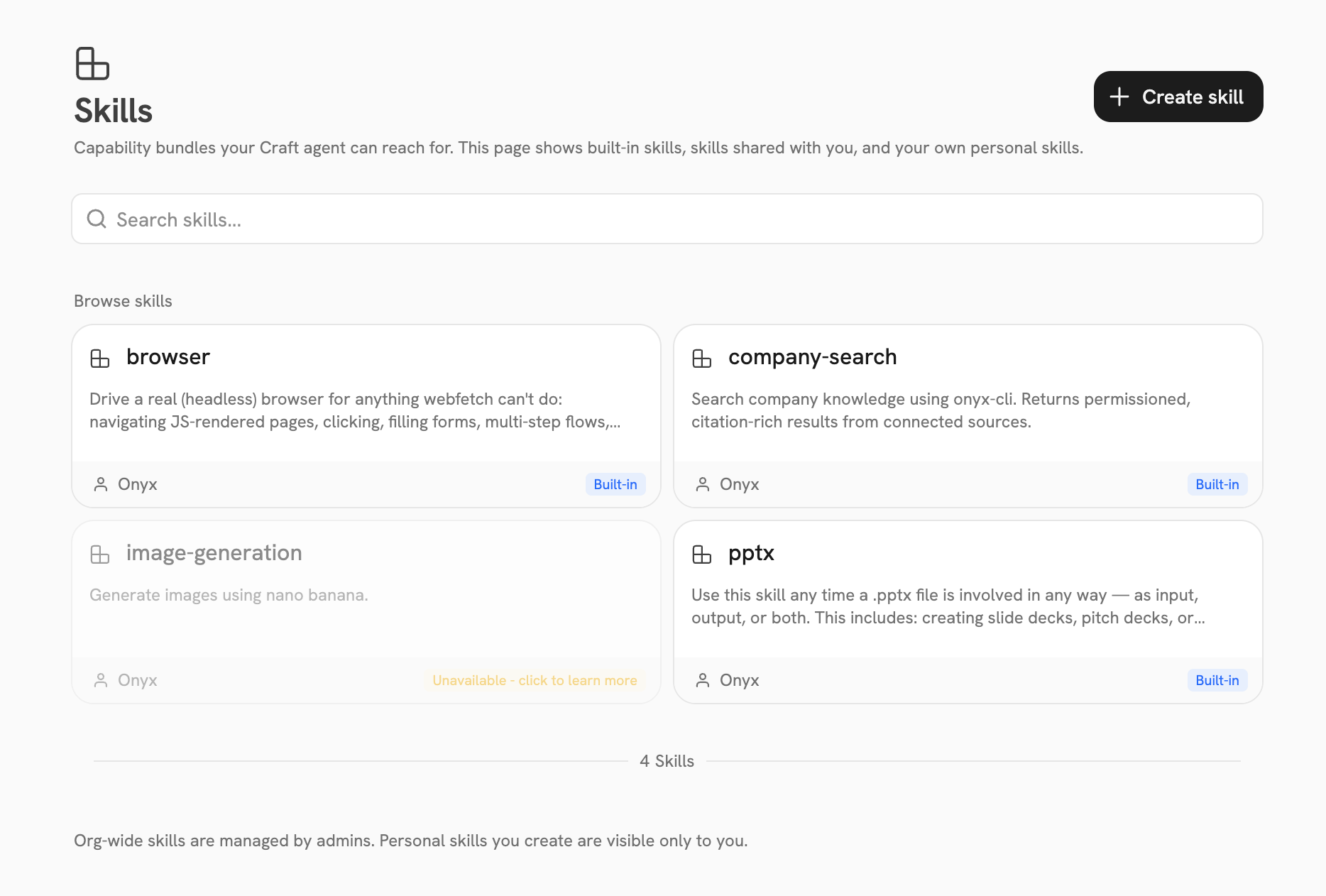
Open **Skills** from the Craft sidebar to search everything available to you.
Select a skill card to preview its instructions before using it.
| Label | What it means |
| --------------- | -------------------------------------------------------------------------------------------- |
| **Built-in** | Maintained by Onyx. Availability can depend on your deployment and configured providers. |
| **Custom** | Created in your organization and shared with you, your group, or everyone. |
| **Personal** | Created and owned by you. It starts private, but you can share it if your permissions allow. |
| **Unavailable** | Visible for reference, but Craft cannot use it until its dependency is configured. |
Built-in skills currently cover presentations, company search, image generation, and website navigation.
The exact list you see depends on what your organization has enabled.
A skill's description tells Craft when to use it. If Craft repeatedly misses a custom skill,
make the description concrete about the tasks it covers, or select the skill explicitly in your prompt.
## Create a personal skill
Create a personal skill when you have instructions or reference files you want to reuse across sessions.
A skill is a ZIP bundle with a `SKILL.md` file at its root.
```text theme={null}
weekly-customer-update.zip
├── SKILL.md
├── examples/
│ └── finished-update.md
└── templates/
└── update-template.md
```
At minimum, `SKILL.md` needs a name and description in YAML frontmatter, followed by the instructions Craft should use:
```md theme={null}
---
name: Weekly customer update
description: Create a concise weekly customer update from meeting notes and account activity.
---
# Weekly customer update
1. Summarize material changes since the previous update.
2. Separate customer decisions, open risks, and next steps.
3. Name an owner and due date for every next step.
4. Follow the format in `templates/update-template.md`.
```
Use a lowercase, hyphenated ZIP filename such as `weekly-customer-update.zip`.
Put `SKILL.md` at the root of the ZIP and add any examples, templates, or helper files it needs.
Open **Skills**, select **Create skill**, choose the ZIP, and select **Create**.
Your new skill is private by default.
Open the skill to edit its name, description, or instructions.
You can switch between the raw Markdown and rendered preview.
From the skill editor, you can replace the bundle, disable the skill without deleting it,
share it with people or groups, transfer ownership, or delete it.
Never put passwords, API keys, tokens, or production credentials in a skill bundle.
Use [Apps](/overview/core_features/craft_apps) for authenticated access to external services.
Review every script and file before uploading a bundle you did not create.
## Troubleshooting
Confirm the skill is enabled and shared with you. Unavailable built-in skills do not appear in the session picker.
If the skill depends on a model or deployment feature, ask an admin to configure that dependency.
Select the skill from **+** > **Skills** or type **/** and choose it before sending your prompt.
Also name the desired output and important constraints; a skill supplies a method, not the goal itself.
Check that the filename is lowercase and hyphenated, `SKILL.md` is at the root of the ZIP,
its frontmatter contains non-empty `name` and `description` fields,
and the bundle does not use a reserved built-in name.
Publish organization skills, configure availability, and review custom bundles.
Give Craft controlled access to external tools and approve actions safely.
## How Craft uses skills
Craft can choose an available skill automatically when your request matches its description.
You can also select one explicitly when you want Craft to follow a particular workflow.
In a Craft session, select **+**, then **Skills**, and choose a skill.
You can also type **/** followed by the skill name. The selected skill appears as a chip above the input.
Tell Craft what to produce and provide the audience, source material, and requirements that matter.
Selecting a skill does not replace a clear prompt.
Craft reads the skill instructions before doing covered work. Review the result,
then ask for changes in plain language.
| Goal | How to use a Skill |
| ------------------------------- | ------------------------------------------------------------------------------------------------------------------------------------------ |
| **Build a presentation** | Select the `pptx` Skill, attach a company deck as a template, and ask Craft to build a presentation from your source material. |
| **Search company knowledge** | Ask a company-specific question and let the `company-search` Skill retrieve information you already have permission to access. |
| **Navigate a website** | Select the Browser Skill and ask Craft to open a site, follow links, interact with pages, or take screenshots. |
| **Generate a visual** | Select the image generation Skill and describe the subject, composition, style, aspect ratio, and where the visual will be used. |
| **Standardize repeatable work** | Use a custom Skill to capture your team's process for reports, briefs, reviews, or another workflow you want Craft to repeat consistently. |
## Browse and inspect skills
Open **Skills** from the Craft sidebar to search everything available to you.
Select a skill card to preview its instructions before using it.
| Label | What it means |
| --------------- | -------------------------------------------------------------------------------------------- |
| **Built-in** | Maintained by Onyx. Availability can depend on your deployment and configured providers. |
| **Custom** | Created in your organization and shared with you, your group, or everyone. |
| **Personal** | Created and owned by you. It starts private, but you can share it if your permissions allow. |
| **Unavailable** | Visible for reference, but Craft cannot use it until its dependency is configured. |
Built-in skills currently cover presentations, company search, image generation, and website navigation.
The exact list you see depends on what your organization has enabled.
A skill's description tells Craft when to use it. If Craft repeatedly misses a custom skill,
make the description concrete about the tasks it covers, or select the skill explicitly in your prompt.
## Create a personal skill
Create a personal skill when you have instructions or reference files you want to reuse across sessions.
A skill is a ZIP bundle with a `SKILL.md` file at its root.
```text theme={null}
weekly-customer-update.zip
├── SKILL.md
├── examples/
│ └── finished-update.md
└── templates/
└── update-template.md
```
At minimum, `SKILL.md` needs a name and description in YAML frontmatter, followed by the instructions Craft should use:
```md theme={null}
---
name: Weekly customer update
description: Create a concise weekly customer update from meeting notes and account activity.
---
# Weekly customer update
1. Summarize material changes since the previous update.
2. Separate customer decisions, open risks, and next steps.
3. Name an owner and due date for every next step.
4. Follow the format in `templates/update-template.md`.
```
Use a lowercase, hyphenated ZIP filename such as `weekly-customer-update.zip`.
Put `SKILL.md` at the root of the ZIP and add any examples, templates, or helper files it needs.
Open **Skills**, select **Create skill**, choose the ZIP, and select **Create**.
Your new skill is private by default.
Open the skill to edit its name, description, or instructions.
You can switch between the raw Markdown and rendered preview.
From the skill editor, you can replace the bundle, disable the skill without deleting it,
share it with people or groups, transfer ownership, or delete it.
Never put passwords, API keys, tokens, or production credentials in a skill bundle.
Use [Apps](/overview/core_features/craft_apps) for authenticated access to external services.
Review every script and file before uploading a bundle you did not create.
## Troubleshooting
Confirm the skill is enabled and shared with you. Unavailable built-in skills do not appear in the session picker.
If the skill depends on a model or deployment feature, ask an admin to configure that dependency.
Select the skill from **+** > **Skills** or type **/** and choose it before sending your prompt.
Also name the desired output and important constraints; a skill supplies a method, not the goal itself.
Check that the filename is lowercase and hyphenated, `SKILL.md` is at the root of the ZIP,
its frontmatter contains non-empty `name` and `description` fields,
and the bundle does not use a reserved built-in name.
Publish organization skills, configure availability, and review custom bundles.
Give Craft controlled access to external tools and approve actions safely.