> ## Documentation Index
> Fetch the complete documentation index at: https://docs.onyx.app/llms.txt
> Use this file to discover all available pages before exploring further.
# Image Generation
> Create visuals according to user prompts
## Overview
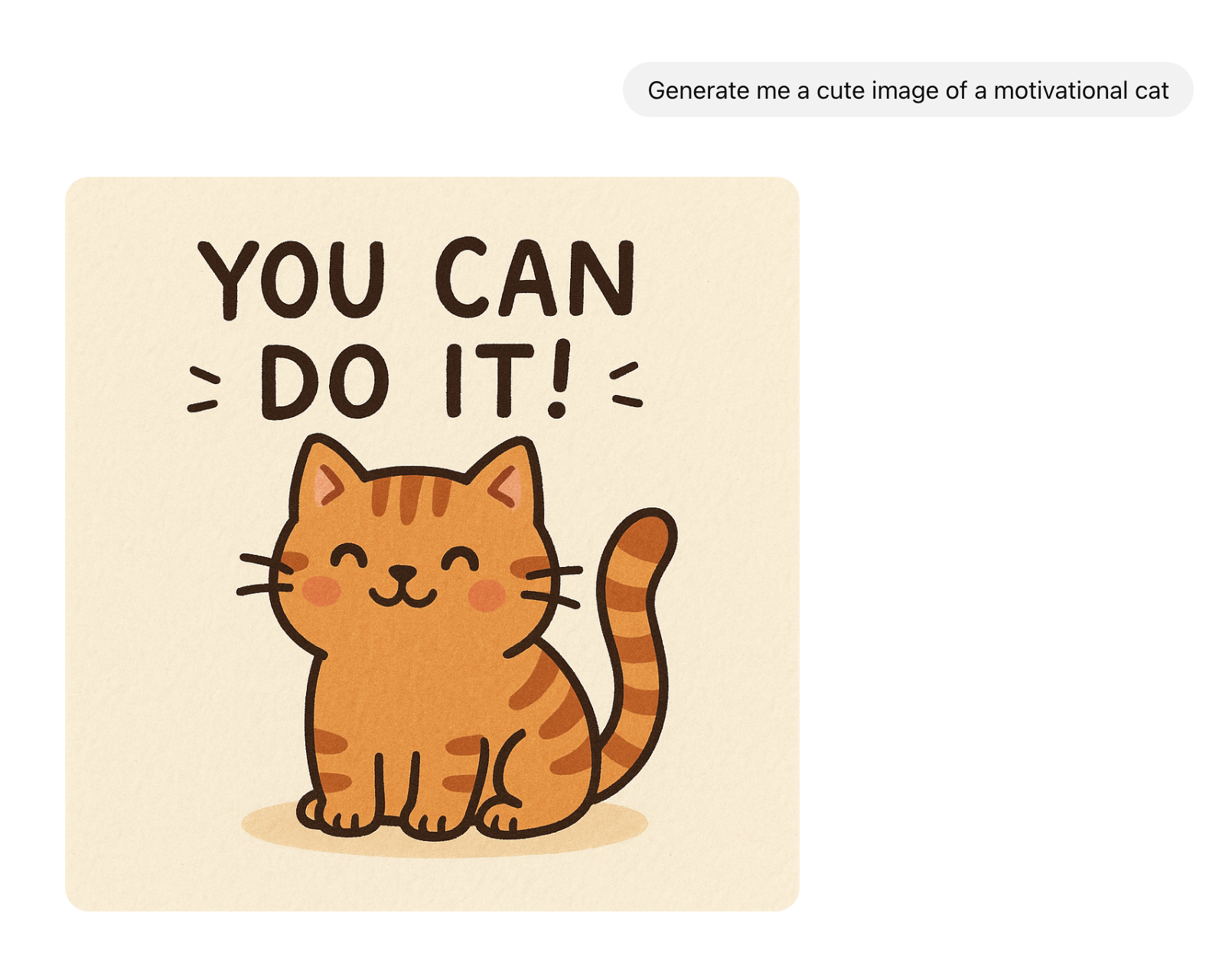
The image generation feature allows users to create PNG images according to their prompts which can be rendered in the
chat and easily downloaded.
 ## Configuration
Currently, Onyx supports five models for image generation, through OpenAI, Azure or Vertex (Google). In the future,
we will be adding support for other options such as Stability AI.
**GPT-Image-1.5**: Newest model, best for production-quality generation,
with strong prompt control and reliable in-image text/structured layouts
**GPT-Image-1**: Newer model, better prompt adherence. Likely a better default for most use cases.
**Nano Banana**: Flash Gemini model designed for fast and efficient image generation. Great for fast,
creative exploration and simple tasks.
**Nano Banana Pro**: Advanced Gemini model with professional and high-fidelity 4K output.
Great for complex tasks where consistency and details are key.
**DALL-E 3**: Older model, slightly better for more imaginative and rich styles.
## Usage
Configure your image generation models in the Admin Panel under **Configuration** → **Image Generation**.
Once configured, you can invoke the Image Generation action from any Agent or AI model in Onyx.
Be explicit in prompting for specific Actions you want your Agent to invoke.
## Configuration
Currently, Onyx supports five models for image generation, through OpenAI, Azure or Vertex (Google). In the future,
we will be adding support for other options such as Stability AI.
**GPT-Image-1.5**: Newest model, best for production-quality generation,
with strong prompt control and reliable in-image text/structured layouts
**GPT-Image-1**: Newer model, better prompt adherence. Likely a better default for most use cases.
**Nano Banana**: Flash Gemini model designed for fast and efficient image generation. Great for fast,
creative exploration and simple tasks.
**Nano Banana Pro**: Advanced Gemini model with professional and high-fidelity 4K output.
Great for complex tasks where consistency and details are key.
**DALL-E 3**: Older model, slightly better for more imaginative and rich styles.
## Usage
Configure your image generation models in the Admin Panel under **Configuration** → **Image Generation**.
Once configured, you can invoke the Image Generation action from any Agent or AI model in Onyx.
Be explicit in prompting for specific Actions you want your Agent to invoke.