> ## Documentation Index
> Fetch the complete documentation index at: https://docs.onyx.app/llms.txt
> Use this file to discover all available pages before exploring further.
# RAG and Search
> Enterprise Search across all your applications
One of Onyx's most standout features is the ability to enrich the LLM's general world knowledge with context unique to
your team. Onyx uses [Connectors](/overview/core_features/connectors)
to index knowledge from your team's applications to build an understanding of the documents, people,
and concepts within your organization.
Documents, metadata, and access permissions are all kept up to date in near real time.
## Search UI
On the top left of the page, you can select the mode of the UI.
Replace "Auto" with "Search" to always go into this view.
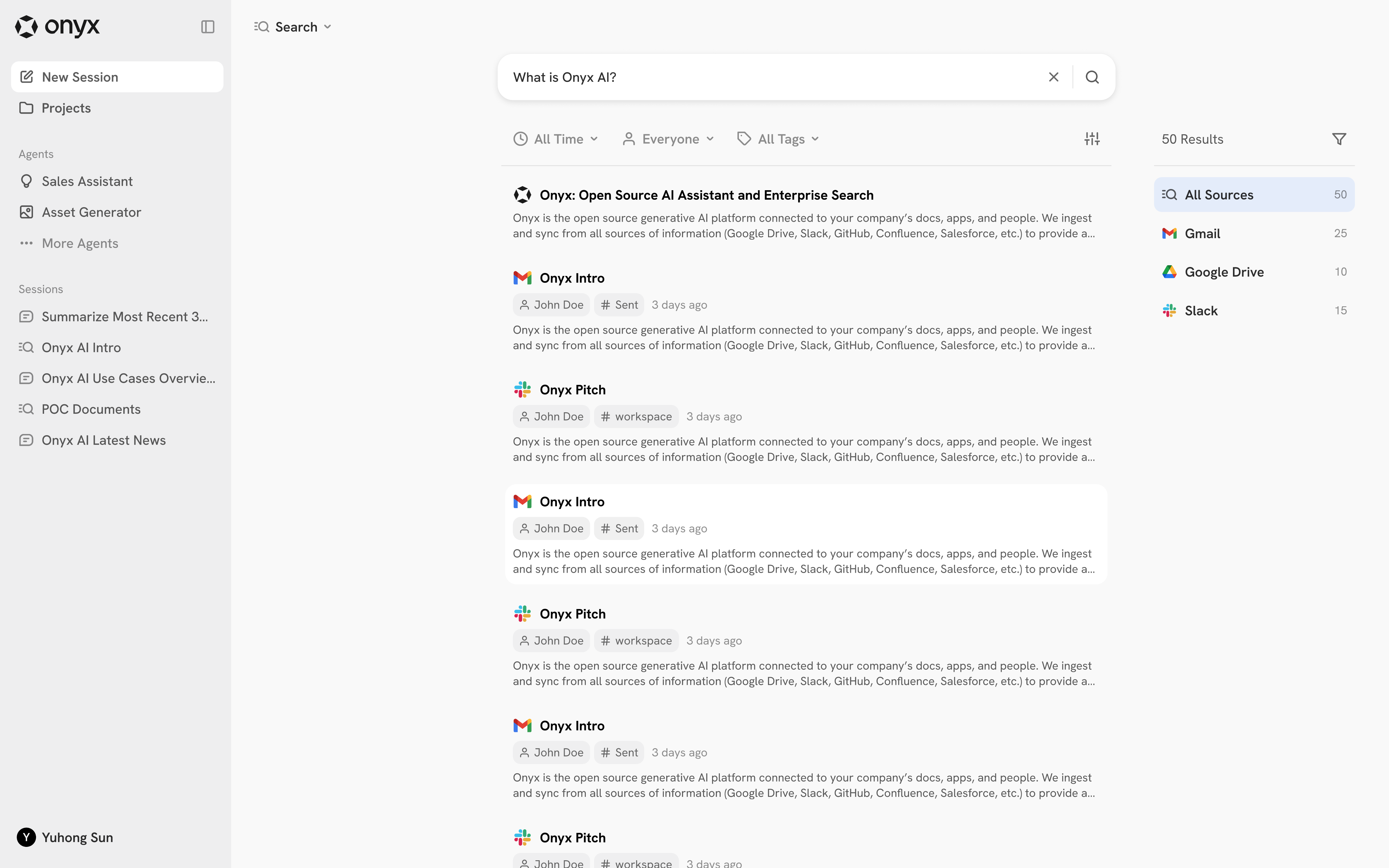 Onyx's context retrieval respects user level permissions which is only configurable via the Enterprise Edition.
Onyx's knowledge connectivity can be used via both the **Search** and [Chat](/overview/core_features/chat) interface.
The Search interface provides a better view of documents and is better for quickly accessing documents when the intent
is not to get an answer.
Users do not need to explicitly select this mode — when a query is classified by Onyx as a document search,
it will automatically go into this UI experience.
### Filters
The Search UI also provides more advanced filtering options:
Onyx's context retrieval respects user level permissions which is only configurable via the Enterprise Edition.
Onyx's knowledge connectivity can be used via both the **Search** and [Chat](/overview/core_features/chat) interface.
The Search interface provides a better view of documents and is better for quickly accessing documents when the intent
is not to get an answer.
Users do not need to explicitly select this mode — when a query is classified by Onyx as a document search,
it will automatically go into this UI experience.
### Filters
The Search UI also provides more advanced filtering options:
 The top bar allows users to filter by time ranges (date range / time offset), authors, and tags (e.g. `Folder:
Engineering`).
The top bar allows users to filter by time ranges (date range / time offset), authors, and tags (e.g. `Folder:
Engineering`).
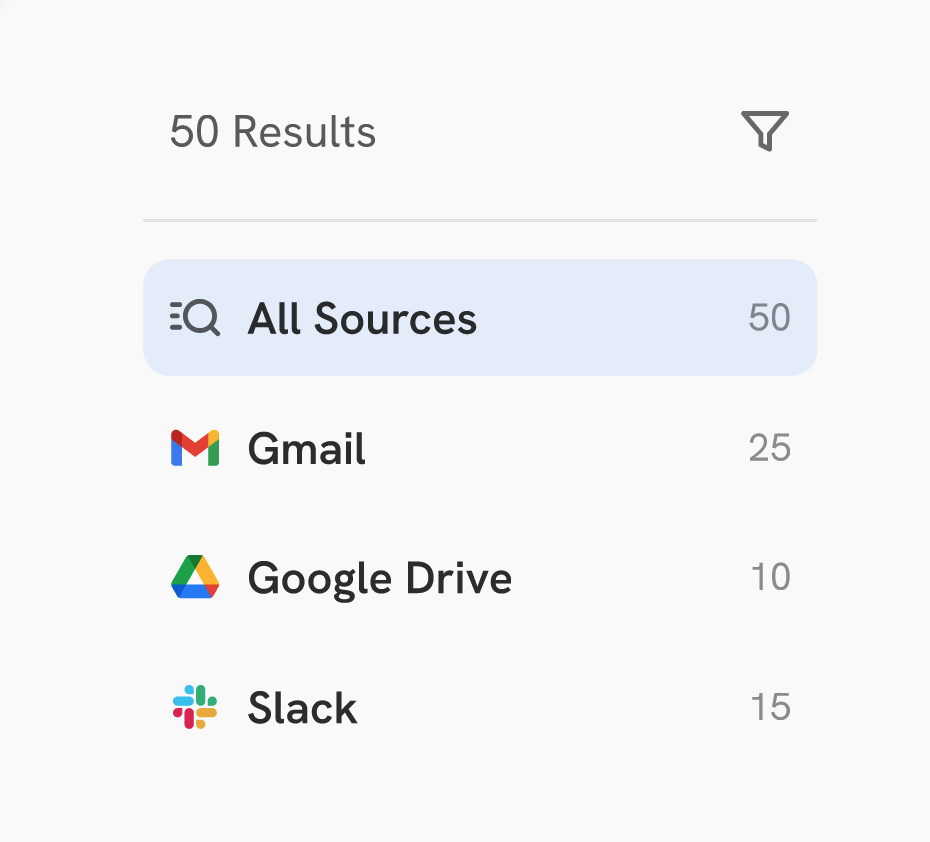 The side filters allow users to filter by the source type of the documents.
## Chat UI
Context from your applications are also available in the Chat UI and to Onyx Agents.
Deep Research mode is also a Chat UI feature.
Click [here](/overview/core_features/chat) to learn more about the Chat experience.
The side filters allow users to filter by the source type of the documents.
## Chat UI
Context from your applications are also available in the Chat UI and to Onyx Agents.
Deep Research mode is also a Chat UI feature.
Click [here](/overview/core_features/chat) to learn more about the Chat experience.