> ## Documentation Index
> Fetch the complete documentation index at: https://docs.onyx.app/llms.txt
> Use this file to discover all available pages before exploring further.
# Voice Mode
> Interact with Onyx using voice
## Overview
 Voice Mode lets you interact with Onyx using speech instead of text. Speak your questions and hear responses read back.
Ideal for hands-free use, brainstorming, or quickly getting answers while multitasking.
## Speech-to-Text
To use Voice Mode, click the **microphone** icon in the input bar.
Onyx will begin listening for your input and transcribe your speech in real time.
* **Speak naturally**: Onyx transcribes your speech as you talk.
* **Pause**: Use the pause button to temporarily stop and resume when ready.
Voice Mode requires microphone access in your browser. You will be prompted to grant permission on first use.
## Text-to-Speech
Voice Mode lets you interact with Onyx using speech instead of text. Speak your questions and hear responses read back.
Ideal for hands-free use, brainstorming, or quickly getting answers while multitasking.
## Speech-to-Text
To use Voice Mode, click the **microphone** icon in the input bar.
Onyx will begin listening for your input and transcribe your speech in real time.
* **Speak naturally**: Onyx transcribes your speech as you talk.
* **Pause**: Use the pause button to temporarily stop and resume when ready.
Voice Mode requires microphone access in your browser. You will be prompted to grant permission on first use.
## Text-to-Speech
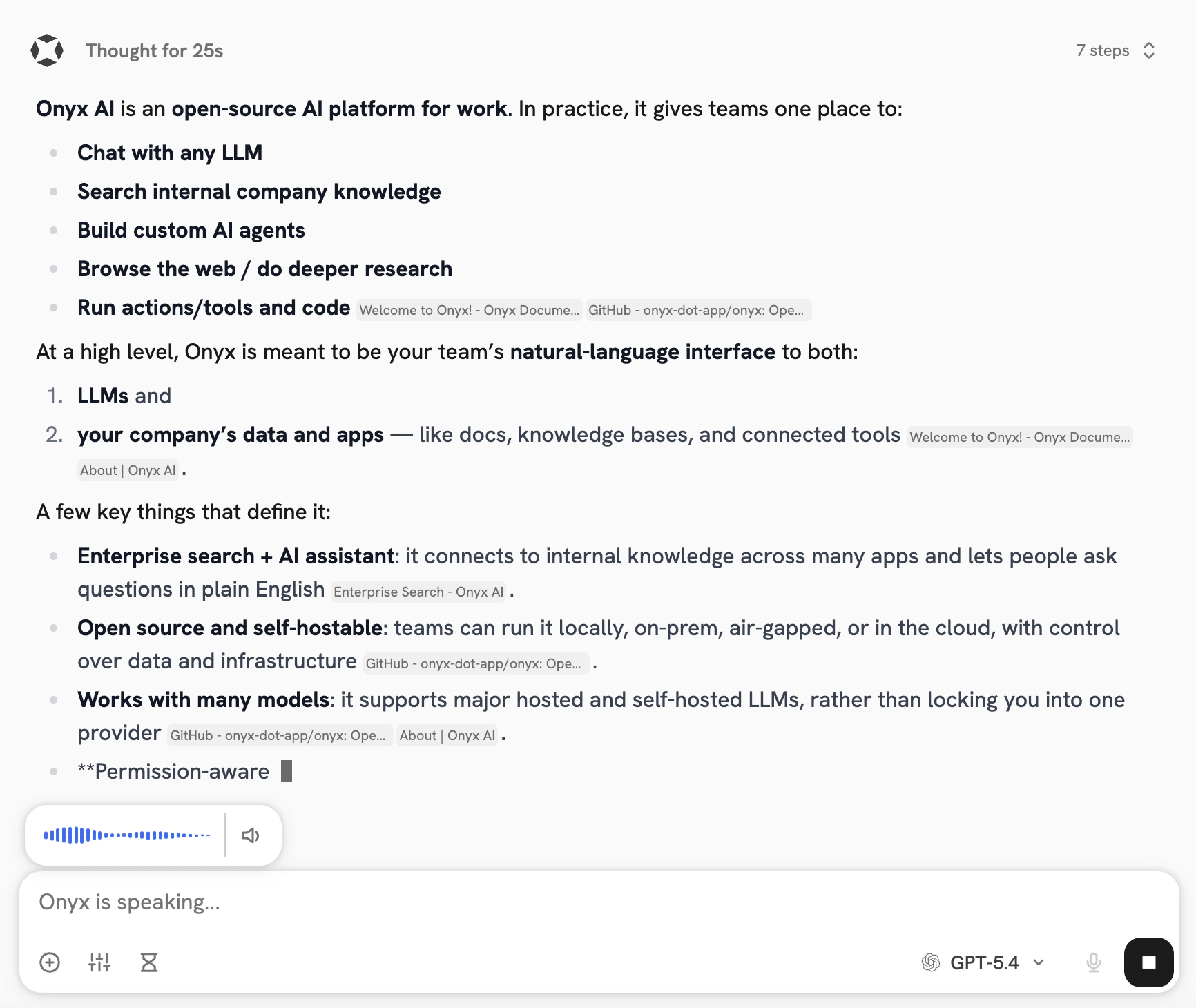 Once your message is sent, Onyx generates a response and reads it back as audio.
The full text is displayed alongside the audio playback.
Once your message is sent, Onyx generates a response and reads it back as audio.
The full text is displayed alongside the audio playback.
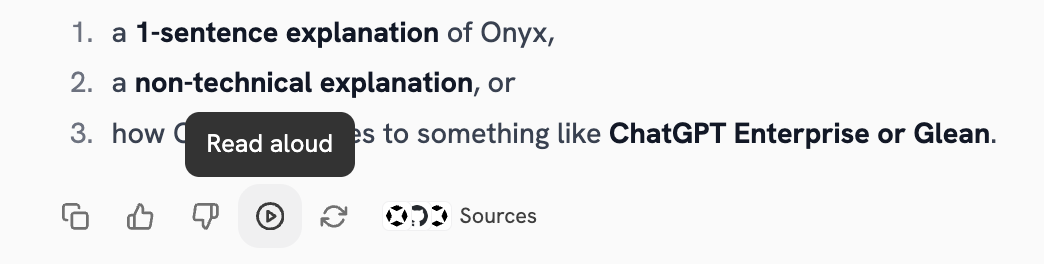 If you don't have auto-playback enabled, you can press the **Read Aloud** button to have the response read back to you.
## User Settings
You can configure your voice preferences in the user settings panel:
If you don't have auto-playback enabled, you can press the **Read Aloud** button to have the response read back to you.
## User Settings
You can configure your voice preferences in the user settings panel:
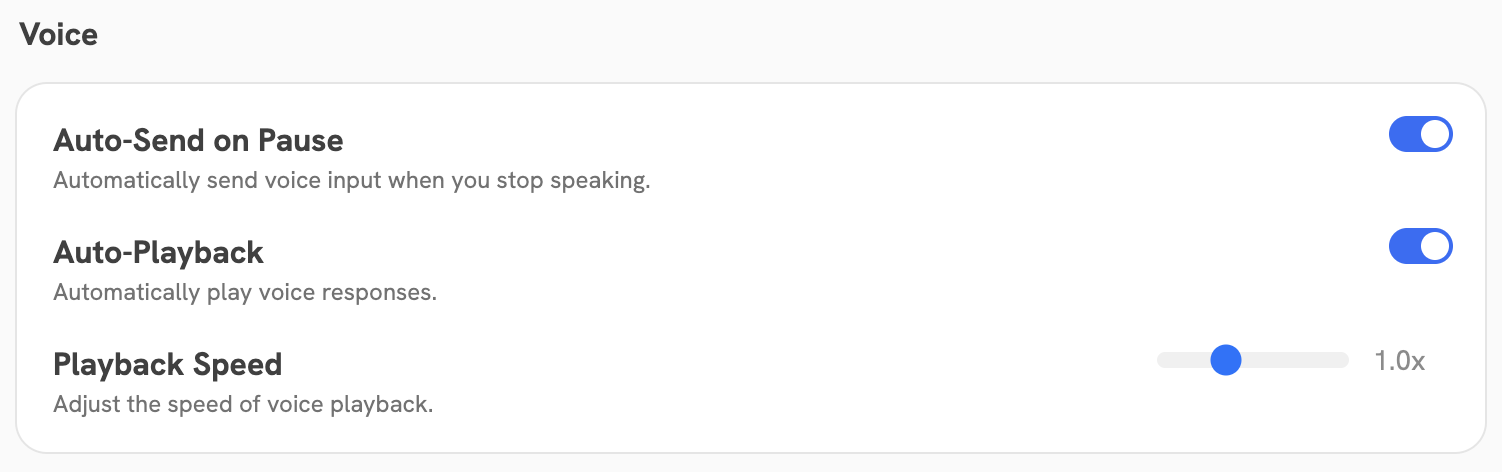 * **Auto-send**: When enabled, your message is automatically sent when you pause speaking,
so you don't need to click send. When disabled, pausing does not send your message. Instead,
click the microphone button to finish recording and send.
* **Auto-playback**: When enabled, the microphone will automatically start listening again as soon as the response
finishes speaking, enabling a continuous hands-free flow. When disabled,
the response is generated as text only and must be played manually.
* **Speed**: Adjust the playback speed of voice responses with a slider ranging from **0.5x** (slower)
to **2x** (faster).
* **Auto-send**: When enabled, your message is automatically sent when you pause speaking,
so you don't need to click send. When disabled, pausing does not send your message. Instead,
click the microphone button to finish recording and send.
* **Auto-playback**: When enabled, the microphone will automatically start listening again as soon as the response
finishes speaking, enabling a continuous hands-free flow. When disabled,
the response is generated as text only and must be played manually.
* **Speed**: Adjust the playback speed of voice responses with a slider ranging from **0.5x** (slower)
to **2x** (faster).