> ## Documentation Index
> Fetch the complete documentation index at: https://docs.onyx.app/llms.txt
> Use this file to discover all available pages before exploring further.
# Chrome Extension
> Accessing Onyx via a Chrome Extension
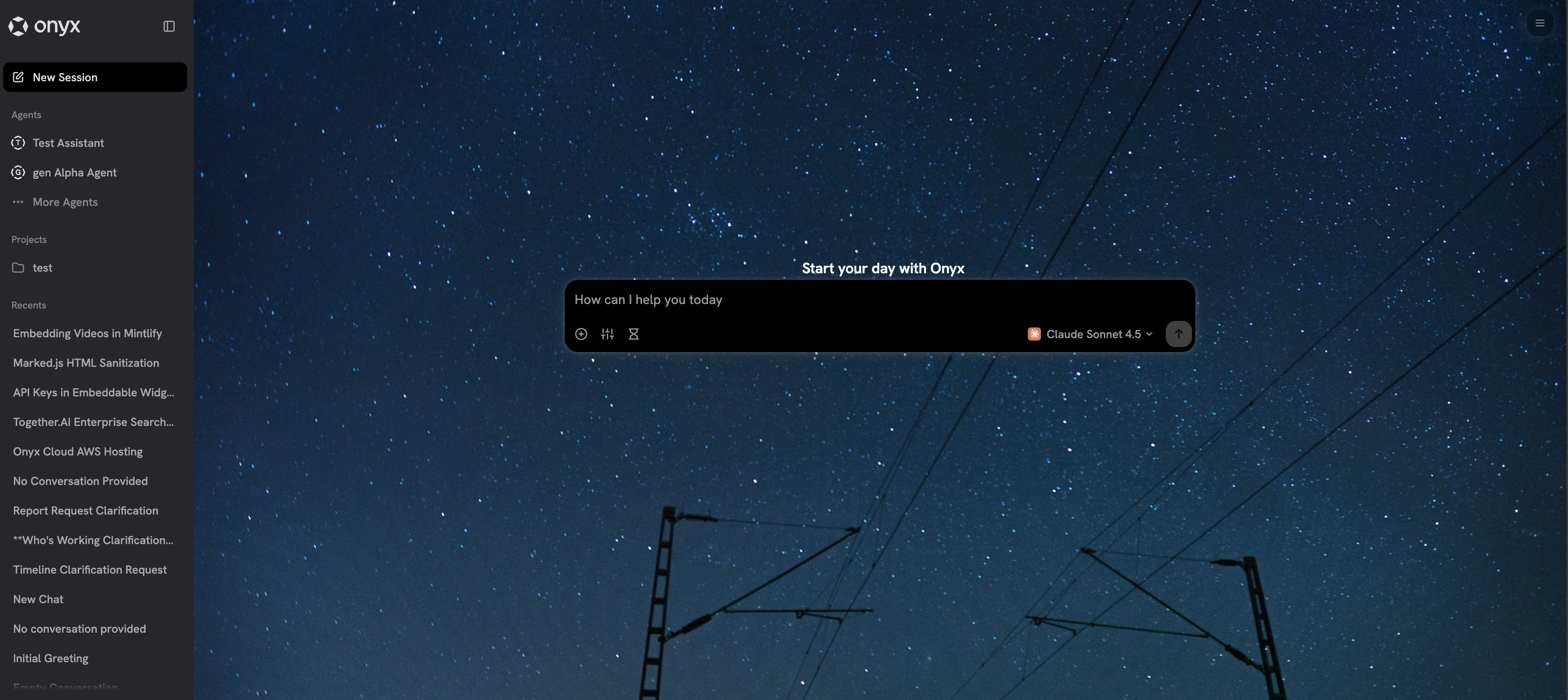
Use the Onyx extension to ask questions from anywhere. You can also replace your new-tab page with a custom Onyx page:
Features include:
* Onyx Search on new tabs
* Onyx as a sidebar to any page in Chrome
* Contextual search on selected text
 In the future,
the Onyx Chrome Extension will allow you to ask questions about the full page you are currently on and optionally
index the recent pages into the Onyx knowledge base.
## Getting Started
Once your administrator has set up the Chrome extension for your organization, you can start using it immediately.
**For Onyx Cloud users**: Install directly from the Chrome Web Store
**For self-hosted users**: Your administrator will provide installation instructions
## Using the Extension
### **New Tab Experience**
* Replace your default new tab with Onyx search
* Quick search across your organization's knowledge
### **Sidebar Mode**
* Open Onyx as a sidebar on any webpage
* Ask questions about your current work without leaving the page
* Perfect for research and context-sensitive queries
### **Selection Search**
* Highlight any text on a webpage
* Click the Onyx icon that appears
* Instantly search or ask questions about the selected text in the sidebar
### **Shortcuts**
* **Mac**: `Cmd+Shift+O` to toggle New Tab, `Ctrl+O` to open Sidebar
* **Windows/Linux**: `Ctrl+Shift+O` to toggle New Tab, `Alt+O` to open Sidebar
* **Omnibox**: Type `onyx` then `Tab` in the address bar to search directly
## Settings and Options
To customize your extension experience:
Click the three dots (...) next to the Onyx extension
Select **Options**
Configure your preferences for search and new tab behavior
## Deployment
For detailed deployment instructions, including self-hosted installation and enterprise deployment,
see the [Chrome Extension Deployment Guide](/deployment/configuration/chrome_extension).
**Need help with setup?** Contact your Onyx administrator for installation assistance or configuration questions.
In the future,
the Onyx Chrome Extension will allow you to ask questions about the full page you are currently on and optionally
index the recent pages into the Onyx knowledge base.
## Getting Started
Once your administrator has set up the Chrome extension for your organization, you can start using it immediately.
**For Onyx Cloud users**: Install directly from the Chrome Web Store
**For self-hosted users**: Your administrator will provide installation instructions
## Using the Extension
### **New Tab Experience**
* Replace your default new tab with Onyx search
* Quick search across your organization's knowledge
### **Sidebar Mode**
* Open Onyx as a sidebar on any webpage
* Ask questions about your current work without leaving the page
* Perfect for research and context-sensitive queries
### **Selection Search**
* Highlight any text on a webpage
* Click the Onyx icon that appears
* Instantly search or ask questions about the selected text in the sidebar
### **Shortcuts**
* **Mac**: `Cmd+Shift+O` to toggle New Tab, `Ctrl+O` to open Sidebar
* **Windows/Linux**: `Ctrl+Shift+O` to toggle New Tab, `Alt+O` to open Sidebar
* **Omnibox**: Type `onyx` then `Tab` in the address bar to search directly
## Settings and Options
To customize your extension experience:
Click the three dots (...) next to the Onyx extension
Select **Options**
Configure your preferences for search and new tab behavior
## Deployment
For detailed deployment instructions, including self-hosted installation and enterprise deployment,
see the [Chrome Extension Deployment Guide](/deployment/configuration/chrome_extension).
**Need help with setup?** Contact your Onyx administrator for installation assistance or configuration questions.