

In Onyx 5.0, MCP and OpenAPI actions became plugins. Find them in Plugins in the sidebar,
and in Chat under Actions → Plugins. Craft Apps moved from Craft → Apps to Plugins in the Craft sidebar.
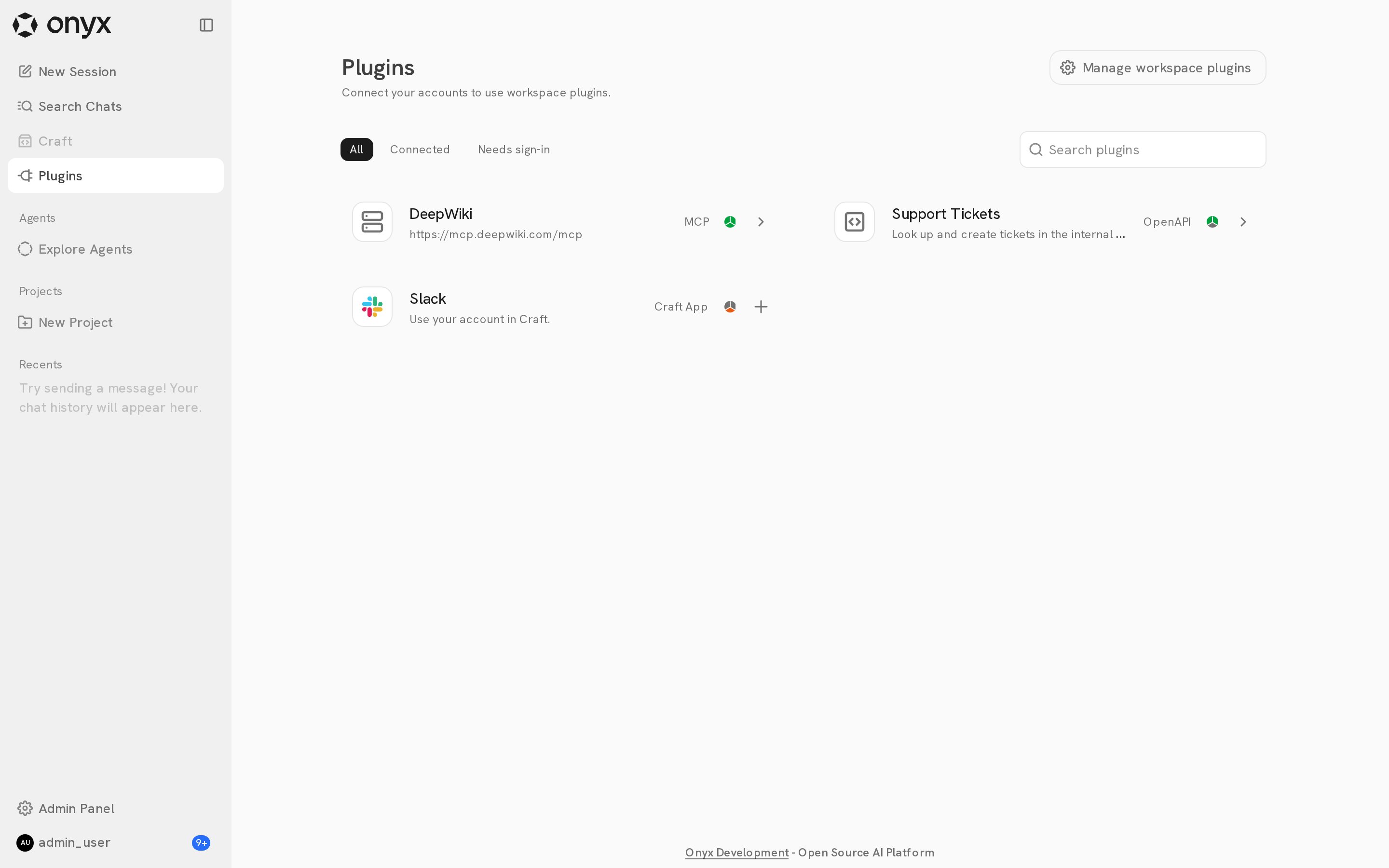
Plugin types
For Craft Apps, see Craft Apps.
Plugins and Onyx knowledge
Plugins and connectors give agents different access.- Onyx knowledge is an index of company documents. Onyx applies the source permissions, so you find only documents that you can access. Search is read only.
- Plugins call the external service live. When you connect your own account, the service applies your permissions. The plugin can read only what your account can read, and it can change content only if your account and your admin allow it.
Connect a plugin
Select Plugins in the Chat sidebar or the Craft sidebar. Use the All, Connected, and Needs sign-in filters, or search by name. The status icon on each plugin shows where you can use it: Main Chat, Custom agents, and Craft.1
Open the plugin
Click a plugin to open its details.
2
Connect your account
The Connection tab shows what the plugin needs:
Sign in with the account that the agent should use. The agent acts as that account.
3
Choose where to use it
Set your personal defaults: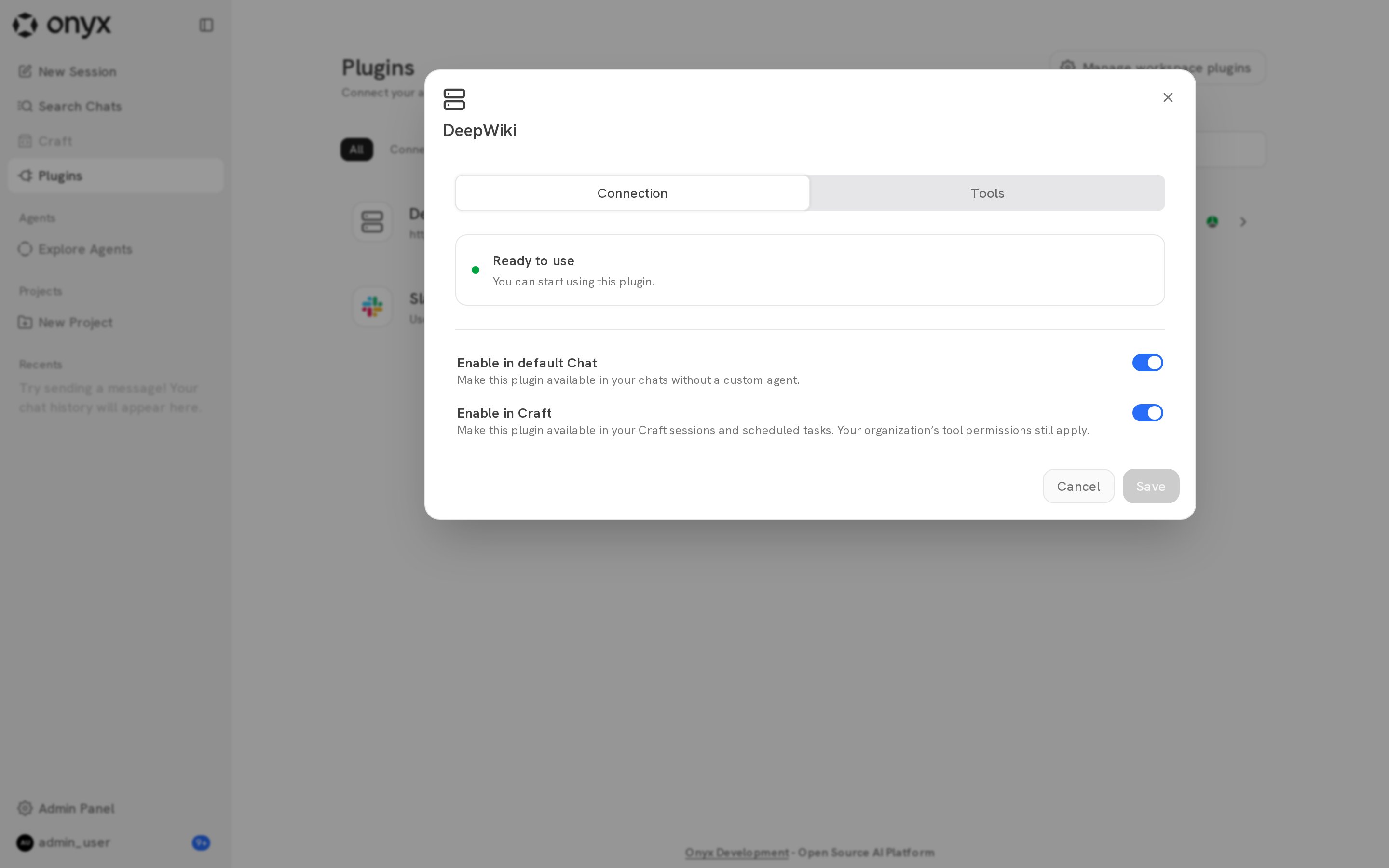
Click Save.
Review tools
The Tools tab lists the tools that the plugin gives the agent. For MCP plugins in Craft, Approval settings shows which tools run automatically, which ask for your approval, and which are disabled.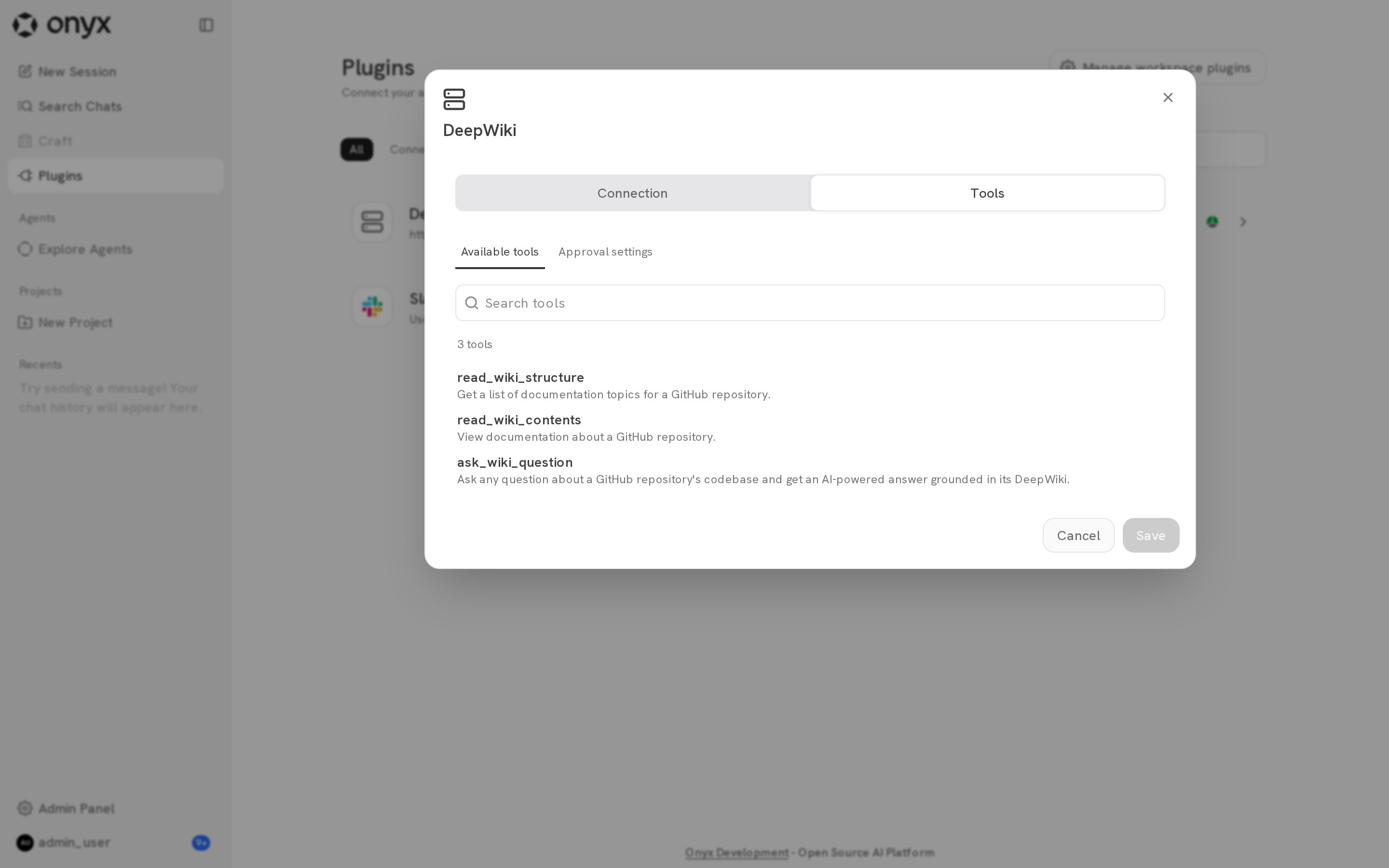
Use plugins in Chat
Click the actions button in the message bar, then select Plugins. Turn a plugin on or off for the current chat, or click Browse plugins to open the Plugins page.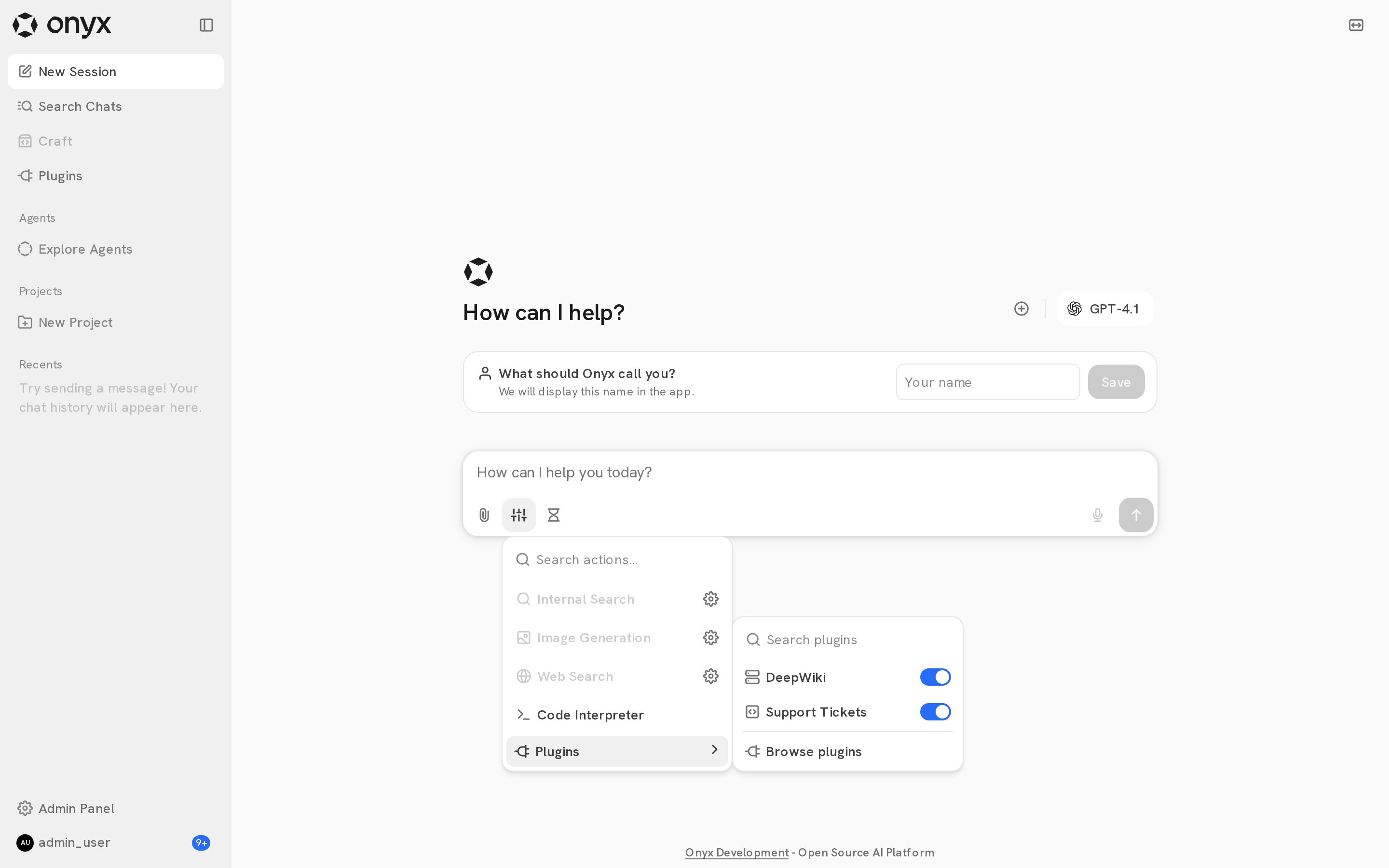
onyx-dot-app/onyx repository handles authentication.”
In Chat, the agent calls plugin tools without an approval prompt. Check the result in the service after a change.
Custom agents use the plugins that the agent builder selected. Your default Chat settings do not change them.
See Agents.
Disconnect a plugin
Open the plugin and click Disconnect. Onyx removes your account connection. Workspace availability stays the same. If more than one plugin uses the same OAuth configuration, they share one connection. Disconnecting one of them disconnects all of them.Built-in actions
Onyx also includes built-in actions that do not need a plugin:For admins
Manage plugins
Add plugins and set workspace availability.
Craft Apps
Let Craft act as you in Slack, Gmail, Notion, and more.