

Overview

Speech-to-Text
To use Voice Mode, click the microphone icon in the input bar. Onyx will begin listening for your input and transcribe your speech in real time.- Speak naturally: Onyx transcribes your speech as you talk.
- Pause: Use the pause button to temporarily stop and resume when ready.
Voice Mode requires microphone access in your browser. You will be prompted to grant permission on first use.
Text-to-Speech
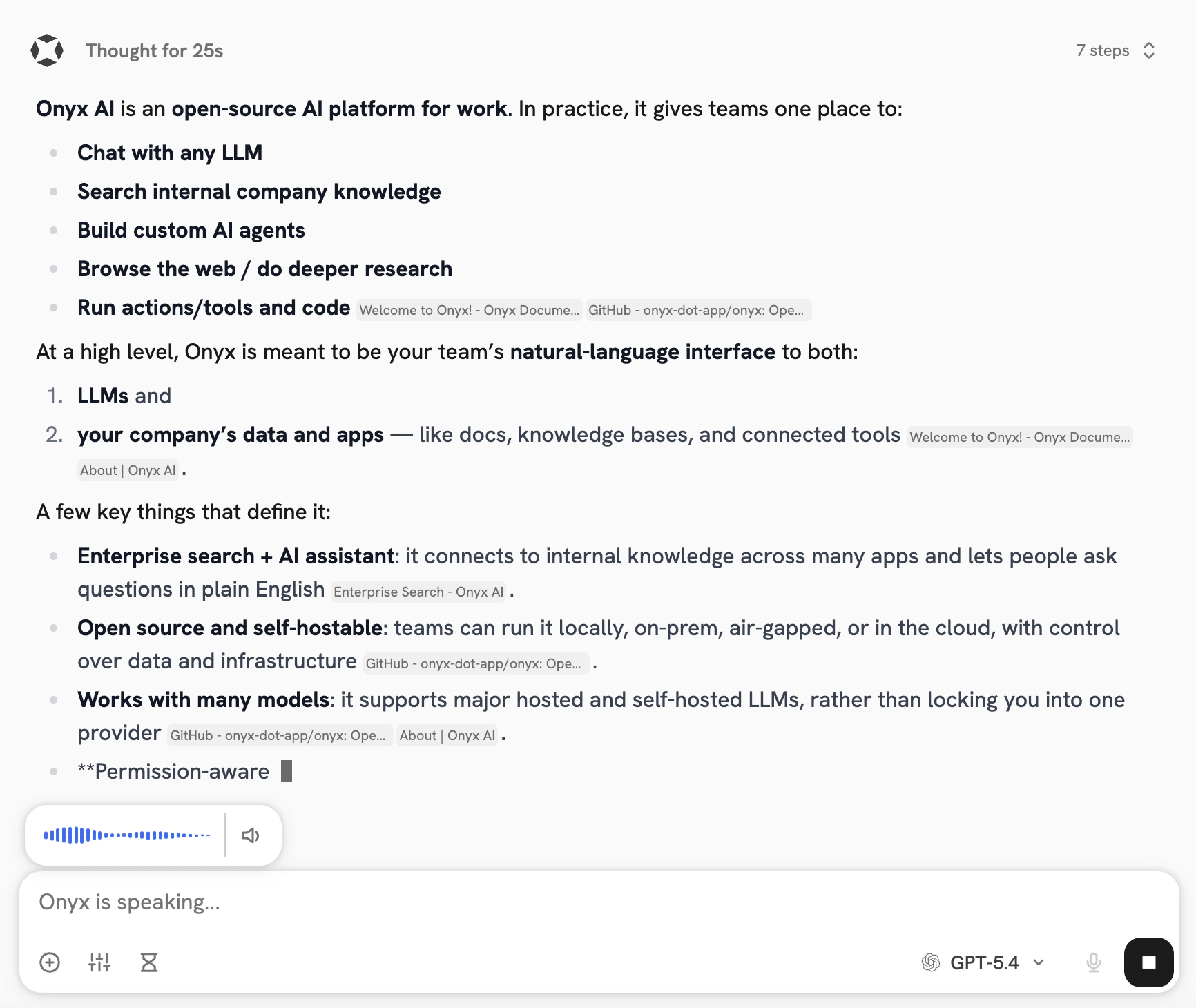
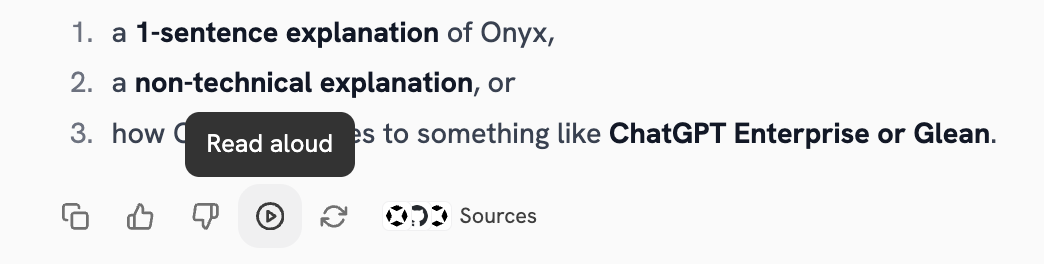
User Settings
You can configure your voice preferences in the user settings panel: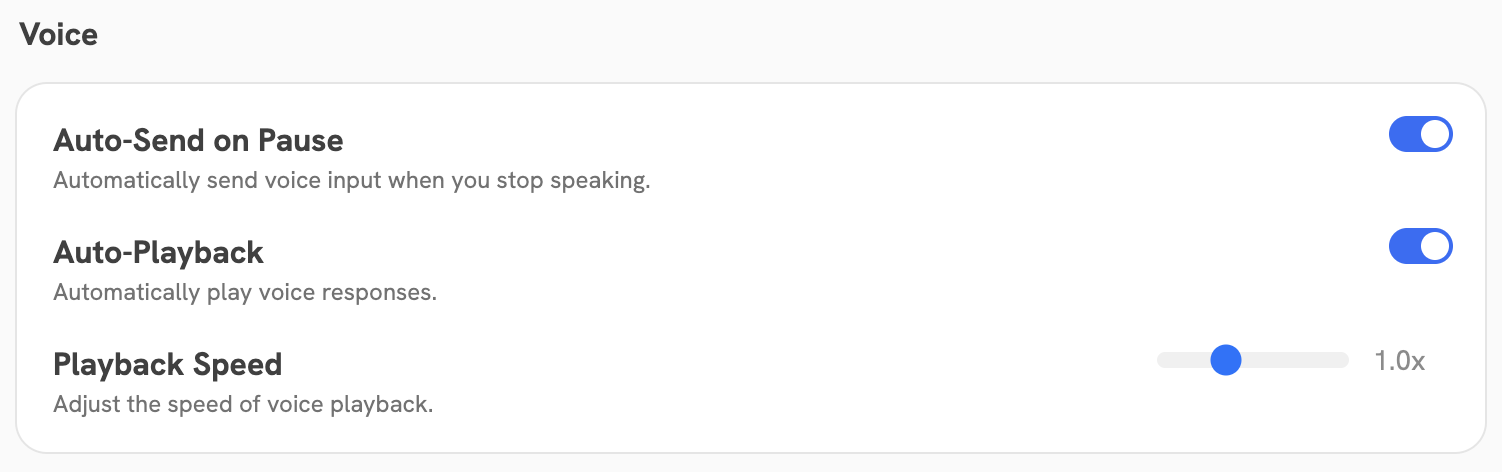
- Auto-send: When enabled, your message is automatically sent when you pause speaking, so you don’t need to click send. When disabled, pausing does not send your message. Instead, click the microphone button to finish recording and send.
- Auto-playback: When enabled, the microphone will automatically start listening again as soon as the response finishes speaking, enabling a continuous hands-free flow. When disabled, the response is generated as text only and must be played manually.
- Speed: Adjust the playback speed of voice responses with a slider ranging from 0.5x (slower) to 2x (faster).