

Overview
Spending limits cap how many LLM tokens, or how much LLM cost, Onyx spends in a time period. When a limit is reached, Onyx rejects new chat messages until the period resets.Business Plan FeatureSpending limits require a Business plan or higher. Per-user and per-group limits require an Enterprise plan.
Onyx Cloud includes all of them. View plans.
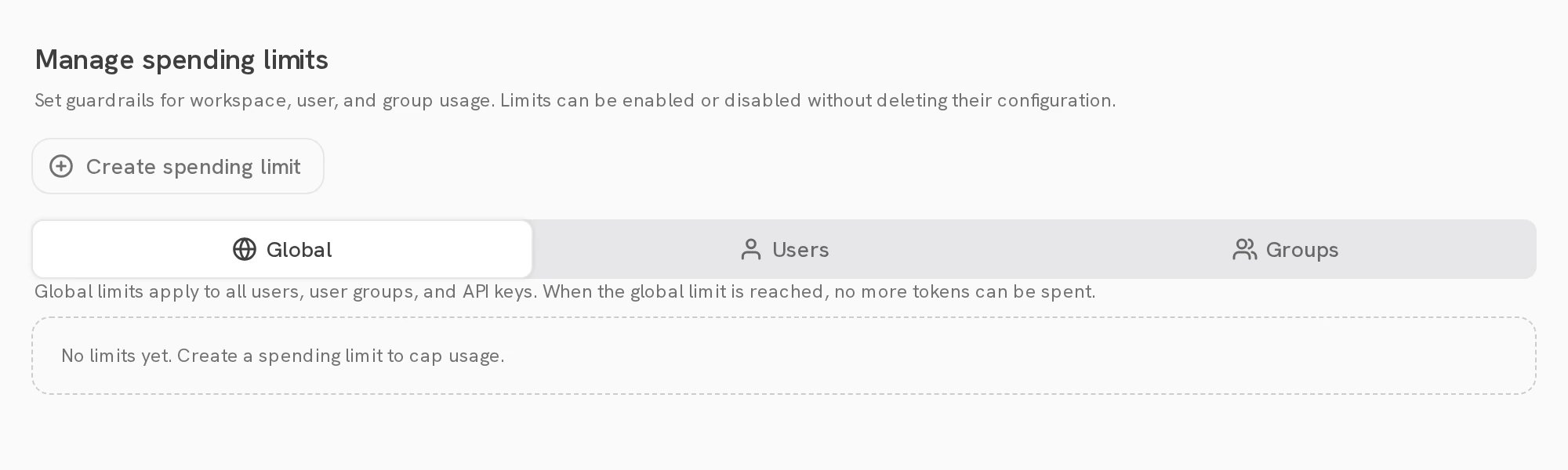
Scopes
On an Enterprise plan the table has Global, Users, and Groups tabs.
You can also add limits for one group from its page under Groups.
When a user is in several groups, the most permissive group limit applies.
A user is blocked only when every limit that applies to them is reached.
Create a limit
1
Choose the scope
Click Create spending limit. Under Applies to, select Workspace, Per user, or User group.
2
Set the budget
Enter a Cost budget in USD, a Token budget in tokens, or both.
A limit with both budgets blocks when either one is reached.
3
Set the reset period
Enter the Reset period in days. Budgets reset at midnight UTC.Click Create limit. The limit takes effect at once.
Manage limits
Turn a limit’s toggle off to pause it without deleting it.Spending limits count LLM usage from chat, agents, Craft, the Slack bot, and the API.
Onyx records usage a few seconds after each response,
so a user can go slightly over a budget before the block applies.