
Overview
This page applies to Onyx v4.7 and later. For older versions,
see Users and Groups before v4.7.
Users
As users join your workspace, they will appear in the Users page. Each row shows the account’s group membership, account type, status, and when it was last updated. You can filter the list by account type, group, or status, and you can invite, deactivate, reactivate, and delete users from this page.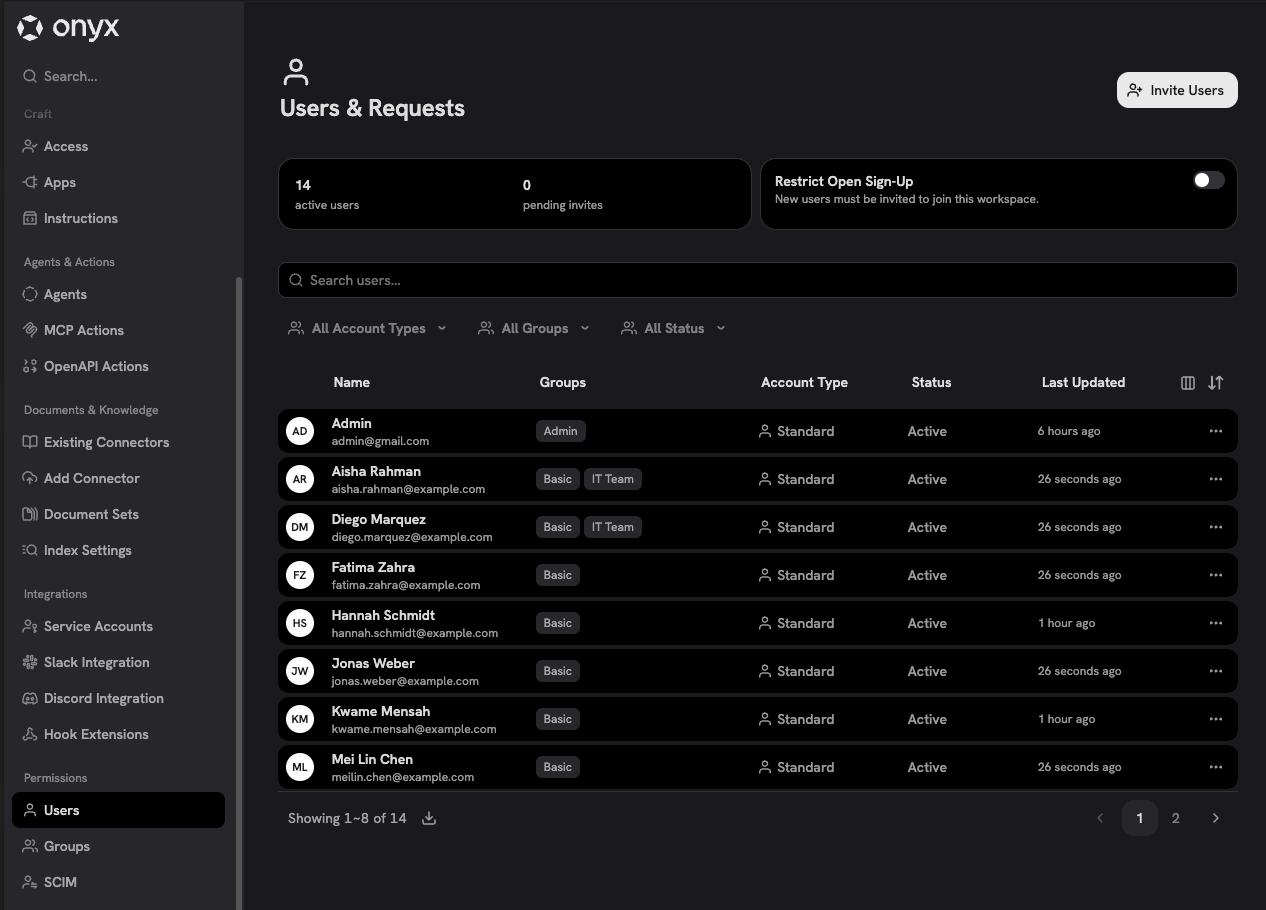
Account Types
Account type tells you what kind of account Onyx is showing. It is different from permissions: permissions come from group membership, while account type explains whether the account is a normal user, service account, or system-managed account.
Most day-to-day user management happens with Standard users.
Use groups to control what Standard users and Service Accounts can access or manage. Slack Bot, External User,
and Anonymous accounts are created by system workflows and are not usually edited directly.
Because all access comes from groups, an account that belongs to no group has no permissions.
A service account with no group is the one exception: it can still post to chat, but it cannot search.
See Understanding Permissions for the full model.
Inviting Users
Use the Invite Users button to send an email invitation to join your workspace. Inviting someone does not by itself change who is allowed to join.Restricting Who Can Join
By default, anyone who can reach your Onyx deployment can create an account. To require an invitation instead, turn on Restrict Open Sign-Up on the Users page. While it is on, only people you have invited can join.Restrict Open Sign-Up appears on self-hosted deployments when SCIM is not enabled.
If you turn on SCIM,
the SCIM status replaces it on the Users page and your identity provider controls membership instead.
Groups
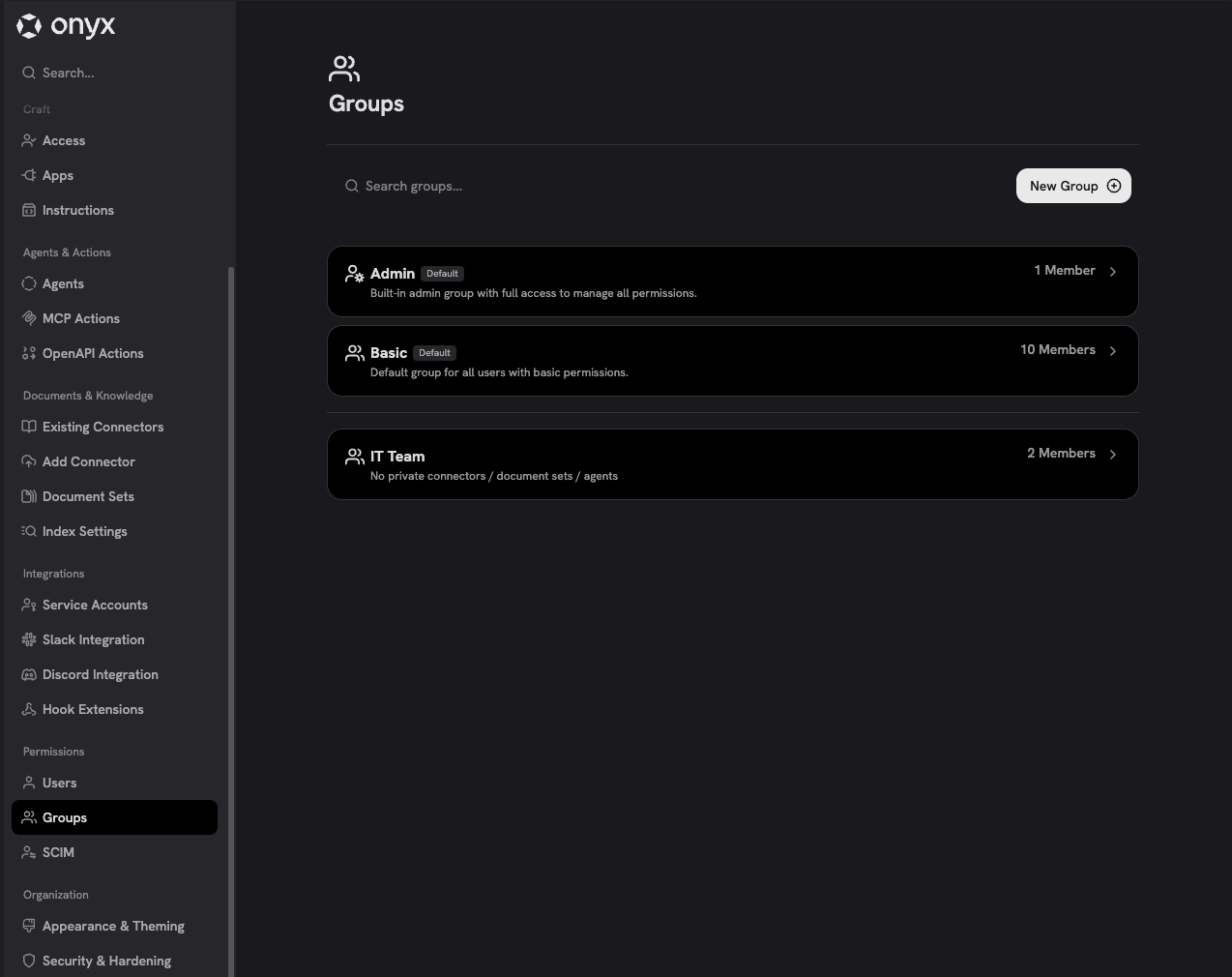
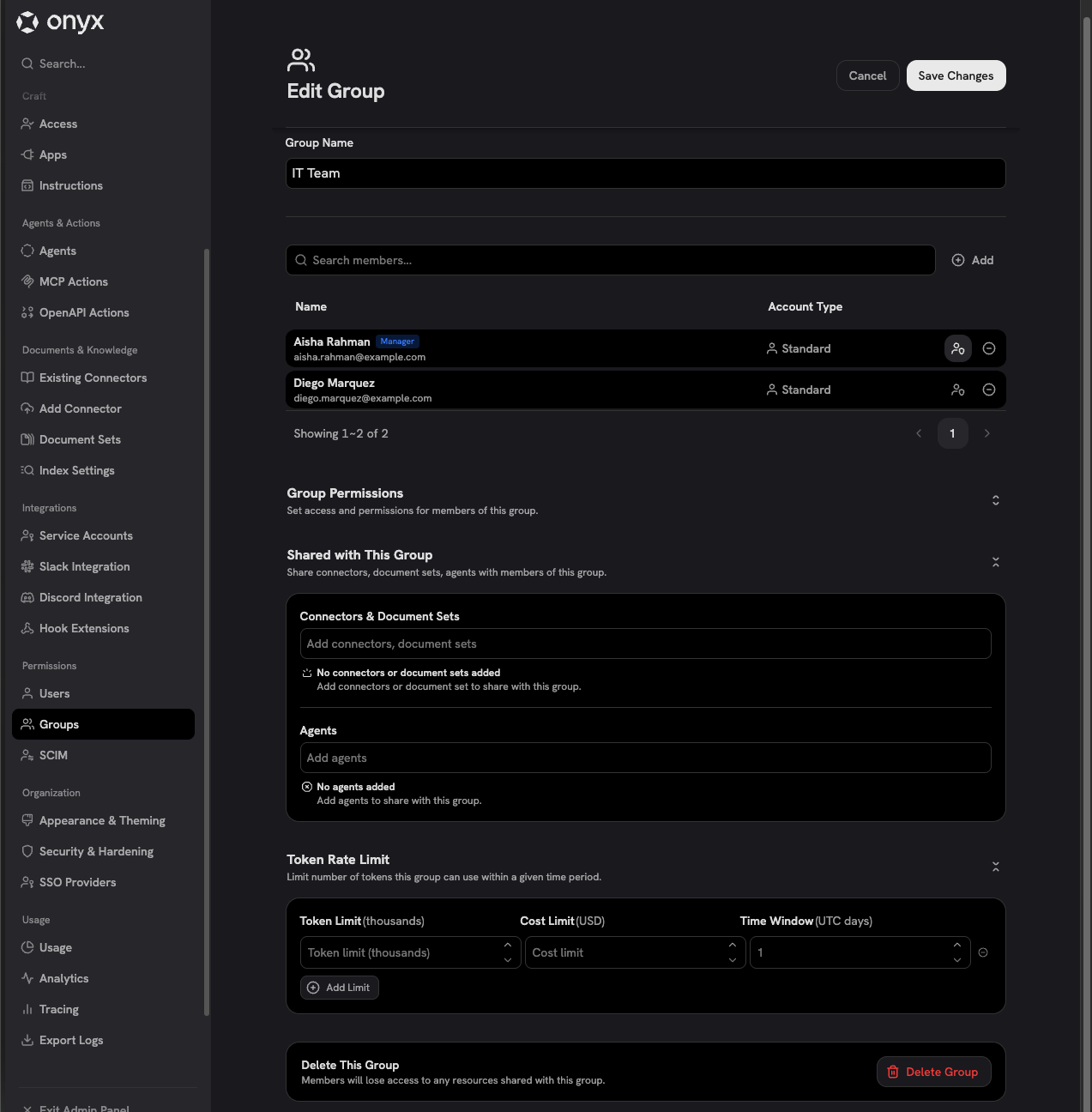
You can organize users and service accounts into groups to manage access at the same time. Specifically, you can attach private Connectors, Document Sets, and Agents to a Group, granting all users in the Group access to these resources. Additionally, you can impose token rate limits on a Group to monitor and control AI model usage. Groups also power Onyx’s permission system. To learn how group permissions and Group Managers work, see Understanding Permissions. The Groups page lists every group in your workspace with its member count. The built-in Admin and Basic groups are marked Default. Use New Group to create a custom group.