
White labeling is an Enterprise Edition feature.
White Labeling Options
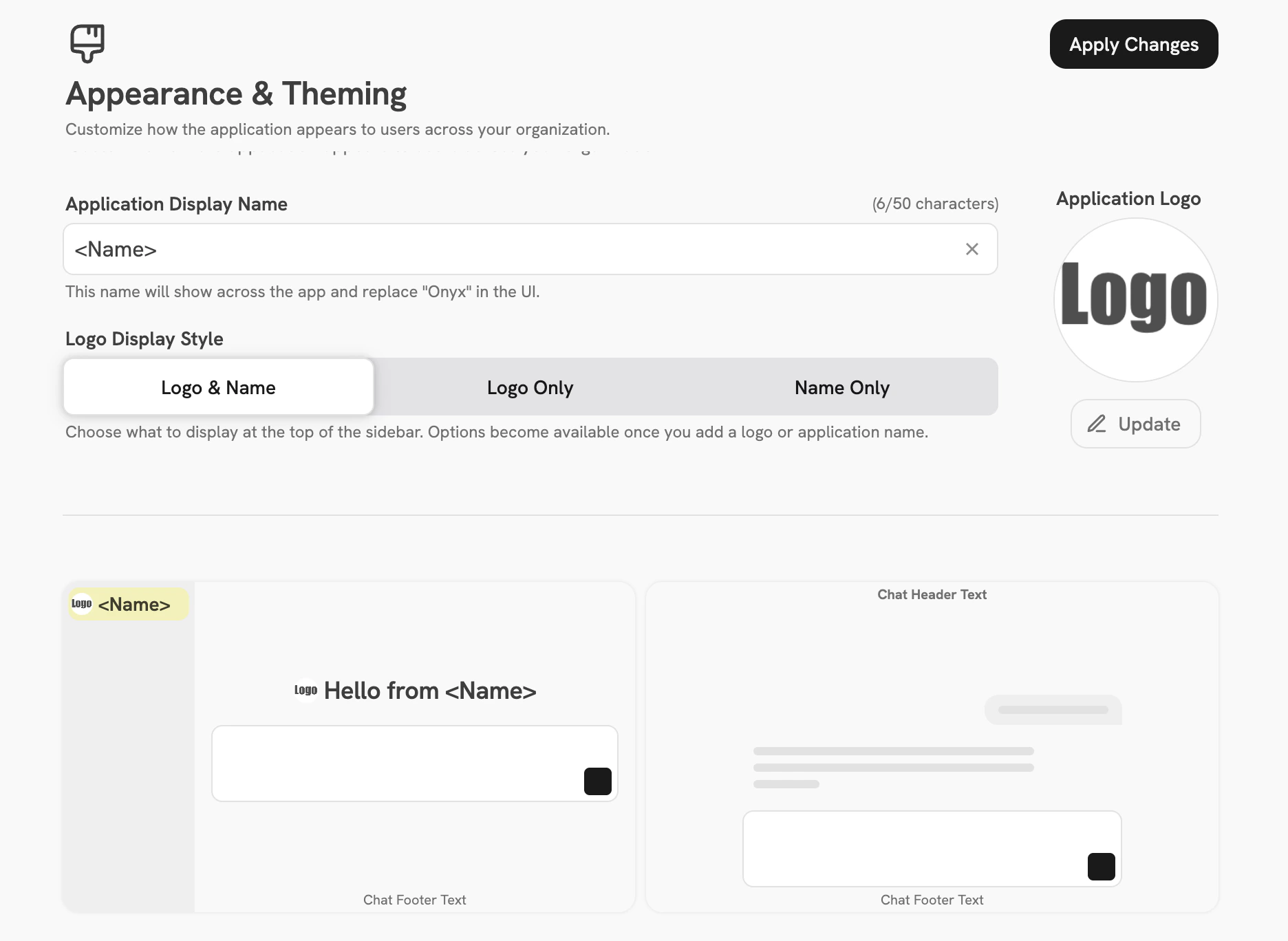
Logo and Name
You can customize the logo, the application name, or both independently:- Custom Logo — upload an image to replace the default Onyx logo shown in the top left corner and on the login page
- Application Name — set a custom name displayed alongside or in place of the logo
Messaging
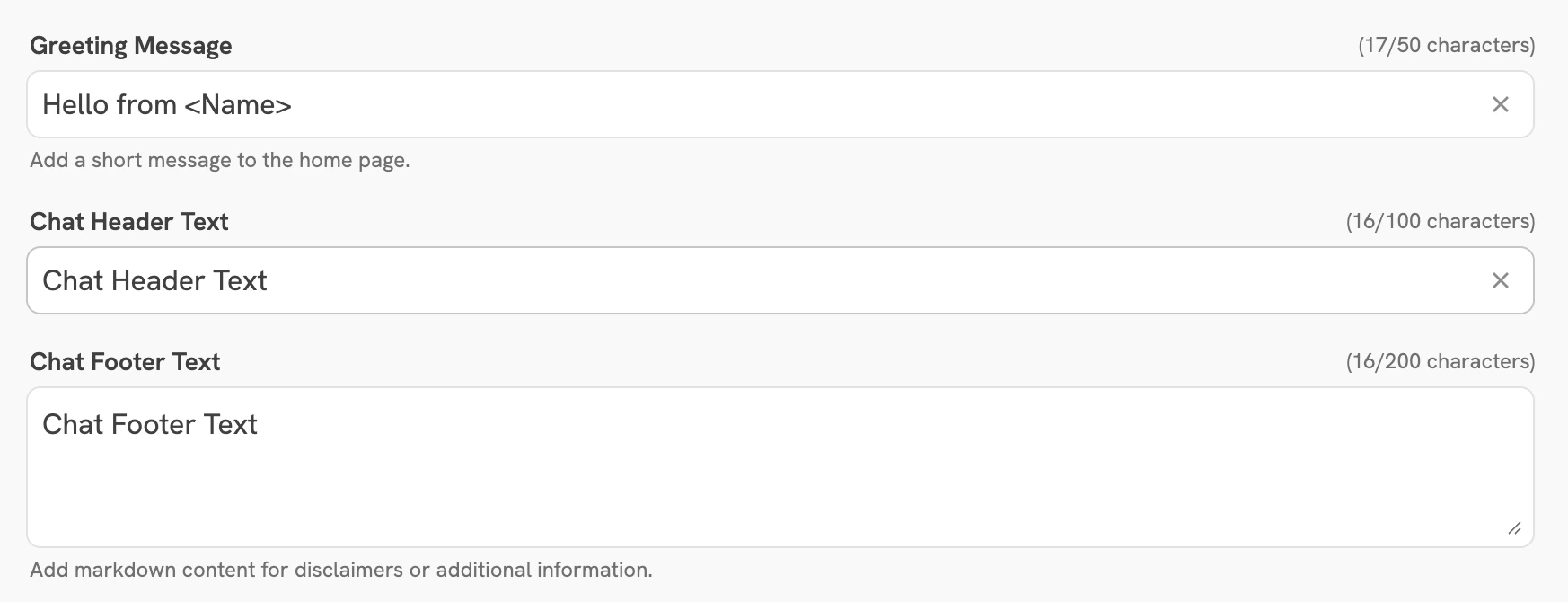
Customize the text shown throughout the chat interface:- Greeting Message — shown to users when they start a new chat session
- Chat Header Text — displayed in the header of the chat interface
- Chat Footer Text — displayed in the footer of the chat interface
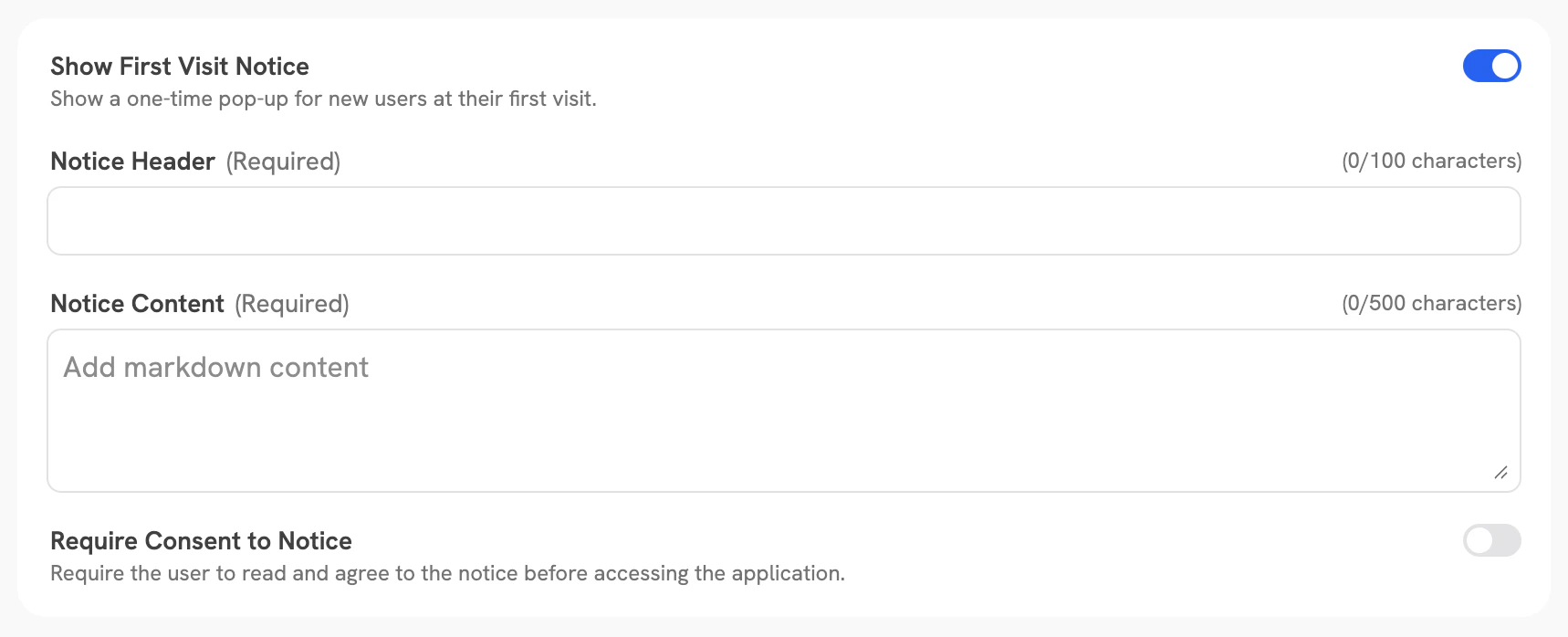
First Visit Notice
Configure a notice shown to users the first time they access Onyx. The notice has the following options: