

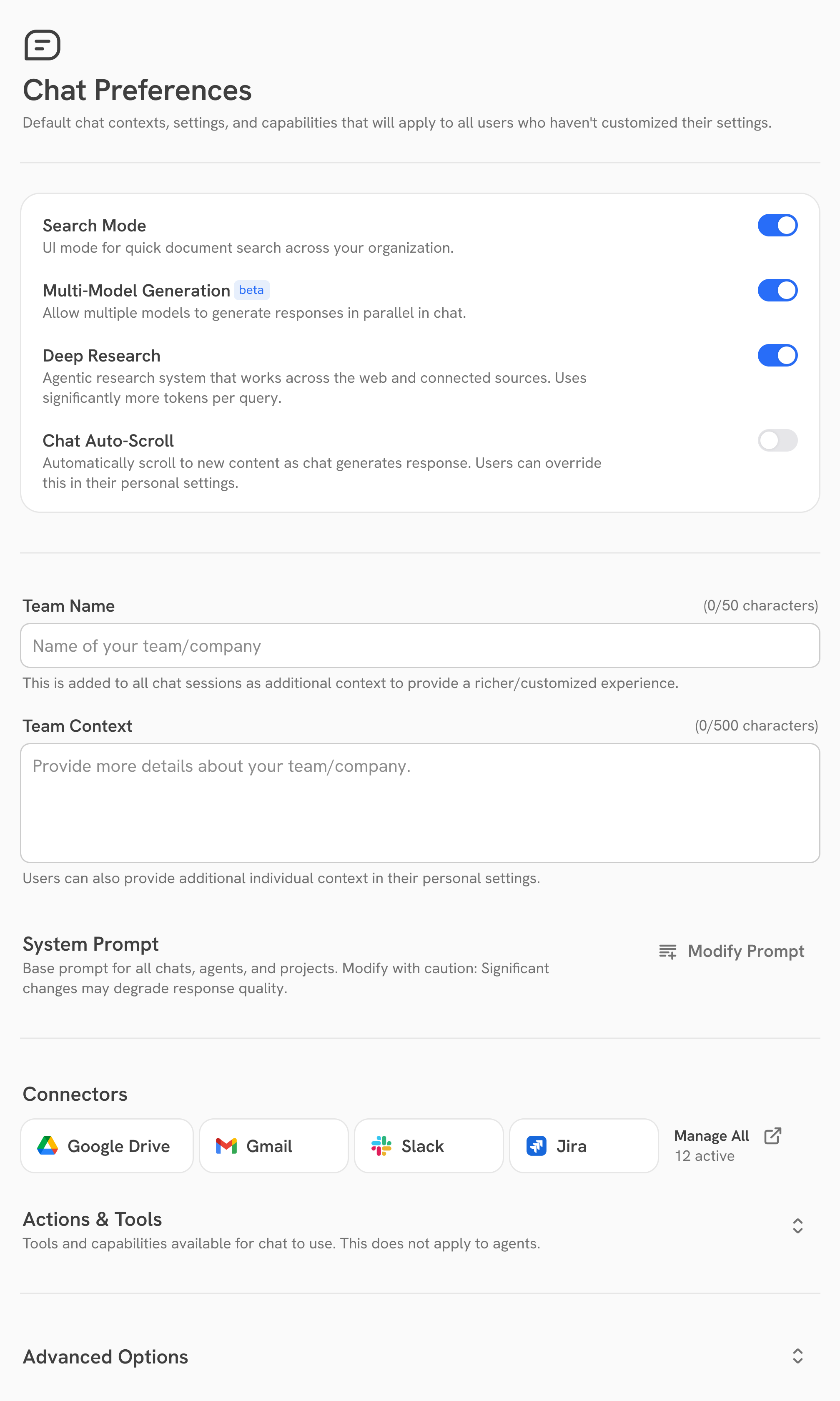
Feature Controls
You can enable or disable core chat behaviors for your organization:- Search Mode: UI mode for quick document search across your organization.
- Multi-Model Generation: When enabled, multiple models can generate responses in parallel in chat.
- Deep Research: Agentic research across the web and connected sources. This uses significantly more tokens per query than typical chat.
- Chat Auto-Scroll: When enabled, the chat view automatically scrolls to new content as the model generates responses. Users can override this in their personal settings.
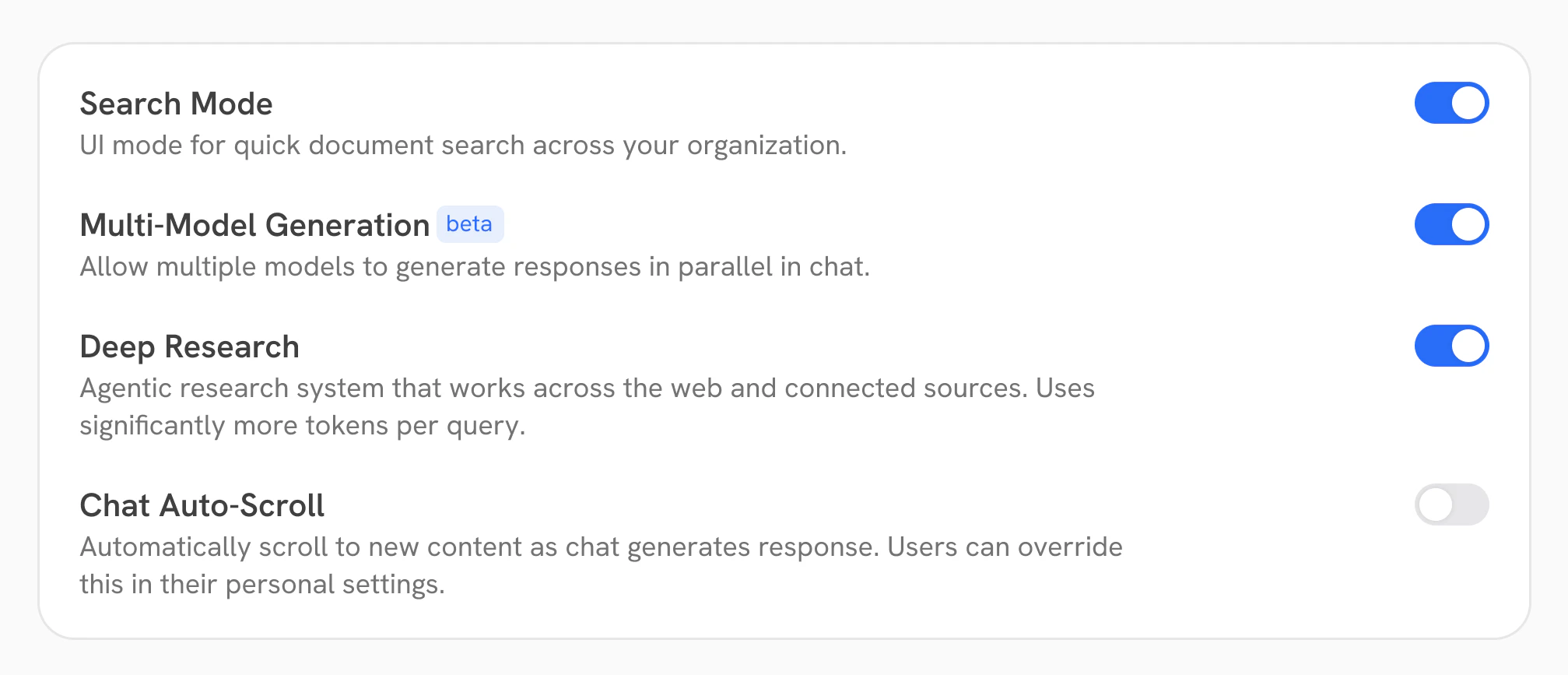
Team Information
- Team Name: This is added to all chat sessions as extra context to tailor responses (e.g. your team or company name).
- Team Context: Use this for a short description of your team or company. It is included as additional context alongside the team name.
Users can also add individual context in personal settings on top of these organization-level fields.
System Prompt
This is the base instruction set for chats, agents, and projects. You can edit the prompt in the editor or use reset to restore the default. The full default system prompt:The prompt may include placeholders that Onyx expands at runtime:
{{CURRENT_DATETIME}}inserts the current date and day of the week in a human-readable form.{{CITATION_GUIDANCE}}adds citation instructions when facts are retrieved via search tools. Only included when search tools are used.{{REMINDER_TAG_DESCRIPTION}}describes how to interpret system reminders in user messages.
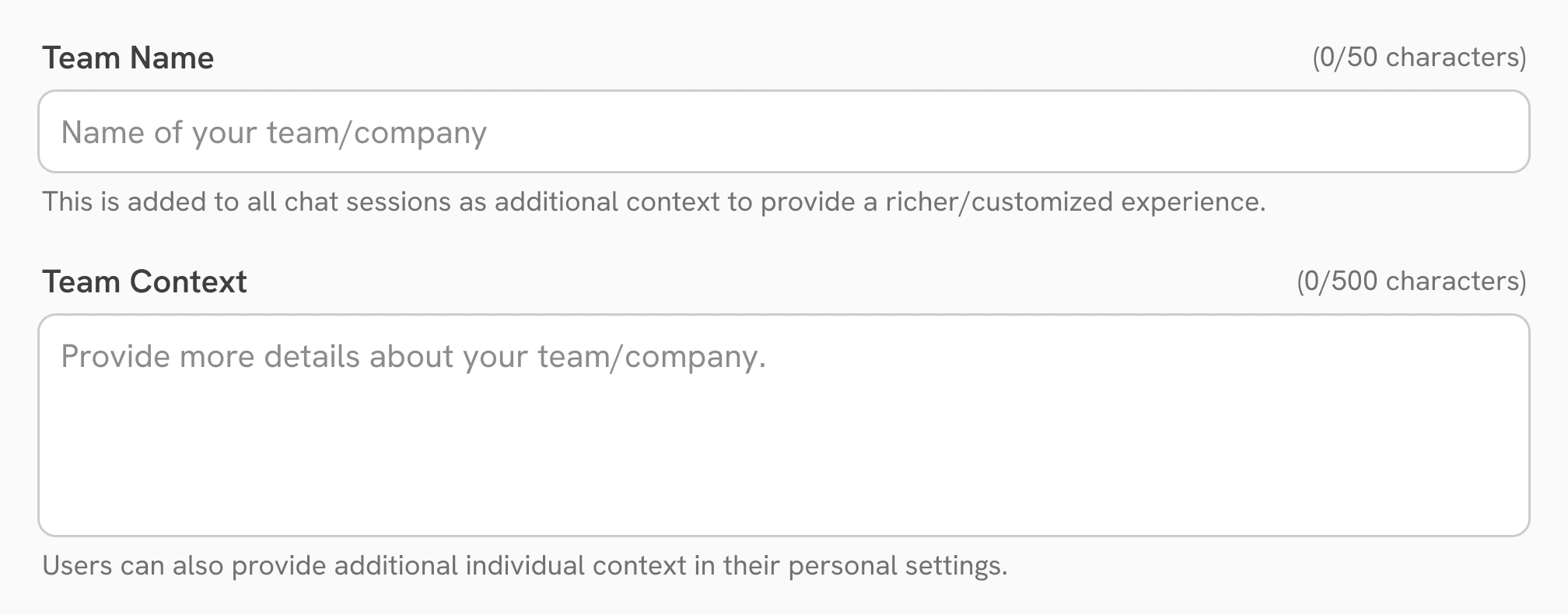
Connectors, Actions & Tools
Manage data sources and tool availability for the default chat experience. See connectors for more details on data sources and knowledge. Capabilities shown here are available to default chat (e.g. web search, code execution, or MCP-based tools). Some tools require additional setup before they can run.These settings do not apply to agents.
Configure knowledge and tools for each agent on its own page.
Advanced Options
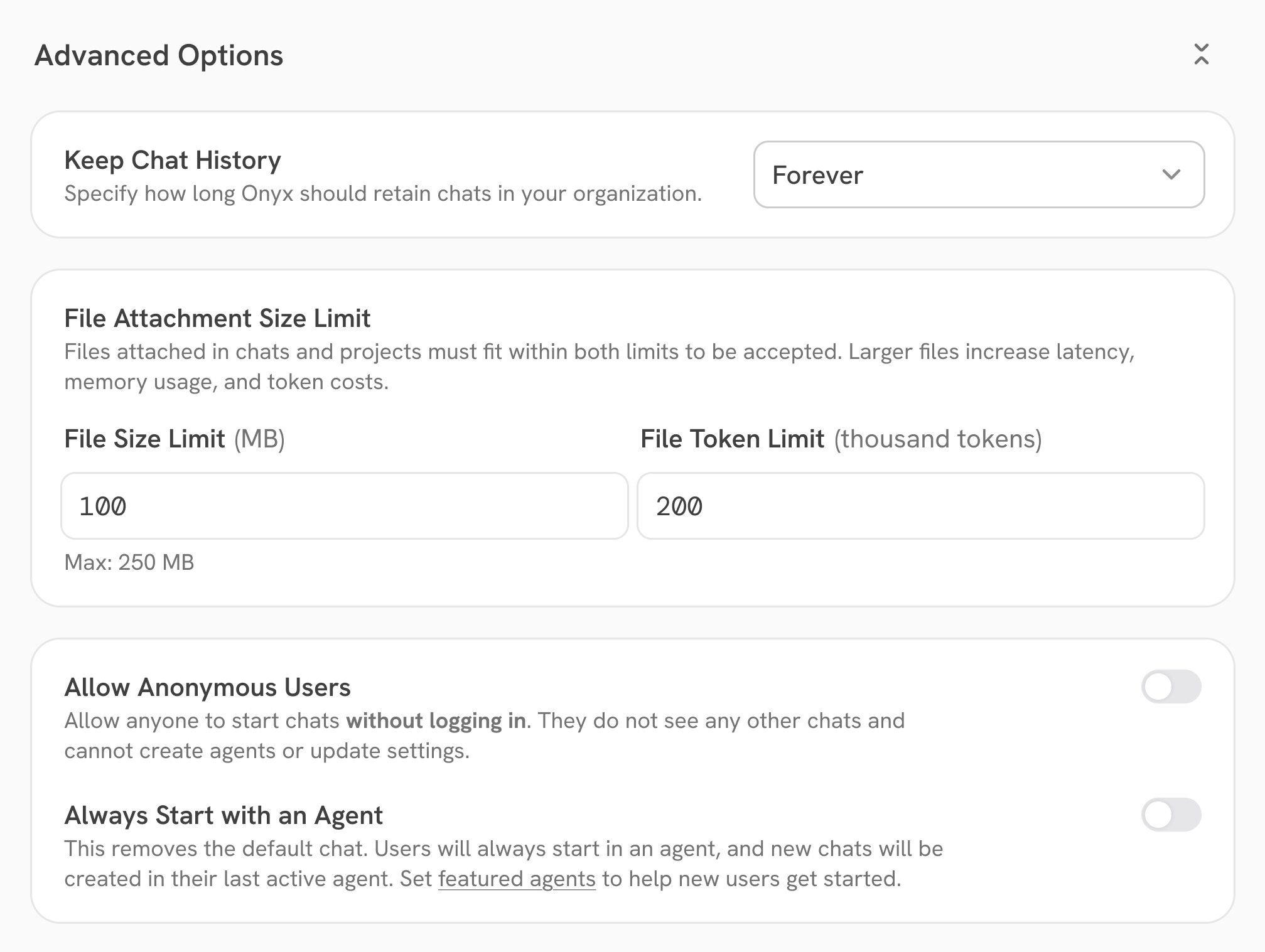
Keep Chat History
Set how long Onyx retains chat history for your organization (indefinitely or a limited period).File Attachment Size Limits
Attachments must stay within both a size cap and a token cap, or be rejected:- File size limit: Cap for upload size per file (up to a 250 MB maximum).
- File token limit: Cap for token budget attributed to each uploaded file.
Larger files increase latency, memory use, and token cost. Large text files (e.g. CSVs)
may stay under the size limit but easily exceed the token limit.
Allow Anonymous Users
When enabled, visitors can start chats without signing in. Anonymous users only see their own chats and cannot create agents or change settings. Those sessions still invoke your models, so they count toward token usage and cost like any other traffic.Always Start with an Agent
When enabled, the default standalone chat entry point is removed. Users always start in an agent view, and new chats are created in their last active agent.Enabling this mode effectively bypasses the global Connectors and Actions & Tools sections located earlier on
this page. For agent-first mode, configure knowledge and tools on each agent instead.