

/admin/plugins).
Users connect their accounts and set personal defaults in Plugins in the main sidebar (/app/plugins).
Where things moved in Onyx 5
In Onyx 5.0, MCP servers, OpenAPI actions, and Craft Apps moved to one Plugins page. Existing servers, tools, credentials, and Craft App settings stay the same. Only the location changed.
Old links open the new pages.
Plugin types
Onyx has three plugin types. Each type connects to a different kind of external system.Choose a plugin type
- Use a Craft App for Slack, Google Calendar, Google Drive, Gmail, Linear, GitHub, HubSpot, Notion, or Zendesk work in Craft. Craft Apps call the provider API as the connected user. Each action has its own approval policy.
- Use an MCP server for an application that is not a built-in Craft App, or when you also need the tools in Chat. MCP servers work in Chat, custom agents, and Craft.
- Use an OpenAPI plugin to make an existing REST API available in Chat and custom agents. Onyx turns each operation in the schema into a tool.
Plugins compared to connectors
Connectors and plugins solve different problems.
When a user connects a personal account, the plugin can read only what that account can read. For example,
a Slack Craft App can read a private channel only if the connected user is a member of that channel.
Add a plugin
1
Open the Plugins page
Click your user profile icon, select Admin Panel, then select Plugins under Agents & Actions.
2
Select a plugin type
Click Add, then select MCP, OpenAPI, or Craft Apps.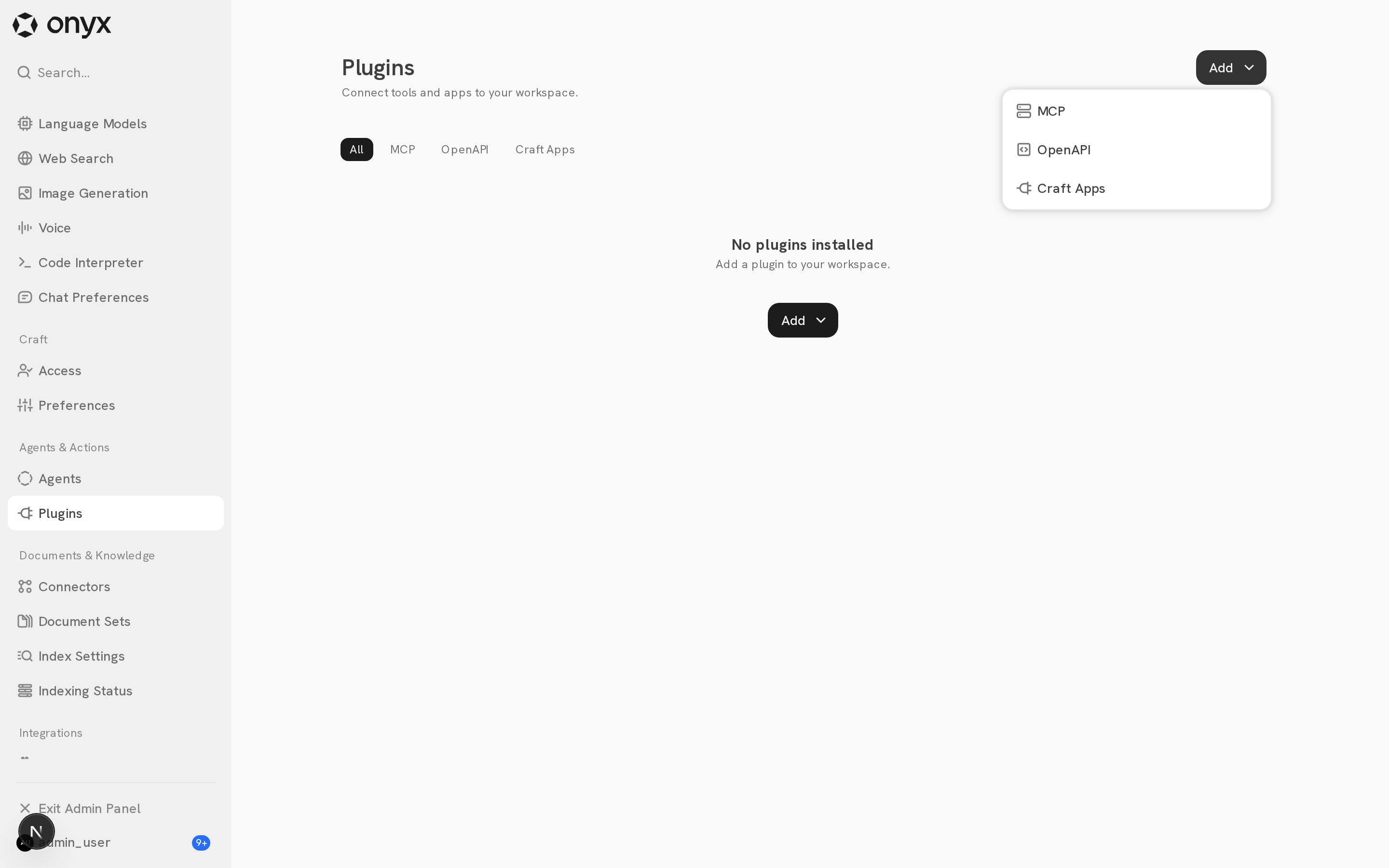
3
Complete the setup
Follow the guide for the plugin type: MCP, OpenAPI,
or Craft Apps.
The Plugins page
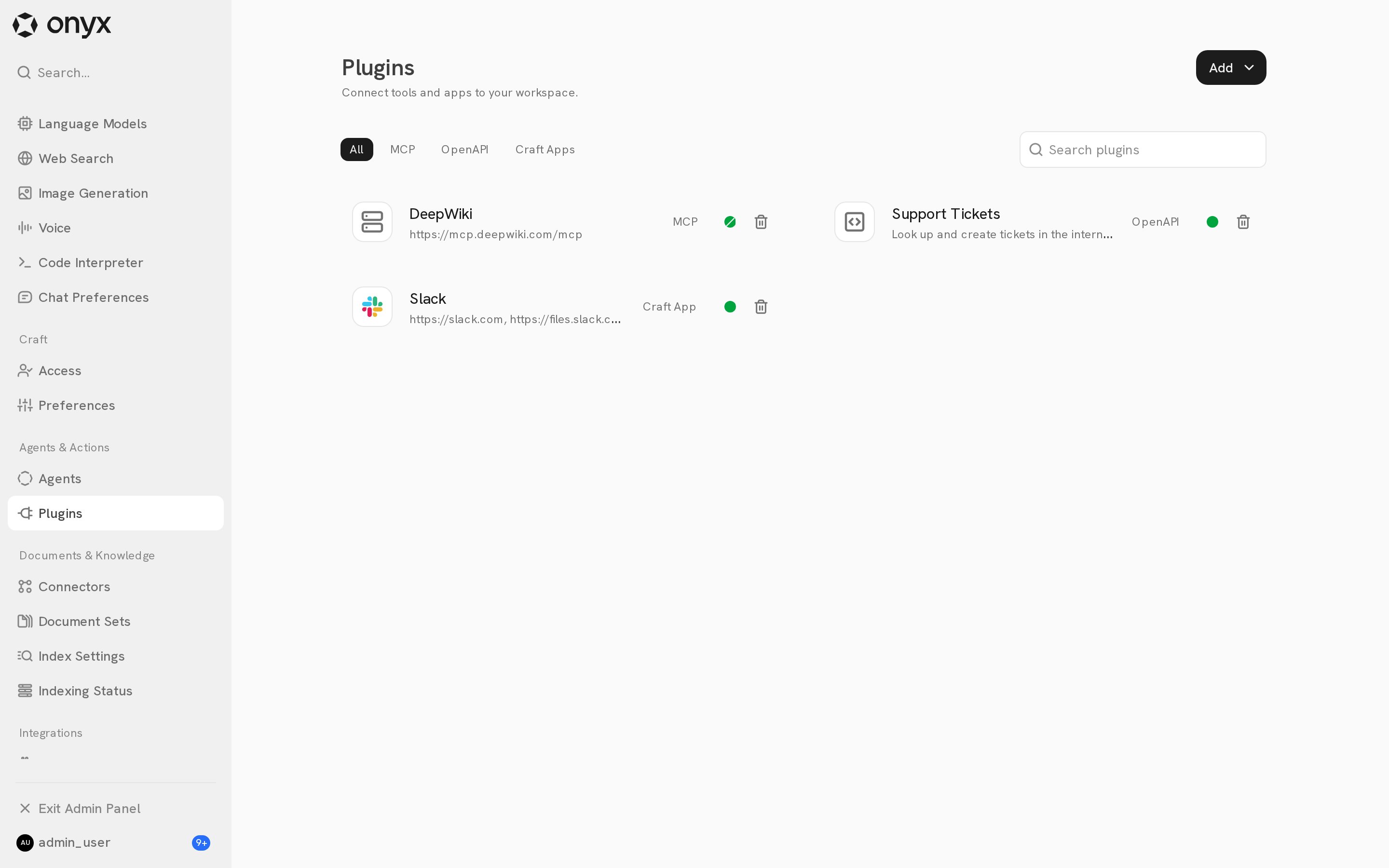
Each card shows the plugin name, its URL or description, its type, and a status icon.- Use the All, MCP, OpenAPI, and Craft Apps filters, or search by name.
- Click a card to open its settings.
- Click the trash icon to delete the plugin.
Plugin settings
Plugin settings open in a dialog with tabs. Changes stay as a draft until you click Save Changes.Availability and personal defaults
Onyx keeps four kinds of settings separate. Use the table to find the setting that controls a behavior.
A personal default can only narrow what the admin allows. If an admin turns off Enable in default Chat,
no user can turn the plugin on in default Chat. Custom agents that already use the plugin keep it,
and its credentials and settings stay the same.
Default Chat selection for MCP and OpenAPI plugins is now on the Plugins page.
Chat Preferences manages only built-in tools, such as Internal Search and Web Search. In Terraform,
onyx_custom_tool.enabled sets the default Chat selection for an OpenAPI plugin.Status icons
The status icon on each card shows where the plugin is available. Hover over the icon to see details. Each segment of the icon is one surface: Main Chat, Custom agents, and Craft.
The status icon is read only. Change availability in the plugin’s Configuration tab.
Approvals in Craft
Craft can ask a user to approve an action before it runs. Admins set the policy for each MCP tool and each Craft App action:
Turn on Let users manage approval settings to let users choose a stricter or more permissive policy for actions that
the admin did not disable.
Next steps
MCP servers
Connect an MCP server and choose its tools.
OpenAPI plugins
Turn a REST API schema into agent tools.
Craft Apps
Let Craft act as each user in Slack, Gmail, Notion, and more.
Plugins for users
Connect accounts and set personal defaults.