

In Onyx 5.0, OpenAPI actions moved from their own admin page to Admin Panel → Plugins.
See Where things moved.
Add an OpenAPI plugin
1
Open the OpenAPI form
Go to Admin Panel → Plugins, click Add, then select OpenAPI.
2
Paste the schema
Paste the schema in OpenAPI Schema Definition. Onyx reads the schema and lists its operations below the field.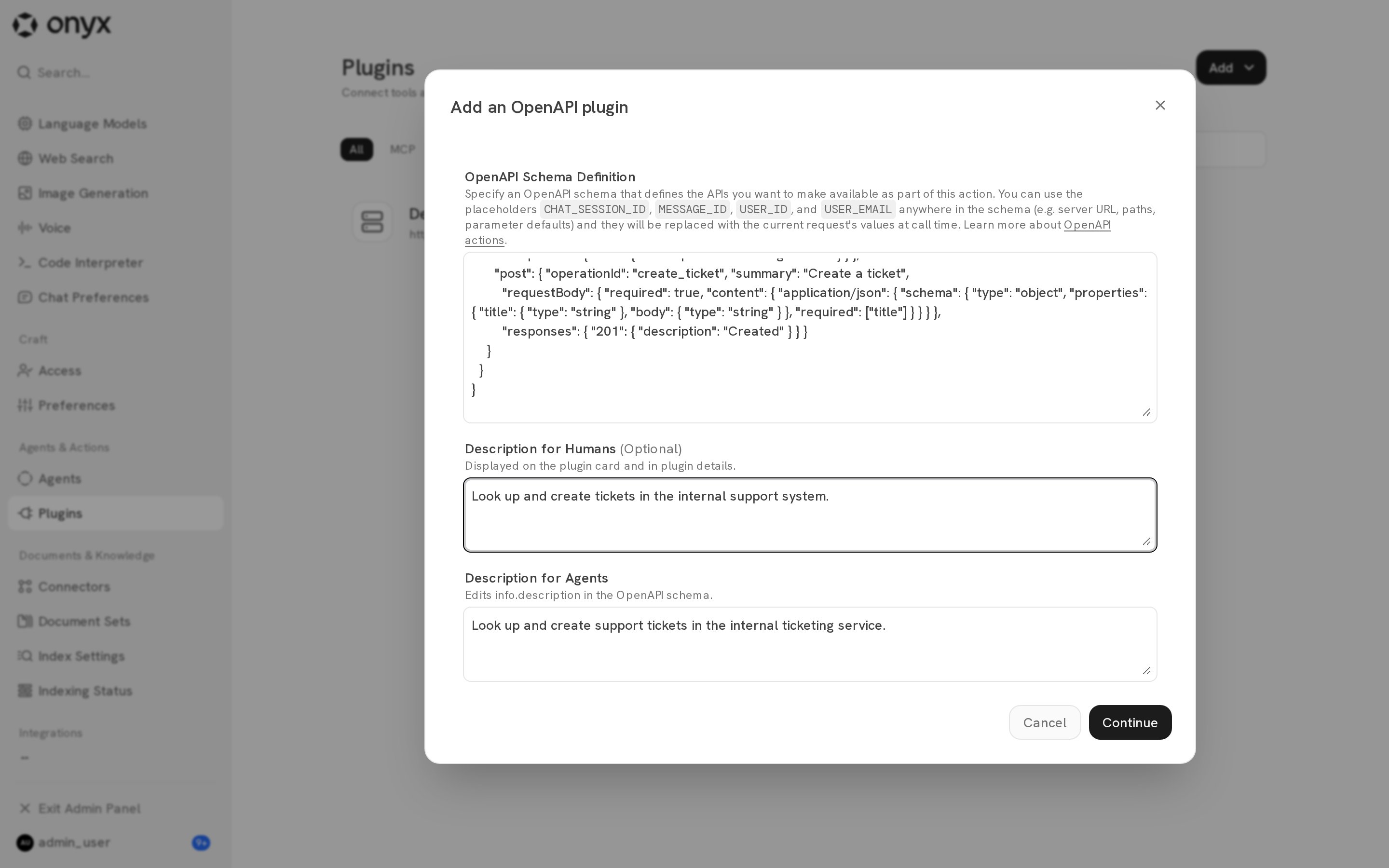
- A
serversentry with the base URL of the API. - An
operationIdfor each operation. Onyx uses it as the tool name. - A
summaryordescriptionfor each operation, so the agent knows when to use it.
3
Add descriptions
4
Set default Chat availability
Turn on Enable in default Chat to make the plugin available in chats without a custom agent.
Turn it off to make the plugin available only in the custom agents that you add it to.
5
Configure authentication
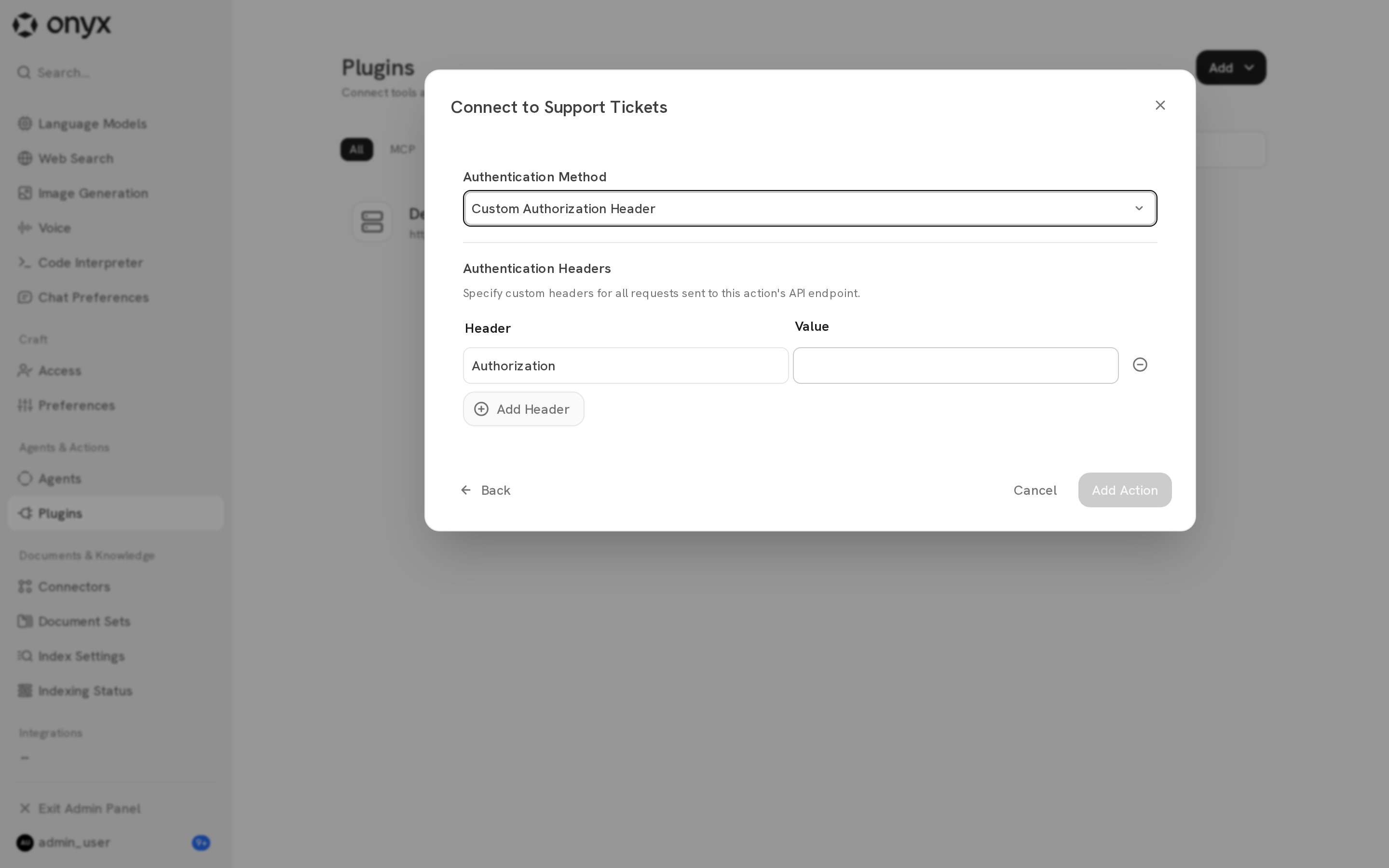
Select an authentication method. See Authentication.
6
Save
Click Add. The plugin shows on the Plugins page with the OpenAPI type.
Authentication
Custom authorization header
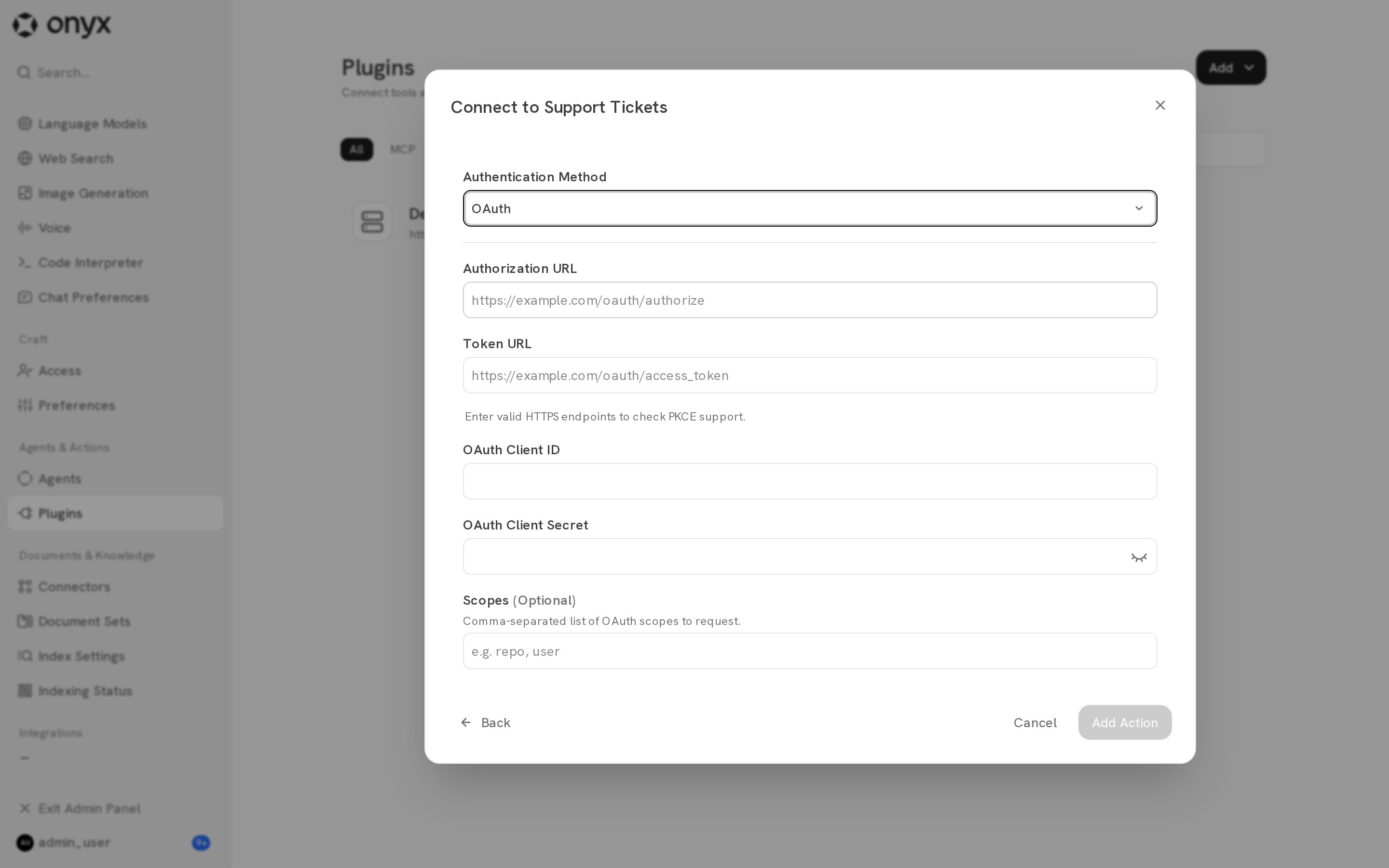
OAuth
1
Create an OAuth client in the provider
Set the client’s redirect URI to the Redirect URI that Onyx shows:
2
Enter the client details
Enter the Authorization URL, Token URL, OAuth Client ID, and OAuth Client Secret. Optionally,
enter Scopes as a comma-separated list.
3
Set PKCE
Turn on PKCE if the provider requires it. Onyx uses the
S256 method.4
Test the connection
Click Test connection to confirm that Onyx can complete the OAuth flow.
Request placeholders
Use these placeholders anywhere in the schema, for example in the server URL, a path, or a parameter default. Onyx replaces them with the values of the current request at call time.Manage the plugin
Click the plugin on the Plugins page to open its settings.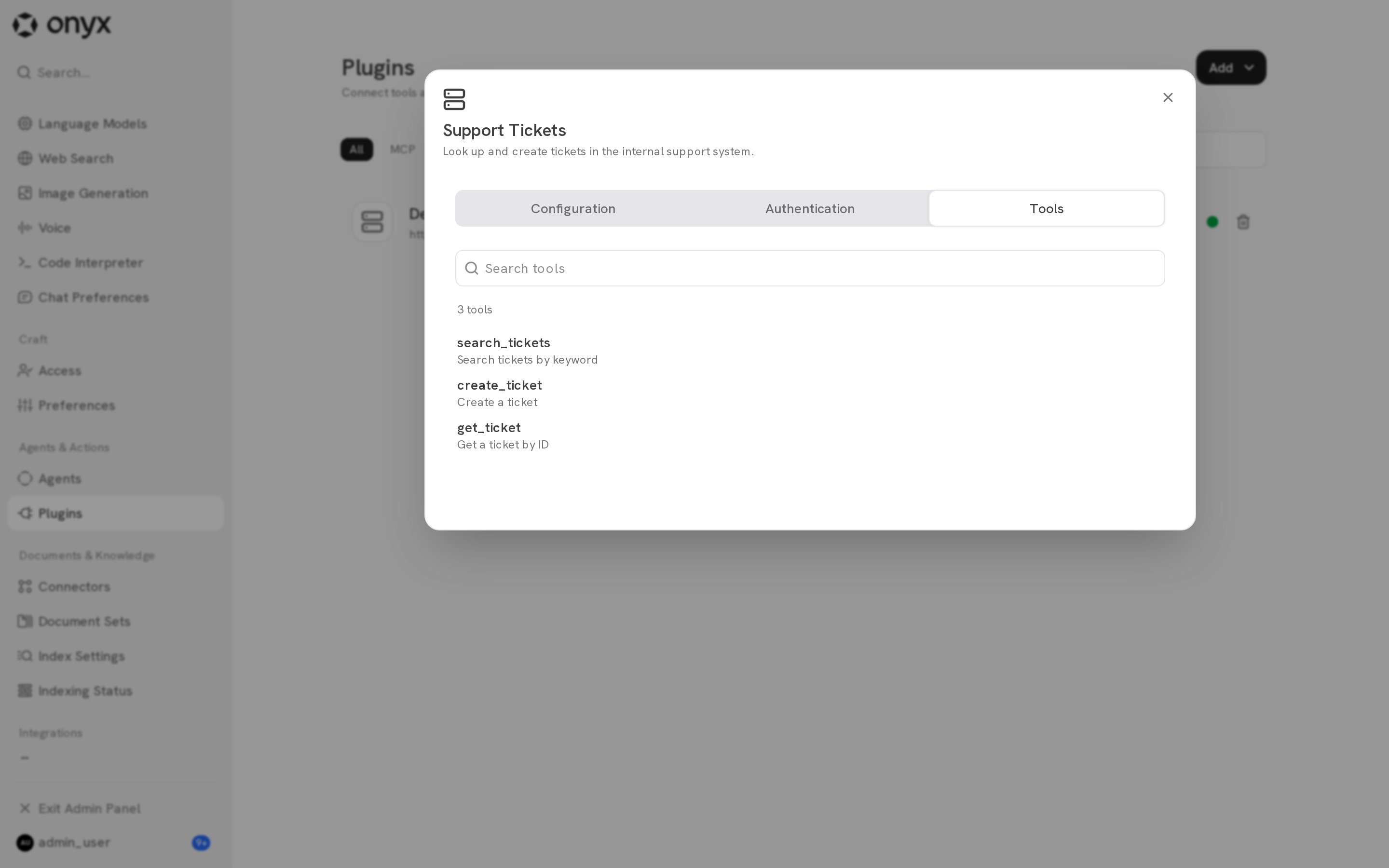
In Terraform,
onyx_custom_tool.enabled sets Enable in default Chat. It does not change custom-agent attachments.Use the plugin in custom agents
Open the agent editor and select the plugin under Actions. See Agents.Example
Use this schema to add a plugin that creates and gets agents in Onyx. Replace the server URL with your Onyx API URL.OpenAPI