

In Onyx 5.0, MCP servers moved from their own admin page to Admin Panel → Plugins.
See Where things moved.
To let other MCP clients use Onyx as a server, see Onyx MCP Server.
Add an MCP server
1
Open the MCP catalog
Go to Admin Panel → Plugins, click Add, then select MCP.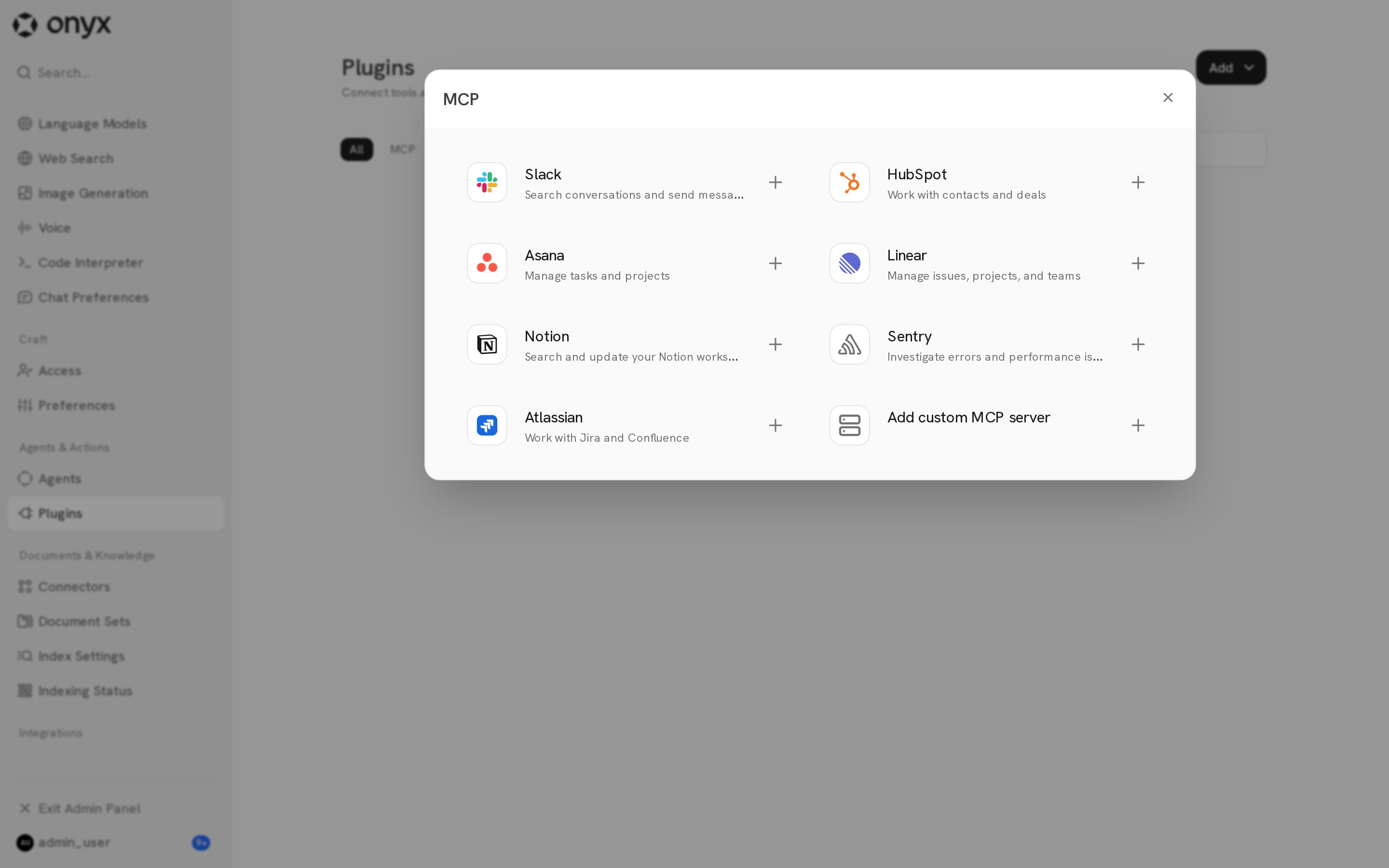
2
Enter the server details
Enter a Server Name and the MCP Server URL.
Onyx checks the server and shows the authentication method and connection transport that it detects.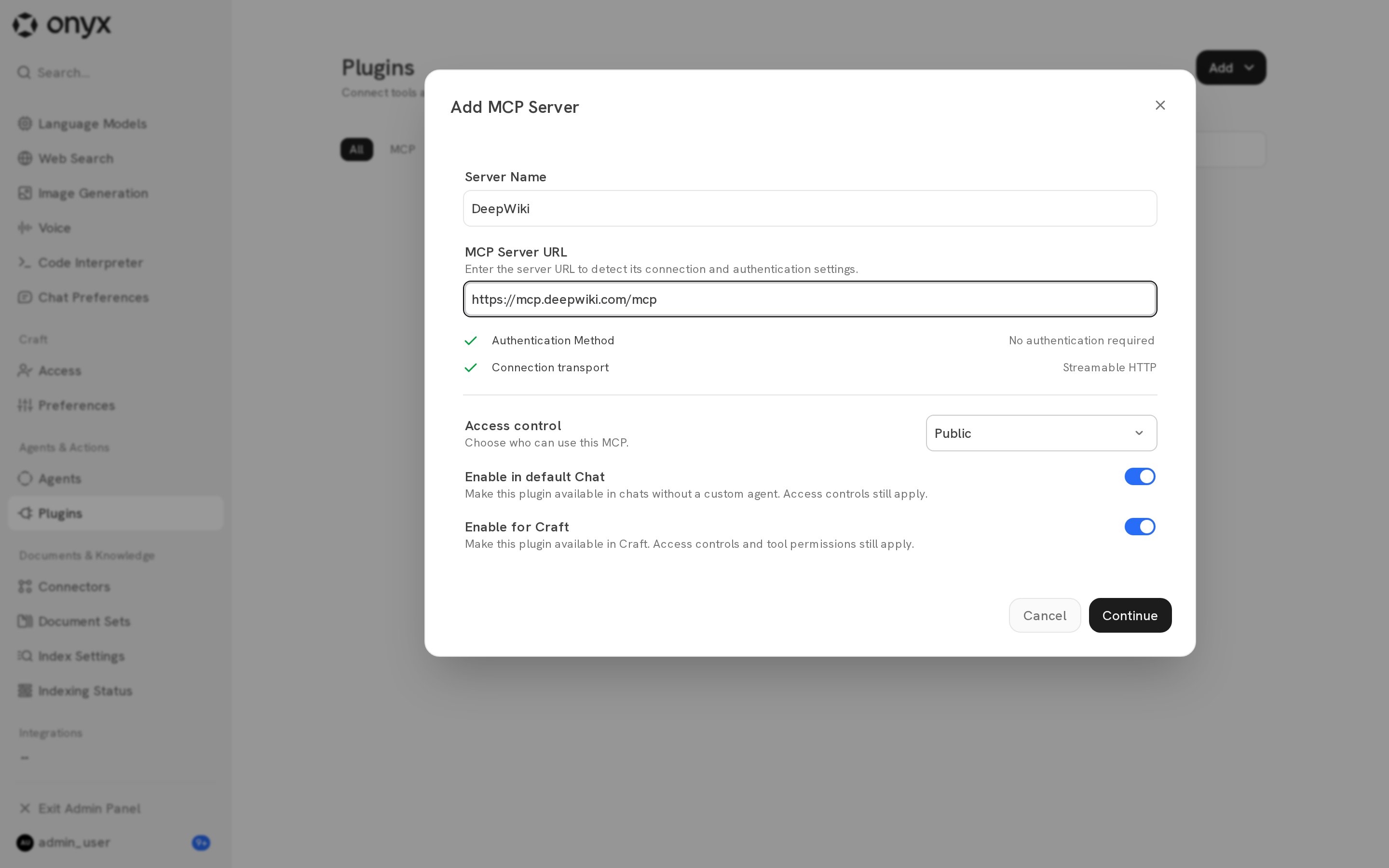
3
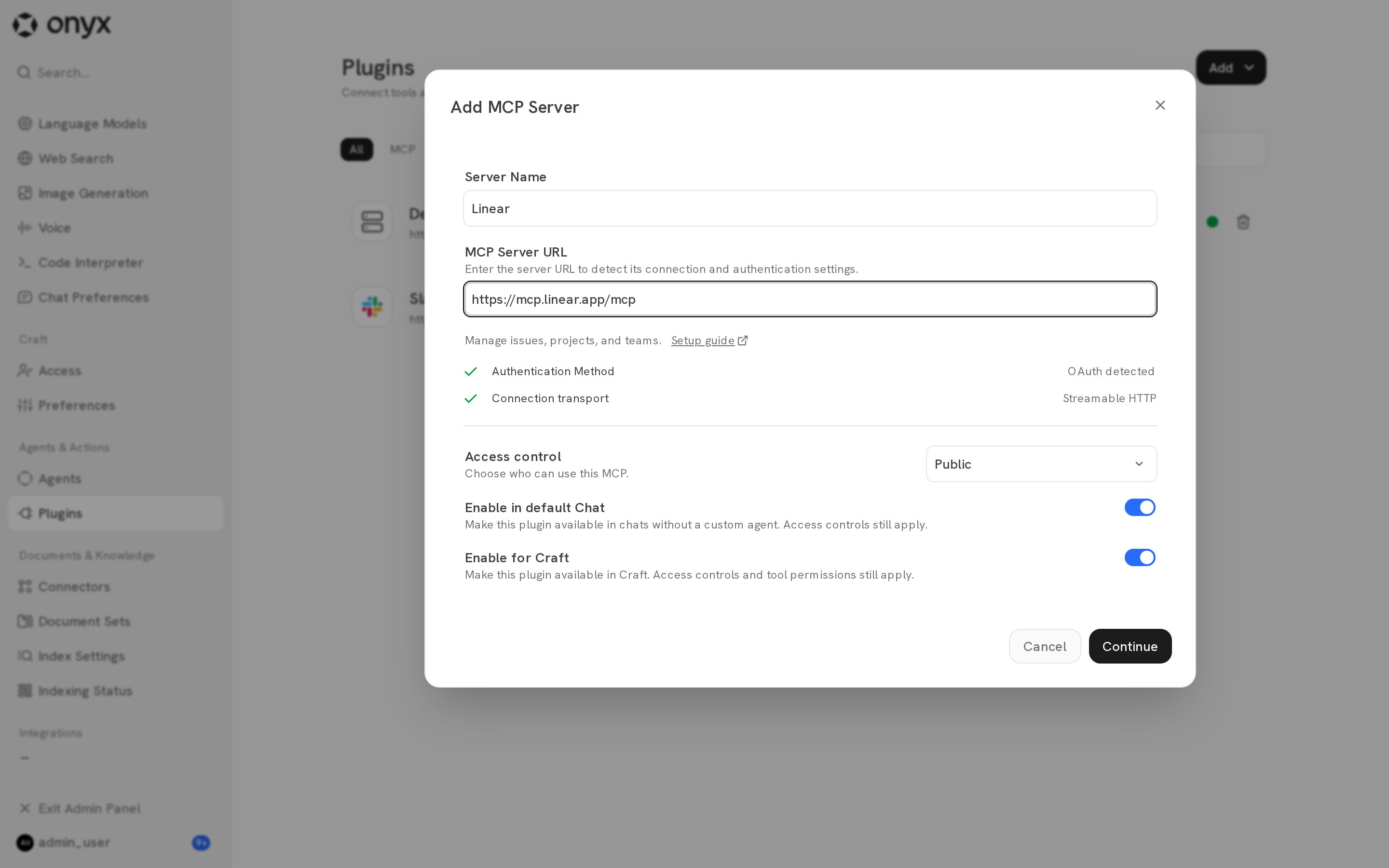
Set availability
On the same page, set who can use the server and where it is available:
Click Continue.
4
Configure authentication
Select an Authentication Method. Onyx marks the method it detected as Recommended.
See Authentication for each method.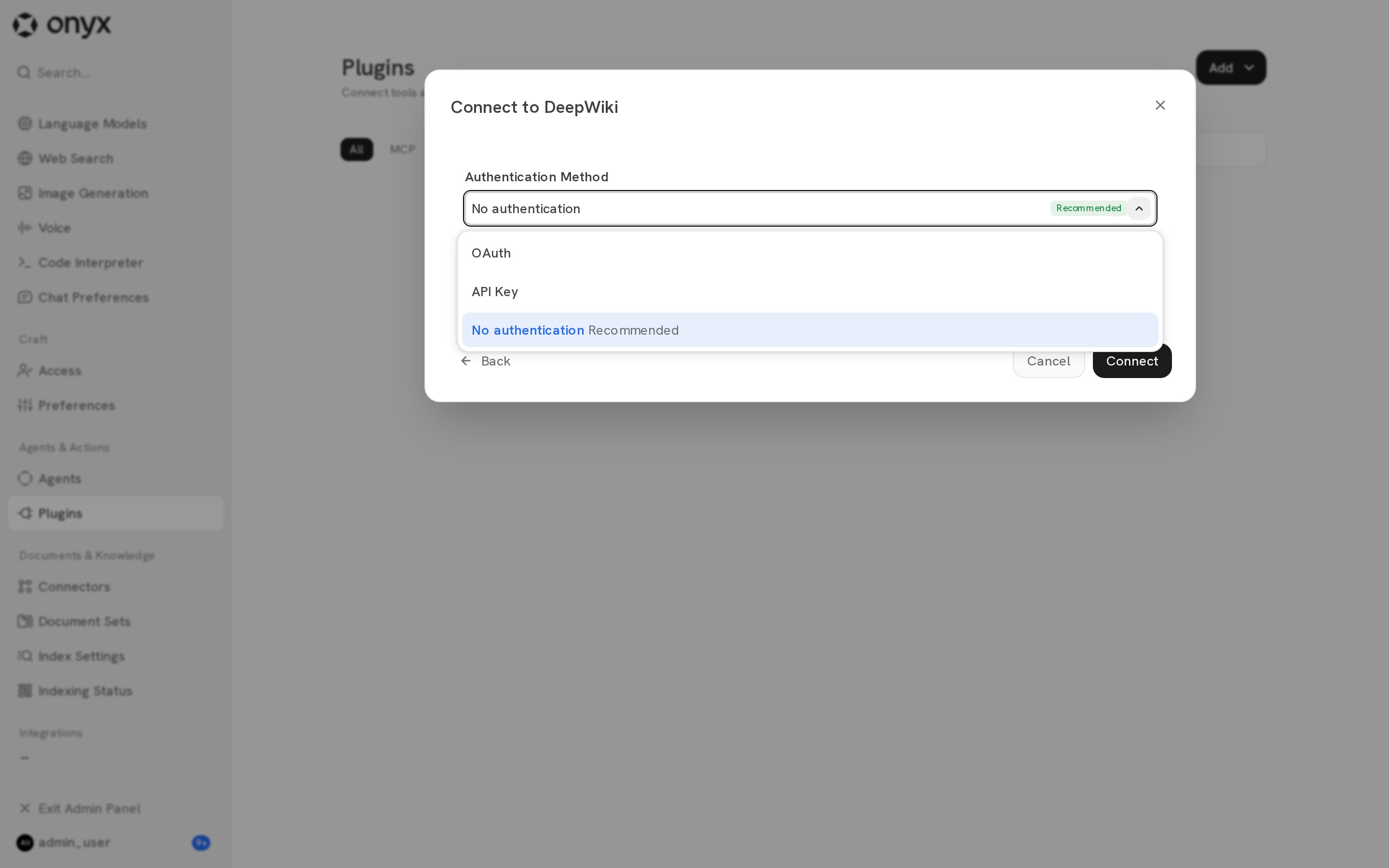
5
Connect
Click Connect. Onyx connects to the server, lists its tools, and opens the server’s settings.
Authentication
With personal API keys and OAuth,
each user connects their own account from the Plugins page.
The MCP server then returns only data that the user’s account can access.
OAuth
OAuth is the best choice for most hosted vendor servers, such as Linear, Notion, Atlassian, and Sentry.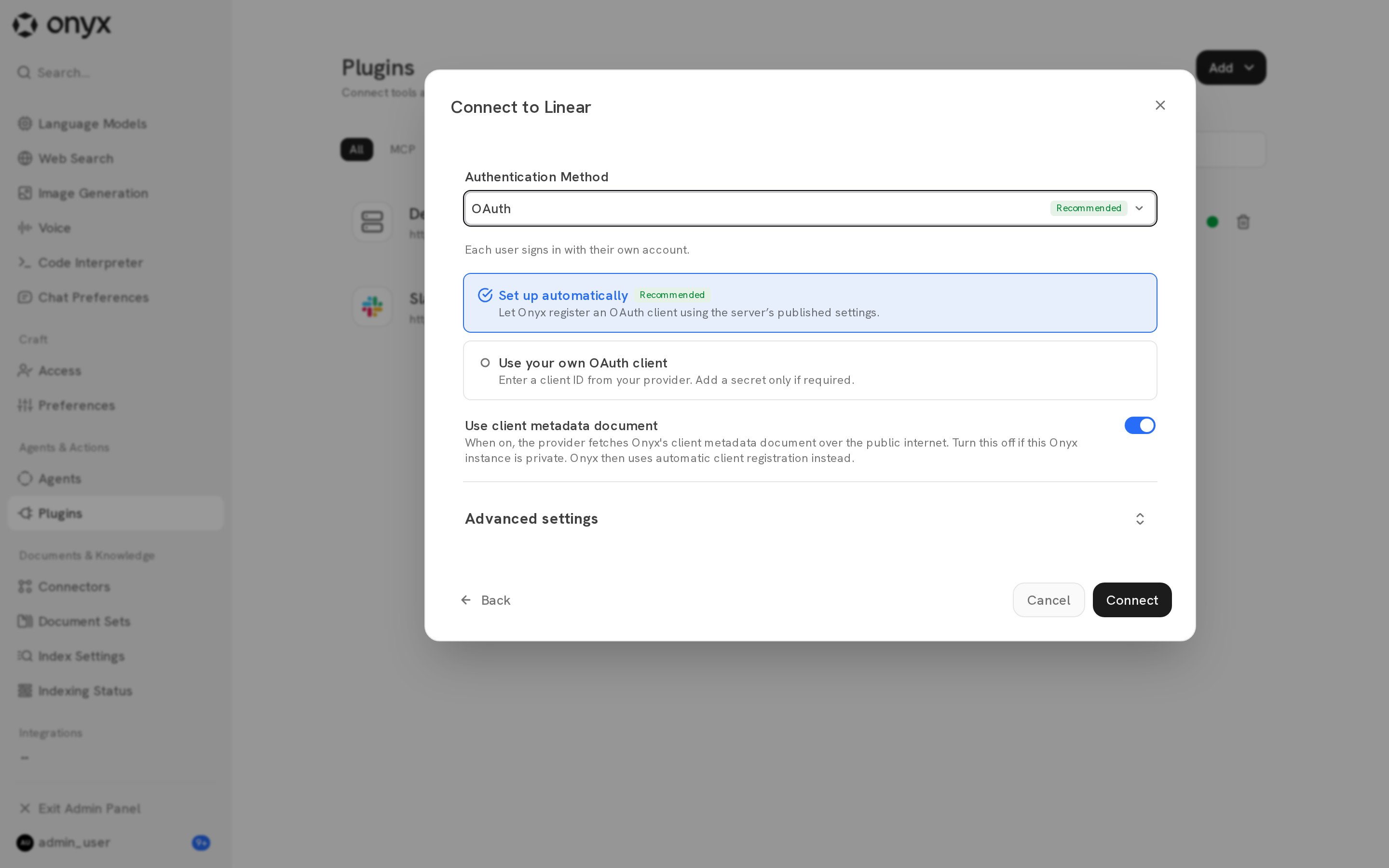
If you create your own OAuth client, set its redirect URI to:
API key
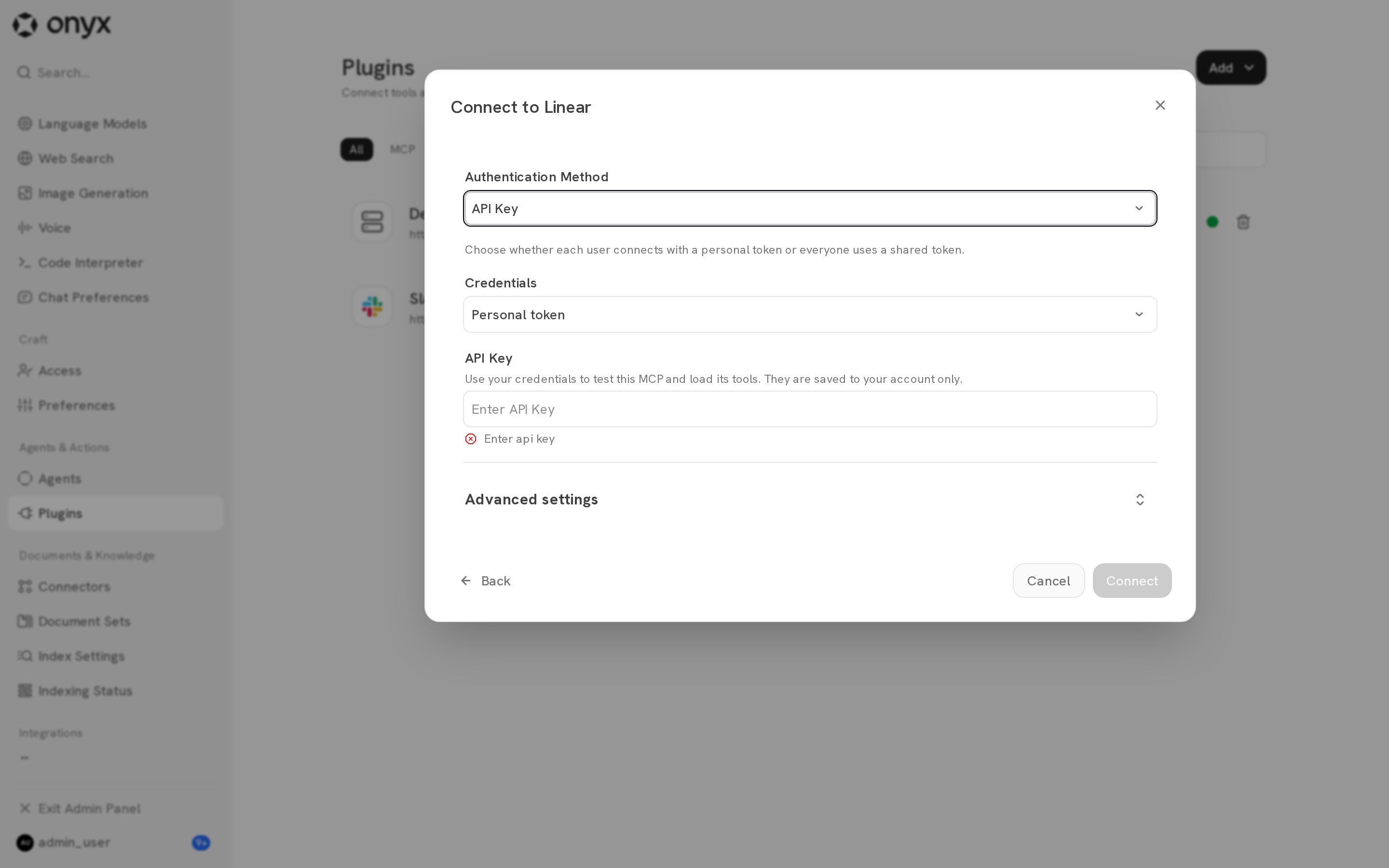
Advanced settings
Expand Advanced settings to add custom headers or change the transport.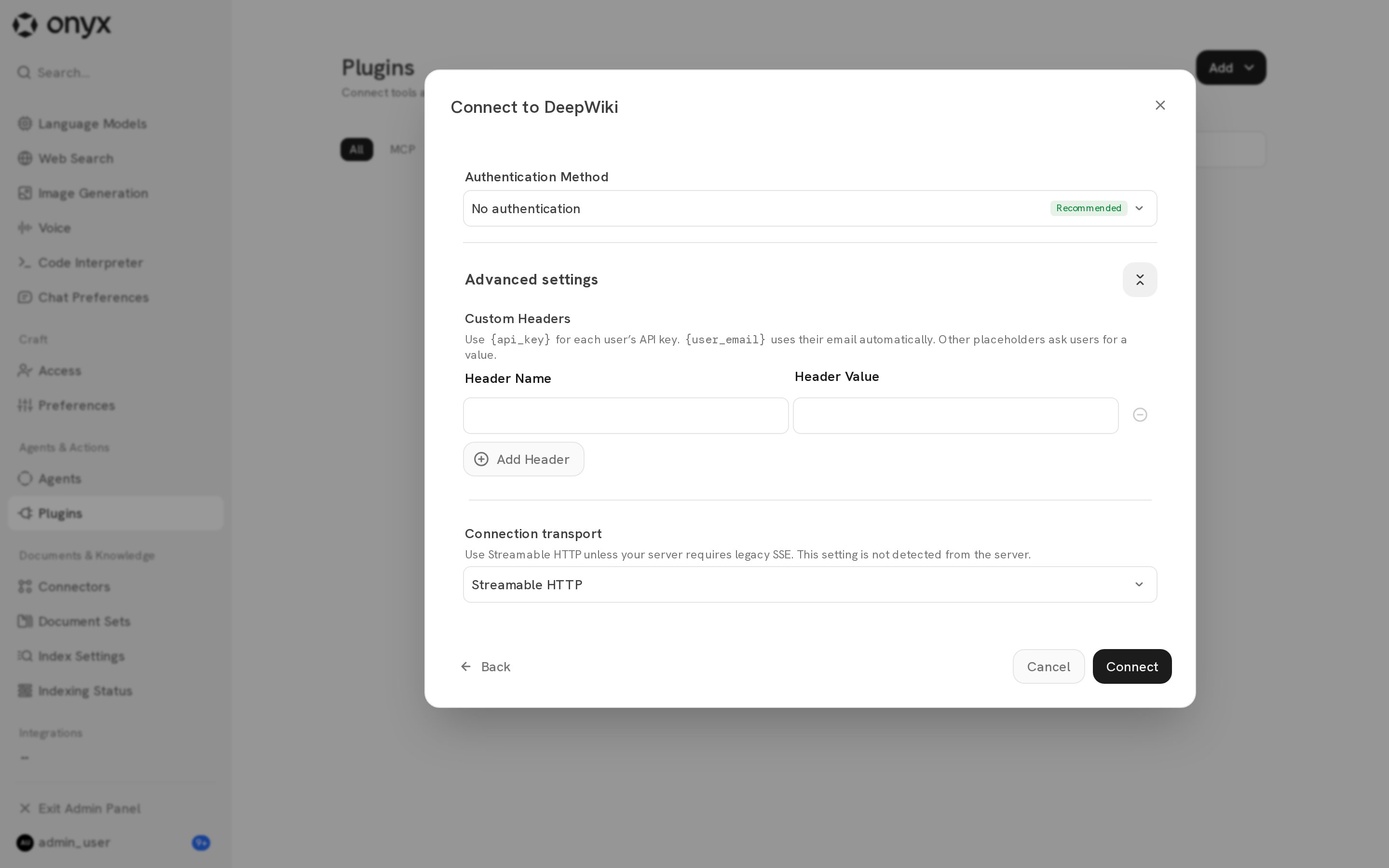
- Custom Headers are sent with every request. Use
{api_key}for each user’s API key and{user_email}for the user’s email address. Any other{placeholder}asks each user for a value when they connect. - Connection transport is Streamable HTTP by default. Select SSE only if the server requires legacy SSE. Onyx does not detect this setting.
Manage tools
Open the server from the Plugins page, then select the Tools tab.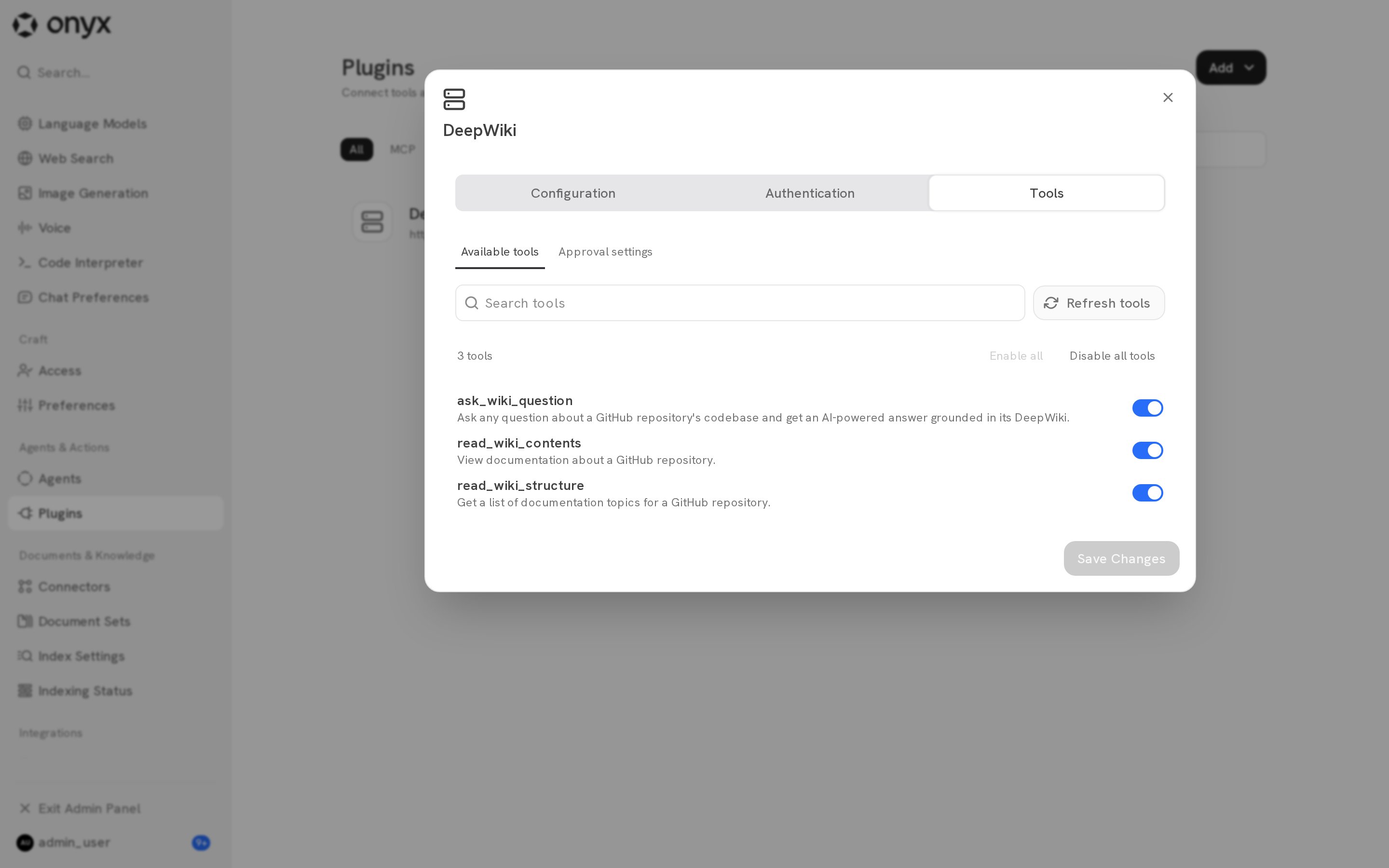
- In Available tools, turn tools on or off for the whole workspace. Use Enable all or Disable all tools for bulk changes.
- Click Refresh tools after the server adds, removes, or changes tools.
- Click Save Changes to apply your changes.
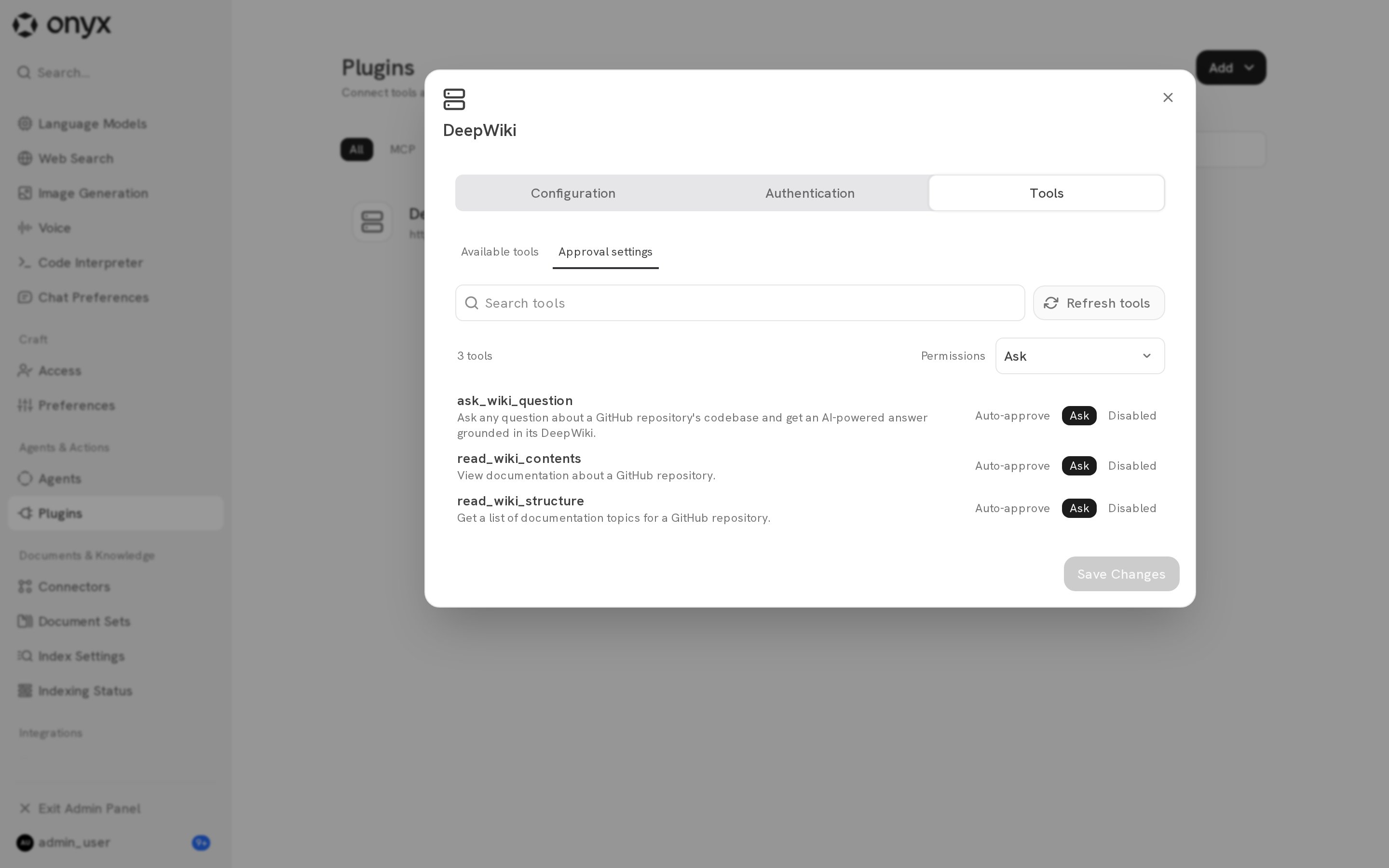
Use Permissions to set all tools at once. Tool availability and Craft policies are separate.
A tool that you turn off in Available tools is not available anywhere.
Configuration tab
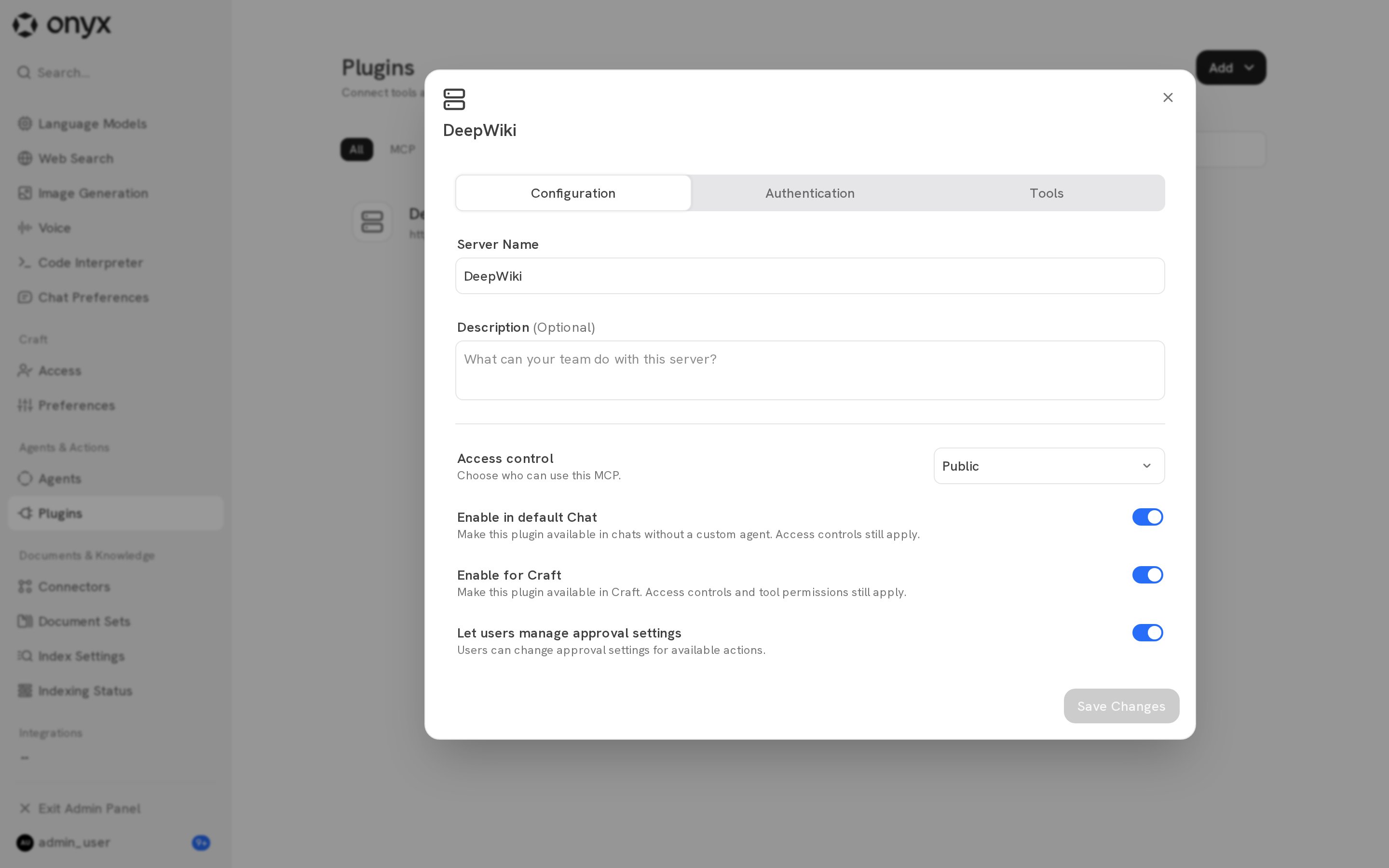
If you change the server URL, Onyx removes the stored connections for that server. Users must connect again.