Adding a Connector
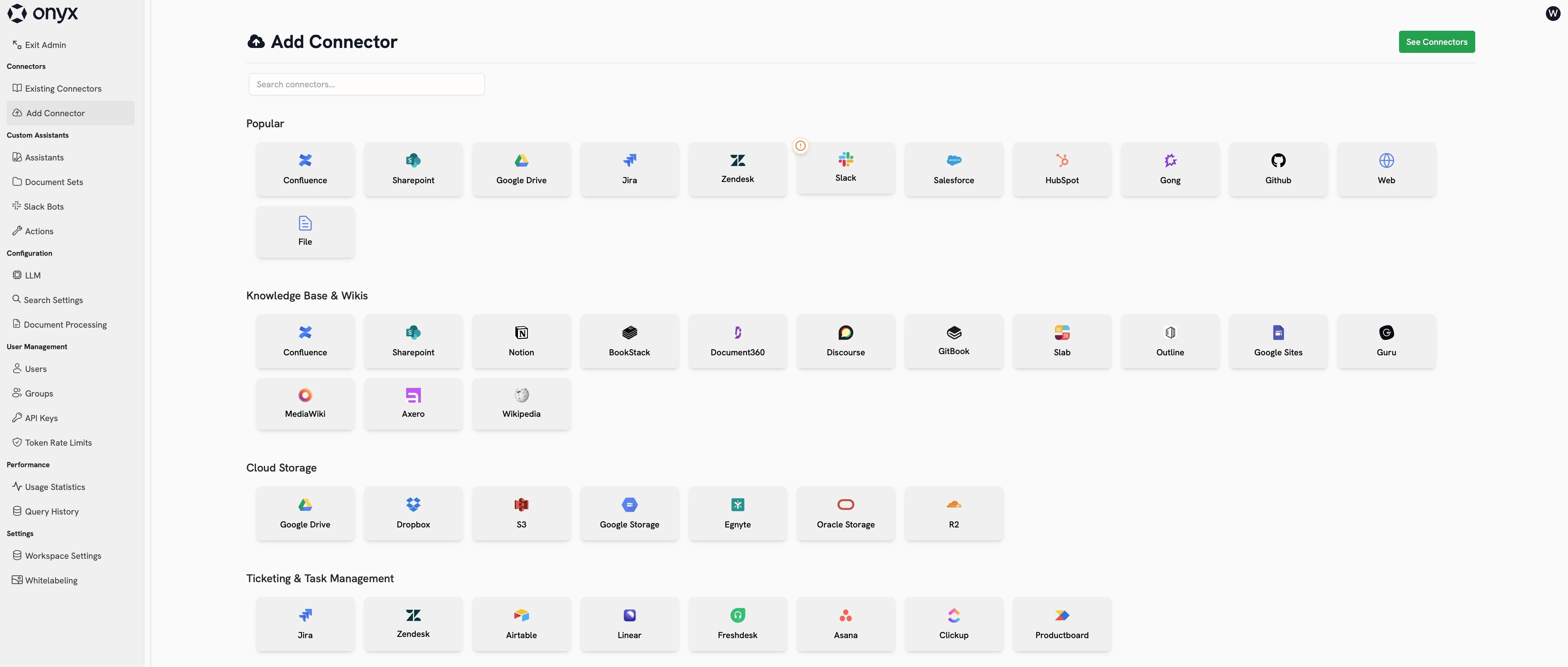
To add a new connector, open the Admin Panel and click Connectors in the sidebar. This page shows all officially supported connectors.You can see unofficial, community-supported connectors by setting
SHOW_EXTRA_CONNECTORS=true in your environment.Credentials
Most Connectors require some form of authentication for Onyx to access your source. This authentication is called a Credential and differs by Connector. Onyx encrypts credentials at rest and never shows the secret again after you save it.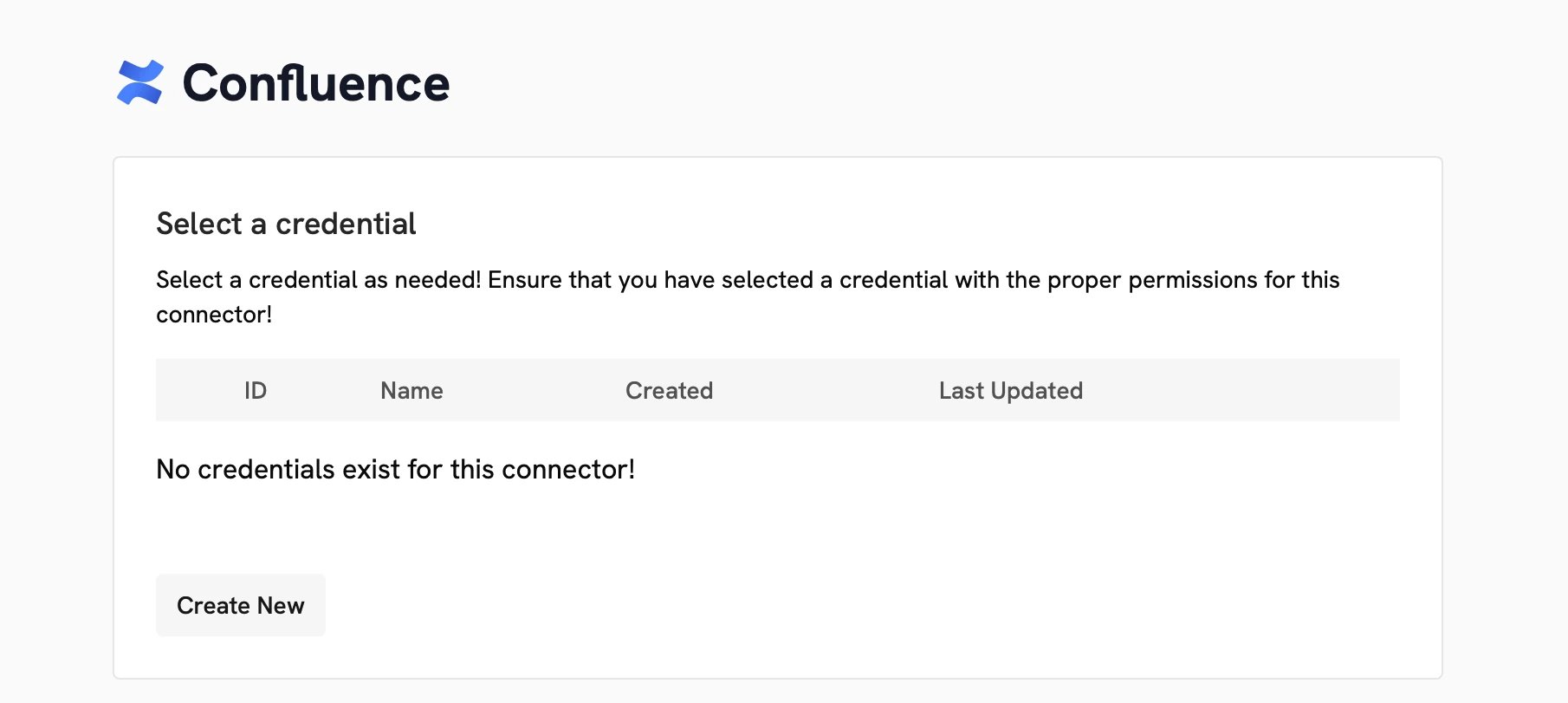
Configuration
Each Connector has its own configuration options to specify the data that should be indexed.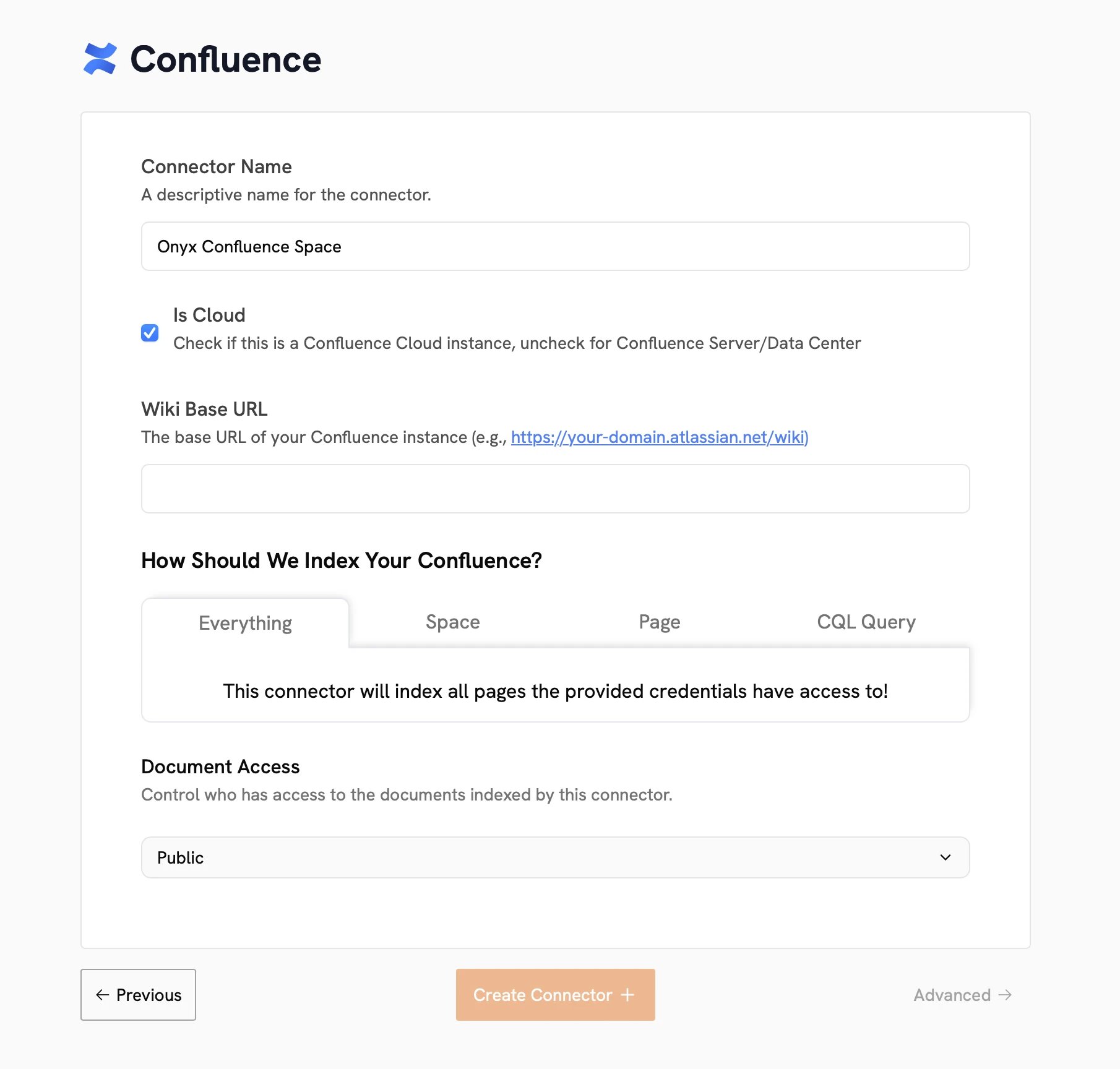
Document Access Controls
The Document Access setting controls who can see the Connector’s documents in Onyx. Everyone in Your Organization (Public): All Onyx users can see data from this Connector. Specific Groups (Private): Only the user who created the Connector and the User Groups you name can see its data. User Groups need a Business plan or higher. Sync with the source: Onyx copies the permissions from the source. Each user only sees documents they can open in the source. You can also Restrict Access to Groups so that only members of selected groups see the documents. Synced permissions still apply. The Indexing Status page shows this as Auto-sync, restricted. You can change the access type later from the Connector’s page. A change starts a re-index so that search results reflect the new access.Connector Access
The Connector Access setting controls who can manage the Connector itself, separate from who can see its documents. Admins can always manage every Connector. You can also name User Groups as:- Operator: schedule and monitor indexing.
- Editor: update or delete the Connector configuration.
Permission-Syncing Connectors
Permission syncing is available on Business, Enterprise, and Cloud plans.
- Google Drive (service account or Google Workspace Admin OAuth credentials)
- Gmail (service account or Google Workspace Admin OAuth credentials)
- Confluence
- Jira
- Slack (the indexed Slack Connector, not Federated Slack)
- GitHub
- Box
- Canvas
- SharePoint (certificate-based authentication)
- OneDrive
- Microsoft Teams
- Outlook
- Linear
- HubSpot
- YouTrack
- Zoom
Schedule
The Schedule section of the Connector form has optional indexing settings. Refresh Every: How often Onyx pulls new and updated documents from the source. The default is 30 minutes. Admins can change the default for new connectors in Index Settings. Prune Every: How often Onyx checks the source and deletes documents that no longer exist. The default is 7 days. Index Documents After: Documents with a last-updated date before this date are not indexed. By default there is no start date, so the first indexing attempt reads the source’s entire history. On a large source that first attempt can take days. Set a start date when you create the connector if you only need recent content, or want the connector searchable sooner. Run Checks Every: How often Onyx checks the connection for capabilities and health. The default is never.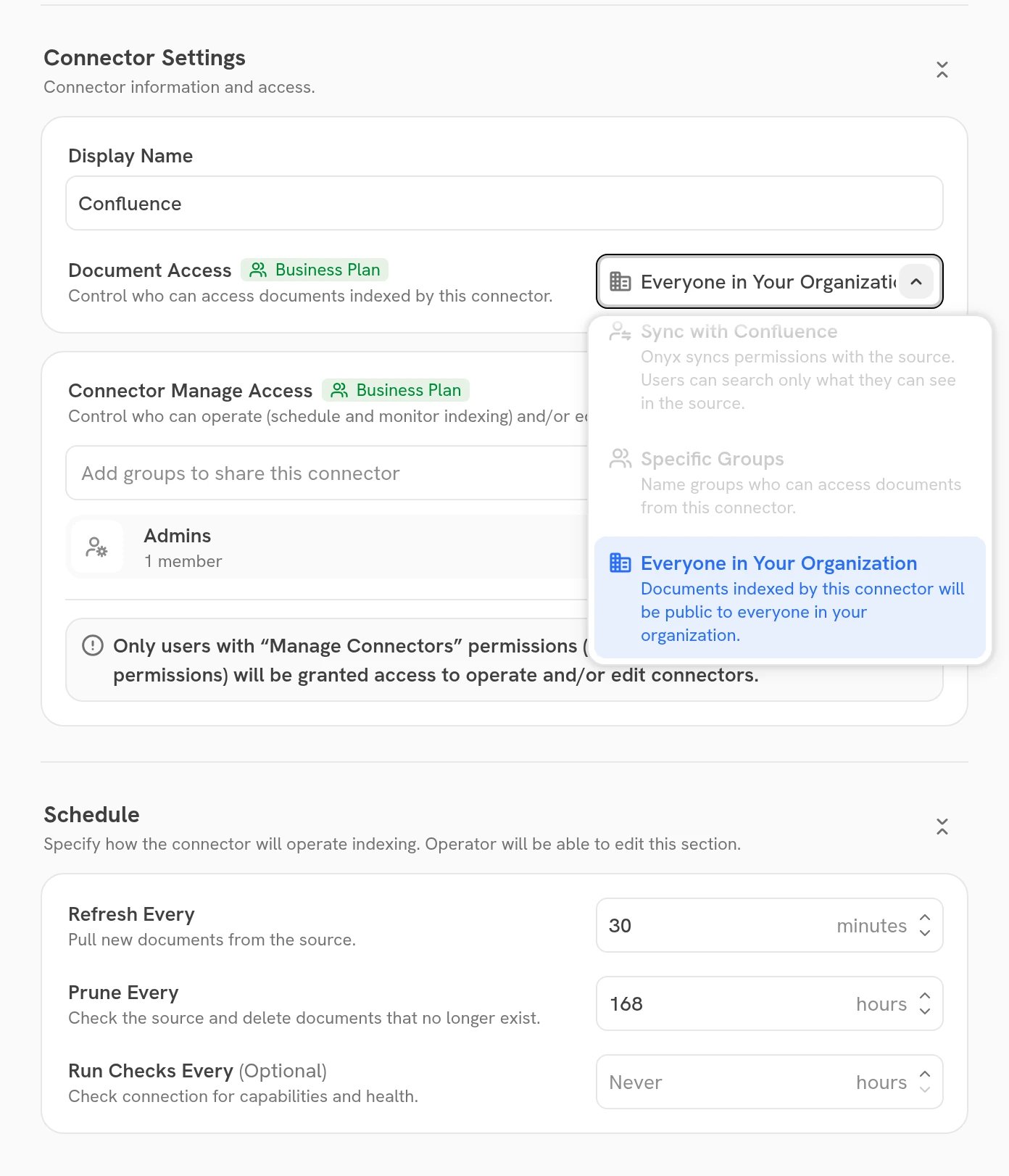
Managing Existing Connectors
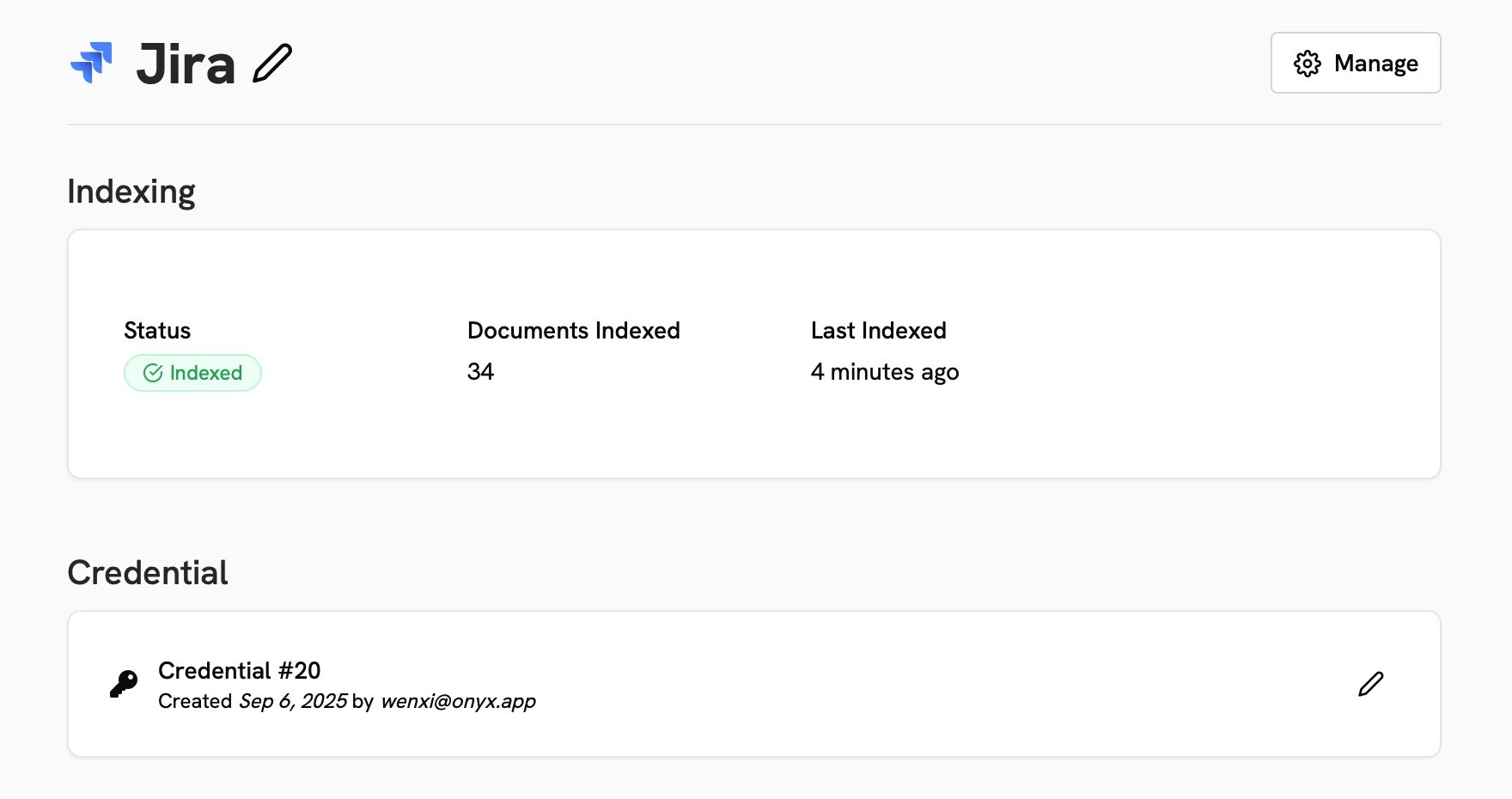
To see your existing Connectors, open the Admin Panel and click Indexing Status in the sidebar. This page shows each Connector, its status, access type, document count, and when it was last indexed.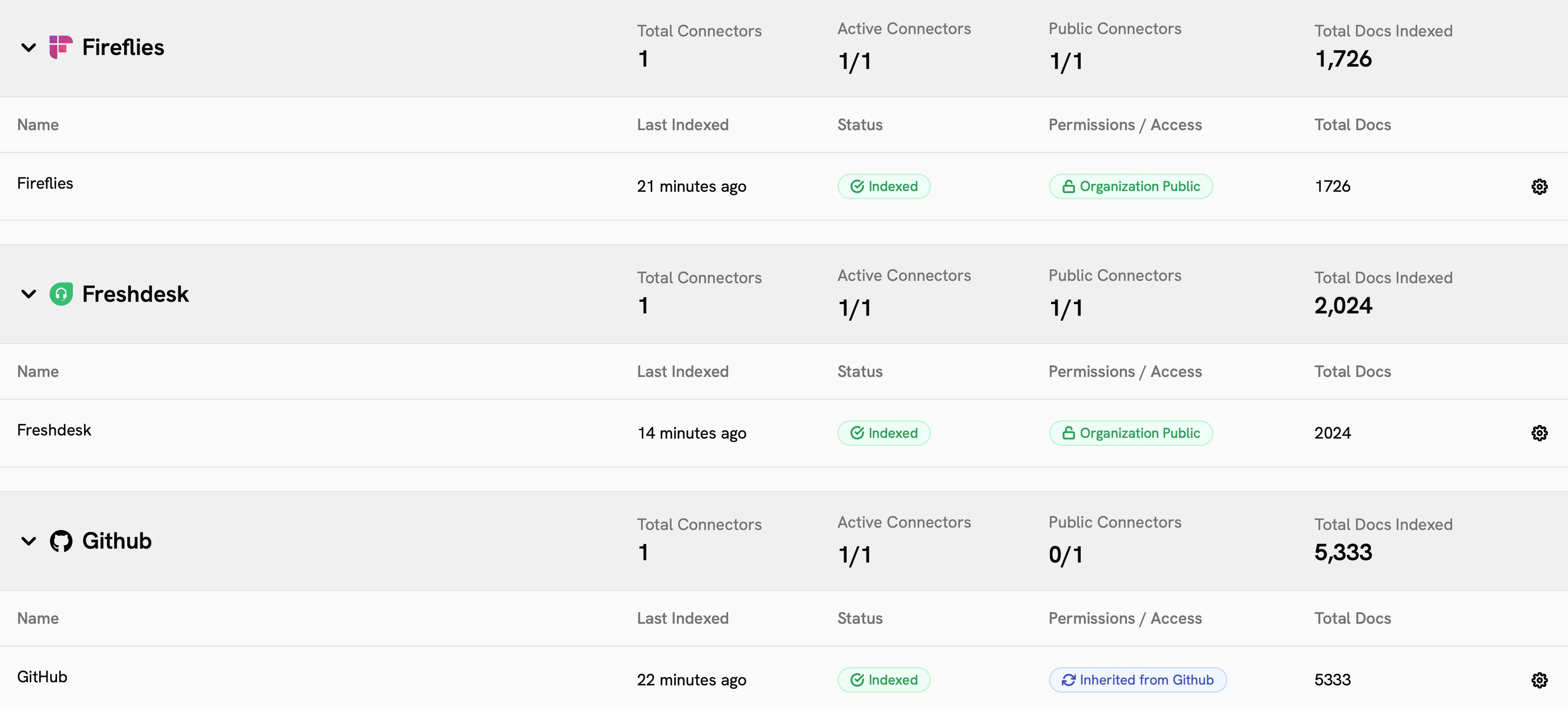
Connector Status
The status of a Connector can be:Active
Inactive or Semi-Active
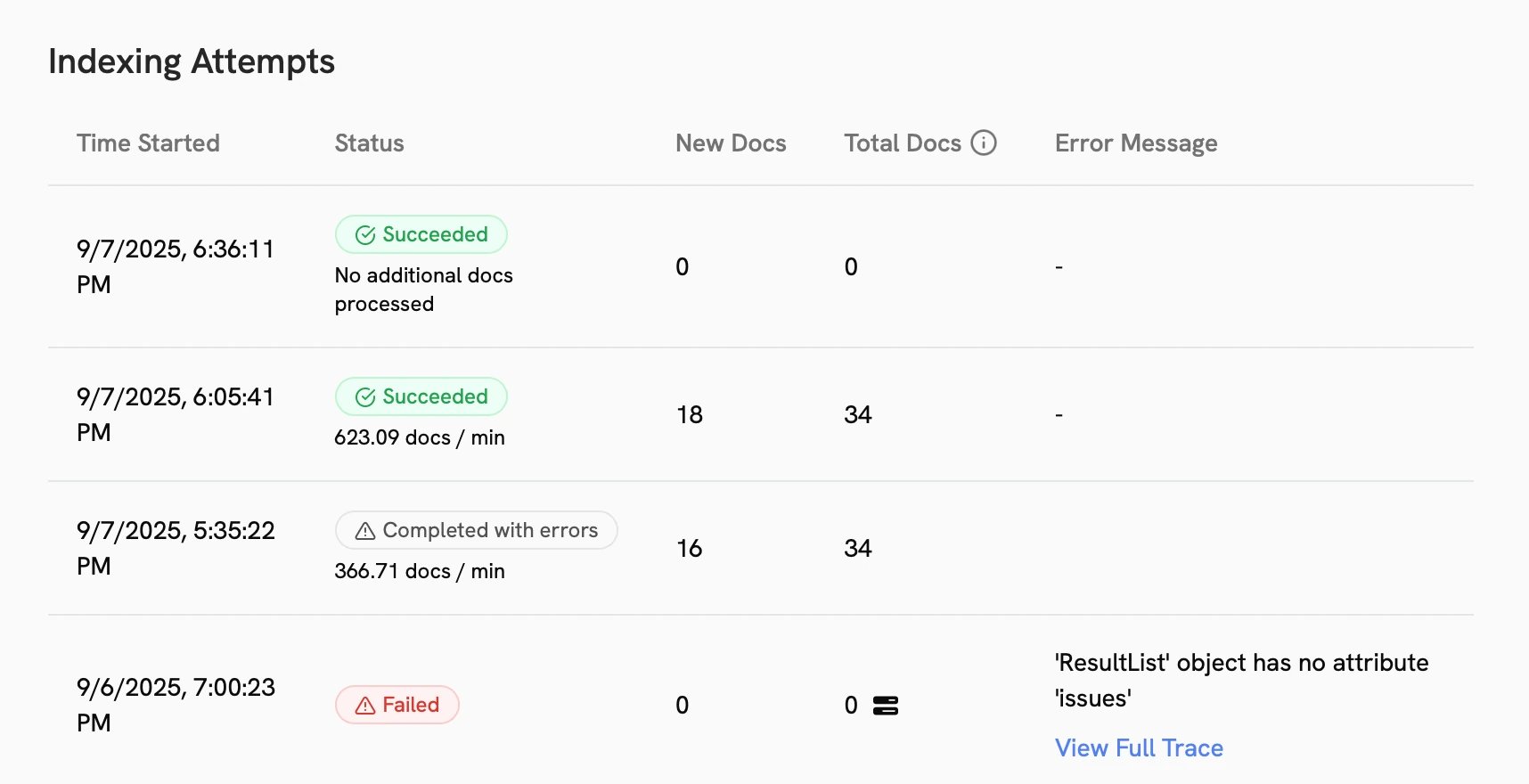
Most failures are temporary and will resolve themselves naturally within a few hours.
Connector Details
The Manage Index menu has these actions:- Update Index: pull updates and index documents since the last successful run.
- Full Re-index: re-index all documents from the source. This can take hours or days on a large source. Not available while a re-index that switches after re-indexing builds the new index (see Search Configs).
- Start Indexing: skip the connector checks and index now.
- Sync Permissions: pull who can read each document from the source now (permission-synced Connectors).
- Pause Indexing & Syncs / Resume Indexing & Syncs: stop or restart indexing runs and permission syncs. Indexed documents stay searchable while paused.
- Delete: remove the Connector and its documents from Onyx.