

Guide
If you want to use a language model provider that is not supported directly by Onyx, you can configure a custom inference provider.1
Setup your Custom Inference Provider
Determine your provider’s API base URL.
It should look something like
https://yourprovider.com/v1 or http://localhost:12345/v1.2
Navigate to Language Models
Access the Admin Panel from your user profile icon, then navigate to Configuration → Language Models.
3
Configure Custom Inference Provider
Select Add Custom LLM Provider from the available providers.Give your provider a Display Name.Enter your model’s Provider Name.In this example, the provider name is 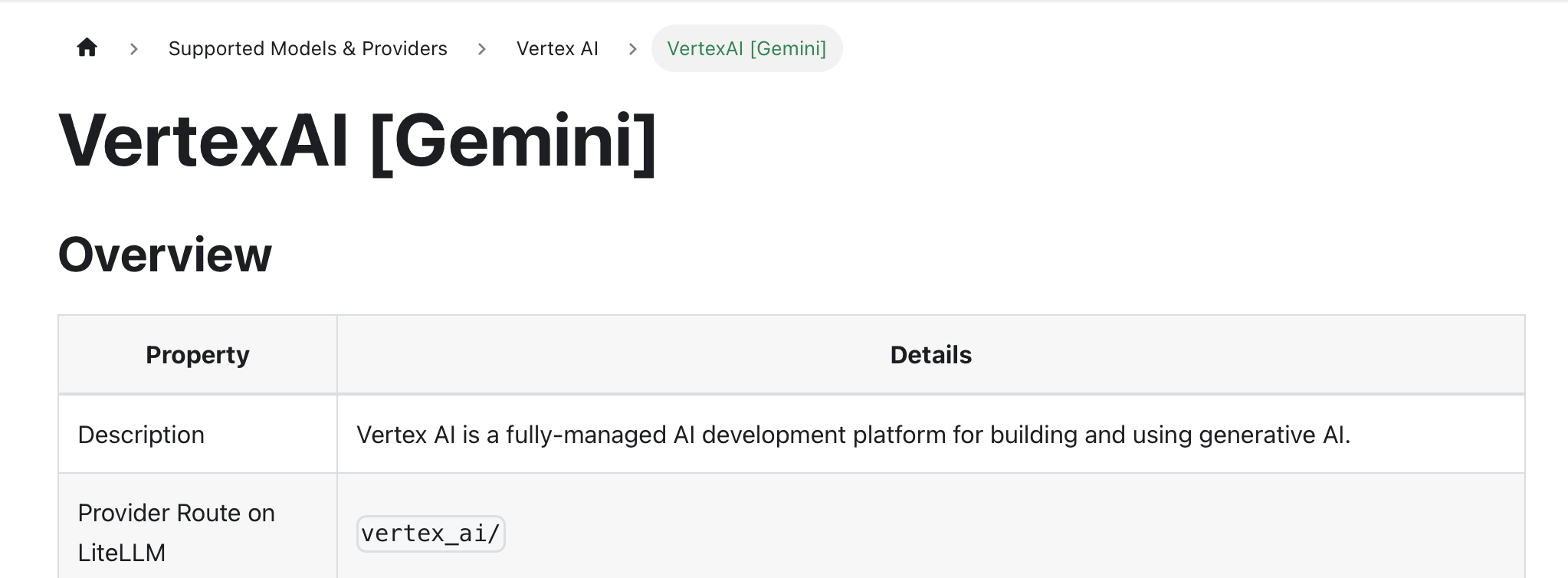
The Provider Name must match Litellm’s list of supported providers.
vertex_ai.4
Configure Optional Fields and Models
Enter the provider’s Base URL.Fill out the other optional fields if applicable.In the Model Configurations section, enter each model you want to make available through this provider.
5
Designate Provider Access
Lastly, you may select whether or not the provider is public to all users in Onyx.If set to private,
the provider’s models will be available to Admins and User Groups you explicitly assign the provider to.