

Guide
1
Navigate to Language Models
Open the Admin Panel from your user profile icon, then open Language Models.
2
Connect OpenAI
Under Add Provider, click Connect on the GPT (OpenAI) card.Create an API key
in the OpenAI dashboard and paste it in the API Key field.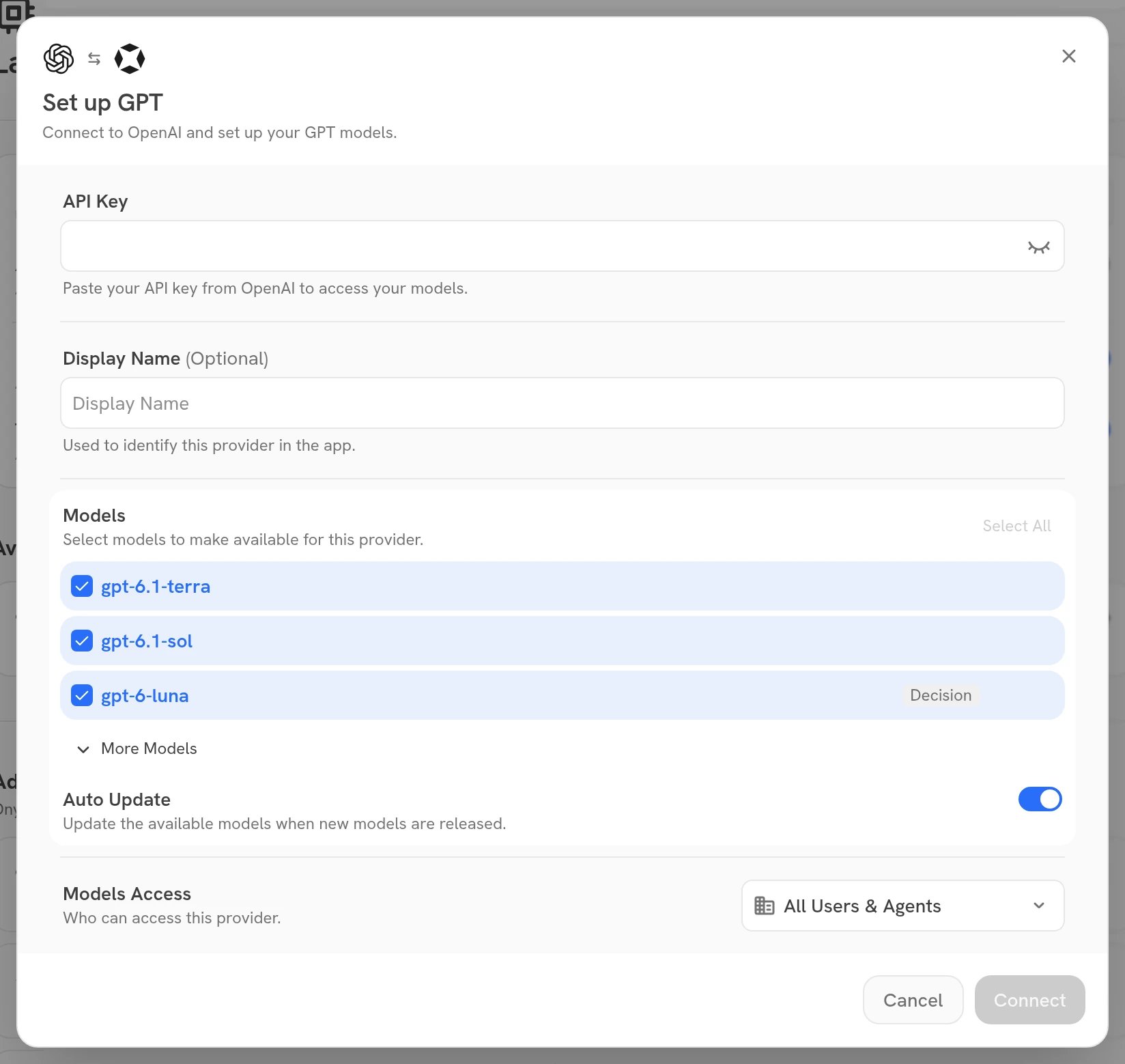
3
Select Models
Onyx lists the recommended GPT models. Keep Auto Update on to add new OpenAI models when they are released.
4
Choose Visible Models
In the Models section, select the models that users can pick in chat. If a model is missing,
open More Models or type its name and click Add Model.Limiting visible models helps when a provider publishes many models and versions of the same model.
5
Set Models Access
Under Models Access, choose All Users & Agents or Named Groups & Agents.With Named Groups & Agents, only Admins and the User Groups and Agents you name can use the models.
Named groups need a Business plan or higher.
6
Connect
Click Connect. Onyx tests the API key with one of the selected models before it saves the provider.If this is the first provider, Onyx sets it as the Default Model for new chats.