

Guide
Configure Onyx to use models served through Nebius TokenFactory.Nebius TokenFactory serves open-weight models through an OpenAI-compatible API.
Onyx lists the chat models available to your key, with each model’s context window.
1
Set Up Your Nebius TokenFactory Access
In the Nebius TokenFactory console, create an API Key.
2
Navigate to Language Models
Open the Admin Panel from your user profile icon, then open Language Models.
3
Connect Nebius TokenFactory
Under Gateways & Routers, click Connect on the Nebius TokenFactory card.Keep the default API Base URL (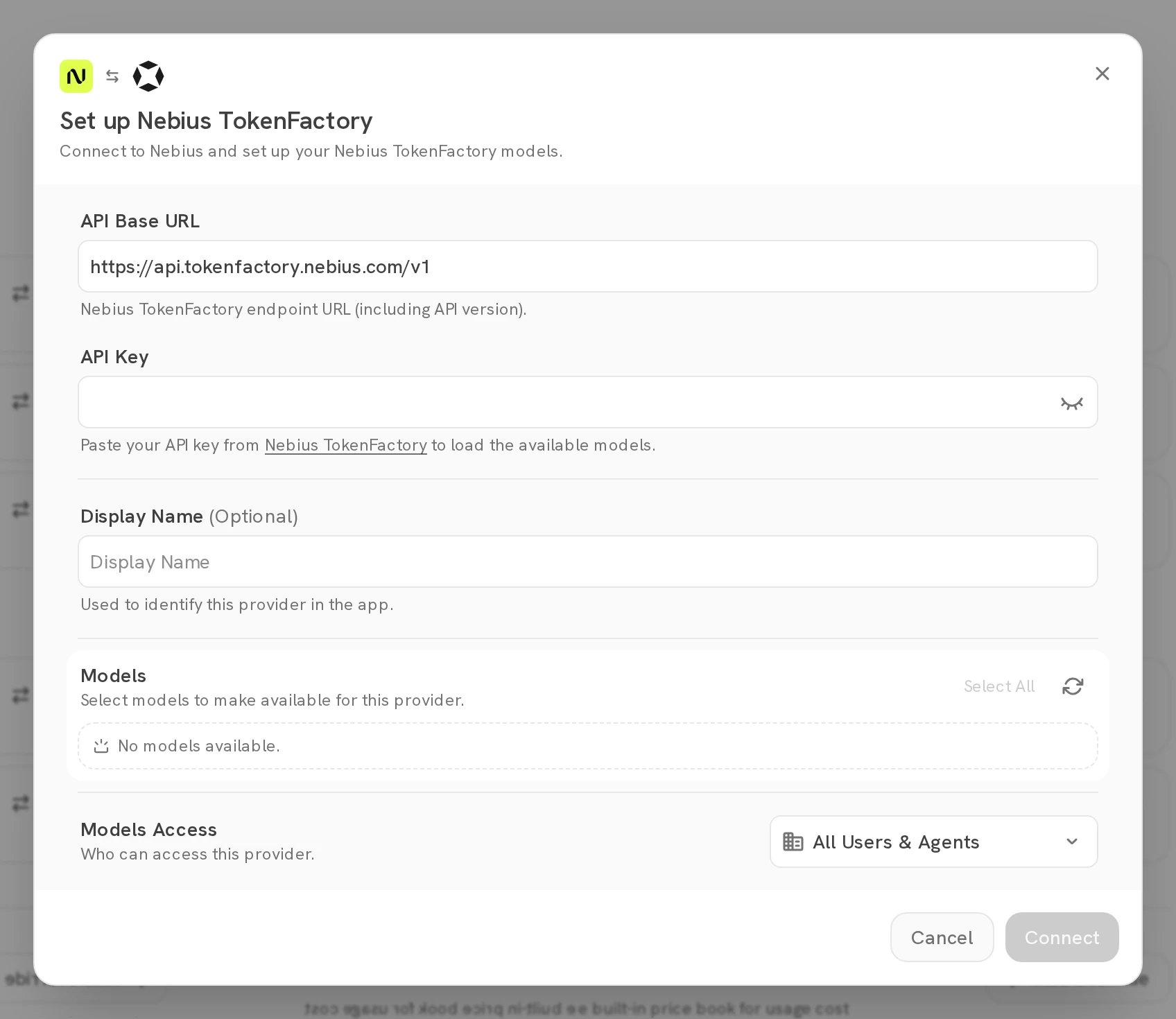
https://api.tokenfactory.nebius.com/v1), including the API version,
unless Nebius gives you a different endpoint.Paste your Nebius TokenFactory API Key.4
Load Your Models
In the Models section, click Refresh models. Onyx lists the models that Nebius TokenFactory exposes.
5
Choose Visible Models
In the Models section, select the models that users can pick in chat. If a model is missing,
open More Models or type its name and click Add Model.Limiting visible models helps when a provider publishes many models and versions of the same model.
6
Set Models Access
Under Models Access, choose All Users & Agents or Named Groups & Agents.With Named Groups & Agents, only Admins and the User Groups and Agents you name can use the models.
Named groups need a Business plan or higher.
7
Connect
Click Connect. Onyx tests the provider with one of the selected models before it saves it.