

Guide
Configure Onyx to use models served by LM Studio. Onyx has a built-in integration with LM Studio that auto-discovers your loaded models, including their capabilities (vision, reasoning) and context length.1
Setup LM Studio and Load Your Models
Download LM Studio from lmstudio.ai and load the models you want to use.Start the LM Studio local server:LM Studio runs on port
1234 by default.If LM Studio is running on a different machine than Onyx,
make sure the server is accessible from the Onyx host (e.g., http://<lm-studio-host>:1234).Running Onyx in Docker on the same machine as LM Studio?By default, LM Studio binds only to
127.0.0.1, which is unreachable from inside an Onyx container. To fix:- In LM Studio’s Developer tab, enable “Serve on Local Network” (or set the host to
0.0.0.0) and restart the server. - Use
http://host.docker.internal:1234as the API Base URL instead ofhttp://localhost:1234.
2
Navigate to Language Models
Access the Admin Panel from your user profile icon, then navigate to Configuration → Language Models.
3
Configure LM Studio
Select LM Studio from the available providers.Give your provider a Display Name.Set the API Base URL to your LM Studio server address (e.g., 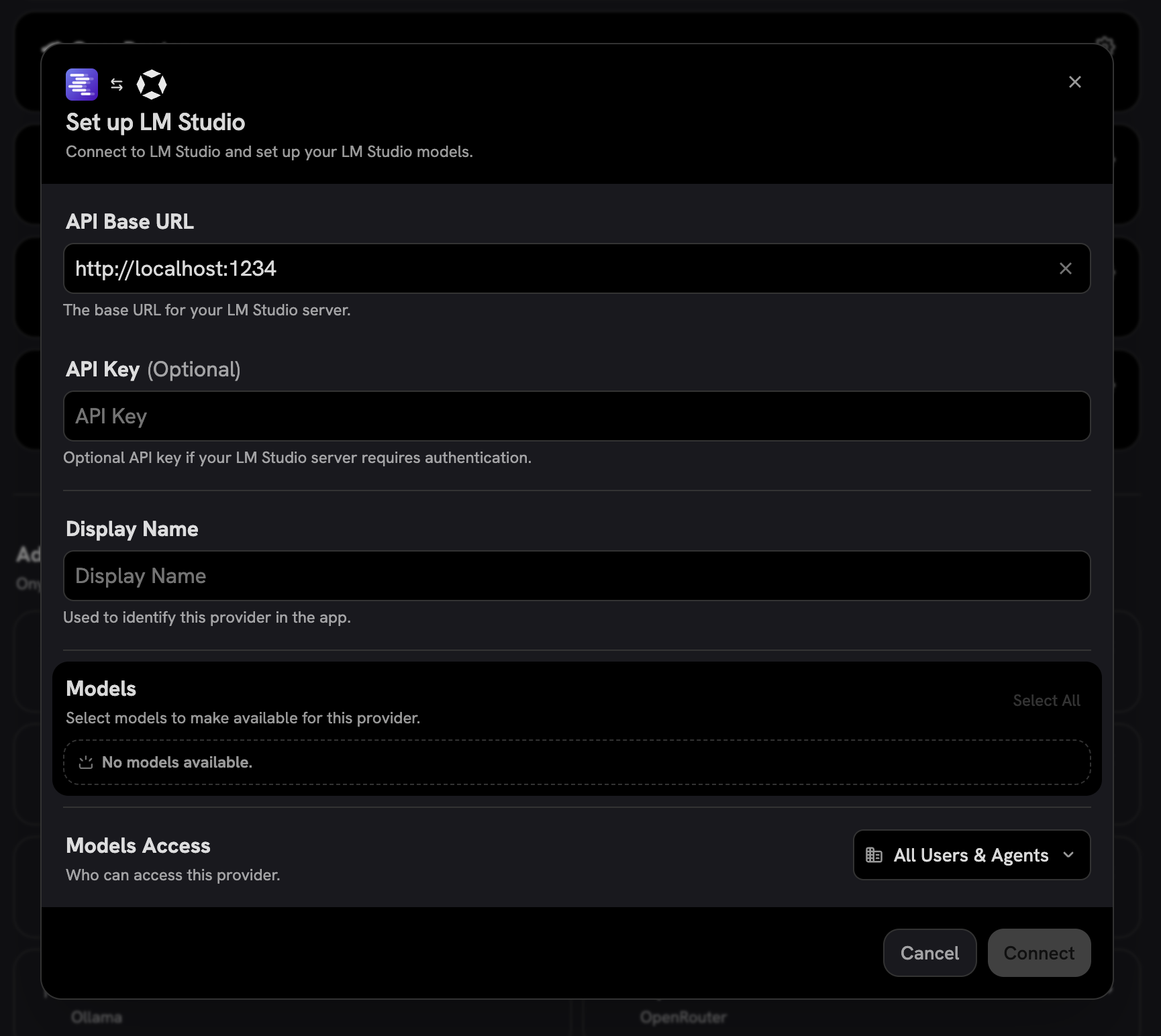
http://localhost:1234).If Onyx is running in Docker on the same machine as LM Studio,
use http://host.docker.internal:1234 instead — localhost inside the container points to the container itself,
not your host.
Make sure LM Studio is set to “Serve on Local Network” (see the Info callout in the previous step).Onyx will automatically connect and discover your loaded models.4
Choose Visible Models
In the Advanced Options, you will see a list of all models available from this provider.
You may choose which models are visible to your users in Onyx.Setting visible models is useful when a provider publishes multiple models and versions of the same model.
5
Designate Provider Access
Lastly, decide whether the provider should be public to all users in Onyx.If set to private,
the provider’s models will be available to Admins and User Groups you explicitly assign the provider to.