

Guide
Configure Onyx to use models served by Ollama. Onyx supports a self-hosted Ollama server and Ollama Cloud.1
Set Up Ollama and Pull Your Models
The Ollama GitHub repository
explains how to install Ollama and pull models.A self-hosted Ollama server listens on port For Ollama Cloud, create an API key in your Ollama account.
11434 by default.
Make sure the server is reachable from the Onyx host.Running Onyx in Docker on the same machine as Ollama?Use
http://host.docker.internal:11434 as the API Base URL.
localhost inside a container points to the container itself, not to your host.
Onyx shows this hint and fills in the Docker address when it runs in a container.2
Navigate to Language Models
Open the Admin Panel from your user profile icon, then open Language Models.
3
Connect Ollama
Under Self-hosted & Custom, click Connect on the Ollama card.Select the Self-hosted Ollama tab and enter the API Base URL of your server,
for example 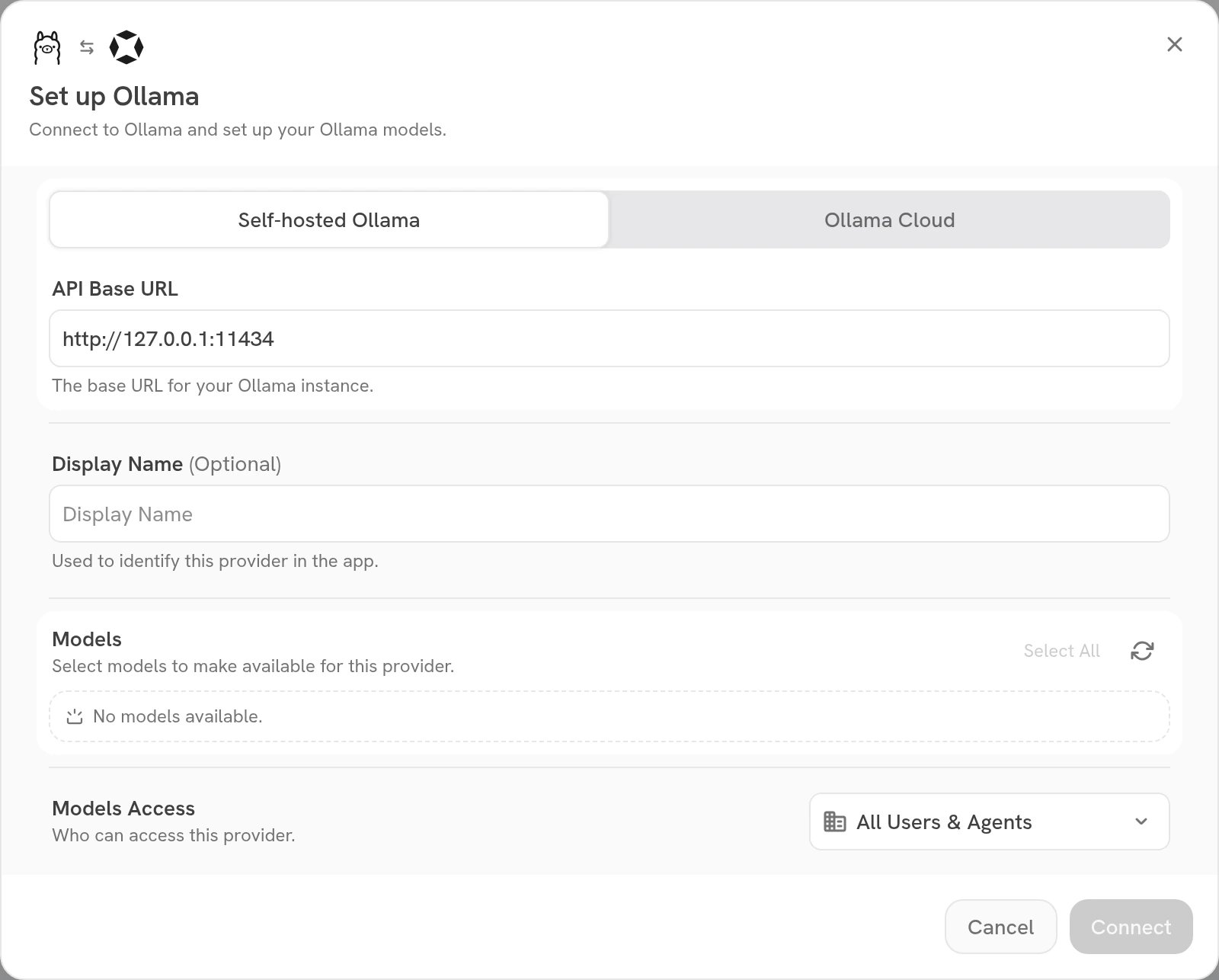
http://127.0.0.1:11434.Or select the Ollama Cloud tab and paste your Ollama Cloud API Key.4
Load Your Models
In the Models section, click Refresh models.
Onyx reads the models that your Ollama instance serves and shows their context size and capabilities (vision,
reasoning).
5
Choose Visible Models
In the Models section, select the models that users can pick in chat. If a model is missing,
open More Models or type its name and click Add Model.Limiting visible models helps when a provider publishes many models and versions of the same model.
6
Set Models Access
Under Models Access, choose All Users & Agents or Named Groups & Agents.With Named Groups & Agents, only Admins and the User Groups and Agents you name can use the models.
Named groups need a Business plan or higher.
7
Connect
Click Connect. Onyx tests the connection with one of the selected models before it saves the provider.